

Windows now ships with a broad set of background services, scheduled tasks, and account-linked features that together create a steady stream of diagnostic, usage and personalization data flowing off consumer devices — and if any of the dozen settings flagged by the Technobezz write‑up remain enabled, Microsoft is very likely collecting at least some of that data. rview
Windows telemetry and the Customer Experience Improvement Program (CEIP) are the two pillars behind the operating system’s data collection model. Microsoft describes these systems as tools to diagnose problems, improve reliability, and deliver better updates; independent forensic work and community testing show those mechanisms can record hardware identifiers, app and driver inventories, and detailed event traces that reveal system activity. The interplay between UI toggles, scheduled tasks, Group Policy/MDM controls and account-level cloud services means privacy settings are split across local and cloud controls — some that you can change in Settings, and others that require Task Scheduler, registry edits, or enterprise policies to make durable. This article verifies the key claims from the circulating “12 Windows settings” list, explains what each setting actually does, cross‑checks Microsoft’s documentation and independent analysis, and provides practical, risk‑aware steps to reduce unwanted telemetry while preserving critical functions.
Microsoft publishes detailed guidance about diagnostic data levels, the AllowTelemetry policy, and tools to review or delete diagnostic data.
Windows telemetry exists for operational reasons, but operational benefit does not eliminate legitimate privacy concerns. With the right mix of supported UI controls, administrative policy, and periodic audits, users and administrators have meaningful ways to reduce unnecessary data flow without throwing away the security and update benefits that telemetry provides.
Source: Technobezz If Any of These 12 Windows Settings Are Active, Microsoft Is Probably Collecting Your Data
Windows telemetry and the Customer Experience Improvement Program (CEIP) are the two pillars behind the operating system’s data collection model. Microsoft describes these systems as tools to diagnose problems, improve reliability, and deliver better updates; independent forensic work and community testing show those mechanisms can record hardware identifiers, app and driver inventories, and detailed event traces that reveal system activity. The interplay between UI toggles, scheduled tasks, Group Policy/MDM controls and account-level cloud services means privacy settings are split across local and cloud controls — some that you can change in Settings, and others that require Task Scheduler, registry edits, or enterprise policies to make durable. This article verifies the key claims from the circulating “12 Windows settings” list, explains what each setting actually does, cross‑checks Microsoft’s documentation and independent analysis, and provides practical, risk‑aware steps to reduce unwanted telemetry while preserving critical functions.
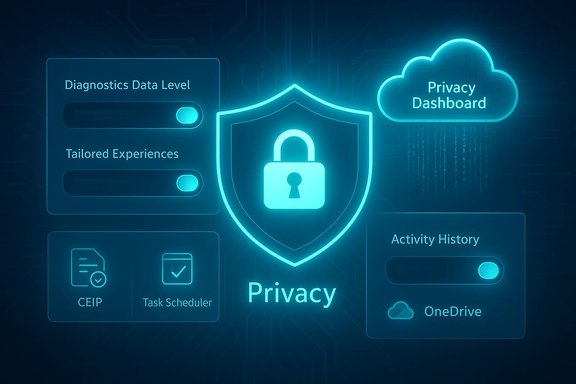 What Microsoft says — the official baseline
Microsoft publishes detailed guidance about diagnostic data levels, the AllowTelemetry policy, and tools to review or delete diagnostic data.- Diagnostic levels and policy. Windows diagnostic data is controlled by levels that map to policy values. On managed / Enterprise editions you can set telemetry off (Diagnostic data off / Security), Required (minimum), or Optional (fuller diagnostics) using the AllowTelemetry policy or the equivalent MDM policy. Consumer editions (Home/Pro) are limited: the system enforces a minimum required level and the full “off” option is only supported on Enterprise/Education/Server SKUs. The vendor documentation spells out the policy name, registry location, and allowed values.
- What’s collected at “Required.” Microsoft’s published lists of required diagnostic events and fields show the kind of device and configuration information collected even at the minimum diagnostic level: device identifiers, driver versions, hardware model and capabilities, and events that indicate update readiness or device health. Those lists are granular and are updated alongside Windows releases.
- Tools and controls. Windows exposes UI toggles in Settings > Privacy (or Privacy & security) and supplies the Diagnostic Data Viewer as a store / inspection tool so users can review event JSON on the device. Microsoft also documents registry and Group Policy keys that administrators should use to lock down collection on managed fleets. The company provides a cloud‑side Privacy Dashboard for account‑level data deletion.
What independent analysis finds
Official documentation is necessary but not sufficient to understand what actually leaves the device. Independent forensic research and DFIR community work reveal additional detail:- Stored telemetry artifacts. Earlier Windows releases used compressed RBS files (events00.rbs, events10.rbs, etc., later replaced by EventTranscript.db and related artifacts. Forensic papers and DFIR write‑ups document the file structures, show how the DiagTrack engine writes events, and demonstrate that the telemetry store can include event traces and payloads useful for troubleshooting — and potentially revealing when combined.
- The content can be granular. Forensic analysis and independent DPIAs (data protection impact assessments) examining telemetry exports have found telemetry events that include serial numbers, GUIDs, device class identifiers and, in some circumstances, fragments of user input (for example typing / inking traces noted during specific investigations). These findings support the observation that telemetry is not purely “anonymous counters”; depending on sampling and the telemetry level, data can be pseudonymous or contain identifiers that link to a device.
- Persistence and sampling complexity. EventTranscript.db and other telemetry artifacts live outside the traditional event log chain and persist until overwritten or cleared. Microsoft uses sampling and processor‑side filtering, meaning not every event is uploaded for every device, but when events are sampled they can be uploaded with detailed JSON payloads.
The 12 settings: verification and technical reality
Below is a consolidated, verified breakdown of the common privacy surfaces that appear on “12 settings” lists, paired with what the evidence says and the practical impact of changing each toggle.1) Diagnostic / Telemetry level (Required vs Optional / AllowTelemetry)
- What it is: Windows diagnostic collection. On consumer SKUs the minimum is “Required”; enterprise SKUs can set Diagnostic data off via policy.
- What Microsoft documents: Policy name and registry path (AllowTelemetry under HKLM\SOFTWARE\Policies\Microsoft\Windows\DataCollection) and allowed values; the vendor explicitly states which editions support “off.”
- What independent analysis shows: Required diagnostic events include device identifiers, driver/app inventories and other configuration data; optional collection adds deeper logs and crash dumps. Forensic researchers have recovered telemetry artifacts and event payloads in RBS/EventTranscript.db stores.
- Practical note: On Home/Pro you cannot fully “turn off” required telemetry; you can only limit optional telemetry. Use Group Policy / MDM for durable control on managed devices.
2) Customer Experience Improvement Program (CEIP) and scheduled telemetry tasks
- What it is: CEIP and related scheduled tasks (Compatibility Appraiser, ProgramDataUpdater, Consolidator, KernelCeipTask, Uploader) that collect compatibility and usage metrics.
- Evidence: Microsoft documents the CEIP registry key and behaviour; CEIP uses scheduled tasks and consolidator/uploader components. Community and vendor guides show these tasks run periodically and can be disabled if desired.
- Performance / privacy impact: Disabling CEIP scheduled tasks can reduce background CPU/disk and network activity on some machines; many community guides and troubleshooting posts link high CPU or disk usage to CompatTelRunner and related tasks. However, disabling these tasks can reduce compatibility telemetry used for update judgment.
- Practical note: CEIP can be disabled via registry or by disabling specified scheduled tasks in Task Scheduler, but do this only after backing up and understanding support implications.
3) Activity History / Timeline (Send my activity history to Microsoft)
- What it is: Local and cloud activity recording to provide cross‑device Resume/Timeline.
- Verification: Microsoft describes the setting and how to clear local history; it also notes cloud account activity must be managed via the Privacy Dashboard.
- Practical risk: If enabled and you sign into a Microsoft account, snippets of app and file activity may be synced to the cloud.
4) Advertising ID and personalized ads
- What it is: Per‑profile Advertising ID used by apps to serve interest‑based ads.
- Microsoft docs: Advertising ID is described and a local toggle is available in Settings to disable it. Microsoft confirms apps can access the advertising ID when it’s enabled.
- Practical note: Turning the advertising ID off prevents app‑level ad personalization; it does not stop all forms of Microsoft or third‑party ad tracking (cookies, browser signals).
5) Online speech recognition, Cortana and voice data
- What it is: Cloud‑based speech recognition sends audio to Microsoft; Cortana and speech services may contribute voice clips.
- Microsoft docs: Clear instructions to disable Online speech recognition are published and voice data can be inspected and cleared via the Privacy Dashboard. Microsoft also documents the local vs cloud speech behavior.
- Practical risk: If enabled, voice clips can be contributed to cloud models unless you turn off the relevant toggle and clear history.
6) Inking & typing personalization (input learning)
- What it is: Stores handwriting / typing patterns to personalize recognition.
- Evidence & risk: Microsoft documents the option and the privacy trade‑offs; DPIAs and independent analysis have previously noted that input personalization telemetry can include fragments of typed or written text in diagnostic payloads. For privacy‑sensitive users, disabling input personalization reduces cloud‑bound examples.
7) Location services
- What it is: Location sensors used by apps and system services.
- Microsoft docs: Toggle paths and the ability to clear location history are documented. Location must be on for features such as Find My Device and localized services.
8) Camera & Microphone permissions and background app access
- What it is: App-level permissions for camera/mic and permissions for background tasks.
- Practical impact: Audit apps that hold camera/microphone access; background apps can increase telemetry surface area.
9) Windows Search / Bing integration (Search highlights, cloud content)
- What it is: Search can surface web results (Bing), cloud content (OneDrive/Outlook) and “Search highlights.”
- Evidence: Microsoft documents Search permissions and cloud content settings; turning cloud content search and highlights off limits online results. Full removal of web results is not supported in all builds without enterprise policy or unsupported hacks.
10) Tailored Experiences and targeted recommendations
- What it is: “Tailored experiences” use diagnostic data to provide personalized tips, ads and recommendations.
- Microsoft docs: The feature is described in the Windows privacy documentation and can be toggled off in Diagnostics & feedback.
11) OneDrive/Cloud Folder Backup nudges and File Explorer sync provider
- What it is: OneDrive’s Folder Backup and Explorer integration generate sync metadata and prompts; autosync transmits file metadata (and files, ift cloud storage.
- Practical note: Unlinking OneDrive or limiting Folder Backup prevents ongoing file syncs and associated metadata transfers.
12) Background apps, app permissions and telemetry surface area
- What it is: Many UWP and some desktop apps run background tasks; these can trigger telemetry and network traffic.
- Practical mitigation: Turn off “Let apps run in background” and audit app permissions.
Confirmations, cautions, and unverifiable claims
- Confirmed: Diagnostic events include device identifiers and hardware details. Microsoft’s required event documentation and independent DFIR work agree on this point.
- Confirmed: Complete “off” for telemetry is edition‑dependent. AllowTelemetry = 0 (Diagnostic data off) is only supported on Enterprise/Education/Server; Home/Pro cannot fully opt out via this policy.
- Confirmed: Scheduled CEIP / Compatibility Appraiser tasks run periodically and can be disabled. Microsoft documents CEIP controls; community guides and admin scripts show how to disable those scheduled tasks where desired. Product support implications should be considered.
- Caution — unverified third‑party citation: The Technobezz piece references a SANS Internet Storm Center note linking CEIP task disabling to better performance. While CEIP task disabling is commonly reported by community testers to reduce CPU/disk usage, a direct SANS ISC advisory corroborating that specific claim could not be located in the public SANS archives during verification — treat the SANS reference as anecdotal unless you can point to the original ISC post.
- Caveat: Many community “telemetry disabling” tools and registry hacks are brittle. Windows major updates sometimes reset settings or change key names; some registry changes are only honored on specific SKUs. Use documented Group Policy/MDM controls for managed fleets.
How to reduce Microsoft telemetry without breaking Windows — a practical, safe workflow
These steps are ordered and conservative: testable, reversible, and suitable for home power users or enterprise admins.- Inventory and backup
- Create a full image or at least a System Restore point. This lets you roll back if a change impacts functionality.
- Confirm your Windows edition
- If you manage devices with Group Policy or MDM, prefer those channels. If you’re on Home/Pro, know that AllowTelemetry = 0 will not be honored.
- UI-level sweep (safe, quick — 10–20 minutes)
- Settings > Privacy & security (or Privacy on older builds):
- Turn off Advertising ID / recommendations.
- Diagnostics & feedback: set Diagnostic data to Required only, turn off Send optional diagnostic data, turn off Tailored experiences, set Feedback frequency to Never.
- Speech: turn off Online speech recognition and stop contributing voice clips.
- Activity history: uncheck Store my activity history and Send my activity history to Microsoft; click Clear.
- Location / Camera / Microphone: disable or restrict per app.
- Use Diagnostic Data Viewer to inspect
- Enable the Diagnostic Data Viewer, watch what events are recorded for a few days, then turn it off and use the Delete diagnostic data capability if desired. This provides empirical evidence of what your device produces.
- Disable CEIP / scheduled telemetry tasks (intermediate)
- If you accept the risk to supportability: open Task Scheduler > Task Scheduler Library > Microsoft > Windows and look under Application Experience and Customer Experience Improvement Program. Disable tasks like Microsoft Compatibility Appraiser, ProgramDataUpdater, StartupAppTask, Consolidator and Uploader if present. Alternatively, use the CEIP registry key HKLM\Software\Microsoft\SQMClient\Windows\CEIPEnable (0 = disabled). Remember, scheduled tasks may be re‑created by updates.
- Enterprise / durable controls (admins)
- Use Group Policy: Computer Configuration → Administrative Templates → Windows Components → Data Collection and Preview Builds → Configure telemetry opt‑in settings or AllowTelemetry. On enrolled devices, use MDM policy CSP System/AllowTelemetry to enforce settings.
- Consider safe third‑party tooling (advanced users)
- Use well‑maintained utilities (for example, O&O ShutUp10++) that enumerate individual toggles and include explanations. Choose tools with changelogs and prefer tools that do not make black‑box changes. Test on spare machines first.
- Monitor after changes
- Validate Windows Update, Defender, Search, and any managed monitoring tools continue to operate. Restore settings promptly if helpdesk or security processes require telemetry.
Strengths and risks: a critical analysis
- Strengths of Microsoft’s approach
- Operational value. Diagnostic data helps Microsoft reproduce and prioritize critical issues across millions of devices; many bug‑fixes and compatibility improvements rely on aggregated telemetry.
- Increasing transparency. Microsoft now publishes event field lists, offers the Diagnostic Data Viewer, and documents policy/registry options — markedly more ier Windows eras.
- Real privacy risks and operational tradeoffs
- Granularity can reveal more than intended. Event payloads and device identifiers, when combined, can be used to profile device behavior. Independent DPIAs and DFIR work show telemetry can include identifying or semi‑identifying data in practice.
- Edition and policy friction. The “off” option is only supported for enterprise SKUs, complicating a one‑size‑fits‑all privacy posture for consumers.
- Brittle durability. Many community‑recommended registry hacks and third‑party “debloaters” are brittle; feature updates can revert or rename keys. For managed fleets, MDM/GPO is the recommended approach.
- Support consequences. Disabling optional telemetry may complicate troubleshooting with Microsoft support; some diagnostic features require temporarily enabling richer telemetry to expedite fixes.
- Security considerations
- Telemetry components and CEIP agents are privileged pieces of software that interact with disk and network. Historically, telemetry and analytics components have been considered potential attack surfaces in vendor advisories; organizations should patch and monitor accordingly. Independent write‑ups recommend hardening and tight privilege boundaries for hosts that process untrusted content.
Final assessment and recommended posture
The core claim behind the “12 settings” list — that leaving these toggles enabled will allow Microsoft to collect a broad set of diagnostic and personalization data — is accurate in substance. Microsoft’s own published event lists and policy documentation confirm the types of data collected, and independent forensic work demonstrates that telemetry stores device identifiers, hardware and software inventories, and detailed event traces that can be sampled and uploaded. A balanced, practical recommendation is:- For typical users: perform the UI sweep (Advertising ID off, optional diagnostics off, tailored experiences off, online speech off, activity history cleared) and unlink OneDrive if you don’t use it. Use the Diagnostic Data Viewer to confirm what your device records. These are reversible and supported steps.
- For privacy‑conscious power users: combine the UI steps with careful scheduled task audits (disable Compatibility Appraiser etc., and consider a trusted hardening utility after testing on a throwaway machine. Maintain a backup and recheck after feature updates.
- For managed fleets: enforce telemetry limits via Group Policy or MDM, document exceptions for support/debugging, and use the admin deletion APIs for device data removal where regulated compliance requires it.
Windows telemetry exists for operational reasons, but operational benefit does not eliminate legitimate privacy concerns. With the right mix of supported UI controls, administrative policy, and periodic audits, users and administrators have meaningful ways to reduce unnecessary data flow without throwing away the security and update benefits that telemetry provides.
Source: Technobezz If Any of These 12 Windows Settings Are Active, Microsoft Is Probably Collecting Your Data
