

Microsoft’s push toward a locked-down, cloud-first Windows has left many users frustrated — and for a growing number of them, Linux Mint is emerging as the most pragmatic escape route from Windows 11’s growing pains.
Windows 11 arrived with a clear security-first message: TPM 2.0, Secure Boot, and relatively recent CPU requirements would be the baseline for the platform going forward. That policy, combined with increasing nudges toward mandatory Microsoft account sign-ins, automatic update behavior, and more visible telemetry/advertising integrations, has created an environment where some users feel they no longer control their own PCs.
At the same time, millions of still-useful machines — from office laptops to beloved home desktops — have been left in limbo because they either lack the official Windows 11 hardware prerequisites or because owners dislike the direction Microsoft is taking. For those users, the practical alternatives are: keep using an aging Windows 10 install (with extended support costs looming), try to bypass Windows’ restrictions (a risky and increasingly brittle approach), buy new hardware, or switch to a different operating system.
Linux Mint positions itself squarely as the low-friction alternative for people who want to stop fighting the platform and regain control of their computing experience. This article examines why that matters, what Mint actually delivers, and where the trade-offs and risks still lie.
That familiarity reduces cognitive friction. When a user can sit down, locate their files, open a web browser, and manage windows almost exactly the way they would on Windows, the emotional and productivity cost of migration drops dramatically.
That doesn’t mean Mint is a perfect replacement for every scenario. Professional workflows tied to niche Windows-only applications, or games locked behind inflexible anti-cheat systems, can still require Windows. But for the majority of everyday tasks — browsing, email, documents, media, and even a great deal of casual gaming — Mint provides a practical, well-documented path away from the stress points many users now associate with Windows 11.
If you’re tired of forced updates, hardware lockouts, and creeping platform control, Linux Mint is not just an escape; it’s a practical roadmap back to a desktop that works on your terms.
Source: WebProNews Why Linux Mint Could Be Your Escape Route From Windows 11’s Growing Pains
 Background / Overview
Windows 11 arrived with a clear security-first message: TPM 2.0, Secure Boot, and relatively recent CPU requirements would be the baseline for the platform going forward. That policy, combined with increasing nudges toward mandatory Microsoft account sign-ins, automatic update behavior, and more visible telemetry/advertising integrations, has created an environment where some users feel they no longer control their own PCs.At the same time, millions of still-useful machines — from office laptops to beloved home desktops — have been left in limbo because they either lack the official Windows 11 hardware prerequisites or because owners dislike the direction Microsoft is taking. For those users, the practical alternatives are: keep using an aging Windows 10 install (with extended support costs looming), try to bypass Windows’ restrictions (a risky and increasingly brittle approach), buy new hardware, or switch to a different operating system.
Linux Mint positions itself squarely as the low-friction alternative for people who want to stop fighting the platform and regain control of their computing experience. This article examines why that matters, what Mint actually delivers, and where the trade-offs and risks still lie.
Why Linux Mint? The Windows-to-Linux bridge
Linux Mint’s core appeal to Windows refugees isn’t technical novelty — it’s familiarity, predictability, and user-first ergonomics. The Cinnamon desktop deliberately follows a classic desktop metaphor: a bottom taskbar, a Start‑menu style application launcher, a system tray in the lower-right, and window behavior that mirrors decades of Windows usage patterns.That familiarity reduces cognitive friction. When a user can sit down, locate their files, open a web browser, and manage windows almost exactly the way they would on Windows, the emotional and productivity cost of migration drops dramatically.
The Cinnamon desktop: familiar, but modern
Cinnamon is a desktop environment created and maintained alongside Linux Mint with the explicit objective of offering a comfortable transition path for Windows users.- Layout: Bottom panel, application menu, and system tray match the conventional Windows layout.
- File manager: Nemo operates with navigation and keyboard shortcuts Windows users expect — tree views, right-click context menus, and file previews.
- Customization: Themes, applets, and extensions are accessible through GUI tools; you rarely need the terminal for routine tweaks.
- Wayland/Wayland-experimental: Cinnamon remains primarily an X11-based environment but progressively integrates modern technologies; this keeps it stable for older hardware while offering a path forward.
Software availability: how Mint bridges the Windows gap
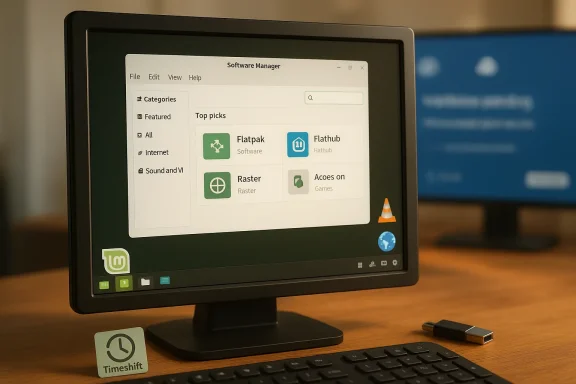
One of the historical stumbling blocks for switching to Linux has been software availability. Over the last decade that barrier has been steadily eroded, and Linux Mint takes advantage of multiple approaches to make the transition usable for most people.- Software Manager: Mint’s Software Manager is a point‑and‑click app-store–style interface that lists thousands of Linux-native applications with screenshots, ratings, and descriptions. For typical tasks (web browsing, email, document editing, media playback), native Linux apps are abundant and polished.
- Flatpak support: Mint embraces Flatpak and makes it easy to install Flathub apps. Flatpak provides sandboxed, distribution-agnostic builds that bring more recent versions of apps to Mint users without repository gymnastics.
- Wine and Proton: For running Windows-only desktop applications, Wine remains an option; the distribution exposes Wine packages via its package manager and through community guidance. For games, Steam’s Proton layer dramatically improves compatibility for many Windows titles on Linux.
- Web/Cloud alternatives: Office 365, Google Workspace, and many SaaS tools run perfectly well in modern browsers on Mint — providing an easier migration path for many users whose workflows are already web-first.
Stability and performance: what older hardware gains
One of Mint’s most tangible advantages is renewed life for older hardware. Linux Mint is conservative by design and built on Ubuntu LTS releases (or on Debian in the LMDE variant), which means:- Long-term support: Mint versions built on Ubuntu LTS inherit multi-year security and stability updates from their upstream bases.
- Low minimum requirements: Mint comfortably runs on machines with modest RAM (a practical minimum of 2 GB for recent releases, 4 GB recommended for comfortable use). That allows many systems blocked from Windows 11 upgrades to remain useful.
- Faster boot and lower idle footprint: Compared with modern Windows releases on the same hardware, Mint often boots faster and uses fewer resources at idle, translating to snappier everyday performance.
- Update control and rollback capability: Mint’s Update Manager distinguishes between update types and encourages snapshots via Timeshift, a snapshot-and-restore tool commonly bundled and recommended by Mint. Timeshift lets users create restore points that can roll back the system if a kernel or package update causes trouble — a practical alternative to Windows’ opaque forced-update model.
Privacy and control: a return to user agency
For users motivated by privacy and autonomy, Mint contrasts with Windows 11 in some fundamental ways:- No telemetry by default: Mint does not ship with vendor telemetry or advertising frameworks enabled by default. Users control what is installed and what data leaves the device.
- No forced cloud account: Unlike Windows 11’s increasing push toward Microsoft account sign-in and cloud services, Mint allows local accounts that never talk to a central vendor unless users choose to add cloud sync tools.
- Granular updates: Update Manager presents updates and categories transparently. Users can apply security patches immediately and defer or selectively install nonessential updates — and recover via Timeshift if something breaks.
- Open-source toolchain: Components are auditable and community-driven, which doesn’t eliminate bugs or bad behavior, but it places enforcement and oversight in public view.
Community support and documentation: the human safety net
Linux Mint benefits from a large, active, and newcomer-friendly ecosystem:- Official documentation: Mint’s user guides and release notes are written for people migrating from other systems, with step-by-step instructions for installation, driver setup, and common tasks.
- Forums and community channels: Mint’s official forums, subreddits, and many Discord servers tend to be responsive and practical. Volunteer expertise often replaces formal vendor support for common desktop problems.
- Local-first help: Because Mint is widely used by hobbyists, volunteer responders are typically motivated by shared ownership rather than scripted corporate support, which many users find more helpful.
The migration process: realistic, step-by-step
For a Windows 11 user considering the switch, Mint offers a gentle and testable migration path.- Try before you commit:
- Create a live USB of Linux Mint and boot in “Try” mode to test Wi‑Fi, display, and peripherals without touching your disk.
- Back up Windows:
- Image your Windows drive or at minimum export documents, email archives, browser bookmarks, and important app data.
- Decide dual‑boot vs. replacement:
- Dual‑boot allows fallback access to Windows; a full replacement simplifies the system but requires confidence in app alternatives or compatibility layers.
- Install with safe defaults:
- Mint’s installer offers clear disk-partitioning steps and sensible defaults. For safety, allocate a separate partition for Timeshift snapshots or configure them after installation.
- Post-install essentials:
- Enable Timeshift and configure snapshots.
- Open Update Manager and apply security updates.
- Install drivers (NVIDIA or other proprietary drivers via Driver Manager).
- Set up the Software Manager and Flatpak/Flathub for apps.
- Migration support:
- If you rely on critical Windows-only software, test it in Wine or a Windows VM (VirtualBox or a lightweight paid alternative) before decommissioning Windows.
When Linux Mint may not be the right choice
Mint is an excellent option for many users, but it’s not a universal panacea. Consider these limitations before switching:- Industry-specific software: Some professional tools — high-end Adobe Creative Cloud apps, many CAD packages, and certain proprietary engineering suites — have no full-featured Linux equivalents and may not run reliably under Wine or virtualization.
- Anti-cheat–protected multiplayer games: While Proton has made dramatic strides, titles that require kernel-level anti-cheat or vendor-specific anti-cheat modules (some instances of Vanguard, Ricochet, or proprietary DRM/anti-cheat stacks) may not work, or their online features may be blocked. That status continues to evolve and varies by title.
- Specialized hardware drivers: Some pro audio interfaces or vendor-specific peripherals rely on Windows-only drivers; check device compatibility before migrating.
- Enterprise management and identity: Organizations that depend on Microsoft 365 integrated features, Active Directory tooling, or Windows-exclusive device management may find migration impractical without significant tooling changes.
Risks, caveats, and verifications
No migration is risk-free. Key points to verify in your context:- Hardware compatibility: Always test peripherals in the live environment. Printers, scanners, fingerprint readers, and niche webcams sometimes require vendor drivers or workarounds.
- Software parity: Test mission-critical applications. LibreOffice has made great strides with Microsoft Office compatibility, but complex macros or enterprise features may not translate perfectly.
- Gaming compatibility: If online multiplayer is essential, verify whether the game’s anti-cheat solution supports Proton or a Linux-native client before assuming parity.
- Claim verification: Be wary of absolute statements — for example, claims that “Linux Mint pre-installs Wine and runs every Windows app” are overbroad. Wine and Proton are powerful, but they require per-app testing and occasionally additional configuration steps.
The broader implications: what Mint’s popularity signals
The migration-ready success of Mint among Windows users speaks to a larger shift in desktop computing:- User autonomy vs. platform monetization: Many users are reacting to the perception that mainstream OS vendors are prioritizing subscription models, integrated advertising, and cloud-first lock-in over straightforward, offline-first computing experiences.
- Sustainability and e‑waste: Rejuvenating older hardware with a lightweight modern OS can delay premature device replacement and reduce e‑waste — an increasingly important practical and ethical concern.
- Open-source accessibility: The usability improvements across mainstream distributions have lowered the barrier to entry for nontechnical users. Modern installers, driver detection, and app stores make switching far less daunting than it was a decade ago.
- Competitive pressure: As more users find viable alternatives, vendors may be pressured to rethink some of the more aggressive friction points in their platforms — or risk losing a segment of the user base.
Practical checklist: switching to Linux Mint in 10 steps
- Create an external backup of your Windows drive.
- Make a bootable Linux Mint USB (use a reliable image-writing tool).
- Boot into the live environment and test all critical hardware.
- Decide between dual‑boot or full replacement; adjust partitions accordingly.
- Install Linux Mint with Timeshift configured to an external or dedicated partition.
- Apply updates and install proprietary drivers (if needed).
- Install critical productivity apps via Software Manager or Flatpak.
- Test Windows-only apps under Wine or in a VM; keep a Windows escape partition if required.
- Set up your privacy preferences and disable any unwanted telemetry at the app level (browser, cloud apps).
- Create a snapshot with Timeshift and maintain regular backups.
Final verdict
For many Windows 11 users who feel boxed in by hardware gates, mandatory accounts, opaque telemetry, or disruptive updates, Linux Mint offers a realistic, low-friction alternative. It restores a traditional desktop experience, extends the usable life of older hardware, and gives users back meaningful control over updates and privacy.That doesn’t mean Mint is a perfect replacement for every scenario. Professional workflows tied to niche Windows-only applications, or games locked behind inflexible anti-cheat systems, can still require Windows. But for the majority of everyday tasks — browsing, email, documents, media, and even a great deal of casual gaming — Mint provides a practical, well-documented path away from the stress points many users now associate with Windows 11.
If you’re tired of forced updates, hardware lockouts, and creeping platform control, Linux Mint is not just an escape; it’s a practical roadmap back to a desktop that works on your terms.
Source: WebProNews Why Linux Mint Could Be Your Escape Route From Windows 11’s Growing Pains
