

Linux Mint’s Cinnamon desktop is getting a subtle but meaningful polish that reinforces why many Windows 10 holdouts choose Mint as their first stop when leaving Microsoft’s ecosystem, with tweaks that give the familiar “Start‑menu” paradigm more flexibility and a revamped system diagnostics tool to make troubleshooting easier for newcomers and power users alike.
For millions of users weighed down by Windows 11’s hardware requirements or the end‑of‑support realities around Windows 10, modern Linux desktops have become a pragmatic escape hatch. Linux Mint—especially the Cinnamon edition—has consistently been recommended as a low‑friction alternative because it blends a familiar desktop metaphor with practical utilities (Update Manager, Driver Manager, Timeshift snapshots) and broad Debian/Ubuntu‑based software availability. Community and trade coverage over the past year has repeatedly positioned Mint as one of the most migration‑friendly choices for former Windows users.
The recent round of work highlighted in community writeups and a news brief gives Cinnamon more of the small refinements that matter during the first weeks after migration: more control over the application menu layout and a more useful, expanded system reporting tool aimed at diagnosing peripherals and boot problems without diving into the terminal. These are the kinds of quality‑of‑life changes that lower the friction when switching OSes and reduce support requests for common hardware headaches.
The new boot menu UI lets users:
The specific UI changes and System Information expansion were reported in recent news coverage summarizing Linux Mint’s monthly development notes. Those reports are consistent in describing the Cinnamon menu adjustments and the new diagnostic pages (USB, GPU, PCI, BIOS) and the boot menu UI—but the distribution’s official upstream blog post is the primary source for exact wording and rollout timing, and individual news summaries emphasize that some features are still in development and not yet shipped in stable ISOs or automatic updates. That caveat is important: these are upstream‑documented improvements in the Mint project’s changelog and development previews, but the updates may still be gated for testing prior to appearing in a point release or ISO refresh.
Because Mint’s development cadence often includes blog posts and preview notes followed by a period of testing, users should expect staged availability rather than immediate rollout to all existing installations.
If you are a Windows 10 user looking for a practical, low‑friction alternative:
Linux Mint continues to earn its reputation as a sensible first destination for Windows escapees: a conservative desktop that respects familiar mental models, now with a slightly more flexible Application Menu and a richer, GUI‑friendly set of system diagnostics that reduce guessing and speed repair. For most users making the switch, that combination of familiarity, configurability, and better tooling is exactly what turns experimentation into a practical migration plan.
Source: XDA The best Linux distro for Windows 10 escapees is getting a little bit better
 Background
For millions of users weighed down by Windows 11’s hardware requirements or the end‑of‑support realities around Windows 10, modern Linux desktops have become a pragmatic escape hatch. Linux Mint—especially the Cinnamon edition—has consistently been recommended as a low‑friction alternative because it blends a familiar desktop metaphor with practical utilities (Update Manager, Driver Manager, Timeshift snapshots) and broad Debian/Ubuntu‑based software availability. Community and trade coverage over the past year has repeatedly positioned Mint as one of the most migration‑friendly choices for former Windows users.The recent round of work highlighted in community writeups and a news brief gives Cinnamon more of the small refinements that matter during the first weeks after migration: more control over the application menu layout and a more useful, expanded system reporting tool aimed at diagnosing peripherals and boot problems without diving into the terminal. These are the kinds of quality‑of‑life changes that lower the friction when switching OSes and reduce support requests for common hardware headaches.
What changed in Cinnamon (practical view)
Moveable search bar and configurable system buttons
Cinnamon’s Application Menu—Mint’s equivalent of the Windows Start menu—has long placed a search box at the top and system action buttons (lock, sleep, power) at the bottom of the menu. The recent tweaks add configuration options so users can:- Move the search bar from the top to the bottom of the menu, matching preferences some users develop after years with other UIs.
- Reposition the system buttons (lock, sleep, power) within the menu, letting users put actions where they’re least likely to be clicked accidentally or where they’re easiest to reach.
The UX detail that adds up
A few paragraphs may make the tweak sound trivial, but consider the real user workflows it impacts:- Power users who lock/unlock frequently (workstation environments, classrooms) can place the lock button in a consistent location across devices.
- Users testing compatibility via Live USB sessions can put the search box where it’s easiest to locate newly installed apps.
- People teaching family members or non‑technical colleagues how to use Linux can match a menu layout to the cohort’s expectations, reducing the number of first‑week questions.
System Reports → System Information: a practical diagnostic overhaul
What’s new
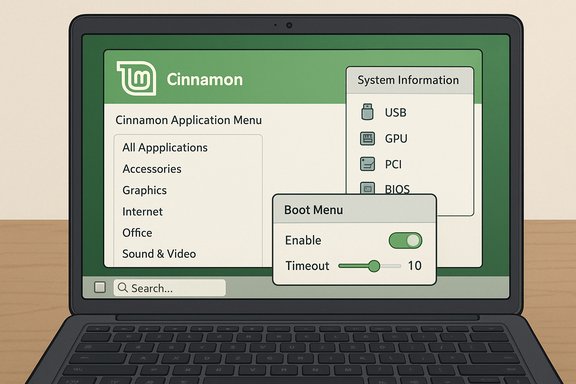
The Mint team rebranded the former System Reports tool to System Information and expanded it to include dedicated pages for:- USB devices (detect and inspect connected USB hardware)
- GPU (graphics adapter detection and basic driver state)
- PCI (enumeration of PCI devices and slots)
- BIOS (firmware version, vendor details)
- An improved Crash Reports area plus the existing System Information and System Reports pages
- A boot menu tweaker under System Administration that allows toggling the boot menu visibility and adjusting automatic selection timeout via GUI controls
Why the boot menu tweaker matters
Dual‑boot setups are the most common migration strategy: test Linux from a Live USB, keep Windows for a period, and then either remove Windows or keep it side‑by‑side. Small boot configuration issues (hidden GRUB menu, very short default GRUB timeout) can leave users with systems that appear to boot straight to Windows or to a different OS without giving them the chance to choose.The new boot menu UI lets users:
- Show or hide the GRUB/boot menu more easily.
- Adjust the timeout that controls how long GRUB waits before auto‑booting the default entry.
- Avoid manual edits to /etc/default/grub or worrying about secure‑boot keys and syntax.
Cross‑checking the claims and verification status
Multiple independent community and editorial writeups reference Linux Mint’s standing as a leading migration candidate and discuss Cinnamon’s menu and Mint’s desktop tools as central features for Windows refugees. Coverage of Mint as the pragmatic first choice appears in migration guides and product roundups targeted at users leaving Windows 10.The specific UI changes and System Information expansion were reported in recent news coverage summarizing Linux Mint’s monthly development notes. Those reports are consistent in describing the Cinnamon menu adjustments and the new diagnostic pages (USB, GPU, PCI, BIOS) and the boot menu UI—but the distribution’s official upstream blog post is the primary source for exact wording and rollout timing, and individual news summaries emphasize that some features are still in development and not yet shipped in stable ISOs or automatic updates. That caveat is important: these are upstream‑documented improvements in the Mint project’s changelog and development previews, but the updates may still be gated for testing prior to appearing in a point release or ISO refresh.
Because Mint’s development cadence often includes blog posts and preview notes followed by a period of testing, users should expect staged availability rather than immediate rollout to all existing installations.
Real‑world benefits: how these features help migration and day‑to‑day use
- Faster troubleshooting: A dedicated USB page can quickly show the device ID, vendor string, and class of a device that otherwise appears “not working” in a live session. That immediate visibility is a huge time‑saver for users connecting printers, cameras, or USB‑serial adapters for the first time.
- GPU detection: Having a concise GPU page—showing vendor, model, and driver state—reduces trial‑and‑error when selecting proprietary drivers for NVIDIA cards or when validating that an onboard Intel GPU is properly recognized. This cuts support chatter for “why is my screen blinking?” and speeds up setup of graphics drivers.
- PCI & BIOS insight: PCI enumeration helps with expansion cards and internal devices (Wi‑Fi modules, Thunderbolt controllers). BIOS pages letting users see firmware versions and vendor strings remove guesswork when following vendor‑specific firmware upgrade guidance.
- Boot menu control: The boot menu tweaker prevents many of the “I can’t choose which OS to boot” problems that plague newcomers in dual‑boot scenarios, and it avoids the intimidation of editing GRUB files manually.
Limitations and risks to consider
No OS swap is risk‑free. The Mint improvements reduce friction, but there are known tradeoffs and limitations to plan for:- Application compatibility: Many commercially critical Windows applications (certain Adobe products, niche enterprise apps) remain Windows‑only. Migration strategies still rely on alternatives, Wine/Wine‑based wrappers, or running Windows in a VM for legacy apps. This constraint is repeatedly called out in migration guides and testing recommendations.
- Gaming and anti‑cheat: Titles that depend on kernel‑level anti‑cheat or vendor drivers can be problematic on Linux. Gamers should verify their titles’ compatibility in compatibility databases and be prepared for some titles to be unsupported.
- Edge driver and peripheral issues: Some fingerprint readers, proprietary Wi‑Fi chips, and certain scanners still require vendor drivers only available for Windows. Live USB testing is the only surefire way to discover these edge cases prior to wiping a drive.
- Update & support model differences: Linux distributions give you choice over update cadence. That’s a strength, but it also places responsibility on the user to pick an LTS base for long support windows or manage a rolling update flow carefully. Mint typically builds on LTS Ubuntu releases to balance stability and hardware enablement.
A practical migration checklist (step‑by‑step)
- Back up everything. Create a full disk image plus separate file backups to external media or cloud storage. Do not skip this step.
- Verify the ISO checksum for the Linux Mint download before writing it to USB. Unverified ISOs are a common vector for corruption or tampered images.
- Create a Live USB and boot the target machine into the Live session. Test:
- Wi‑Fi and Bluetooth
- Display and resolution
- Sound, USB devices, printing
- Use the Live session’s System Information pages (or the new System Reports/System Information tool when available) to confirm USB and GPU detection before installing.
- If you need Windows for a specific app, consider a dual‑boot install or keep a Windows VM. Use the boot menu tweaker to ensure GRUB timeout and visibility are configured so you can choose OS at boot.
- After installation, run Driver Manager to pick appropriate proprietary drivers for NVIDIA or Broadcom Wi‑Fi if necessary.
- Enable and configure Timeshift snapshots immediately. Snapshots are your fastest rollback if an update breaks something.
- If gaming is critical, check ProtonDB and test specific titles in a Live session or VM before migrating permanently.
What this means for the broader desktop Linux landscape
The changes being made in Mint are modest in isolation but significant in pattern: they prioritize usability, diagnosability, and familiarity—qualities that matter when millions are considering whether to spend money on new hardware, enroll in extended support, or embrace an alternative OS.- For newcomers, the emphasis is on minimizing the number of “angry first‑week” support queries.
- For enthusiasts and power users, the improvements reduce repetitive support work and let community volunteers focus on harder problems.
- For families and small offices, the combined benefits of a familiar desktop and better GUI diagnostics reduce the risk of a failed migration.
Final assessment and recommendation
Linux Mint’s recent Cinnamon tweaks and the expansion of its System Information tool are small but practical improvements that make a tangible difference to users moving from Windows 10. They don’t remove every migration hurdle—application compatibility, niche hardware drivers, and certain gaming restrictions remain real issues—but they do materially lower the barrier for the majority of users whose workflows are web‑centric, productivity‑based, or light media work.If you are a Windows 10 user looking for a practical, low‑friction alternative:
- Start with Linux Mint (Cinnamon) as your first trial because it balances familiarity and stability while including migration‑oriented tools out of the box. This guidance aligns with several migration guides and mainstream coverage recommending Mint for Windows refugees.
- Use the Live USB workflow, test hardware thoroughly, and use the new System Information pages where available to validate devices before committing to a full install.
- Keep a rollback plan: TimeShift snapshots, a Windows recovery USB, and an external image are inexpensive safeguards that make experimenting safe.
Linux Mint continues to earn its reputation as a sensible first destination for Windows escapees: a conservative desktop that respects familiar mental models, now with a slightly more flexible Application Menu and a richer, GUI‑friendly set of system diagnostics that reduce guessing and speed repair. For most users making the switch, that combination of familiarity, configurability, and better tooling is exactly what turns experimentation into a practical migration plan.
Source: XDA The best Linux distro for Windows 10 escapees is getting a little bit better
