

A quick set of everyday tests on a dual‑boot desktop shows a clear but nuanced answer: a well‑tuned Linux desktop can feel and measure faster than Windows 11 for many common tasks — sometimes noticeably so — but the outcome depends heavily on workload, drivers, storage, and how each OS is configured.
The question “Does Linux really run faster than Windows?” comes up constantly in forums and comment threads. Enthusiasts point to lighter system services, aggressive kernel and toolchain updates, and lean desktop environments as reasons Linux often wins small‑scale responsiveness and CPU‑bound throughput tests. Recent cross‑platform benchmarking done by long‑running outlets has indeed shown Linux leading in many CPU‑heavy, multi‑threaded workloads — for example, Ubuntu development snapshots produced roughly a ~15% geometric‑mean advantage over a stock Windows 11 25H2 installation on a high‑end Ryzen 9 testbed in Phoronix’s snapshot runs.
At the same time, everyday user perception is shaped by a different mix of factors than synthetic benchmarks: boot time, idle RAM use, app launch latency, and the snappiness of UI interactions. A hands‑on, dual‑boot comparison that measures those real‑world touchpoints — with transparent caveats about hardware and configuration differences — adds valuable context to what those benchmark numbers mean for normal desktop use.
This article summarizes a practical, real‑world side‑by‑side test on a dual‑boot desktop (Windows 11 vs. CachyOS), cross‑references how this aligns with broader benchmarking, and provides a critical, reproducible methodology and recommendations you can apply to your own systems.
On this hands‑on dual‑boot test, a tuned Linux install (CachyOS with an optimized kernel and Xfce) matched or outperformed Windows 11 for daily tasks such as boot time, idle memory footprint, and application startup times — even while running on materially slower storage. Those real‑world results mirror what controlled benchmarking outlets have reported for CPU‑bound workloads, where modern Linux snapshots have produced measurable gains (for example, roughly a ~15% geomean advantage in some Phoronix runs).
However, performance is not a single number. It’s a spectrum that depends on hardware, drivers, workload, packaging format, and tuning. Windows still offers unrivaled application compatibility and sometimes better single‑thread or GPU‑bound behavior, and the practical decision to run one OS over the other should weigh software needs, hardware age, and how much time you’re willing to invest in tuning.
If you care most about everyday snappiness on older or constrained hardware, or if your workflows are CPU‑bound and you’re comfortable with Linux, switching or dual‑booting is likely to deliver a noticeable boost. If you need broad software compatibility, vendor support, or the absolute simplest out‑of‑the‑box gaming experience, Windows remains the safer default.
For readers who want to test this on their own systems: run controlled, repeatable comparisons (multiple runs, matched storage and firmware settings, and identical binaries where possible). That’s the only way to know how your specific machine and workload will behave — and to find out which OS actually runs faster for you.
Source: How-To Geek Does Linux really run faster than Windows? I tested both to find out
 Background / Overview
The question “Does Linux really run faster than Windows?” comes up constantly in forums and comment threads. Enthusiasts point to lighter system services, aggressive kernel and toolchain updates, and lean desktop environments as reasons Linux often wins small‑scale responsiveness and CPU‑bound throughput tests. Recent cross‑platform benchmarking done by long‑running outlets has indeed shown Linux leading in many CPU‑heavy, multi‑threaded workloads — for example, Ubuntu development snapshots produced roughly a ~15% geometric‑mean advantage over a stock Windows 11 25H2 installation on a high‑end Ryzen 9 testbed in Phoronix’s snapshot runs.At the same time, everyday user perception is shaped by a different mix of factors than synthetic benchmarks: boot time, idle RAM use, app launch latency, and the snappiness of UI interactions. A hands‑on, dual‑boot comparison that measures those real‑world touchpoints — with transparent caveats about hardware and configuration differences — adds valuable context to what those benchmark numbers mean for normal desktop use.
This article summarizes a practical, real‑world side‑by‑side test on a dual‑boot desktop (Windows 11 vs. CachyOS), cross‑references how this aligns with broader benchmarking, and provides a critical, reproducible methodology and recommendations you can apply to your own systems.
The quick, hands‑on experiment (what was tested)
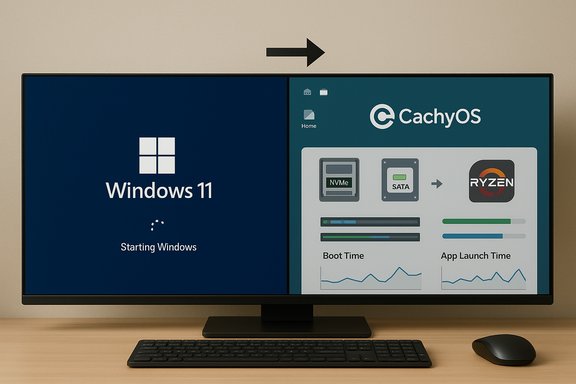
This test was deliberately pragmatic rather than exhaustive: a personal desktop configured as a Windows‑Linux dual boot. The Linux side used CachyOS with an optimized (stable) kernel and the Xfce desktop; Windows ran Windows 11 with Fast Startup enabled and Microsoft Copilot disabled. Tests focused on everyday user metrics:- Boot time (from bootloader to login screen)
- Idle RAM usage after a fresh boot
- Time to launch Google Chrome and load the homepage
- Time to launch the Steam client (after updates)
- Windows was installed on an NVMe drive; Linux was on a slower SATA SSD (read/write differences were significant). This gives Windows a storage performance advantage and makes Linux’s results more impressive in context.
- CachyOS was using an optimized kernel and a lightweight DE (Xfce), which gives Linux an internal advantage compared to many mainstream distros running a stock kernel and heavier desktop environments.
- Windows had Copilot disabled to avoid AI assistant background services consuming CPU/RAM; this slightly favors Windows compared to a default Windows 11 image with Copilot active.
What the hands‑on numbers showed
Boot time
- Windows 11 (Fast Startup enabled): 19 seconds from bootloader to login.
- CachyOS (Xfce, on SATA SSD): 20 seconds.
Idle RAM usage
- Windows 11 idle: ~6 GB used out of 12 GB (immediately after boot).
- CachyOS (Xfce) idle: ~1.5 GB observed by Btop++ (with caching bringing practical footprint to ~3.5 GB).
Chrome launch
- Windows 11: 3.16 seconds to open Chrome and load Google’s homepage.
- CachyOS: 1.88 seconds for the same task (Chrome packaged via AUR).
Steam launch
- Windows 11 (fully updated Steam): ~32.94 seconds.
- CachyOS (Steam from Arch multilib, up to date): ~22.87 seconds.
How these real‑world findings map to broader benchmarks
Broad, controlled benchmarking and the hands‑on desktop tests tell complementary stories.- In long, CPU‑bound creator workloads (renders, encodes, compressors), independent cross‑platform suites have repeatedly shown Linux leading — often by nontrivial margins when Linux ships newer kernels/toolchains and the test uses native builds. Phoronix’s recent snapshots are a prominent example: in a 41‑test CPU‑focused suite on a Ryzen 9 testbed, Ubuntu daily builds produced about a ~15% geomean advantage over Windows 11 25H2. Those runs used clean installs, stock settings, and a mix of real‑world tools to emphasize default, out‑of‑the‑box behavior.
- Why that happens: Linux distributions often integrate newer upstream kernels and compiler toolchains more quickly than Windows, and the Linux default userland typically runs fewer legacy services and telemetry by default. That gives Linux an edge in sustained multi‑thread throughput and some I/O‑sensitive workloads.
- Where Windows often holds or wins: single‑threaded or lightly threaded workloads, certain GPU‑bound games or titles with Windows‑specific drivers and anti‑cheat systems, and software that is heavily tied to proprietary Windows libraries (for example, some Adobe and Microsoft‑only stacks). Benchmarks and real‑world tests show the winner depends on the workload rather than an absolute OS superiority.
Technical reasons behind the performance differences
Kernel, scheduler, and governor choices
Linux benefits when it runs a more recent kernel that includes scheduler and frequency‑scaling optimizations for the specific CPU microarchitecture. These changes affect thread placement, CPU frequency behavior under sustained load, and cache affinity, which all matter most for long, parallel jobs. Windows also evolves its scheduler and power handling, but upstream kernel updates on Linux sometimes reach users sooner and combine with tuned governors that favor throughput.Toolchain and binary differences
Many Linux builds use modern GCC/Clang toolchains with aggressive optimization flags by default. If benchmarking uses native Linux builds compiled with recent compilers, they sometimes outperform Windows builds produced by different toolchains (MSVC, older runtimes). This makes cross‑platform parity in benchmarking tricky: identical source builds with equivalent flags reduce variance, but many real‑world apps ship with different build toolchains across platforms.Default service footprint and background work
A stock Windows installation runs many background services (telemetry, update agents, security stacks, OEM helper apps) that collectively consume CPU, I/O, and memory budget. A stock Linux desktop often has a smaller persistent service footprint; distros aimed at performance remove or disable many nonessential components by default. In short, less “system noise” can equal more effective CPU time for your applications.Filesystem, I/O stack, and storage
I/O matters. NVMe vs SATA can produce order‑of‑magnitude differences in read throughput and significantly change cold cold‑launch times for large apps. Filesystem choices (NTFS vs ext4/XFS) and kernel I/O scheduler behaviors also change performance characteristics in mixed workloads. The hands‑on test above is notable because Linux won some tasks despite running on a slower SATA SSD — meaning the OS‑level efficiency overcame raw storage disadvantages in the measured tasks.Driver maturity and GPU stacks
For gaming and GPU‑bound tasks the maturity of drivers and vendor support is the deciding factor. Windows has a historically stronger, more optimized stack for many GPUs and games; however, open‑source stacks (Mesa/RADV) on Linux have improved dramatically and sometimes outperform proprietary Windows drivers for certain workloads and hardware/driver combinations. The net effect is workload and driver dependent.Methodology critique: what to watch for in any OS‑speed comparison
Benchmarks and hand tests are only as useful as their methodology. Common pitfalls:- Storage mismatch: comparing NVMe vs SATA skews app launch and boot comparisons. Always match drive class or explicitly note the difference.
- Single‑shot timing: cold vs warm launches vary wildly; run multiple iterations and report medians or geometric means.
- Packaging effects: containerized apps (Flatpak/Snap) often start slower due to runtime overhead; compare the same packaging style when possible.
- Toolchain and binary parity: using different native binaries compiled with different compilers introduces variance unrelated to the OS kernel/scheduler.
- Background services: a fresh install vs a heavily used, updated system will show different behaviors; either test both or standardize the baseline.
- Hardware and firmware: BIOS/UEFI settings, microcode, and device drivers can change results dramatically.
Practical advice: how to run your own fair comparison
If you want to reproduce a meaningful test on your machine, follow these steps:- Prepare clean system images for both OSes (fresh installs).
- Match storage class (both OSes on NVMe or both on SATA) and use the same partitions where possible.
- Use identical firmware/UEFI settings, and note microcode and BIOS versions.
- Choose representative tasks: boot‑to‑login, idle RAM, app cold/warm launch times (3–5 runs each), and one or two sustained CPU workloads (e.g., Blender CPU render).
- Use native, non‑containerized packages where possible, or test both packaged and native versions separately.
- Run each test multiple times and report medians and standard deviations; for composite benchmarks use geometric means.
- Document exact versions: kernel, desktop environment, Windows build, driver versions, and compiler/toolchain versions.
- Publish raw traces and logs (OpenBenchmarking or similar) so others can verify.
For whom does Linux feel faster?
- Older hardware: The biggest practical gains are often on aging machines. Replacing a bloated Windows installation with a lightweight Linux DE and a tuned kernel can make an older laptop or desktop feel usable again.
- Memory‑constrained systems: If you have 8–16 GB of RAM and multitask heavily, Linux’s lower idle footprint and more aggressive caching approach can keep interactive responsiveness high.
- CPU‑bound production workloads: Developers, content creators, and engineers doing large multi‑thread tasks (renders, encodes, compiles) may see measurable throughput improvements on Linux, especially on modern multi‑core CPUs and when the Linux distro uses a newer kernel and compiler toolchain.
- Users comfortable with tinkering: Extracting the best Linux results can require some knowledge (choosing the right kernel, configuring governors, selecting repository packages), whereas many users expect Windows to “just work” with minimal fuss.
Where Windows still wins or is preferable
- Software compatibility: If you rely on proprietary Windows‑only software (certain Adobe apps, some enterprise tools, or Windows‑only plugins), staying on Windows simplifies workflows.
- Gaming and anti‑cheat: While gaming on Linux has improved dramatically (Proton and Steam’s compatibility layer), some titles and anti‑cheat systems still favor Windows, and driver optimizations sometimes arrive first on Windows.
- Enterprise management and vendor support: In an enterprise context, vendor support and ISV certification often favor Windows, making it easier to deploy and troubleshoot at scale.
Risks, tradeoffs, and caveats
- Anecdote vs data: A single user’s dual‑boot timings are valuable as real‑world datapoints but are not the same as controlled, repeatable benchmark suites. Treat them as signal, not definitive proof.
- Driver and feature gaps: Hardware vendor features (advanced webcam controls, RGB utilities, proprietary peripherals) are often Windows‑first and may be missing or limited on Linux.
- Long‑term maintenance: Linux distros can require more hands‑on maintenance for niche hardware compatibility; conversely, Windows has broader ecosystem support but also background bloat that can erode performance over time.
- Containerized packages: Flatpak / Snap can simplify software delivery but sometimes add runtime overhead; packaging choices affect launch times and should be considered in any comparison.
- Changing landscape: Kernel, driver, and compiler improvements are continuous. A Linux advantage visible today can narrow or change as vendors update Windows drivers or Microsoft adjusts operating system behavior. Conversely, Linux’s rolling improvements can increase a lead in certain niches.
Practical tuning tips to close gaps (both OSes)
- On Windows:
- Trim startup apps and unnecessary OEM utilities.
- Use an appropriate power plan (High Performance for sustained workloads).
- Disable or tune background services you don’t need (with care for security).
- Keep GPU drivers up to date and prefer vendor‑recommended builds for gaming.
- On Linux:
- Use a lightweight DE (Xfce, LXQt) or a tuned compositor if desktop snappiness matters.
- Consider kernels optimized for desktop throughput if you run high‑threaded workloads.
- Prefer native packages over containerized ones for latency‑sensitive apps where possible.
- Keep Mesa / RADV and amdgpu drivers current for best GPU compute and gaming performance.
Conclusion
So: does Linux really run faster than Windows? The honest answer is: sometimes — and often in ways that matter.On this hands‑on dual‑boot test, a tuned Linux install (CachyOS with an optimized kernel and Xfce) matched or outperformed Windows 11 for daily tasks such as boot time, idle memory footprint, and application startup times — even while running on materially slower storage. Those real‑world results mirror what controlled benchmarking outlets have reported for CPU‑bound workloads, where modern Linux snapshots have produced measurable gains (for example, roughly a ~15% geomean advantage in some Phoronix runs).
However, performance is not a single number. It’s a spectrum that depends on hardware, drivers, workload, packaging format, and tuning. Windows still offers unrivaled application compatibility and sometimes better single‑thread or GPU‑bound behavior, and the practical decision to run one OS over the other should weigh software needs, hardware age, and how much time you’re willing to invest in tuning.
If you care most about everyday snappiness on older or constrained hardware, or if your workflows are CPU‑bound and you’re comfortable with Linux, switching or dual‑booting is likely to deliver a noticeable boost. If you need broad software compatibility, vendor support, or the absolute simplest out‑of‑the‑box gaming experience, Windows remains the safer default.
For readers who want to test this on their own systems: run controlled, repeatable comparisons (multiple runs, matched storage and firmware settings, and identical binaries where possible). That’s the only way to know how your specific machine and workload will behave — and to find out which OS actually runs faster for you.
Source: How-To Geek Does Linux really run faster than Windows? I tested both to find out
