

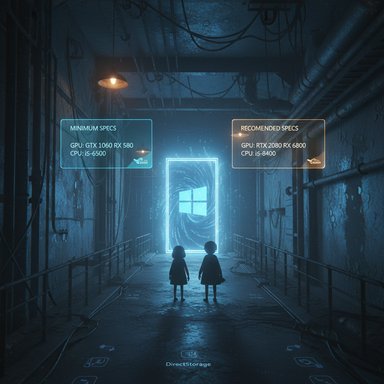
Little Nightmares III’s official PC requirements landed with a surprising wrinkle: the Steam store lists Windows 11 as a hard requirement for both minimum and recommended builds, and the published hardware targets are intentionally modest — a GTX 1060 / RX 580 and an Intel Core i5-6500 at the minimum, and an RTX 2080 / RX 6800 with an i5-8400 at the recommended level — making the game broadly accessible but tying it tightly to modern Windows platform features.
Little Nightmares III is the next entry in the atmospheric puzzle-platform horror series, developed by Supermassive Games and published by Bandai Namco. The new game follows two protagonists, Low and Alone, and expands the franchise’s signature blend of claustrophobic level design, stealth, and reactive puzzles — this time adding online co-op as a first for the series. The title launches in early October 2025 across consoles and PC; the publisher’s press materials and the Steam page confirm the release window and developer details. The conversation that matters to Windows gamers is simple: can your PC run Little Nightmares III, and if not, what’s the least disruptive upgrade path? The official Steam listing supplies the canonical minimum and recommended PC specs — and the headline that’s sparked the most discussion is the OS requirement.
Whether you’re planning to brave the Spiral alone or bring a friend in co-op, checking these requirements now will avoid unpleasant surprises at install time. Prepare your system, update drivers, and — if needed — budget a small upgrade to GPU/SSD/RAM rather than assuming you’ll be able to run the game on older software or a spinning hard drive. The game’s official Steam table is the ultimate reference; use it, cross-check with the independent reports that echoed the same numbers, and plan accordingly.
Source: www.findingdulcinea.com Official Little Nightmares 3 System Requirements (October 2025)
 Background / Overview
Little Nightmares III is the next entry in the atmospheric puzzle-platform horror series, developed by Supermassive Games and published by Bandai Namco. The new game follows two protagonists, Low and Alone, and expands the franchise’s signature blend of claustrophobic level design, stealth, and reactive puzzles — this time adding online co-op as a first for the series. The title launches in early October 2025 across consoles and PC; the publisher’s press materials and the Steam page confirm the release window and developer details. The conversation that matters to Windows gamers is simple: can your PC run Little Nightmares III, and if not, what’s the least disruptive upgrade path? The official Steam listing supplies the canonical minimum and recommended PC specs — and the headline that’s sparked the most discussion is the OS requirement. Official system requirements — the numbers that matter
Below is a clean, verified summary of the PC requirements as published on Steam and corroborated by multiple PC outlets.Minimum (Playable — Low / 1080p target)
- OS: Windows 11 (64-bit required).
- CPU: Intel Core i5-6500 or AMD Ryzen 3 1200.
- Memory: 8 GB RAM.
- GPU: NVIDIA GeForce GTX 1060 or AMD Radeon RX 580.
- Performance target: Low preset, 1080p @ 60 FPS (developer-stated target).
Recommended (High / 1080p target)
- OS: Windows 11 (64-bit required).
- CPU: Intel Core i5-8400 or AMD Ryzen 5 1600.
- Memory: 12 GB RAM.
- GPU: NVIDIA GeForce RTX 2080 (8 GB) or AMD Radeon RX 6800.
- Performance target: High preset, 1080p @ 60 FPS.
Storage: what’s missing from Steam (and how to plan)
Steam’s official system requirements do not include a strict install-size figure on the storefront. Independent aggregators and prelaunch guides place the likely install footprint at roughly 20–30 GB, with multiple commentators recommending reserving at least 40 GB to allow for updates and DLC. Installing on an SSD is strongly recommended to reduce load times and streaming hitches. Treat the on-disk number as an estimate until the publisher posts an explicit install size.Why Windows 11? Technical reasons and caveats
The Steam page’s most controversial entry is the OS requirement — Windows 11 only. There are a few plausible explanations for this decision; some are confirmed, others are reasonable inferences.- Platform feature support: Windows 11 contains an updated OS storage stack designed to better unlock modern I/O APIs such as DirectStorage. While DirectStorage has been back-ported or made available to recent builds of Windows 10 in limited forms, Microsoft and industry coverage make clear that Windows 11 offers the full set of storage and file-stack optimizations. That gives developers a more predictable base for streaming-heavy games. Saying a title requires Windows 11 is typically an indicator the developer expects to rely on that storage stack or wants to require the newer OS environment.
- Security and platform gating: Windows 11 enforces a common minimum platform baseline (TPM 2.0, UEFI Secure Boot) that can simplify QA and anti-cheat/security support across the installed base. Some publishers choose to mandate the newer OS to reduce the matrix of supported configurations. This is an industry pattern seen with some recent AAA launches.
- Modern graphics and API expectations: Windows 11 is the default home for DirectX 12 Ultimate features and newer OS-level gaming features (Auto HDR, Game Mode refinements). If a studio targets the “modern Windows” stack for testing and optimizations, they may choose to set the OS bar at Windows 11 for clarity. That said, Steam’s published requirements do not explicitly mandate DirectStorage or DirectX 12 Ultimate for Little Nightmares III, so any definitive link between the OS gate and a single API is speculative until the developer states it.
Cross-check: independent confirmation and reliability
When a store page lists platform limits, best practice is to cross-check with independent outlets. The Steam listing’s Windows 11-only clause and hardware table are echoed by major outlets including PCGamesN and DSO Gaming, and reflected by multiple digital storefronts and resellers — a consensus that reduces the chance of a mistaken or placeholder requirement. Until the publisher revises the store page or posts a support bulletin, Steam’s table is the canonical source for PC buyers.- If you depend on a Windows 10-only machine, heed the Steam requirements: multiple PC stores mirrored the same Windows 11 requirement and hardware numbers during the prelaunch window. That indicates a deliberate target rather than a typo.
Steam Deck and handhelds: Portable playability
The Steam Deck compatibility story is encouraging. Reviews and early hands-on coverage (including PC Gamer’s review) report that Little Nightmares III runs well on Valve’s handheld and that the game was Steam Deck Verified in the reviewer’s experience — meaning it meets Steam’s functional compatibility checklist on Deck hardware. The Steam store’s community data also shows early playtime on Steam Deck devices. If you rely on portable play, the deck is a realistic option. However, Steam’s verified badge on the storefront may be added post-launch; check the store or the Steam Deck Verified program listing for definitive status in your region.Practical checklist — how to confirm your PC can run the game
- Check Windows version — Confirm you’re running Windows 11 (Settings > System > About) and that the install is up to date. The Steam listing explicitly requires Windows 11.
- Run DxDiag — Press Windows Key + R, type dxdiag and press Enter. The DirectX Diagnostic Tool will show your CPU, memory, GPU and OS version; save the report if you need to share it. Intel, Microsoft and other major support pages all document the dxdiag workflow.
- Compare GPUs and CPU — Match your GPU and CPU to the Steam minimum/recommended entries. If you’re at or above the recommended hardware, expect to run High/1080p @ 60 FPS; if you’re closer to the minimum, plan for Low/1080p target.
- Reserve storage and use an SSD — Even though Steam doesn’t state a strict install size, industry estimates put the toolbox at 20–30 GB; leave additional headroom for patches and DLC. Install on an SSD for best load/streaming performance.
Common mistakes Windows gamers make (and how to avoid them)
- Assuming Windows 10 will work: The Steam page states Windows 11 is required. Don’t buy the game if your PC runs Windows 10 and you cannot (or will not) upgrade; refunds are easier to handle pre-launch than forcing a later OS change.
- Underestimating background load: Minimum RAM (8 GB) is realistic but tight. Modern Windows plus background apps (browsers, voice chat, overlays) quickly consume RAM and can turn a playable session into stuttering. Aim for at least the recommended system RAM (12 GB) or more for a smooth experience.
- Ignoring driver updates: Outdated GPU drivers are a common cause of crashes and subpar framerates on launch day. Update NVIDIA/AMD drivers before installing the game. (Driver guidance is standard best practice; vendor pages and launch-day driver notes frequently accompany new releases.
- Installing on HDD: Running the game from a spinning disk will increase load times and may produce streaming stutter. Use an SSD (SATA or NVMe); NVMe will give the best consistency on systems with heavy streaming.
Upgrade advice — where to spend money for the biggest gains
If your PC misses the mark, these are the most cost-effective changes ranked by expected impact:- GPU upgrade (Highest impact for visuals & framerate)
- If your GPU is older than the GTX 1060 / RX 580, prioritize a dedicated graphics card. For the recommended experience at 1080p/High, target cards in the RTX 2070–RTX 3080 class or modern midrange equivalents. The Steam recommended list cites the RTX 2080 / RX 6800 as the representative target.
- RAM increase (Quick, inexpensive uplift)
- Move from 8 GB to 16 GB if possible. The game’s recommended spec lists 12 GB; 16 GB gives breathing room for background tasks and future titles.
- Switch to an SSD (Installation & streaming)
- A SATA SSD is already a big step forward from an HDD; NVMe is ideal for the fastest streaming behavior. Steam and multiple PC guides emphasize SSD installs for modern streamed games.
- CPU (if CPU-limited)
- Upgrading CPU helps if you’re bottlenecked by heavy physics or AI threads, but it’s typically the most expensive and invasive upgrade because of potential platform (motherboard) changes.
Performance tuning and pro strategies
- Driver housekeeping: Install the latest “Game Ready” or “Game Performance” drivers from NVIDIA/AMD before the first run. Driver updates commonly include launch-day optimizations.
- In-game settings to prioritize: If framerate struggles occur, reduce shadow quality, lower ambient occlusion, and disable motion blur and post-process cinematic effects first. Texture quality affects VRAM usage — lower it if your GPU VRAM is limited.
- Use an upscaler (if supported): If the game supports vendor upscaling (DLSS/FSR/XeSS) in a future patch, balanced upscaler modes offer a great quality/performance tradeoff. Steam’s system page doesn’t list ray tracing or upscaler requirements, so treat any advanced settings as optional until the studio documents them.
- Monitor thermals: Throttling from heat can drop framerates; keep temperatures in check with good case airflow or laptop cooling pads.
What the store DOESN’T confirm (and why that matters)
- Ray tracing: Steam’s official requirement list for Little Nightmares III does not call out ray tracing or DirectX 12 Ultimate as mandatory. The recommended GPU (RTX 2080) supports ray tracing, but there’s no explicit mention of ray-traced presets or a separate ray-tracing spec tier. Until the developer publishes a more granular tech breakdown, do not assume ray tracing is required or offered.
- DirectStorage: Steam doesn’t list DirectStorage as required; however, Windows 11’s storage stack is noted as a rationale by many outlets for requiring Windows 11. There’s no public, explicit confirmation from the developer that DirectStorage is a gating requirement for the game — treat the link as plausible but unconfirmed.
- Exact install size: As noted above, no exact number on Steam; industry estimates and prelaunch guides place the likely size at 20–30 GB, but that should be considered provisional until patch day.
Final verdict and action plan for Windows gamers
Little Nightmares III presents a rare combination: accessible hardware targets and a modern OS gate. The minimum and recommended GPU/CPU combinations are modest compared to many late-2024/2025 AAA releases, which makes the game easy to run for midrange rigs — but the Windows 11 requirement is real and should not be ignored.- If your PC already runs Windows 11 and you meet (or exceed) the recommended hardware, plan for a smooth High/1080p @ 60 FPS experience after updating GPU drivers and installing on an SSD.
- If you’re on Windows 10 and can upgrade the machine to Windows 11 (TPM 2.0, Secure Boot, supported CPU), that upgrade will be the primary step — don’t assume the game will run acceptably on Windows 10 unless official documentation changes.
- If you’re targeting handheld play, early coverage and reviews indicate the title runs well on Steam Deck hardware and has been reported as Steam Deck Verified in prelaunch hands-on coverage; check the store’s verified badge post-launch for your specific region and firmware.
- Use dxdiag to capture your system info and compare it to Steam’s published table.
- If on Windows 10, run Microsoft’s PC Health Check to verify Windows 11 eligibility before purchasing.
- Update GPU drivers (NVIDIA/AMD) and free at least 40 GB on an SSD before installing.
Whether you’re planning to brave the Spiral alone or bring a friend in co-op, checking these requirements now will avoid unpleasant surprises at install time. Prepare your system, update drivers, and — if needed — budget a small upgrade to GPU/SSD/RAM rather than assuming you’ll be able to run the game on older software or a spinning hard drive. The game’s official Steam table is the ultimate reference; use it, cross-check with the independent reports that echoed the same numbers, and plan accordingly.
Source: www.findingdulcinea.com Official Little Nightmares 3 System Requirements (October 2025)
