

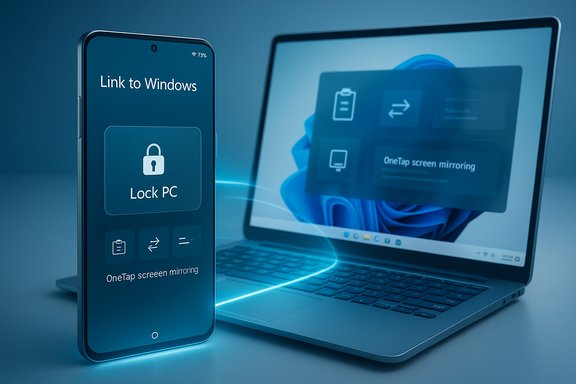
Microsoft has quietly given the Link to Windows (Phone Link) experience a meaningful upgrade: Android users can now lock a paired Windows 11 PC remotely from their phone, and a redesigned Link to Windows interface centralizes clipboard sharing, one‑tap screen mirroring, bi‑directional file transfer, and a recent activity hub that displays shared items and key PC stats at a glance.
Microsoft’s Phone Link ecosystem — the Phone Link app on Windows and the Link to Windows companion on Android — has evolved from a convenience add‑on into a core cross‑device productivity layer for Windows 11. Historically, features like notification sync, calls, and photo access were the marquee capabilities; more recently Microsoft has been folding deeper integration into the Windows Start menu and expanding what actions can be initiated from the phone itself. The new Link to Windows release extends that philosophy by enabling direct command and control actions from the handset, including a manual Lock PC function and improved content‑sharing workflows.
For day‑to‑day users this is a welcome step: the friction of locking an away PC is reduced to a single tap. For enterprises and security‑conscious users, the change is neutral to positive provided Link to Windows deployments are governed by clear device management and that users follow the best practices above.
Users should embrace the update while remaining mindful of data‑exposure vectors (clipboard and file transfers), testing their specific phone‑PC pairing, and applying sensible security hygiene to both the phone and the PC. For many, this update will accelerate everyday tasks and remove small but recurring annoyances; for IT teams and power users, it is an opportunity to re‑examine cross‑device policies and adjust where sensitive workflows rely on local clipboard or ad‑hoc file movements.
Conclusion
Microsoft’s incremental strategy for Phone Link keeps adding utility in ways that matter: faster control of the PC from the phone, cleaner cross‑device content movement, and tighter Start menu integration. The new Lock PC feature and the consolidated Link to Windows interface are practical upgrades that bring Windows and Android closer together — but they are not plug‑and‑play miracles. Expect benefits immediately if your devices are fully supported, and expect to troubleshoot and adjust settings if you rely on clipboard sync or use non‑Samsung hardware. Armed with the update and a short checklist of security best practices, the modern Windows 11 user now has one more low‑friction tool to keep work flowing and devices secure.
Source: TechRadar https://www.techradar.com/computing...uding-remotely-locking-your-pc-via-the-phone/
 Background
Microsoft’s Phone Link ecosystem — the Phone Link app on Windows and the Link to Windows companion on Android — has evolved from a convenience add‑on into a core cross‑device productivity layer for Windows 11. Historically, features like notification sync, calls, and photo access were the marquee capabilities; more recently Microsoft has been folding deeper integration into the Windows Start menu and expanding what actions can be initiated from the phone itself. The new Link to Windows release extends that philosophy by enabling direct command and control actions from the handset, including a manual Lock PC function and improved content‑sharing workflows. What’s new — feature rundown
The update reorganizes Link to Windows around a single control surface on Android and introduces several tangible additions:- Lock PC: a prominent button that locks a linked Windows 11 PC immediately from the phone.
- Clipboard sync: cross‑device clipboard sharing that includes copied text and images when enabled.
- One‑tap screen mirroring: quick access to cast or mirror the phone screen to the PC from the Android app.
- Send files both ways: initiate file transfers from phone→PC and PC→phone directly.
- Recent activity panel: a timeline-style view that displays recently shared files, links, and clipboard items.
- PC status tiles: real‑time (near‑real‑time) display of laptop battery level and Wi‑Fi signal strength inside the Android app.
How the Lock PC feature behaves (and how it differs from Dynamic Lock)
The new Lock PC action is an explicit, manual command issued from the Link to Windows app to put the Windows session into the locked state. Key operational details observed in testing and reporting:- The action is initiated entirely from the Android device UI and does not require the older Bluetooth‑based Dynamic Lock to be active. Dynamic Lock automatically locks Windows when a paired Bluetooth device goes out of range; the new Lock PC button is a manual on‑demand alternative.
- After a successful Lock PC command, Phone Link often disconnects and the phone must be used to sign back into the PC to re‑establish the link; this prevents remote re‑unlocking and limits the attack surface.
- In early hands‑on reports there were occasional connection failures and transient states where the app thought the PC was locked when the lock action didn’t complete; those errors required a refresh of the connection or a check of Bluetooth Manage devices on the PC. This suggests the remote lock relies on a healthy Link to Windows connection and may surface edge‑case errors when connectivity is imperfect.
How to get the update and confirm it on your devices
Microsoft’s official guidance for Link to Windows updates remains the same: updates may roll automatically via your device’s update channels, but you can manually check for updates inside the Link to Windows settings on Android.- On your Android handset go to Settings > Advanced features > Link to Windows (on select skins the path may differ).
- Tap the three‑dot menu (ellipsis) in the upper‑right and choose About Link to Windows.
- Tap Check for updates; install any available update and then restart the Link to Windows/Phone Link apps on both devices.
Device and platform compatibility — what to expect
- The Phone Link/Link to Windows stack works best with devices that are fully supported and paired through the official Microsoft flow. Several advanced features historically arrived first (or exclusively) on Samsung Galaxy devices due to deeper OEM collaboration, and some capabilities still vary by handset and OEM integration.
- Clipboard sync and cross‑device copy & paste are available but not universally reliable across every Android phone model or Android skin. Microsoft and OEM features (e.g., Samsung’s own clipboard/continuity services) can conflict, and users often have to pick one service or adjust settings to avoid duplication. Expect fragmentation and device‑specific caveats.
Reliability: what hands‑on testing and reports reveal
Independent reviews and hands‑on testing reveal a mix of solid utility and some real‑world rough edges:- Lock PC generally works quickly and reliably when a stable connection exists; multiple outlets reported the PC locking within seconds for most users.
- Early testers observed occasional "couldn’t connect" errors when the Link to Windows connection was in a degraded state, requiring a reconnection or a Bluetooth Manage devices refresh on the PC. This indicates the feature relies on an intact communication channel and that connectivity problems can produce misleading UI states.
- Clipboard sync with images and screenshots is a big productivity win in tests, but many users report intermittent failures or needing to toggle settings due to conflicts with OEM clipboard sync services (for example, Samsung’s continuity features). Community and Microsoft forum threads document cases where copy/paste stops working until one of the competing services is disabled.
Security and privacy analysis
The new Link to Windows abilities change the security posture in predictable ways. Here’s a breakdown of what improves and where extra caution is needed.What improves
- Quick session hardening: The Lock PC button is a fast, frictionless method to secure a desktop or laptop if you’re called away unexpectedly. This is a clear, practical improvement for users who frequently leave devices unattended.
- Failsafe disconnection: The reported behavior of disconnecting Phone Link on lock reduces the risk that a lost or stolen phone could be used to re‑establish a session and access the PC without the user re‑authenticating. That design choice strengthens the one‑way nature of the command (lock only, not unlock).
Potential risks and caveats
- Clipboard leakage: Clipboard sync can move snippets, passwords, or screenshots across devices. If clipboard history is enabled and devices are shared or insecure, sensitive data could be exposed. Treat the clipboard as a transient data path and disable cross‑device sync when handling highly sensitive content.
- File transfer exposure: Bi‑directional file transfer simplifies workflows but also introduces a potential transfer vector for accidental data exposure if the sending UI doesn’t clearly communicate destination and permissions. Users should confirm transfers and maintain cautious sharing habits.
- Phone compromise scenarios: If an attacker gains control of a linked phone that is signed into the same Microsoft account and still paired, they could issue commands such as Lock PC — a nuisance and denial‑of‑access risk. However, Lock PC by itself does not grant the attacker control to unlock or access the PC’s files if the Windows account is protected by a strong credential or biometric lock.
Best practices (security checklist)
- Keep your phone locked with a secure PIN/biometric.
- Use strong Windows sign‑in protections (Windows Hello, PIN, BitLocker for drives).
- Disable cross‑device clipboard sync when working with sensitive materials.
- Revoke or re‑pair device links immediately if a phone is lost or compromised.
- Regularly review Link to Windows and Phone Link permissions and logs.
Practical uses and workflows
The combination of remote lock plus fast content transfer opens several practical workflows:- Securely stepping away: Lock a shared workstation from a meeting room or café without returning to the desk. The phone becomes a rapid hardening trigger.
- Quick content handoff: Capture a screenshot on your phone, copy it to the clipboard, and paste into a desktop editor — helpful for research, note taking, or rapid bug reporting.
- Phone screen casting for demos: Mirror a phone app for troubleshooting or to show an app feature during a meeting while controlling the presentation from the PC.
- File exchange for mixed device workflows: Move photos or documents to the PC for heavy editing, then push back compressed or edited files to the phone for sharing.
Troubleshooting and tips
If features aren’t appearing or behave oddly, try these steps:- Verify both apps are up to date: Link to Windows on Android and Phone Link on Windows. Use Settings > About Link to Windows → Check for updates on the handset and Phone Link > Settings > About > Updates on Windows.
- Confirm you’re signed into the same Microsoft account on both devices. Account mismatches will block syncing.
- If clipboard or file transfers fail, toggle the Sync clipboard / Cross‑device copy and paste setting off and on, then re‑establish the connection. Conflicts with OEM services (Samsung continuity or SwiftKey) may require disabling one service.
- For Lock PC errors, ensure the Link to Windows connection shows as “Connected” and refresh the PC’s Manage devices area if prompted; occasionally Bluetooth Manage devices state interferes with handshakes.
- If you lose a phone, remotely remove the device from your Microsoft account and unpair within Phone Link to block further commands.
What this means for Windows 11 users
Microsoft is moving Phone Link from a reactive accessory toward a proactive toolset that lets the phone act as a control surface for PC tasks. The Lock PC addition is both practical and symbolic: it shows Microsoft’s intent to let the phone do more than display notifications — it can take decisive actions to secure or manipulate the PC environment.For day‑to‑day users this is a welcome step: the friction of locking an away PC is reduced to a single tap. For enterprises and security‑conscious users, the change is neutral to positive provided Link to Windows deployments are governed by clear device management and that users follow the best practices above.
Limitations and open questions
- Rollout variability: Microsoft is rolling these features out incrementally; not all users will see the controls immediately and behavior may differ by region, handset model, and OEM skin. Expect staggered availability.
- Fragmented clipboard support: Clipboard reliability across all Android models remains inconsistent in practice. Reports in forums and Microsoft Q&A show the feature can be temperamental and is sometimes tied to OEM services. Users should not assume clipboard sync is universally stable yet.
- Lack of formal hardening guidance: Microsoft documents update/check procedures but has not published a deep technical whitepaper detailing the Lock PC command authentication flow or telemetry — that leaves some technical questions about transport mechanisms and fallback behavior unanswered in public documentation. Treat certain internal mechanics as proprietary and potentially variable.
Final assessment
The Link to Windows refresh is a practical and meaningful upgrade that reduces friction between Android and Windows 11. The Lock PC button is a clear quality‑of‑life and security addition, and the richer sharing surface (clipboard, file transfers, screen casting, recent activity, and PC status) converges many scattered features into one actionable hub on the phone. Early reports and testing confirm functional value, but real‑world reliability will depend on device model, carrier/OEM customizations, and local connectivity.Users should embrace the update while remaining mindful of data‑exposure vectors (clipboard and file transfers), testing their specific phone‑PC pairing, and applying sensible security hygiene to both the phone and the PC. For many, this update will accelerate everyday tasks and remove small but recurring annoyances; for IT teams and power users, it is an opportunity to re‑examine cross‑device policies and adjust where sensitive workflows rely on local clipboard or ad‑hoc file movements.
Conclusion
Microsoft’s incremental strategy for Phone Link keeps adding utility in ways that matter: faster control of the PC from the phone, cleaner cross‑device content movement, and tighter Start menu integration. The new Lock PC feature and the consolidated Link to Windows interface are practical upgrades that bring Windows and Android closer together — but they are not plug‑and‑play miracles. Expect benefits immediately if your devices are fully supported, and expect to troubleshoot and adjust settings if you rely on clipboard sync or use non‑Samsung hardware. Armed with the update and a short checklist of security best practices, the modern Windows 11 user now has one more low‑friction tool to keep work flowing and devices secure.
Source: TechRadar https://www.techradar.com/computing...uding-remotely-locking-your-pc-via-the-phone/
