

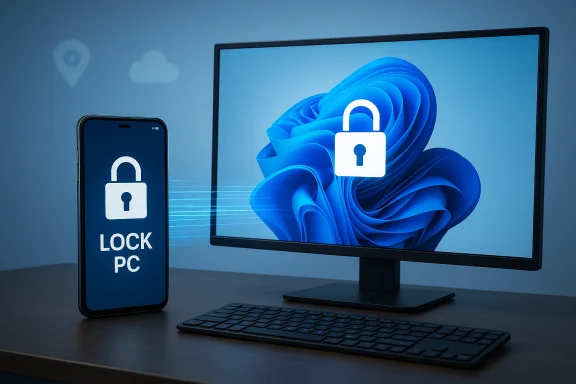
Microsoft has quietly given Android users a new, practical way to secure a Windows 11 PC from a distance: your phone can now lock your computer. This capability appears in the refreshed Link to Windows / Phone Link experience and is complemented by Microsoft’s long‑standing Find My Device web controls and a new in‑Settings Remote PC Controls toggle that lets you manage whether mobile devices can issue commands like locking. The result is a simple but powerful set of options for securing a machine you walked away from, whether you’re down the hall or across town.
Microsoft has been tightening integration between Android phones and Windows for several years through Phone Link (the Windows client) and Link to Windows (the Android client). Historically this ecosystem let you see notifications, read and send texts, access photos, and mirror your screen; more recently, Microsoft added controls so an Android device can remotely lock a paired Windows 11 PC. That capability is delivered through both the Android app UI (a Lock PC button) and a Windows-side toggle named Remote PC controls found in Settings. The feature is intentionally one‑way: phones can lock a PC, but they cannot remotely unlock it — unlocking still requires the user to authenticate at the machine.
At the same time, Microsoft’s web-based Find My Device service — part of your Microsoft Account dashboard — has long offered device location and a “Lock” action for Windows devices tied to the same account. That web control remains a useful fallback when you don’t have the Link pairing or want to lock a device from any browser. Together, these methods create three practical remote-lock pathways: Phone Link / Link to Windows (Android), Remote PC controls (Windows + phone pairing + cloud), and Microsoft Account / Find My Device (web).
Locking your Windows 11 PC from your phone is now a practical, supported defense-in-depth tool for both casual users and admins. It removes the “race home” anxiety when you forget to lock your machine, while giving IT administrators and privacy-conscious users control over which mobile devices can effect such changes. As with any remote control capability, the benefits are greatest when paired with strong account security, up-to-date software, and reasonable operational testing — and it’s worth remembering that a lock is an access barrier, not a replacement for disk encryption and endpoint management. Follow the setup steps above, test carefully, and use the Remote PC controls toggle to keep trusted devices in charge.
Source: Guiding Tech How to Remotely Lock Windows With Your Phone
 Background / Overview
Microsoft has been tightening integration between Android phones and Windows for several years through Phone Link (the Windows client) and Link to Windows (the Android client). Historically this ecosystem let you see notifications, read and send texts, access photos, and mirror your screen; more recently, Microsoft added controls so an Android device can remotely lock a paired Windows 11 PC. That capability is delivered through both the Android app UI (a Lock PC button) and a Windows-side toggle named Remote PC controls found in Settings. The feature is intentionally one‑way: phones can lock a PC, but they cannot remotely unlock it — unlocking still requires the user to authenticate at the machine. At the same time, Microsoft’s web-based Find My Device service — part of your Microsoft Account dashboard — has long offered device location and a “Lock” action for Windows devices tied to the same account. That web control remains a useful fallback when you don’t have the Link pairing or want to lock a device from any browser. Together, these methods create three practical remote-lock pathways: Phone Link / Link to Windows (Android), Remote PC controls (Windows + phone pairing + cloud), and Microsoft Account / Find My Device (web).
What changed and why it matters
- The Link to Windows Android app now exposes an explicit Lock PC control in the phone UI for paired PCs running Windows 11 with Phone Link enabled. This converts what used to be a collection of notification and file-sharing conveniences into a security tool you can trigger manually.
- Windows 11 Settings gained clearer device-management controls under Bluetooth & devices → Mobile devices where administrators can toggle Allow this PC to access your mobile devices and enable or disable Remote PC controls for each paired phone. That lets you control whether a phone account can issue remote locks (or other mobile-driven actions).
- Microsoft retained and continues to support the cloud-based Find My Device lock option via your Microsoft Account dashboard, so you can lock a device even if you’re not currently paired to it with Phone Link. That route is especially useful for lost or stolen machines.
Step‑by‑step: How to set it up and lock your PC from a phone
The following numbered instructions provide the setup paths for the two primary ways to lock a Windows 11 PC from a phone: Link to Windows / Phone Link (Android) and Microsoft Account / Find My Device (any device with a browser).1. Link to Windows (Android) + Phone Link (Windows)
- On Windows, open Settings (Win + I) → Bluetooth & devices → Mobile devices. Ensure Phone Link is toggled on and click Manage devices.
- On your Android phone, install or update Link to Windows (may be preinstalled on many Samsung phones). Open the app and follow the pairing flow — typically scanning a QR code shown by Phone Link on your PC, then signing into the same Microsoft account on both devices.
- Back on Windows, expand your phone under My devices and enable Remote PC controls if you want lock commands to work even when Bluetooth/local connectivity isn’t available. This requires the phone and PC to be associated through your Microsoft account and the Windows cloud service.
- To lock: open Link to Windows on the phone, open the connected PC entry in the app, and tap Lock PC (confirm the action). The PC will immediately lock and disconnect from the Link session until you log back in locally.
2. Microsoft Account → Find My Device (web method)
- From any browser (phone or desktop), sign in to your Microsoft Account. Open the Devices area and select the machine you want to find.
- Choose Find my device, wait for the location to refresh (the device must be online), then click Lock. Optionally include a message to display on the lock screen. This action will sign out any active users and lock the device remotely.
Quick feature checklist (what you get)
- Remote lock via Android phone through Link to Windows / Phone Link. One‑way lock (no remote unlock).
- Remote PC Controls toggle in Windows Settings to allow or deny mobile-driven commands.
- Microsoft Account / Find My Device web lock for devices registered to your account.
Limitations and platform coverage
- Android only (for the phone UI Lock button): The Link to Windows / Phone Link lock control is currently available for Android; iOS support remains limited and does not include the same deep control set. That’s an ecosystem limitation, not a Windows one.
- No remote unlock from phone: Microsoft intentionally prevents remote unlocking from phones. Locking is a one‑way defensive action — unlocking requires local authentication at the PC. Plan accordingly if you might accidentally lock a machine you cannot physically reach soon after.
- Staged rollouts and version sensitivity: The phone lock control was added in recent app builds and rolled out progressively; not all users saw it immediately. If you don’t see the control, verify the Link to Windows app version and your Windows build, and check for staged availability. Reports identified app builds in the 1.25071.x and 1.25102.x ranges during rollout windows around late 2025. This timing can vary by account, OEM, and Windows channel. Treat specific version numbers and rollout dates as rollout references, not guarantees.
- Device must be online (for some flows): Find My Device needs internet connectivity on the target PC to update location and accept a lock command. The Link flow can sometimes work through Microsoft’s cloud, but certain actions are restricted if the target is completely offline.
Security analysis — benefits and risks
Benefits
- Immediate mitigation: A remote lock cuts off casual access immediately and prevents someone from interacting with your desktop session or files until local authentication occurs. This is far quicker than changing passwords or waiting to regain physical control.
- Convenience and auditability: Phone Link’s Recent Activity panels and the Microsoft Account device dashboard give visibility into recently paired devices and actions, which helps when confirming whether a lock was issued intentionally.
- Administrative control: Windows Settings’ Remote PC controls give administrators granular control over which phones are permitted to manage a PC — helpful in shared or family scenarios.
Risks and downsides
- Potential for accidental lockouts: Because locks are one‑way, if you issue a lock while away for an extended period without a plan to return, recovering access still requires physical presence or someone with access at the PC. This can be inconvenient for servers, remote workstations, or shared lab machines.
- Social engineering and account compromise: The remote lock feature is only as safe as your Microsoft account and phone. If an attacker gains access to your Microsoft account or your phone (and its sign-in), they could lock your devices or otherwise manipulate paired controls. Two‑factor authentication (MFA) and device passcodes are essential mitigations.
- Staged rollout confusion: Users may assume the feature is universal when it’s not yet present on their device because Microsoft has used staged updates. This can create a false sense of security or confusion when a lock command is unavailable at a critical moment.
- Dependency on Microsoft cloud: Some remote lock paths rely on Microsoft’s cloud services. Heavy reliance on cloud control creates a dependency — if network or service outages occur, the remote lock path may be delayed or fail.
Practical recommendations and best practices
- Enable MFA on your Microsoft account. This reduces the risk that someone who steals your phone or guesses your password can issue commands through the account dashboard or pair a new device.
- Keep Link to Windows and Phone Link updated. The Lock PC control arrived in recent builds; updates also include bug fixes and security patches. If you rely on this capability, check for app updates both on Android and via Windows Update/app store channels.
- Enable BitLocker and use a secure sign-in method (PIN/Windows Hello). If a device is stolen, locking the screen is helpful, but full disk encryption and strong local sign-in protect data if the thief tries offline attacks.
- Test the feature in non-critical scenarios. Lock and unlock locally (and ask a trusted colleague to test remote lock) to confirm behavior and recovery steps before you depend on it in a high-stakes situation.
- Use the Windows Settings Mobile Devices controls to limit trusted phones. Only grant Remote PC controls to phones you own or trust. Revoke access immediately when a phone is lost or an employee leaves.
Troubleshooting: Why you might not see the Lock button
- Old app or Windows build: Update the Link to Windows app and ensure Phone Link on Windows is current. The remote-lock functionality depends on recent builds. Check both device update paths.
- Remote PC controls disabled: On Windows, go to Settings → Bluetooth & devices → Mobile devices → Manage devices and ensure the Remote PC controls toggle is enabled for your phone. If Allow this PC to access your mobile devices is off, the Manage button will be greyed out.
- Account mismatch: Phone and PC must be associated with the same Microsoft account for many of the cloud-powered features. Verify the account in Phone Link and on the PC.
- Battery optimizations on Android: OEM battery managers may suspend Link to Windows background activity. Exempt the app from battery optimization or ensure the app can run in the background.
- Offline device: If the target PC is offline or blocked from reporting location, Find My Device may be unable to lock it until it reconnects. The Link flow can sometimes operate through cloud commands, but full functionality requires connectivity.
Enterprise and power-user alternatives
If you need more centralized or auditable remote lock and wipe capabilities (for fleets, kiosks, or managed endpoints), consider:- Microsoft Intune / Endpoint Manager: Enforce device compliance, remote lock, or wipe on enrolled Windows devices centrally via MDM policies. This is the recommended path for managed corporate devices.
- Third‑party remote management tools: Tools like TeamViewer, AnyDesk, and enterprise remote control systems let admins lock, log out, or control sessions remotely — often with stronger session auditing and role-based access. Choose these only with strict access controls.
- Group Policy / PowerShell scripts: In managed environments, scripted solutions and GPOs can enforce lock behaviors or trigger scheduled tasks when certain endpoints report unusual status.
How locking works under the hood (concise technical view)
- The Link to Windows Android app issues a command tied to your Microsoft account and the Phone Link/Phone management service. If the phone and PC are paired and consented for remote controls, the cloud service forwards a lock command to the PC, which then engages the normal OS lock flow (equivalent to Windows + L).
- Find My Device uses the Microsoft account device registry and the device’s location services. When a user clicks Lock in the web dashboard, Microsoft sends a command to the device (if online) to sign out active users and enforce the lock screen; the dashboard can also allow an explanatory message for whoever finds the device.
- Windows enforces local authentication on unlock. There is no supported, remote “unlock” wire command exposed to Link to Windows or Find My Device; that restriction helps prevent remote unlocking by an attacker who somehow gains access to your account.
What we don’t yet know / cautionary flags
- Reports and hands‑on writeups indicate a staged rollout through late 2025. If you’re relying on the feature immediately, expect variation by account, OEM, and Windows channel; Microsoft’s staged availability policy means some users will receive it earlier than others. Treat the specific version numbers and rollout dates as indicative rather than authoritative.
- Microsoft hasn’t documented every edge case publicly (for example, exact failure modes when a device has a complex firewall or is under certain enterprise policies). In managed environments, tenant‑level policies may override or disable mobile-driven remote controls.
Final verdict — when to use which method
- Use Link to Windows Lock button (Android) when you’re near your phone or need an immediate, manual lock from the phone UI. It’s fast and user-friendly for personal devices.
- Turn on Remote PC controls in Settings when you want the phone to be able to issue commands without relying purely on direct Bluetooth proximity. This broadens usability for users who frequently leave their desks while staying connected to the internet.
- Use Microsoft Account → Find My Device when the PC is lost, stolen, or you prefer a browser-based option that works from any device (including iPhone or tablets) with a browser. This is the most universal fallback.
Locking your Windows 11 PC from your phone is now a practical, supported defense-in-depth tool for both casual users and admins. It removes the “race home” anxiety when you forget to lock your machine, while giving IT administrators and privacy-conscious users control over which mobile devices can effect such changes. As with any remote control capability, the benefits are greatest when paired with strong account security, up-to-date software, and reasonable operational testing — and it’s worth remembering that a lock is an access barrier, not a replacement for disk encryption and endpoint management. Follow the setup steps above, test carefully, and use the Remote PC controls toggle to keep trusted devices in charge.
Source: Guiding Tech How to Remotely Lock Windows With Your Phone
