

Microsoft’s recent clarifications around Direct Send and the related protection options in Exchange Online change the way administrators should think about mail routing, tenant exposure, and the controls available to prevent spoofing and unwanted anonymous mail that appears to originate from their own domains.
Exchange Online tenants are assigned a default MX-style endpoint (for example, contoso-com.mail.protection.outlook.com) that resolves to Microsoft’s shared mail ingress infrastructure. That endpoint is intentionally public and predictable — it simplifies DNS configuration and enables the service to route mail at scale. Because the endpoint resolves to shared IP addresses, simply knowing the hostname does not give a third party privileged access to your tenant; mail still follows Exchange Online’s normal routing and attribute logic. However, the existence of that public endpoint means that anyone on the public Internet can attempt to deliver mail directly to your tenant unless you explicitly restrict or authenticate inbound mail flow.
Two separate but often conflated concepts are central to recent discussions:
This means:
Unauthenticated mail that nevertheless uses one of your accepted domains in the P1 envelope sender looks like it is “from you” and can be abused for impersonation or nuisance mail. Historically, SPF/DKIM/DMARC help reduce the risk of this mail landing in inboxes, but they don’t stop delivery to your tenant in all configurations. That’s where tenant configuration controls come into play.
Key characteristics of Direct Send:
Important distinctions:
Core points about the feature:
New-TransportRule -Name "Redirect to quarantine if not coming from known IPs" -Quarantine $true -ExceptIfHeaderContainsMessageHeader 'X-MS-Exchange-Organization-AuthAs' -ExceptIfHeaderContainsWords 'Internal' –ExceptIfSenderIpRanges '203.0.113.0/24,198.51.100.0/24' -StopRuleProcessing $true -Priority 0
Benefits:
Example PowerShell (Historical Message Trace):
Start-HistoricalSearch -ReportTitle DirectSendMessages -StartDate 07/01/2025 -EndDate 07/24/2025 -ReportType ConnectorReport -ConnectorType NoConnector -Direction Received -NotifyAddress [email protected]
Notes:
A measured, telemetry-driven rollout — inventory, quarantine, authenticate, enforce — balances security with business continuity. The technical controls are available now: use the historical trace and Defender telemetry to build a complete picture, authenticate legitimate sources via connector certificates where possible, and use Reject Direct Send as the final enforcement lever when you are confident legitimate senders have been migrated away from unauthenticated Direct Send paths.
By following a staged approach and keeping monitoring in place, organizations can dramatically reduce internal-domain spoofing risk while preserving legitimate application and partner messaging behavior.
Source: Microsoft Exchange Team Blog https://techcommunity.microsoft.com...ly-to-an-exchange-online-tenant/ba-p/4439865/
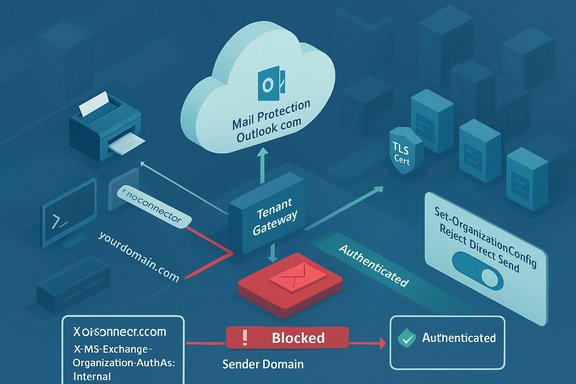 Background / Overview
Exchange Online tenants are assigned a default MX-style endpoint (for example, contoso-com.mail.protection.outlook.com) that resolves to Microsoft’s shared mail ingress infrastructure. That endpoint is intentionally public and predictable — it simplifies DNS configuration and enables the service to route mail at scale. Because the endpoint resolves to shared IP addresses, simply knowing the hostname does not give a third party privileged access to your tenant; mail still follows Exchange Online’s normal routing and attribute logic. However, the existence of that public endpoint means that anyone on the public Internet can attempt to deliver mail directly to your tenant unless you explicitly restrict or authenticate inbound mail flow.Two separate but often conflated concepts are central to recent discussions:
- Direct Send — the practice of sending mail from your domain directly to your own mailboxes (or mailboxes in the same tenant) without authentication (i.e., unauthenticated SMTP submissions that use your accepted domain in the MAIL FROM / P1 envelope sender). Devices, applications, or third-party services sometimes use this method when authenticating is not possible.
- Sending directly to a tenant endpoint — the broader fact that any external sender can address mail to the Exchange Online-provided MX endpoint and deliver mail to mailboxes inside other tenants (subject to tenant attribution and region restrictions). This is not Direct Send per se; it’s simply how the SMTP ecosystem operates unless you lock your tenant down.
How mail flow works in Exchange Online
The tenant endpoint and public MX
Every Exchange Online tenant receives a unique MX host name (the familiar *.mail.protection.outlook.com pattern). That hostname is public and resolves to service IPs. It is designed to be used in DNS MX records, and Microsoft treats the host name as a non-secret routing target. The hostname itself carries no mailbox-level authentication; mail that arrives at those IP addresses is processed by the service and routed to the appropriate tenant based on message attributes and tenant attribution logic.This means:
- If your MX points to a third-party filter, that third-party will normally forward mail to your Exchange Online endpoint after processing.
- If your MX points directly to Exchange Online, external senders will use the Exchange Online endpoint to deliver mail to your mailboxes.
- If attackers or misconfigured systems send mail to your tenant’s mail.protection.outlook.com endpoint with your domain in the envelope sender, Exchange Online will accept the mail by default unless you’ve explicitly limited inbound sources.
Authentication vs routing
Authentication (SMTP AUTH, TLS certificate validation, connector authentication) is different from routing. Mail that authenticates — whether via a configured inbound connector with certificate validation, an authenticated SMTP submission, or internal store-drive routing — is treated as internal or authenticated by Exchange Online and affects headers (e.g., X‑MS‑Exchange‑Organization‑AuthAs) and spam scoring.Unauthenticated mail that nevertheless uses one of your accepted domains in the P1 envelope sender looks like it is “from you” and can be abused for impersonation or nuisance mail. Historically, SPF/DKIM/DMARC help reduce the risk of this mail landing in inboxes, but they don’t stop delivery to your tenant in all configurations. That’s where tenant configuration controls come into play.
What is Direct Send — precise definition and operational impact
Direct Send is the name commonly given to sending mail from an accepted domain directly into Exchange Online without authenticating — for example, a multifunction printer using yourdomain.com as the MAIL FROM and connecting anonymously to a mail.protection.outlook.com endpoint to deliver a scanned document to a mailbox in your tenant.Key characteristics of Direct Send:
- Uses your accepted domain in the P1/Mail From envelope (the sending domain).
- Typically does not authenticate with a connector certificate or SMTP AUTH.
- Is used by devices, apps, legacy LOB systems, or certain third-party services that cannot perform authenticated SMTP submission.
- Historically, there was no tenant-level mechanism to outright reject such anonymous mail destined for mailboxes in that tenant — mail would be accepted and processed (subject to spam checks and authentication signals).
What Direct Send is not: sending to a tenant endpoint is not the same thing
Many administrators have described a perceived “loophole”: someone ignoring a domain’s public MX and sending mail directly to the Exchange Online-provided endpoint. That behavior — sending mail directly to the tenant endpoint — is not the unique behavior called Direct Send. It’s simply the SMTP ecosystem in action.Important distinctions:
- Direct Send is defined by the sending domain matching an accepted domain and being delivered without authentication (i.e., the tenant cannot verify the sender via an inbound connector or certificate).
- Direct delivery to the tenant endpoint can include mail that is authenticated by an inbound connector from a trusted third-party service. The arrival IP / connector attribution key determines whether Exchange Online treats it as an authenticated partner delivery.
New control: Reject Direct Send — what it is and what it does
Microsoft introduced the Reject Direct Send tenant-level setting to give admins a simple way to disallow anonymous mail that uses an accepted domain as the P1 envelope sender.Core points about the feature:
- It is an opt-in tenant setting. Enabling it rejects unauthenticated messages whose P1/Mail From address is an accepted domain on the tenant unless the message is attributable to an inbound connector you’ve configured.
- The tenant command to enable it is:
Set-OrganizationConfig -RejectDirectSend $true - When enabled, messages rejected by this control commonly receive an NDR such as 550 5.7.68 TenantInboundAttribution; Direct Send not allowed for this organization from unauthorized sources.
- The feature is intended to block anonymous messages that appear to be from your own domain(s) unless they arrive via an authenticated partner connector or other approved path.
- If you have legitimate devices, services, or third-party partners that send to Exchange Online without a connector, enabling Reject Direct Send will cause those messages to be rejected. You must inventory and authenticate or reconfigure those sources before turning this on.
- Forwarding scenarios that break authentication (for example, third-party forwards without Sender Rewriting Scheme, SRS) can be impacted.
- Some Microsoft and Microsoft-adjacent services required special handling (for example, Azure Communication Services) and Microsoft has provided mitigations for specific cases, but those mitigations can be time- or region-dependent. Treat timeframes as subject to change.
How to lock your tenant to approved inbound sources — options and trade-offs
There are three primary, complementary techniques to harden your tenant against unwanted direct delivery or unauthorized Direct Send traffic:1) Configure an inbound partner connector and restrict domains
- Create a Partner-type inbound connector and require certificate validation (TlsSenderCertificateName / RestrictDomainsToCertificate) or restrict by source IP (RestrictDomainsToIPAddresses).
- When the connector restrict flag is set, Exchange Online will reject mail that is not received using that connector’s authenticated attributes.
- This is the most robust way to force all inbound mail from a third-party MX to authenticate to Exchange Online instead of letting unauthenticated, anonymous deliveries succeed.
- Strong, certificate-based authentication is resilient and avoids reliance on source IPs that may be shared.
- When configured correctly, mail from the approved third-party will be accepted and still pass through your third-party filtering stack as intended.
- Requires coordination with the third-party service to authenticate using TLS certificates or provide static IP ranges.
- Complexity if you have multiple third-party providers or dynamic IP ranges.
2) Use the Reject Direct Send tenant setting (opt-in)
- Enable Reject Direct Send to block anonymous inbound mail where the P1 envelope sender is an accepted domain.
- This is a blunt, effective control to stop unauthenticated use of your own domains.
- Simple toggle that addresses a common impersonation vector.
- Works even if you don’t have a third-party inbound connector strategy in place.
- Can break legitimate use cases that rely on anonymous Direct Send (printers, legacy apps, some SaaS vendors).
- Requires a good inventory and test plan before enabling.
3) Implement a staging transport rule strategy (report/quarantine) before enforcement
- Create a transport rule (mail flow rule) that quarantines or redirects all inbound mail that does not originate from known or approved IPs or which is not marked as Internal in the X‑MS‑Exchange‑Organization‑AuthAs header.
- Set the rule to a very high priority (Priority 0) and use “Stop processing more rules” so it runs before your usual rules.
- Use exceptions for known IP ranges and for messages that Exchange already marks as Internal (the header
X‑MS‑Exchange‑Organization‑AuthAs: Internal).
New-TransportRule -Name "Redirect to quarantine if not coming from known IPs" -Quarantine $true -ExceptIfHeaderContainsMessageHeader 'X-MS-Exchange-Organization-AuthAs' -ExceptIfHeaderContainsWords 'Internal' –ExceptIfSenderIpRanges '203.0.113.0/24,198.51.100.0/24' -StopRuleProcessing $true -Priority 0
Benefits:
- Non-destructive staging — you can observe what would be quarantined before you actually reject it.
- Provides a safety net for discovering legitimate senders that need connectors.
- Quarantine load and administrative overhead to review quarantined messages.
- Rule complexity when you must permit many exceptions for Microsoft services or calendar-related traffic.
Auditing and inventory: find who is sending to your tenant without a connector
Before you limit or reject Direct Send traffic, inventory all sources. Microsoft provides several options for visibility; use a combination to build confidence.Historical Message Trace (up to 90 days)
You can run a historical message trace that exports a ConnectorReport showing deliveries where ConnectorType = NoConnector. The historical trace can go back up to 90 days (subject to service constraints) and is created through Exchange Online PowerShell.Example PowerShell (Historical Message Trace):
Start-HistoricalSearch -ReportTitle DirectSendMessages -StartDate 07/01/2025 -EndDate 07/24/2025 -ReportType ConnectorReport -ConnectorType NoConnector -Direction Received -NotifyAddress [email protected]
Notes:
- The Historical Message Trace ConnectorReport will show inbound messages that were not attributed to a configured connector.
- If your tenant’s MX already points to Exchange Online, this report shows all inbound — so you’ll need to filter for entry points you care about (e.g., by sender IP or envelope domain).
Defender for Office 365 — Threat Explorer & Advanced Hunting
If you have Defender for Office 365 Plan 2, Threat Explorer and Advanced Hunting provide near-real-time and 30-day windows of visibility.- Threat Explorer filter idea:
Directionality = Inbound, Connector > equals none of > [list your inbound connectors] - Advanced Hunting query examples:
EmailEvents
| where Timestamp > ago(30d)
| where EmailDirection == 'Inbound' and Connectors == '' and isnotempty(SenderIPv4)
| project Timestamp, RecipientEmailAddress, SenderMailFromAddress, Subject, NetworkMessageId, EmailDirection, Connectors, SenderIPv4 - Summarize sender IPs:
EmailEvents
| where EmailDirection == "Inbound" and Timestamp >= ago(30d) and Connectors == "" and isnotempty(SenderIPv4)
| summarize count by SenderIPv4
Additional telemetry
- Use the Exchange Admin Center inbound messages report for summarized stats (useful for cross-checking).
- Review quarantined message trends if you staged transport rules to redirect suspect mail there.
Recommended phased rollout plan (safe, low-friction)
- Inventory:
- Run Historical Message Trace for the last 30–90 days to list deliveries where ConnectorType = NoConnector.
- Run Advanced Hunting queries to list unique sender IPs and sender domains.
- Make a hit-list of printers, apps, third-party providers, and SaaS services that send to your tenant without authenticating.
- Staging / Monitoring:
- Create a high-priority transport rule that quarantines (not rejects) inbound mail that is not from your approved IP ranges and is not marked Internal by the X‑MS‑Exchange‑Organization‑AuthAs header. Set the rule to “Stop processing more rules”.
- Monitor the quarantine for several business cycles and classify false positives.
- Authenticate and migrate:
- For each legitimate service discovered in step 1:
- If the service supports authenticated TLS and certificate-based connector configuration, create a Partner inbound connector with
RestrictDomainsToCertificate $trueand the appropriateTlsSenderCertificateName. - If certificate auth is not available but the IP range is static and trusted, create a Partner inbound connector and set
RestrictDomainsToIPAddresses $trueand enumerate IP ranges. - Hard enforcement:
- After you’ve authenticated all legitimate sender sources and feel confident the staging rule is not catching needed mail, enable
Reject Direct Sendto block unauthenticated messages that use your accepted domains. - Consider enabling Enhanced Filtering for Connectors or skip-listing to preserve Defender/EOP scanning where necessary.
- Post-enforcement monitoring:
- Keep the quarantine and historical traces active for the first 30–90 days after enforcement to catch residual issues.
- Communicate internally so helpdesk and application owners know the change and required remediation steps.
Practical PowerShell snippets (consistent formatting)
- Enable Reject Direct Send:
Set-OrganizationConfig -RejectDirectSend $true - Create a Partner inbound connector with TLS cert restriction (example):
New-InboundConnector -Name "MX Third Party TLS" -ConnectorType Partner -SenderDomains -RestrictDomainsToCertificate $true -TlsSenderCertificateName ".thirdparty.com" -RequireTls $true - Create a Partner inbound connector with IP restriction (example):
New-InboundConnector -Name "MX Third Party IPs" -ConnectorType Partner -SenderDomains * -RestrictDomainsToIPAddresses $true -SenderIpAddresses "203.0.113.10","198.51.100.20" -RequireTls $true - Historical message trace example:
Start-HistoricalSearch -ReportTitle DirectSendMessages -StartDate 07/01/2025 -EndDate 07/24/2025 -ReportType ConnectorReport -ConnectorType NoConnector -Direction Received -NotifyAddress [email protected] - Staging transport rule example (quarantine):
New-TransportRule -Name "Redirect to quarantine if not coming from known IPs" -Quarantine $true -ExceptIfHeaderContainsMessageHeader 'X-MS-Exchange-Organization-AuthAs' -ExceptIfHeaderContainsWords 'Internal' –ExceptIfSenderIpRanges '203.0.113.0/24,198.51.100.0/24' -StopRuleProcessing $true -Priority 0
Common gotchas and edge cases
- Calendar invites and certain Microsoft-originated messages may not be covered perfectly by a simple IP filter or
AuthAs Internalexception. Some calendar or cross-service messages may need additional transport-rule exceptions (e.g., message-type checks for calendaring). - Forwarding scenarios that do not use SRS can cause legitimate forwarded messages to appear as unauthenticated and be rejected if you enable Reject Direct Send without configuring trusted forwarding partners.
- SaaS providers: Some third-party services historically used Direct Send for inbound mail to tenants. Wherever possible, prefer authenticated SMTP submission (SMTP AUTH) or a partner connector with certificate validation.
- Shared IPs: Many third-party cloud filtering vendors use shared IP addresses across customers. Relying solely on IP-based restrictions can be brittle; certificate-based connector authentication is preferable where available.
- New tenants: Microsoft has signaled that in future phases new tenants may have stricter defaults. Plan accordingly and expect that admin options may evolve.
Monitoring, alerting and operational tasks to keep secure posture intact
- Maintain a periodic (monthly or quarterly) historical trace to find new NoConnector deliveries.
- Use Advanced Hunting to alert on surges in NoConnector inbound message volume or unusual sender IPs.
- Maintain a canonical inventory of printers, line-of-business apps, and SaaS providers that send mail on behalf of your domains.
- Document inbound connectors, their certificate details, and expiration dates — certificate expiry can inadvertently break authenticated inbound mail and cause legitimate traffic to be treated as anonymous.
Risk assessment: strengths and remaining risks
Strengths of the modern hardening options:- Reject Direct Send provides a straightforward tenant-wide safety net to stop anonymous spoofing using your accepted domains.
- Inbound connector restrictions (certificate or IP-based) provide robust authentication for third-party mail paths.
- Staged transport rules and telemetry offer a safe ramp to enforcement without immediately disrupting business flows.
- Misconfiguration or incomplete inventory can cause disruption to legitimate mail — printers, custom apps, or SaaS mailers are common victims.
- Forwarding and legacy relay scenarios may require bespoke handling (SRS, connector attribution).
- Operational overhead: maintaining connectors, certificate rotation, and whitelist management require disciplined processes.
- Timelines or service rollouts (for example, specific fixes for certain Microsoft services or the GA timing of features) are subject to change; administrators should verify the current service announcements and message center notifications in their tenant before acting.
Practical checklist before enforcement
- Run Historical Message Trace for 90 days and catalogue NoConnector senders.
- Run Advanced Hunting queries for the last 30 days to identify active sender IPs that lack connector attribution.
- Create a high-priority quarantine transport rule (Priority 0) and monitor for two business cycles.
- For each legitimate sender identified:
- Prefer certificate-based partner inbound connector configuration.
- If certificate-based is impossible, use IP restriction with narrow ranges and document the reasons.
- Communicate changes to helpdesk, application teams, and external partners.
- Enable Reject Direct Send only after you’ve authenticated or approved the known legitimate sources.
- Continue monitoring for at least 30–90 days and refine connectors/transport rules as needed.
Conclusion
Exchange Online’s public MX endpoints are a practical convenience and a necessary part of the SMTP ecosystem — but they also require administrators to be deliberate about how they want inbound mail to be authenticated and attributed. The combination of inbound connector restrictions, transport rule staging, and Microsoft’s Reject Direct Send setting gives administrators a pragmatic toolbox to prevent anonymous impersonation and close the “loopholes” that exist when mail bypasses third-party MX filters.A measured, telemetry-driven rollout — inventory, quarantine, authenticate, enforce — balances security with business continuity. The technical controls are available now: use the historical trace and Defender telemetry to build a complete picture, authenticate legitimate sources via connector certificates where possible, and use Reject Direct Send as the final enforcement lever when you are confident legitimate senders have been migrated away from unauthenticated Direct Send paths.
By following a staged approach and keeping monitoring in place, organizations can dramatically reduce internal-domain spoofing risk while preserving legitimate application and partner messaging behavior.
Source: Microsoft Exchange Team Blog https://techcommunity.microsoft.com...ly-to-an-exchange-online-tenant/ba-p/4439865/
