

If you’ve been living inside Adobe Photoshop for years, switching to GIMP can feel like learning a new language mid-project — the words are familiar, but the grammar is different. With a handful of careful tweaks you can make GIMP behave, look, and respond much more like Photoshop, reducing friction and preserving muscle memory without paying for another subscription. Below I walk through a practical, tested approach that turns a clean GIMP install into a Photoshop-like workspace, explain why each change matters, and flag the risks and limits you must watch for before committing to any permanent modifications.
GIMP (GNU Image Manipulation Program) has matured significantly in recent years, with the 3.x branch and follow-up releases modernizing the UI and closing many gaps with Photoshop. It remains free and extensible via plugins and scripts, making it a realistic alternative for many users — but the user experience is where newcomers from Photoshop typically struggle. Community-created patches and keymap packs bridge the gap by altering layouts, icons, and shortcuts while leaving GIMP’s core functionality intact. These are user-level customizations, not forks, and they can drastically reduce the pain of transition if applied thoughtfully.
Why this matters:
Why this matters:
What PhotoGIMP changes:
How to handle custom bindings:
Practical rebuild steps:
Source: MakeUseOf 5 easy steps to make GIMP feel like Photoshop
 Background
GIMP (GNU Image Manipulation Program) has matured significantly in recent years, with the 3.x branch and follow-up releases modernizing the UI and closing many gaps with Photoshop. It remains free and extensible via plugins and scripts, making it a realistic alternative for many users — but the user experience is where newcomers from Photoshop typically struggle. Community-created patches and keymap packs bridge the gap by altering layouts, icons, and shortcuts while leaving GIMP’s core functionality intact. These are user-level customizations, not forks, and they can drastically reduce the pain of transition if applied thoughtfully.Quick summary: the five core moves
- Back up your GIMP configuration folder before changing anything. This is essential rollback insurance.
- Switch GIMP to Single-Window Mode so everything lives inside one frame, like Photoshop.
- Apply the PhotoGIMP patch (or a curated configuration overlay) to mimic Photoshop’s layout and icons.
- Install a Photoshop keymap for GIMP so familiar shortcuts work immediately.
- Rebuild and fine-tune the toolbox, docks, and preferences to match your workflow (pan/zoom behavior, tablet settings, history, brushes, etc.).
1. Save your setup first — backup like a professional
Before you change a single setting, back up GIMP’s configuration folder. On Windows this is typically under AppData\Roaming\GIMP; on Linux it’s the GIMP config directory in your home folder. Copy the entire configuration directory to a safe location so you can restore it if something behaves unexpectedly. This avoids data loss and saves hours of reconfiguration when patches don't agree with earlier customizations.Why this matters:
- Config overlays and patches typically replace or add files under the user config folder; restoring the backup returns you to a clean state immediately.
- If you use multiple GIMP versions (2.10 vs 3.x), keeping separate config snapshots prevents cross-version corruption.
- Backups let you test patches on a "clean slate" and compare performance or behavior before committing.
- Close GIMP.
- Locate the config folder (e.g., AppData\Roaming\GIMP on Windows).
- Copy the folder to a timestamped backup (GIMP-config-backup-YYYYMMDD).
- If possible, compress the backup to an external drive or cloud storage.
2. Make the workspace familiar: Single-Window Mode
Photoshop users expect a single, unified window where the canvas, toolbox, and panels are docked. GIMP defaults to multiple floating windows, which breaks that expectation. The simplest immediate change is to enable Single-Window Mode from the Windows menu. Once toggled, toolbox, layers, brushes, and the canvas collapse into a single tabbed interface that’s far less jarring for Photoshop users. GIMP remembers this setting across launches, so it’s a one-time win.Why this matters:
- Preserves your visual focus: the canvas remains central and tools are where you expect them.
- Makes keyboard-driven workflows more predictable (Tab toggling, spacebar panning feel consistent).
- Simplifies workspace management for dual-monitor setups where floating docks can get lost.
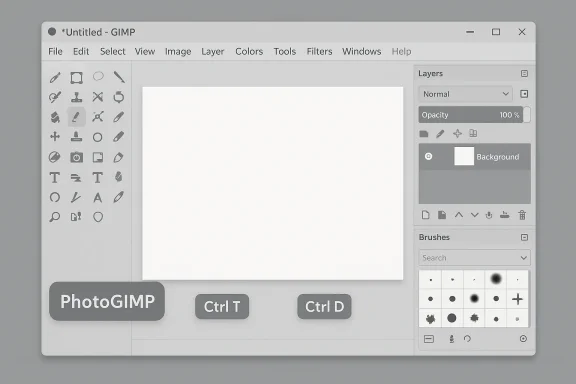
3. Apply PhotoGIMP — the fastest visual makeover
If you want Photoshop’s look and iconography instantly, the PhotoGIMP patch is the community’s most widely used shortcut. It’s a configuration overlay — not a replacement for GIMP — that reorganizes docks into a Photoshop-style layout, switches to single-column toolbars, applies a symbolic (single-color) icon theme, and remaps many default shortcuts to Photoshop equivalents. For a lot of users this single step feels like plugging back into an old workflow.What PhotoGIMP changes:
- Toolbox condensed to a single column with tools ordered like Photoshop.
- Dock layout arranged to keep Layers/Channels/Paths on the right and Tools on the left.
- Icon theme changed to cleaner symbolic icons.
- Many default shortcuts remapped (for example, transform and deselect behavior approximated to Photoshop keys).
- PhotoGIMP is skin-deep: it does not add Photoshop-exclusive features such as Smart Objects or certain Adobe-only filters.
- Because it overwrites config files, plugins or earlier customizations could be temporarily hidden or rearranged; that’s why the backup is critical.
- Compatibility can vary between GIMP versions: community patches are often updated in parallel with GIMP releases but always verify the patch notes for the GIMP version you’re running.
- Ensure GIMP is closed.
- Confirm you have a backup of your config directory.
- Follow the PhotoGIMP installation instructions for your platform — typically this involves extracting the configuration overlay to your GIMP user folder and restarting GIMP.
- Inspect panels, reopen any missing docks (Windows > Dockable Dialogs), and pin your most-used brushes or presets.
4. Keep muscle memory alive: Photoshop keyboard shortcuts in GIMP
Shortcuts are the unsung conveyor belts of speed. PhotoGIMP covers many mappings, but you can go further with dedicated Photoshop keymap packs created by the community. These pack files map GIMP actions to Photoshop shortcuts (for example, Ctrl+T for Transform, Ctrl+D for Deselect) and can be installed by copying the keymap file into the GIMP configuration folder for your version and restarting. This makes the most significant speed difference for users switching between both apps.How to handle custom bindings:
- Most public keymap packs assume Photoshop defaults; if you’ve redefined keys in your Photoshop install, you’ll need to port those manually.
- After installing a keymap, test essential actions (transform, erase, brush-sizing, selection toggles) in a small project to confirm behavior.
- Keep a short, sticky cheat-sheet of mappings while you retrain reflexes — muscle memory is durable but not instant.
- Some Photoshop shortcuts depend on Adobe’s modal behaviors (e.g., how the spacebar interacts with tools); exact parity may not be possible without more advanced scripting or plugin support.
- Conflicts may arise with OS-level shortcuts; if a system-level hotkey blocks a Photoshop mapping, consider changing the OS binding or pick an alternate GIMP mapping.
5. Rebuild docks, panels, and tool options to match your workflow
After PhotoGIMP and a keymap, you’ll be close — but professional workflows depend on subtle panel placements and visibility of specific dialogs (Layers, Channels, Masks, History, Tool Options, Brushes). GIMP’s dockable dialog system is flexible: drag, tear off, reattach, and create tabbed docks that mirror Photoshop’s arrangement. Recreate this layout intentionally:- Left: Toolbox (single-column), Tool Options pinned underneath.
- Center: Canvas/tab group.
- Right: Stacked docks — Layers, Channels, Paths; below that Brushes, Brushes Presets, History.
- Floating: Any utility dialogs you use irregularly (Color Grading, Scripts).
Practical rebuild steps:
- Open the panels you need (Windows > Dockable Dialogs).
- Drag each dialog to create tabbed docks on the right side similar to Photoshop.
- Save your new window layout as a named workspace (so you can reload it or switch between workflows).
- Pin recurring resources to the brushes/presets dialogs to avoid hunting across menus.
What GIMP can and cannot imitate accurately
It’s crucial to separate cosmetic/UX parity from functional parity. With the steps above you can largely reproduce the feel of Photoshop, but not all of its underlying features. Notable differences:- Non-destructive workflows: Photoshop’s Smart Objects and adjustment layers are more deeply integrated. GIMP supports nondestructive approaches but the metaphors differ; some advanced nondestructive pipelines will require plugins and rethinking of layer workflows.
- CMYK and print prepress: Historically Photoshop has had the edge in CMYK, prepress, and proofing tools. GIMP has improved color management, but some complex print workflows may still require extra validation or external tooling.
- Proprietary Adobe features: Anything tied to Adobe’s cloud, integrated services, or exclusive algorithms (certain AI features, Camera RAW behavior tied to Adobe Camera Raw) won’t be matched by a GIMP skin or keymap.
Advanced tweaks and plugins that bring real power
Beyond UI and shortcuts, a few community plugins and settings make actual capability parity closer:- PSD interoperability: Import and export of PSDs is imperfect. GIMP handles many PSDs well but expect layer blending modes, font substitutions, or group nesting differences. Always validate final exports when collaborating with Photoshop users.
- RAW handling and workflows: Use external RAW processors or dedicated plugins if you rely on Lightroom-style nondestructive catalogs — GIMP does not provide a Lightroom clone, and full RAW pipelines usually require digiKam, RawTherapee, or darktable in tandem.
- Tablet and brush pressure: If you paint, calibrate tablet pressure and smoothing under Input Devices and Test Brushes. GIMP can match pressure sensitivity when properly configured but defaults may require tweaking.
- Automation: Script-Fu, Python-Fu, and third-party script collections can recreate many Photoshop actions as batch processes or one-click functions.
- PSD compatibility helpers and layer import tools.
- Advanced brushes and brush engines (for painting workflows).
- Batch exporters and metadata-preserving export presets.
- Color management and proofing utilities where print fidelity matters.
Troubleshooting and rollback strategies
Even well-tested patches can behave oddly across systems. If you experience odd UI glitches, missing dialogs, or unexpected shortcut conflicts, revert to the backup you created earlier:- Close GIMP.
- Restore the backup of your config directory (replace the current config folder).
- Launch GIMP and verify settings are back to their original state.
- Turn on single-window mode first and manually adjust the docks.
- Install only a Photoshop keymap and live with the default icons.
- Test one plugin at a time and confirm behavior before adding the next.
Security, maintenance, and update considerations
PhotoGIMP-style overlays are community-maintained. They usually modify files in your user config folder rather than the program binaries, which keeps risk lower than installing third-party executables — but it’s not risk-free.- Trust the source: install only from well-known community repositories or maintainers you can vet. Community projects are often open-source, so inspect what files are changed if you can.
- Watch updates: when GIMP itself updates (especially major jumps like 2.10 → 3.x), custom configs can be broken. Before upgrading the application, restore your backup and test the update on a non-production machine if possible.
- Plugin compatibility: some third-party plugins may target specific GIMP versions. Keep a list of critical plugins and verify whether they’ve been updated for your GIMP version.
Workflow examples — how to map common Photoshop tasks to GIMP
Here are practical mappings for everyday tasks to keep you productive from day one.- Basic photo crop-and-export:
- Photoshop muscle memory: Crop tool, Adjustments layer, Save for Web.
- GIMP equivalent: Crop (Tool), Colors → Levels/Curves, Filters → Export with presets or use Export As → set JPEG/PNG parameters. Save presets in Export dialogs for repetitive tasks.
- Simple retouch (spot removal):
- Photoshop: Spot Healing Brush / Content-Aware Fill.
- GIMP: Clone tool plus Heal plugin; some community plugins approximate content-aware fill but results vary. For heavy-duty content-aware work, consider PhotoDemon or a lightweight AI tool and bring the result into GIMP.
- Non-destructive color grading:
- Photoshop: Adjustment layers and masks.
- GIMP: Use layer duplicates and layer masks, or use non-destructive workflows via plugins; save frequently as XCF (GIMP’s native format) to preserve layers and masks.
Critical analysis — strengths, limits, and risk flags
Strengths:- Cost: GIMP is free and avoids subscription lock-in.
- Extensibility: The plugin ecosystem and scriptability give power users deep customization options.
- Community patches like PhotoGIMP deliver immediate UX parity without touching core binaries.
- Feature parity: Cosmetic changes cannot replicate some Photoshop-exclusive technical features (Smart Objects, certain Adobe color/RAW stack behaviors).
- PSD fidelity: Complex, layered PSDs from Photoshop may not import perfectly; font substitution and effects can shift. Always verify client-delivered PSDs in the final target app.
- Maintenance overhead: Custom patches need maintenance across GIMP major version upgrades; users who want stability may prefer to script small, reversible changes rather than full overlays.
- Freelancers, hobbyists, and many professional workflows where cost, openness, and customizability outweigh a few Adobe-only features.
- Teams that can standardize on open-source pipelines or where PSD fidelity isn’t mission-critical.
- Complex prepress and color-managed workflows for print where integrated CMYK tools and vendor-validated pipelines are essential.
- Environments that depend on Adobe-only collaborative services or advanced AI features tied to Adobe’s cloud.
A practical, recommended checklist to switch painlessly
- [ ] Make a timestamped backup of your GIMP config folder.
- [ ] Toggle Single-Window Mode (Windows menu → Single-Window Mode).
- [ ] Install PhotoGIMP only after testing it with your backup in place.
- [ ] Add a Photoshop keymap and test remapped shortcuts on a sample project.
- [ ] Rebuild docks, pin Brushes/Tool Options/Layers where you expect them.
- [ ] Test PSD import/export and RAW workflow on representative files.
- [ ] Verify tablet pressure, smoothing, and input devices in Preferences.
- [ ] Create and store a “Photoshop-like” named workspace for quick recovery.
- [ ] Keep a rollback plan and postpone critical client work during initial migration.
Conclusion
You can make GIMP feel very much like Photoshop with a few deliberate changes: single-window mode for a unified workspace, PhotoGIMP for visual parity, a Photoshop keymap for immediate shortcut familiarity, and a carefully rebuilt dock setup to match your muscle memory. Those cosmetic and interaction changes deliver the biggest productivity gains because they preserve how your hands and eyes already move during work. However, remember that skins and keymaps cannot replace deep, integrated features found only in Photoshop — for those, the decision is functional, not cosmetic. Back up before you patch, test on representative files, and treat customizations as part of your toolchain maintenance. Do that, and you’ll save money while keeping your workflow sharp and efficient.Source: MakeUseOf 5 easy steps to make GIMP feel like Photoshop
