

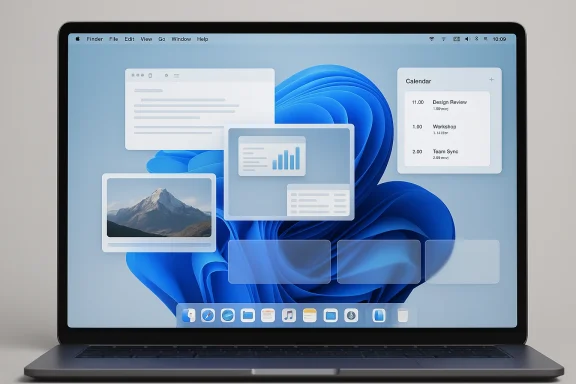
Apple’s macOS has always had a reputation for polish, but that polish can also feel restrictive if you grew up on Windows 11’s more configurable, taskbar-driven workflow. A small set of third-party utilities can change that balance dramatically, giving a Mac a more Windows-like sense of previewing, snapping, calendaring, and decluttering without turning it into a parody of itself. The best of these apps do not erase macOS identity; they simply add a layer of familiar PC ergonomics on top. That is why the right combination can make a Mac feel more productive, more transparent, and, in some daily respects, more civilized than the default experience.
For years, the appeal of macOS has been tied to restraint. Apple favors a clean Dock, a menu bar that stays out of the way, and interface choices that aim for consistency across devices. That approach works well for many users, especially those who want the computer to disappear into the work. But it also leaves power users with a recurring complaint: the system is elegant, yet oddly conservative in the ways that matter most once you start living inside it for eight hours a day.
Windows, by contrast, has historically leaned into utility-first flexibility. Window previews, aggressive snapping, taskbar hover behavior, system-tray management, and agenda access from the desktop have all been part of the experience in one form or another. Apple has closed some of the gap over time, especially with macOS Sequoia’s easier window tiling, but the company tends to add features cautiously and with limited customization. That leaves room for third-party apps to fill in the gaps, especially for users who want Mac hardware but prefer the mental model of Windows-style workflow.
The Pocket-lint roundup at the center of this discussion is interesting precisely because it is not arguing that macOS should become Windows. Instead, it identifies a handful of tools that add just enough Windows DNA to smooth over the rough edges many former PC users still feel. That distinction matters. A good productivity utility should not impose a brand identity; it should remove friction.
There is also a broader market reality behind this trend. macOS users are increasingly hybrid users. They move between corporate Windows systems, personal Macs, cloud apps, remote desktops, and virtual machines. In that kind of environment, familiarity becomes a feature. If a Mac can speak the language of hover previews, snapping, and tray-style organization, it reduces the cognitive tax of switching platforms constantly.
At the same time, these tools are valuable to longtime Mac users who have never loved Apple’s defaults. A preference for Windows-style ergonomics does not necessarily mean a preference for Windows itself. Often, it simply means a preference for directness: see the window before you switch to it, tile the screen faster, hide clutter when you do not need it, and surface your agenda where your eyes already are.
What makes AltTab especially compelling is that it does not stop at imitation. It offers trigger customization, app blacklisting, accessibility options, drag-and-drop behavior, and interface tweaks that make the utility feel like a native power-user layer rather than a novelty. That matters because the original Windows pattern is useful largely because it is fast and visual; AltTab preserves both traits while letting users tune the edges.
That is the key competitive advantage of the app. It gives the Mac a more situational switching experience, which is exactly what many Windows users miss when they move over. The interface becomes less abstract and more immediate.
It also helps with muscle memory. Once you train yourself to expect a more descriptive switcher, other parts of the interface feel less opaque. That is the hidden benefit of a utility like AltTab: it changes the way you think about all your open workspaces.
The appeal is obvious. Many users still glance at the taskbar or Dock to decide where to go next, and Windows has long been better at turning that glance into actionable information. DockDoor closes that gap by surfacing live previews, and in some cases controls for media playback and related app actions.
That matters especially for people juggling communication tools, browsers, music apps, or multiple document windows. Instead of entering an app and then backing out if it is not the one you wanted, you can check first and move with confidence.
Windows-inspired does not have to mean visually copied. In DockDoor’s case, the inspiration is functional, not cosmetic. That is a much more sustainable design philosophy.
The app is also a good example of a premium utility done sensibly. It is not free, and it does not pretend to be. Instead, it asks for a one-time payment and delivers a polished, native-feeling experience in return. For many users, that is easier to justify than subscription fatigue.
Windows users are often accustomed to the idea that the tray or taskbar should be a dashboard. Dato gives Mac users that same feeling of immediate awareness. It does not overwhelm the screen, but it prevents the date from becoming invisible.
Its strengths are easy to summarize:
The broader lesson is that desktop software often succeeds when it restores a sense of ambient awareness. Dato does exactly that. It makes time visible again.
Magnet’s value is partly historical. Windows users have been trained for years to expect a snapping vocabulary: half, third, quarter, corner, edge, and keyboard-driven movement. Magnet brings that expectation to macOS with a more mature feature set than Apple’s baseline implementation. The result is less wasted time and less manual drag-resizing.
Magnet makes that process dependable. It is simple on the surface, but what it really sells is repeatability. You know what will happen when you use it, and that consistency is the point.
That distinction is crucial. The app adds control without imposing ideology, which is why it remains such a strong recommendation.
Ice is especially appealing because it does not merely hide clutter; it gives you a system for managing it. You can show or conceal items, adjust spacing, and even create a secondary bar. That makes the Menu Bar much less stressful to live with, particularly if you install a lot of utilities.
That is a very Windows-like idea, and it is a sensible one. Most users do not need every icon visible at all times; they need the right icon visible at the right time.
That is one of the best arguments for Ice. It improves not just aesthetics, but attention.
This matters because productivity is rarely about one huge feature. It is about a chain of small frictions removed in sequence. If every action takes one less click, one less guess, or one less detour, the machine feels dramatically better after a week of use.
That compound effect is why these apps do not feel redundant.
For now, the third-party ecosystem remains the faster-moving part of the Mac experience. That makes it a valuable place to look when you want to improve workflow without waiting for Cupertino to decide it is time.
What makes this set so effective is that it respects the Mac while quietly correcting its blind spots. The best computer customization is not about making one system pretend to be another; it is about taking the parts of each that work best and arranging them so the user stops thinking about the interface and starts thinking about the work. In that sense, these apps do more than make macOS feel more like Windows 11. They make it feel more intentional, more responsive, and more ready for serious everyday use.
Source: Pocket-lint 5 apps I use to transform macOS into a better version of Windows 11
 Background
For years, the appeal of macOS has been tied to restraint. Apple favors a clean Dock, a menu bar that stays out of the way, and interface choices that aim for consistency across devices. That approach works well for many users, especially those who want the computer to disappear into the work. But it also leaves power users with a recurring complaint: the system is elegant, yet oddly conservative in the ways that matter most once you start living inside it for eight hours a day.Windows, by contrast, has historically leaned into utility-first flexibility. Window previews, aggressive snapping, taskbar hover behavior, system-tray management, and agenda access from the desktop have all been part of the experience in one form or another. Apple has closed some of the gap over time, especially with macOS Sequoia’s easier window tiling, but the company tends to add features cautiously and with limited customization. That leaves room for third-party apps to fill in the gaps, especially for users who want Mac hardware but prefer the mental model of Windows-style workflow.
The Pocket-lint roundup at the center of this discussion is interesting precisely because it is not arguing that macOS should become Windows. Instead, it identifies a handful of tools that add just enough Windows DNA to smooth over the rough edges many former PC users still feel. That distinction matters. A good productivity utility should not impose a brand identity; it should remove friction.
There is also a broader market reality behind this trend. macOS users are increasingly hybrid users. They move between corporate Windows systems, personal Macs, cloud apps, remote desktops, and virtual machines. In that kind of environment, familiarity becomes a feature. If a Mac can speak the language of hover previews, snapping, and tray-style organization, it reduces the cognitive tax of switching platforms constantly.
At the same time, these tools are valuable to longtime Mac users who have never loved Apple’s defaults. A preference for Windows-style ergonomics does not necessarily mean a preference for Windows itself. Often, it simply means a preference for directness: see the window before you switch to it, tile the screen faster, hide clutter when you do not need it, and surface your agenda where your eyes already are.
Why this matters now
The timing is important because macOS itself has moved closer to some of these behaviors, but not far enough for enthusiasts. Apple’s own window tiling is a welcome baseline, yet many users still want more control, more shortcuts, and more visible feedback. Third-party apps thrive in exactly that space.- macOS is still highly opinionated.
- Windows-style ergonomics remain attractive to switchers.
- Power users want faster feedback loops.
- Apple’s built-in tools are improving, but slowly.
- The App Store and indie ecosystem still fill crucial gaps.
AltTab: Bringing Familiar Switching Back
AltTab is the most direct example of a Windows idea imported into macOS with care. It portably recreates the Windows-style Alt+Tab experience, including window previews, and gives users much more control over how the shortcut behaves. For anyone who has spent years relying on visual task switching rather than app switching, that difference is huge.What makes AltTab especially compelling is that it does not stop at imitation. It offers trigger customization, app blacklisting, accessibility options, drag-and-drop behavior, and interface tweaks that make the utility feel like a native power-user layer rather than a novelty. That matters because the original Windows pattern is useful largely because it is fast and visual; AltTab preserves both traits while letting users tune the edges.
Why window previews matter
On macOS, the stock shortcut system tends to be app-centric in ways that can frustrate multitaskers. If one app has several windows open, the switcher does not always give you the visual clarity you want. AltTab restores the sense that you are choosing a specific workspace, not merely an application process.That is the key competitive advantage of the app. It gives the Mac a more situational switching experience, which is exactly what many Windows users miss when they move over. The interface becomes less abstract and more immediate.
Strengths of the approach
AltTab’s success comes from a few practical design choices.- It is free and open-source, which lowers the barrier to experimentation.
- It focuses on window-level visibility, not just app-level selection.
- It supports custom trigger behavior for different workflows.
- It includes blacklisting so distracting apps can be excluded.
- It offers accessibility-minded flexibility for varied user needs.
A better mental model for multitasking
The deeper value here is psychological. Visual previews reduce hesitation. When you can see what you are about to activate, you spend less time guessing and less time bouncing between windows you did not intend to open. That is the sort of small workflow win that compounds over the course of a day.It also helps with muscle memory. Once you train yourself to expect a more descriptive switcher, other parts of the interface feel less opaque. That is the hidden benefit of a utility like AltTab: it changes the way you think about all your open workspaces.
DockDoor: Hover Previews for the Dock
If AltTab is about keyboard-driven switching, DockDoor is about restoring a missing sense of hover-based context to the Dock. It brings Windows-style preview cards to macOS, letting you hover over an app and inspect what is open before clicking. In other words, it makes the Dock feel informative instead of merely decorative.The appeal is obvious. Many users still glance at the taskbar or Dock to decide where to go next, and Windows has long been better at turning that glance into actionable information. DockDoor closes that gap by surfacing live previews, and in some cases controls for media playback and related app actions.
The Dock as a richer interface
Apple’s Dock is iconic, but by default it is not deeply interactive. It tells you which apps are running, not always what those apps are doing. DockDoor changes that relationship by turning hover into a decision-making moment.That matters especially for people juggling communication tools, browsers, music apps, or multiple document windows. Instead of entering an app and then backing out if it is not the one you wanted, you can check first and move with confidence.
More than a visual trick
DockDoor also stands out because it is not just a preview gimmick. It adds features like enhanced window management, shortcut support, and media controls, which make it useful in day-to-day work. That broader scope is what separates a serious utility from a nice screenshot.- It adds live previews to Dock hovers.
- It can surface window control buttons.
- It supports media controls and lyrics widgets.
- It improves Alt+Tab and Cmd+Tab behavior in some workflows.
- It enables batch app actions like minimizing or closing windows.
Why it feels Windows-like without feeling fake
The best part is that DockDoor does not try to replace the Dock with a clone of Windows’ taskbar. It keeps the Mac’s visual identity intact while making the workflow more informative. That is the right balance.Windows-inspired does not have to mean visually copied. In DockDoor’s case, the inspiration is functional, not cosmetic. That is a much more sustainable design philosophy.
Dato: A Better Menu Bar Calendar
Dato is the cleanest answer to one of macOS’s most persistent omissions: a truly useful, glanceable calendar in the Menu Bar. If you miss the Windows habit of checking the tray area for date, time, and agenda at a moment’s notice, Dato is a compelling replacement. It places a full calendar and agenda view just one click away, while keeping the interface beautifully restrained.The app is also a good example of a premium utility done sensibly. It is not free, and it does not pretend to be. Instead, it asks for a one-time payment and delivers a polished, native-feeling experience in return. For many users, that is easier to justify than subscription fatigue.
Why a Menu Bar calendar matters
A calendar is not just for scheduling. It is for time awareness. When your next meeting, deadline, or event is visible with minimal friction, you make better choices about switching tasks, taking breaks, and managing attention.Windows users are often accustomed to the idea that the tray or taskbar should be a dashboard. Dato gives Mac users that same feeling of immediate awareness. It does not overwhelm the screen, but it prevents the date from becoming invisible.
Native feel over novelty
Dato’s strongest selling point is not feature count, but presentation. It looks and behaves like something macOS would have shipped if Apple had chosen to prioritize desktop agenda visibility more aggressively. That means fewer visual seams and less friction for users who dislike utilities that feel bolted on.Its strengths are easy to summarize:
- Full calendar access from the Menu Bar.
- Agenda view for near-term planning.
- Fullscreen event notifications.
- Synchronization across common calendar providers.
- One-time pricing instead of recurring fees.
Who benefits most
Dato is especially attractive for people who work in a calendar-driven environment: consultants, executives, freelancers, and anyone living in meeting-heavy workflows. But it is also useful for casual users who simply want to see what day it is without opening a larger app.The broader lesson is that desktop software often succeeds when it restores a sense of ambient awareness. Dato does exactly that. It makes time visible again.
Magnet: Window Snapping That Actually Helps
Apple’s addition of native window tiling in macOS Sequoia was a welcome acknowledgement that Windows got something right years ago. But native tiling is only a start, and Magnet remains one of the most practical ways to turn that start into a full workflow. It lets you place windows precisely, quickly, and predictably, which is exactly what many users want when they are working across multiple documents, browsers, and reference tools.Magnet’s value is partly historical. Windows users have been trained for years to expect a snapping vocabulary: half, third, quarter, corner, edge, and keyboard-driven movement. Magnet brings that expectation to macOS with a more mature feature set than Apple’s baseline implementation. The result is less wasted time and less manual drag-resizing.
The real value of snapping
Snapping sounds cosmetic until you use it seriously. Once you can move windows into fixed zones without thinking, the whole desktop becomes more structured. That structure makes it easier to compare information, take notes while reading, or keep communication tools visible without crowding your main app.Magnet makes that process dependable. It is simple on the surface, but what it really sells is repeatability. You know what will happen when you use it, and that consistency is the point.
Why Magnet still matters after macOS Sequoia
Apple’s native tiling helped, but it did not settle the issue. Many users still want more control than the built-in feature provides. Magnet answers that need with keyboard shortcuts, trigger zones, and flexible layout options that are especially useful on larger or more complicated displays.- It supports precise window placement.
- It adds keyboard-driven shortcuts.
- It improves workflow consistency across apps.
- It offers custom trigger areas.
- It is still easier to live with than many heavier window managers.
Why it feels like a PC feature in the best way
Windows has long treated window management as a core part of productivity. macOS traditionally treated it as a secondary concern. Magnet shifts that balance without making the Mac feel alien. It does not force a tiled-desktop philosophy; it simply gives you better tools when you need them.That distinction is crucial. The app adds control without imposing ideology, which is why it remains such a strong recommendation.
Ice: The Menu Bar Declutterer
The Mac Menu Bar can be a source of power, but it can also become a tiny cemetery of icons. Ice solves that elegantly by letting you hide, rearrange, and organize Menu Bar items in a way that feels much closer to the Windows system tray model. If you have ever wanted an arrow-style overflow for macOS, this is the app that makes the case.Ice is especially appealing because it does not merely hide clutter; it gives you a system for managing it. You can show or conceal items, adjust spacing, and even create a secondary bar. That makes the Menu Bar much less stressful to live with, particularly if you install a lot of utilities.
A cleaner top edge
A tidy Menu Bar changes the feel of the entire machine. The top strip of the screen is constantly visible, which means visual clutter there creates a disproportionate sense of mess. Ice reduces that pressure by hiding lesser-used items until you actually want them.That is a very Windows-like idea, and it is a sensible one. Most users do not need every icon visible at all times; they need the right icon visible at the right time.
Free, open, and surprisingly sophisticated
Ice works because it treats decluttering as a design problem rather than a cosmetic one. You are not just collapsing items into a hidden pile. You are building a more manageable interface around your actual habits.Subtle but meaningful controls
- Hide less important Menu Bar icons.
- Reveal them through a customizable arrow.
- Drag and drop to reorganize placement.
- Adjust item spacing for readability.
- Add a secondary bar for overflow management.
The psychology of less visual noise
There is also a mental-health angle here that gets overlooked. Visual clutter creates low-level friction, even if you do not consciously notice it. A cleaner top bar can make the whole desktop feel calmer and more intentional.That is one of the best arguments for Ice. It improves not just aesthetics, but attention.
Why These Apps Work Together
What makes this group of apps interesting is not that each one mimics a Windows feature in isolation. It is that together they create a workflow ecosystem that feels familiar to PC users while staying true to the Mac’s strengths. AltTab handles switching, DockDoor expands hover context, Dato restores agenda visibility, Magnet improves window control, and Ice fixes Menu Bar clutter. Put together, they create a much more legible desktop.This matters because productivity is rarely about one huge feature. It is about a chain of small frictions removed in sequence. If every action takes one less click, one less guess, or one less detour, the machine feels dramatically better after a week of use.
The combined effect
The beauty of these utilities is that they reinforce one another. Better switching makes better window management more useful. Better snapping makes more visible app context more valuable. A cleaner Menu Bar reduces the cognitive load of checking your calendar and toggling utilities.That compound effect is why these apps do not feel redundant.
A Windows-like workflow without Windows baggage
One of the nicest things about this setup is that it gives you familiar ergonomics without the tradeoffs of switching platforms entirely. You keep the Mac’s hardware, battery life, and ecosystem, but you make the interface less idiosyncratic. That is a pragmatic answer for users who prefer one world for work and another world for control.The practical bundle of benefits
- Faster app and window switching.
- Better visual confirmation before changing context.
- Easier calendar access from anywhere.
- More efficient window tiling and positioning.
- Less top-bar clutter and better focus.
Strengths and Opportunities
The biggest strength of this category is that it solves real problems without forcing a platform identity crisis. These are not theme packs, and they are not crude emulations. They are practical tools that help macOS behave more like a desktop OS should for power users, especially those with years of Windows muscle memory.- AltTab gives Mac users a preview-first switcher.
- DockDoor turns the Dock into a more informative launcher.
- Dato restores at-a-glance agenda access.
- Magnet improves multi-window organization.
- Ice makes Menu Bar clutter manageable.
- Most of these tools are lightweight and easy to adopt incrementally.
- Several are free or low-cost, which reduces adoption risk.
Risks and Concerns
The main risk is that users can accumulate too many utilities and create a new kind of complexity. A better desktop is not always a cleaner desktop if every improvement comes with its own preferences pane, background process, or update cycle. There is also the perennial issue of trust, especially with utilities that influence core interface behavior.- Third-party tools can create maintenance overhead.
- Some apps may rely on accessibility permissions.
- Free utilities may vary in long-term support.
- Visual enhancements can occasionally feel over-engineered.
- Too many additions can undermine the goal of simplicity.
- Users may expect Apple-level polish from smaller indie projects.
- Platform updates can temporarily break behavior or compatibility.
Looking Ahead
The most interesting question is not whether these apps work today. They do. The question is how long Apple will leave enough room for them to matter. If macOS continues adding better tiling, richer previews, and more intelligent desktop organization, some of this market may shrink. But that is not a reason to dismiss the tools. It is a sign that they are pushing the platform in the right direction.For now, the third-party ecosystem remains the faster-moving part of the Mac experience. That makes it a valuable place to look when you want to improve workflow without waiting for Cupertino to decide it is time.
What to watch next
- Whether Apple expands native window management further.
- Whether preview behaviors become more customizable in macOS itself.
- Whether Menu Bar management gets an official overflow solution.
- Whether more indie developers build cross-platform productivity layers.
- Whether users increasingly mix Mac hardware with Windows habits instead of choosing one or the other.
What makes this set so effective is that it respects the Mac while quietly correcting its blind spots. The best computer customization is not about making one system pretend to be another; it is about taking the parts of each that work best and arranging them so the user stops thinking about the interface and starts thinking about the work. In that sense, these apps do more than make macOS feel more like Windows 11. They make it feel more intentional, more responsive, and more ready for serious everyday use.
Source: Pocket-lint 5 apps I use to transform macOS into a better version of Windows 11
