

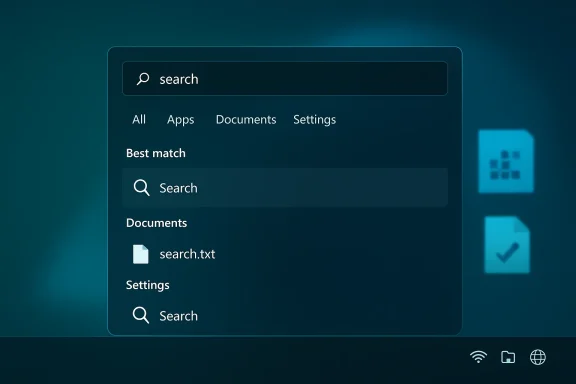
Windows Search is trying to be helpful — and sometimes that help is the problem. If your Start menu search feels slow, hangs while you type, or returns a stream of Bing results and news you never asked for, there’s a simple, low-risk registry tweak and an equivalent Group Policy you can use to force Search to stay local. The change restores a snappier, more predictable Start menu by disabling web suggestions and web queries from the Search box so Windows looks only at your apps, settings, and indexed files. This article explains exactly what the tweak does, how to apply and roll it back safely, what to expect afterward, and the trade-offs and risks every user and admin should consider. The tweak and policy are documented community-wide and are mapped to Microsoft’s supported policy controls. m])
Windows Search has evolved from a local indexer into a hybrid experience that mixes local items with cloud-backed suggestions, news, and Bing results. For many users that’s convenient; for others it introduces network latency, background queries, and distracting UI clutter. The Start menu’s integration with web results originates in Windows 10 and continues in Windows 11, where the search box may automatically issue web queries and surface web content while you type. That behavior can produce visible lag or delays when your intent is strictly local — launching an app, finding a file, or opening a setting. MakeUseOf documented this frustration and the registry fix that alleviated it on their machine; tscussed in community and technical guides.
Microsoft exposes a supported policy for this behavior: the Search Policy CSP (ConnectedSearchUseWeb / Do not allow web results), which explicitly controls whether Search is allowed to perform web queries. When set to disallow web queries, Search will not perform web lookups and will not show web results in the Start/search UI. This is the official, supported route administrators can use in managed environments.
At the practical level there are two common ways to enforce local-only search:
Source: MakeUseOf I finally fixed that annoying Search the web lag in my Start Menu with one registry edit
 Background / Overview
Windows Search has evolved from a local indexer into a hybrid experience that mixes local items with cloud-backed suggestions, news, and Bing results. For many users that’s convenient; for others it introduces network latency, background queries, and distracting UI clutter. The Start menu’s integration with web results originates in Windows 10 and continues in Windows 11, where the search box may automatically issue web queries and surface web content while you type. That behavior can produce visible lag or delays when your intent is strictly local — launching an app, finding a file, or opening a setting. MakeUseOf documented this frustration and the registry fix that alleviated it on their machine; tscussed in community and technical guides.Microsoft exposes a supported policy for this behavior: the Search Policy CSP (ConnectedSearchUseWeb / Do not allow web results), which explicitly controls whether Search is allowed to perform web queries. When set to disallow web queries, Search will not perform web lookups and will not show web results in the Start/search UI. This is the official, supported route administrators can use in managed environments.
At the practical level there are two common ways to enforce local-only search:
- Create a per-user registry policy value named DisableSearchBoxSuggestions under the Policies path for Explorer (HKCU or HKLM) and set it to 1 (the quick, Home-user friendly method).
- Use Group Policy (gpedit.msc) or MDM (Search Policy CSP) to enable the “Don’t search the web or display web results in Search” policy (the supported method for Pro/Enterprise and managed devices).
What the registry tweak does — technical specifics
- Target key (per-user):
- HKEY_CURRENT_USER\SOFTWARE\Policies\Microsoft\Windows\Explorer
- Value name: DisableSearchBoxSuggestions
- Type: DWORD (32-bit)
- Value: 1 (0 to re-enable)
- Machine-wide alternative (affects all users):
- HKEY_LOCAL_MACHINE\SOFTWARE\Policies\Microsoft\Windows\Explorer
- Same value name and type.
Why this improves speed
The Start menu’s “hybrid” search model can add delays for two reasons:- Synchronous or prioritized background queries to web services (Bing) that block or reprioritize local results.
- UI composition for web cards, images, or news, which consumes CPU/GPU cycles and may introduce jank on led systems.
Step-by-step: Apply the registry edit (Windows 11 Home or single machines)
If you prefer a manual, per-machine change and are comfortable with the Registry Editor, follow these steps carefully. Back up first (instructions below).- Press Windows + R, type regedit and press Enter. Approve the UAC prompt.
- In Registry Editor, navigate to:
- HKEY_CURRENT_USER\SOFTWARE\Policies\Microsoft\Windows
- If there is no Explorer key under Windows, right‑click Windows → New → Key → name it Explorer.
- With Explorer selected, right‑click the right pane → New → DWORD (32‑bit) Value.
- Name the new value exactly: DisableSearchBoxSuggestions
- Double‑click it and set Value data to 1 (hex or decimal — 1).
- Close Registry Editor and restart your PC (or sign out/sign in) for the change to take effect.
Step‑by‑step: Apply the Group Policy (Pro/Enterprise/education / admins)
Using Group Policy is the supported, menu-driven method and is preferable for administrators or users of Pro and Enterprise editions.- Press Windows + R, type gpedit.msc and hit Enter to open the Local Group Policy Editor.
- Navigate to:
- Computer Configuration > Administrative Templates > Windows Components > Search
- Locate the policy named Don't search the web or display web results in Search (friendly name).
- Double-click it and set it to Enabled. Click Apply → OK.
- To push the policy immediately, open an elevated Command Prompt and run:
- gpupdate /force
- Restart (or sign out/in) if prompted.
Additional policy keys and a more "complete" enforcement
For a fuller policy-level enforcement, administrators often combine:- DisableSearchBoxSuggestions = 1 (Explorer policy path)
- ConnectedSearchUseWeb = 0 under HKLM\SOFTWARE\Policies\Microsoft\Windows\Windows Search
Reversing the change, testing, and validation
- To revert: delete the DisableSearchBoxSuggestions entry or set it to 0; if you used Group Policy, set the policy to Not Configured and run gpupdate /force.
- Validate: After reboot, type in the Start box and confirm that web results/cards/news are no longer shown. If you expect to see a local-only result and it still shows
- Same policies set at the machine level (HKLM) overriding HKCU.
- Domain-based Group Policy or Intune profiles on managed machines.
- The Windows Search service and index health (rebuild the index if local results are missing).
- For admins: test on a pilot machine and document the registry/policy state you apply.
Real-world caveats and known issues
This tweak is simple and generally low-risk, but there are caveats and occasional side effects to be aware of.- Managed devices: Domain or Intune policies can override your local registry edit. If your machine is joined to an organization, check with IT before applying changes. Many organizations intentionally keep web search enabled for enterprise integrations (OneDrive, SharePoint results, cloud-provided settings).
- Accessibility and user expectations: Users who rely on quick web lookups from the Start box will lose that shortcut. If you frequently use Start to search the web, consider whether redirecting to a browser is acceptable for your workflow. The policy blocks that convenience intentionally to restore local-only results.
- App interoperability: There are community-reported cases where the DisableSearchBoxSuggestions value interacts poorly with certain UWP apps or system components. For example, an entry in Microsoft Q&A and community threads suggests the registry change has caused issues with the built-in Camera app for some users — the symptom and reproducibility vary by build and driver state. If you rely on such apps, test the tweak on a single machine first and keep a restore point.
- Feature updates and reversion: Microsoft occasionally changes shell behaviors and policy semantics across feature updates. Some users report that web suggestions reappear after major updates, which means you should add this check to your update/posting Group Policy or MDM is more resilient for fleets than ad‑hoc per-user registry edits.
- Not a cure-all for search slowness: If your Start menu lag is caused by unrelated issues — low disk health, a corrupt search index, heavy antivirus scanning, problematic shell extensions, or insufficient RAM/CPU — disabling web suggestions may not fully restore performance. Diagnose with Task Manager, Resource Monitor, and Event Viewer before applying changes across multiple systems. Community troubleshooting guides recommend the registry tweak as a targeted solution for web-related search lag, not a universal fix for all Explorer or Start menu slowness.
Safety and best practices (backup, test, rollback)
Editing the registry is powerful; follow these best practices:- Create a System Restore point before making changes. This gives you a trusted rollback if anything goes wrong.
- Export the specific registry key you intend to change (right‑click estore that key individually.
- Test on a single machine for 24–72 hours with your typical workflows. Confirm search behavior, Camera and other system apps, and any enterprise integrations you rely on.
- For fleets: prefer Group Policy or MDM profiles, and pilot with a small representative group before wide deployment.
- If you must automate, use signed scripts and ensure they run with the necessary privileges; prefer PowerShell examples that write to the supported Policies keys rather than ad-hoc edits under non-policy paths. Many admin guides and community examples show safe PowerShell snippets to create the required keys.
Measuring the effect — how to prove the change helped
Don’t rely purely on "feels faster." Measure before/after with simple tests:- Time-to-first-result: Start from a cold desktop and press the Windows key, type a common app name (e.g., "Excel") and measure elapsed time until the app launches or the first search result appears. Repeat several times and average.
- UI responsiveness: capture of typing into Start and compare frame timestamps before and after change.
- Resource patterns: Use Task Manager or Resource Monitor to watch network activity when typing in Start; web queries will show network spikes that disappear after policy application.
- Index health: Use Indexing Options → Advanced → Rebuild if local results are inconsistent after policy changes.
Should you apply this tweak?
- Apply it if:
- You prioritize privacy and local-only search.
- You experience visible lag tied to Start menu searches and want an immediate, reversible improvement.
- You’re on Windows 11 Home and don’t have GPEDIT, or you manage a small set of personal machines.
- Prefer Group Policy (or MDM) if:
- You manage Pro/Enterprise devices and want a supported, centrally-managed configuration that survives updates and user reconfigurations.
- You need to enforce consistent behavio
- Don’t apply (or test first) if:
- You rely on the Start menu’s web features (news, quick web lookups, cloud content).
- Your device is managed by an organization that will override or flag local policy changes.
- You use apps that community threads indicate may be affected (test to be sure).
Conclusion
If your Start menu search drags in web results or you want a snappier, local-first search experience, adding a single DWORD in the Policies branch or enabling the matching Group Policy will usually ocal-only Start/search behavior. The registry route is small, reversible, and effective for single machines and Home users; Group Policy or MDM is the correct approach for managed fleets and Pro/Enterprise environments. Back up first, test for side effects (some users report odd app interactions), and add the check to your post-update routine since feature updates can change shell behavior. For privacy-minded users and admins focused on responsiveness, this is one of those rare tweaks that truly simplifies the shell and yields an immediate user-experience win.Source: MakeUseOf I finally fixed that annoying Search the web lag in my Start Menu with one registry edit
