

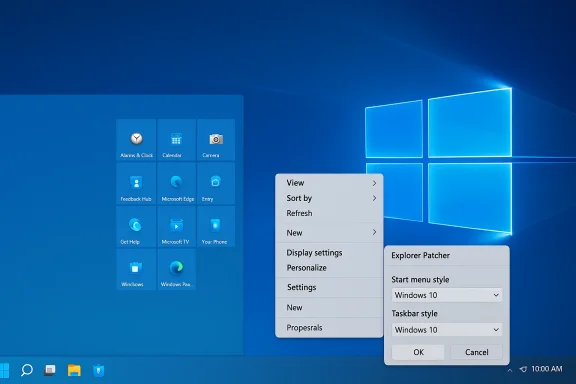
If your first instinct when you boot Windows 11 is to hunt for the familiar rhythms of Windows 10 — the left-aligned taskbar, the old Start menu, the full context menu — you’re not alone. A steady stream of “make Windows 11 feel like Windows 10” guides has converged on the same small set of changes that deliver disproportionate familiarity. The five tweaks below — disabling Copilot, restoring the classic context menu, moving the taskbar alignment left, bringing back a Windows‑10 style Start, and swapping the wallpaper — are low-risk, fast to apply, and together they reclaim the mental model people built up over decades of using Windows. These recommendations are based on the MakeUseOf primer and corroborated and verified against Microsoft documentation and independent technical guides. com](https://support.microsoft.com/en-us/help/5066791?utm_source=openai))
Background / Overview
Windows 11 introduced a new visual language and tighter integration with Microsoft services. That change improved some experiences but also removed or reduced a number of long-standing conveniences. For users who prefer muscle memory to experimentation, there are lightweight ways to restore familiar behavior without reverting to an unsupported OS or making invasive modifications.This article summarizes practical, vetted tweaks you can apply today, explains what each one does, verifies the steps with authoritative sources, and flags the trade-offs and risks you should weigh before making changes. Wherever the steps alter the Windows Registry or system policies, I note safe rollback options and encourage creating a system restore point first.
The five tweaks (short list)
- Disable Microsoft Copilot (remove the persistent button, keyboard shortcut, and UI intrusions).
- Restore the classic Windows 10 context menu (no more “Show more options” extra click).
- Move the taskbar alignment to the left (recover the classic left-justified workflow).
- Bring back a Windows‑10 style Start menu (use a lightweight shell patcher).
- Use the Windows 10 “Hero” wallpaper (cosmetic but psychologically powerful).
Disable Microsoft Copilot
Microsoft’s Copilot is a deeply integrated assistant that appears in the taskbar and via shortcuts. Many users find the placement and persistence intrusive, and — for those who value minimalism or privacy — removing it is a top priority.What the tweak does
Disabling Copilot removes the taskbar button, prevents the Copilot shortcut from triggering, and reduces the surface area of Microsoft’s integrated AI in day-to-day desktop flows. On managed devices there are Group Policy and Intune options; on consumer machines the Registry tweak is the common approach. Microsoft provides administrative controls for Copilot and documents Copilot management options for enterprises.Verified methods (two standard approaches)
- Group Policy (Windows Pro, Education, Enterprise)
- Run gpedit.msc.
- Navigate: User Configuration → Administrative Templates → Windows Components → Windows Copilot.
- Open “Turn off Windows Copilot” and set it to Enabled.
- Restart or sign out to apply.
- Registry (all editions, including Home)
- Open regedit.
- Navigate to HKEY_CURRENT_USER\Software\Policies\Microsoft\Windows.
- Create a new key named WindowsCopilot.
- Inside that key, create a DWORD (32-bit) value named TurnOffWindowsCopilot and set its value to 1.
- Restart Windows.
Quick toggle: hide the button
If you only want the icon gone and don’t want to edit policies, right‑click the taskbar → Taskbar settings → toggle Copilot off. That hides the button but does not guarantee the full feature is blocked in all invocation paths. For permanence, use Group Policy or the registry method.Risks, caveats, and notes
- Registry edits and GPO changes should be performed carefully. Always export the registry key before changing it or create a system restore point.
- On some Insider builds and later releases Microsoft has added more granular Copilot controls (including a new “RemoveMicrosoftCopilotApp” policy for administrators), but those removal policies have conditions (e.g., the app must not have been used in the last 28 days, and the device must meet certain criteria) and are evolving in preview channels. That means complete removal for every scenario is not universally guaranteed today.
- Disabling Copilot will not remove server-side telemetry or cloud features that Windows itself uses; it only affects the Copilot client surface. For tighter control of data-sharing, audit privacy settings under Settings → Privacy & Security and consult your organization’s policy guidance.
Restore the classic context menu (no “Show more options”)
The condensed, icon-first right-click menu in Windows 11 hides many legacy commands behind “Show more options.” The schooling you built on Windows 7/10 becomes a small mental tax. The registry tweak below restores the full, legacy context menu by masking the COM object that supplies the compact menu.Why it works
Windows 11 serves a new explorer COM object responsible for the compact context menus. Creating a per-user override for that COM CLSID forces Explorer to fall back to legacy behavior. This is a reversible, per-user Registry edit documented by multiple independent technical guides and Microsoft community responses.Command (admin Terminal)
Run an elevated Windows Terminal or Command Prompt and paste:1) To enable the classic menu:
reg.exe add "HKCU\Software\Classes\CLSID{86ca1aa0-34aa-4e8b-a509-50c905bae2a2}\InprocServer32" /f /ve
2) To revert to the modern menu:
reg.exe delete "HKCU\Software\Classes\CLSID{86ca1aa0-34aa-4e8b-a509-50c905bae2a2}" /f
After either step, restart File Explorer (Task Manager → Restart) or reboot.
Winhelponline, Microsoft Q&A threads, XDA and other detailed guides confirm the exact CLSID and the command syntax. Many community authors supply a one-line reg add that sets the (Default) value to an empty string; the /ve /f variant above achieves the same per-user override.
Benefits
- Restores the familiar, full context menu for files, folders, and desktop.
- Eliminates the extra “Show more options” click, accelerating repetitive workflows.
- It’s quick: one command and an Explorer restart.
Risks and compatibility
- This is a supported, non-invasive Registry override but it could be impacted by future Windows updates; Microsoft may harden or change the COM object behavior in major feature releases. Keep a small backup script handy to restore either state.
- Some third-party context menu handlers (older shell extensions) may behave differently; if you see odd entries or missing items after toggling, revert and test selectively.
Move the taskbar alignment to the left
Centered taskbar icons are the visual face of Windows 11. For many users, however, centering breaks decades of muscle memory. Fortunately, Microsoft built a supported setting to realign icons back to the left while keeping the new styling.How to change alignment (verified)
- Settings → Personalization → Taskbar → expand Taskbar behaviors → change Taskbar alignment to Left.
Why this is safe
- This is a documented, supported UI setting in Windows 11 and does not touch the Registry.
- The move is reversible in the same UI, and it does not change other behaviors.
UX caveats
- Older habits like dragging shortcuts to the taskbar and expecting label behaviors may still be affected because Windows 11 changed taskbar grouping and drag‑and‑drop behavior historically.
- If you manage multiple monitors, check Taskbar → Taskbar behaviors for monitor-specific options after switching alignment. Microsoft’s taskbar documentation covers multi-monitor behavior and other related settings.
Return the Windows 10–style Start menu (Explorer Patcher and alternatives)
For many the single most nostalgic interface is the Windows 10 Start. You can approximate that classic Start by using a light, reputed third‑party utility that patches Explorer behavior rather than replacing major system components.Two practical approaches
- Use Explorer Patcher (open-source, small, and focused on shell restoration).
- Use commercial Start menu utilities such as Start11 or StartAllBack if you want a supported product with UI theming and a polished settings UI.
Typical Explorer Patcher workflow
- Download the Explorer Patcher installer from the project distribution (GitHub release).
- Run the installer (the executable updates Explorer behavior and restarts Explorer).
- Right-click the taskbar → Properties (Explorer Patcher adds a properties dialog).
- Choose Start menu → set Start menu style to Windows 10 and Taskbar → set Taskbar style to Windows 10 (Explorer Patcher).
- Click Restart File Explorer (button in the dialog) or reboot.
Alternatives and trade-offs
- Start11 and StartAllBack are commercial alternatives that provide polished UI configurations and support; they’re particularly useful for enterprise environments or users who prefer a supported, UI-driven product. TechSpot and other download sites note Start11 as a paid but compact solution.
- Thirds introduce a maintenance consideration: you must re-evaluate compatibility after major Windows feature updates. That said, active projects such as Explorer Patcher have stayed current with Windows updates and offer quick toggles to roll back changes.
- Always download these utilities from their official distribution pages, verify checksums where provided, and keep uninstaller or recovery instructions on hand.
Use the Windows 10 wallpaper (cosmetic, high-impact)
Visual familiarity matters. Swapping the default Windows 11 wallpaper for the iconic Windows 10 “Hero” image is purely cosmetic but produces a large psychological effect — opening your desktop to a layout that looks like what you expect.Steps
- Acquire a high-resolution copy of the Windows 10 Hero wallpaper (many wallpaper archives host it).
- Settings → Personalization → Background → Browse photos → Choose picture.
- Optionally: configure scaling to Fill or Fit to preserve the composition.
Safety checklist before you tweak
- Create a system restore point (Settings → System → About → System protection) or image backup.
- Export Registry keys you plan to modify:
- In regedit, right-click the key → Export.
- If using third‑party utilities, download only from the official project or developer site and save the uninstaller.
- Test changes with a non-admin local account where feasible (so changes affect only the test user).
- Document the commands you run so you can reverse them quickly.
Deeper analysis: Why these tweaks work — and what they don’t fix
These five tweaks succeed because they address three categories of friction:- Visual friction: wallpaper, icon alignment, and Start shape.
- Interaction friction: context menu and Start layout restore familiar flows.
- Feature surface friction: Copilot adds persistent UI elements and shortcuts that break a minimal desktop.
- You regain muscle memory and immediate productivity gains.
- You do not, and cannot, undo deeper platform decisions like the Windows Update cadence, telemetry defaults, or TPM requirements that dictate whether a device can run Windows 11 in the first place.
Troubleshooting and rollback
- Context menu behaves oddly after enabling the classic menu: delete the registry key you added and restart Explorer to return to the modern menu.
- Copilot reappears after feature updates: reapply the Group Policy or registry change; if Microsoft introduces new policies (for example, the admin removal policy introduced in Insider previews), follow the updated guidance and test in a controlled environment first.
- Explorer Patcher quirks after a feature update: open Explorer Patcher’s properties and toggle the affected setting off, or uninstall the tool and reboot. Keep the installer to reinstall if updates temporarily break compatibility.
Verdict and practical recommendations
- If your priority is immediate productivity and low friction: apply the taskbar alignment and context menu tweaks first. They’re reversible, supported, and restore a lot of daily efficiency.
- If you want to minimize Microsoft’s UI presence: disable Copilot via Group Policy or the Registry and hide its taskbar button. For enterprise admins, monitor Microsoft’s evolving removability policies — Insider previews show admin uninstall controls are forthcoming albeit with constraints.
- If you crave the full Windows 10 Start experience: try Explorer Patcher first (it’s small and focused). If you prefer a more commercial, supported option, evaluate Start11 or StartAllBack (paid) and weigh the ongoing cost against the value of a supported UI product.
Final notes: maintain awareness and re-evaluate after updates
Microsoft continues to refine Copilot controls, taskbar behavior, and enterprise policies. Expect small changes in policy names and availability after major feature updates; when Microsoft releases new Group Policy templates, re-check the settings if something stops working. For lifecycle planning: recognize that Windows 10’s official, free servicing ended on October 14, 2025 — remaining on a retired platform introduces security risk unless you enroll in an Extended Security Updates program and meet its requirements.If you follow the safety checklist, keep backups, and use the documented commands and settings above, you can make Windows 11 look and feel a lot more like Windows 10 without sacrificing supportability or security. The return-on-effort is high: five small changes, and your desktop will behave far more like the system you already know.
Source: MakeUseOf 5 tiny Windows 11 tweaks that make it feel like Windows 10
