

Microsoft's blunt new advisory — “Stop your PC from restarting when you don’t want it to — set your active hours in Windows” — arrived at an awkward moment: users are still digesting the fallout from January’s security rollups, which produced a narrow but painful string of regressions for some Windows 11 configurations and, separately, apparent gaming issues that prompted vendor troubleshooting. The guidance is simple and useful: you can reduce surprise reboots by configuring Active Hours, scheduling restarts, or using administrative controls — but the public reaction shows why trust in the automatic-update pipeline matters almost as much as the settings themselves.
Microsoft’s messaging about Active Hours is not new, but the context matters. The January 13, 2026 cumulative security updates were large and urgent — they addressed many CVEs — and immediately after release a small but significant set of regressions was reported by enterprise and enthusiast communities. Microsoft documented a known issue where systems with Secure Launch or Virtual Secure Mode enabled could restart instead of shutting down or entering hibernation; the vendor then issued out‑of‑band fixes and mitigations in the days that followed. Those incident timelines and the vendor responses are on record in Microsoft’s update notes.
At the same time, gamers and GPU users reported serious performance and display problems they traced to Windows’ January rollup KB5074109; NVIDIA acknowledged the reports and recommended that affected users roll back the patch as a temporary mitigation while investigations continue. That recommendation — and Microsoft’s overall push to keep systems patched — creates a tension most consumers feel acutely: do you tolerate a buggy security update or remove it and stay exposed? News outlets and community threads captured both the technical evidence and the user frustration.
This timeline — urgent security update on Jan 13, reports of regression, OOB fixes within a few days — tells an ordinary story of modern software servicing: rapid response to a broadly required security rollout can sometimes create unexpected interactions on a minority of configurations. That minority, however, often includes enterprise fleets and enthusiast systems where reliability expectations are highest.
When mandatory security rollups introduce regressions on even a small percentage of systems, the visible damage to user confidence is disproportionate. That’s not just an emotional reaction — it’s operational: interrupted work, failed hibernation on critical machines, and degraded gaming experiences all carry real costs. Microsoft’s job is to keep the system secure while minimizing those costs; vendors’ job is to test and communicate rapidly; users’ job is to apply practical mitigations and follow vendor guidance.
Practical individual steps — Active Hours, scheduled restarts, short pauses, and measured use of advanced policies — significantly reduce the friction of modern Windows servicing. But the true fix requires better alignment across the ecosystem: more staged rollouts, clearer coordination between Microsoft and hardware partners, and user‑facing controls that convey risk and choice without putting users in the dark. Until then, the best defense remains a mix of prudence (save and back up), smart settings (Active Hours and scheduling), and situational awareness (watch vendor advisories after every major rollup).
Conclusion: set your Active Hours, but don’t treat that setting as a cure-all. Use it as the front-line tool it was designed to be — and keep an eye on vendor advisories, Microsoft’s KB notes, and your backups. The update system will continue to be a balancing act; informed users and disciplined administrators will suffer the least when things go sideways.
Source: Forbes https://www.forbes.com/sites/zakdof...s-windows-users-stop-your-pc-from-restarting/
 Background: why Microsoft is repeating this advice now
Microsoft’s messaging about Active Hours is not new, but the context matters. The January 13, 2026 cumulative security updates were large and urgent — they addressed many CVEs — and immediately after release a small but significant set of regressions was reported by enterprise and enthusiast communities. Microsoft documented a known issue where systems with Secure Launch or Virtual Secure Mode enabled could restart instead of shutting down or entering hibernation; the vendor then issued out‑of‑band fixes and mitigations in the days that followed. Those incident timelines and the vendor responses are on record in Microsoft’s update notes. At the same time, gamers and GPU users reported serious performance and display problems they traced to Windows’ January rollup KB5074109; NVIDIA acknowledged the reports and recommended that affected users roll back the patch as a temporary mitigation while investigations continue. That recommendation — and Microsoft’s overall push to keep systems patched — creates a tension most consumers feel acutely: do you tolerate a buggy security update or remove it and stay exposed? News outlets and community threads captured both the technical evidence and the user frustration.
Overview: what Microsoft actually recommends — and why it matters
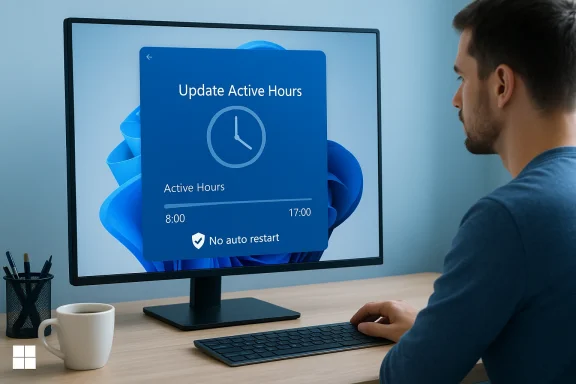
Microsoft’s consumer-facing advice centers on three low-friction controls built into Windows:- Set Active Hours so Windows tries to postpone restarts during your typical work periods. This is available in Windows 10 and Windows 11 settings and can be automatic or manual.
- Schedule the restart for a specific off‑hours time when an update is pending and a reboot is required. This prevents surprise reboots that interrupt work or long-running tasks.
- Pause updates temporarily when you must guarantee no changes for a short window (for example, during a deadline or a long render job). This is intended as a short-term safety valve, not a permanent policy.
The January rollup: what went wrong and what Microsoft did
The reported regressions
A cluster of issues emerged after Microsoft’s January 13, 2026 rollup:- Some devices with Secure Launch / Virtual Secure Mode (VSM) enabled would not stay powered off; attempts to Shut down or Hibernate could instead result in an immediate restart. That behavior was configuration‑dependent and concentrated on Enterprise/IoT SKUs where Secure Launch is common. Microsoft acknowledged the problem and documented it as a known issue.
- Remote Desktop credential prompts and Azure Virtual Desktop / Windows 365 sign‑in flows experienced authentication failures in specific configurations after the same update. Microsoft published mitigations and issued fixes in follow‑up updates.
- Independent of those two regressions, some NVIDIA GPU users reported large frame‑rate drops, visual artifacts and instability after installing KB5074109. NVIDIA engineers and community posts indicated that uninstalling the specific KB appeared to relieve the symptoms for many affected machines while investigations continued. Several outlets reported NVIDIA’s guidance to users as a temporary workaround.
Microsoft’s response and mitigation notes
Microsoft’s official update history entries and release-health notes are explicit: the vendor both acknowledged the issues and rolled out out‑of‑band fixes for the most severe regressions within days (for example, an OOB fix published on January 17, 2026 addressed multiple reported regressions). Microsoft also added workarounds and published the usual “known issues” and “next steps” guidance in the KB pages. Those KB pages remain the authoritative record of the symptoms, workarounds and fixes.This timeline — urgent security update on Jan 13, reports of regression, OOB fixes within a few days — tells an ordinary story of modern software servicing: rapid response to a broadly required security rollout can sometimes create unexpected interactions on a minority of configurations. That minority, however, often includes enterprise fleets and enthusiast systems where reliability expectations are highest.
Why users reacted strongly to Microsoft's “set active hours” message
The public response to Microsoft’s reminder was sharp because the message landed against a backdrop of perceived unreliability. Active Hours is useful, but it doesn’t fix the root problem: vendors pushing large, mandatory updates that may introduce regressions on some hardware or configuration stacks.- For many users, the advice sounded like a band‑aid offered after a break — useful, but not a substitute for rigorous pre‑release testing and staged rollouts for critical security updates.
- For administrators and power users, Active Hours is helpful but incomplete: it does not stop updates from installing, it only delays the restart window, and enterprise servicing controls (WSUS, SCCM, feature flags, delays, KIRs) are where real operational governance lives. Microsoft’s enterprise docs outline the proper administrative controls, but average consumers don’t always have the expertise, time or infrastructure to use them.
Practical, safe steps you should take today
If you want to reduce surprise restarts while staying secure, here are prioritized, practical actions for home and power users. Follow them in order so you avoid unnecessary exposure.- Save your work frequently and keep versioned backups. This is the simplest and most reliable guard against any abrupt reboot. Always the first defense.
- Set Active Hours (Windows Settings) — simple and recommended for most users:
- Settings > Windows Update > Advanced options > Active hours. Choose Automatically or set a manual window that covers your workday. This tells Windows when to avoid restarts.
- If an update is pending and a restart is imminent, use Schedule the restart to pick an off‑hours time immediately. This avoids “surprise” reboots.
- Temporarily Pause updates if you have a short, mission‑critical window where nothing must change. Do not use Pause as a long‑term strategy — it defers security patches.
- For Pro/Enterprise users: apply Group Policy (or MDM) settings to prevent auto‑restarts while users are logged on, or to control deadlines more granularly. The relevant GPO is “No auto‑restart with logged on users for scheduled automatic updates installations,” and Microsoft’s documentation details its behavior and caveats. Use this where appropriate.
- Power users: if a specific bug appears after an update (for example, a GPU regression or a shutdown/hibernate failure), consult Microsoft’s KB and vendor advisories before uninstalling security updates. If a major vendor (NVIDIA) recommends uninstalling a KB as a temporary mitigation and you are affected, follow the vendor guidance — but recognize you are temporarily reducing your system’s security posture.
Advanced options and the trade-offs you must accept
For readers comfortable with deeper changes, Windows offers stronger ways to control restart behavior — but each has trade-offs.- Group Policy / Registry keys: Enabling NoAutoRebootWithLoggedOnUsers in Group Policy or setting the
NoAutoRebootWithLoggedOnUsersregistry value prevents auto reboots when a user is signed in. This is an admin-approved approach, but it can result in updates being installed but never finalized if users never log off; that leaves updates half-applied until a maintenance window. Enterprises typically solve this by coupling policies with defined compliance deadlines. - Disabling the Windows Update service / disabling scheduled tasks: This stops updates entirely but is a blunt instrument. Doing this removes critical protections and is not recommended except as an emergency, temporary measure. If you rely on this approach, plan to re-enable updates and patch promptly. Community guides document methods such as disabling the UpdateOrchestrator Reboot task, but the vendor can recreate those tasks during feature updates or critical servicing events.
- Uninstalling a KB: This is sometimes the correct tactical response when a vendor identifies a regression tied specifically to a security rollup (as NVIDIA did for KB5074109 in some cases). The correct sequence is: confirm the symptoms, check vendor and Microsoft guidance, uninstall the problematic KB only if you are affected, then follow up with the vendor and Microsoft for fixes and reinstatement guidance. Never remove security patches preemptively across an environment without a rigorous risk assessment.
The hard truth: you can reduce surprise restarts, but you can’t eliminate the servicing trade-off
Windows updates perform kernel, driver and firmware-level changes that sometimes require reboots to finalize. That reality means there’s a continual operational trade-off between availability (no restarts) and security (timely patching). Microsoft provides layers of control — Active Hours, scheduling, Group Policy, out‑of‑band fixes, and the Known Issue Rollback (KIR) mechanism for enterprise-managed devices — but none of these removes the fundamental tension. The correct strategy differs by user profile:- Home users and small offices: use Active Hours, schedule restarts, and pause updates when necessary — but apply critical security updates promptly once you confirm the environment is stable.
- Power users and gamers: monitor vendor advisories (GPU vendors, peripheral manufacturers) immediately after big monthly rollups. If an OEM identifies a problematic KB, follow their mitigation while tracking Microsoft’s KB notes for official fixes.
- IT administrators: adopt staged deployments, KIRs, pilot rings and rollback plans. Enterprises should not rely on Active Hours alone; they need the full suite of servicing governance tools Microsoft publishes for WSUS, SCCM/ConfigMgr, Intune and Release Health.
What vendors and Microsoft can (and should) do differently
This episode highlights several areas where both Microsoft and hardware/software partners can improve:- Better staged rollouts for high‑risk changes. Critical security patches should still be expedited, but additional telemetry-driven staging (faster rollout to small cohorts, broader telemetry, clearer rollback triggers) could reduce visible regressions. Microsoft already uses staged rollouts at scale, but the complexity of modern driver stacks suggests more targeted co‑testing with GPU and firmware vendors before broadly forcing mandatory patches.
- Faster, clearer vendor coordination. When hardware vendors (NVIDIA) see a pattern repeatable across devices, a coordinated advisory with Microsoft and a single, authoritative mitigation path reduces user confusion. Community posts show users are often unsure whether to trust the OEM, Microsoft, or third‑party forum advice.
- Stronger UX around forced updates. Microsoft’s UI could do more to explain the why and the risk of a forced security reboot, rather than simply nudging users to set Active Hours. Communicating the scope of the update (how many CVEs, why it’s critical) alongside controls to defer or schedule would help users make informed trade-offs in the moment.
A short, practical checklist for readers right now
- Set Active Hours to cover your daily usage window. This is the quickest way to reduce surprise restarts.
- If you are a gamer or rely on high‑performance GPU workloads, check your GPU vendor’s support channels immediately after major Windows rollups. If NVIDIA or another vendor recommends a targeted rollback and you see matching symptoms, follow the vendor mitigation while tracking Microsoft’s KB for fixes.
- Do not uninstall security patches preemptively across your devices. Only remove a KB if you are directly affected and you understand the short-term security trade-off.
- For admins: use pilot rings, KIR, and staged deployments; don’t push every security rollup to all endpoints at once without telemetry and rollback plans.
Final analysis: Microsoft’s advice is right — but misses the bigger management problem
Microsoft’s direct advice — set your active hours — is useful, pragmatic guidance that will prevent many annoying interruptions. It’s a necessary reminder for users who haven’t tailored their update settings. At the same time, the public blowback shows that advice alone cannot paper over a fraying trust contract between the platform owner, hardware vendors, and end users.When mandatory security rollups introduce regressions on even a small percentage of systems, the visible damage to user confidence is disproportionate. That’s not just an emotional reaction — it’s operational: interrupted work, failed hibernation on critical machines, and degraded gaming experiences all carry real costs. Microsoft’s job is to keep the system secure while minimizing those costs; vendors’ job is to test and communicate rapidly; users’ job is to apply practical mitigations and follow vendor guidance.
Practical individual steps — Active Hours, scheduled restarts, short pauses, and measured use of advanced policies — significantly reduce the friction of modern Windows servicing. But the true fix requires better alignment across the ecosystem: more staged rollouts, clearer coordination between Microsoft and hardware partners, and user‑facing controls that convey risk and choice without putting users in the dark. Until then, the best defense remains a mix of prudence (save and back up), smart settings (Active Hours and scheduling), and situational awareness (watch vendor advisories after every major rollup).
Conclusion: set your Active Hours, but don’t treat that setting as a cure-all. Use it as the front-line tool it was designed to be — and keep an eye on vendor advisories, Microsoft’s KB notes, and your backups. The update system will continue to be a balancing act; informed users and disciplined administrators will suffer the least when things go sideways.
Source: Forbes https://www.forbes.com/sites/zakdof...s-windows-users-stop-your-pc-from-restarting/
