

Keeping firmware current is not optional for Windows 11 fleets — it’s a foundational maintenance task that affects security, compatibility and long‑term supportability. In practice that means understanding the difference between legacy BIOS and modern UEFI firmware, choosing the safest update path for your hardware (manufacturer tool, UEFI/BIOS menu, or Windows Update), and building a repeatable, auditable process that avoids surprises like BitLocker recovery prompts or a failed mass rollout. This article walks IT teams and power users through a practical, vendor‑aware process to update BIOS/UEFI on Windows 11 systems, explains the risks and mitigations, and highlights recent real‑world gotchas IT should plan around.
Modern PCs ship with UEFI firmware, not the old 16‑bit legacy BIOS. UEFI replaces the limitations of legacy BIOS with faster boot paths, larger disk support via GPT, and security features such as Secure Boot and tight TPM/attestation flows. For Windows 11, UEFI and TPM are central to platform security and many enterprise management scenarios; firmware updates therefore have broader implications than simply “fixing a BIOS bug.” Microsoft provides a UEFI firmware update platform to enable OS‑level firmware delivery, and vendors increasingly expose firmware packages that can be installed from Windows — but that convenience also changes the attack surface and operational expectations.
Why this matters now: many vendors (Lenovo, Dell, HP, ASUS and others) offer Windows‑level update utilities and some firmware is distributed via Windows Update using the UEFI capsule mechanism. That is useful for timely fixes but means admins must decide whether to allow automatic firmware pushes, to centralize deployment via management tools, or to control the update cadence in other ways. Recent incidents where Windows updates interfered with vendor tools or forced firmware installs illustrate the operational tradeoffs.
If you run a Windows 11 fleet, start by building a firmware inventory, choose a preferred update channel for each device class, and codify a short runbook — suspend BitLocker, validate power and model, pilot the update, verify outcomes. That combination of discipline and vendor‑aware tooling will keep your devices secure and reduce the risk of unpleasant surprises during mass updates.
Source: TechTarget How to update BIOS on Windows 11 | TechTarget
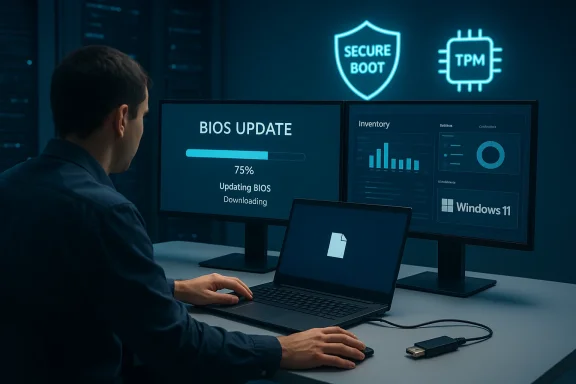 Background and overview
Modern PCs ship with UEFI firmware, not the old 16‑bit legacy BIOS. UEFI replaces the limitations of legacy BIOS with faster boot paths, larger disk support via GPT, and security features such as Secure Boot and tight TPM/attestation flows. For Windows 11, UEFI and TPM are central to platform security and many enterprise management scenarios; firmware updates therefore have broader implications than simply “fixing a BIOS bug.” Microsoft provides a UEFI firmware update platform to enable OS‑level firmware delivery, and vendors increasingly expose firmware packages that can be installed from Windows — but that convenience also changes the attack surface and operational expectations.Why this matters now: many vendors (Lenovo, Dell, HP, ASUS and others) offer Windows‑level update utilities and some firmware is distributed via Windows Update using the UEFI capsule mechanism. That is useful for timely fixes but means admins must decide whether to allow automatic firmware pushes, to centralize deployment via management tools, or to control the update cadence in other ways. Recent incidents where Windows updates interfered with vendor tools or forced firmware installs illustrate the operational tradeoffs.
Quick primer: BIOS vs UEFI, and terms you should use consistently
- BIOS — legacy term still used in many UIs and by many users; historically 16‑bit firmware, limited features.
- UEFI — the modern replacement for BIOS; supports Secure Boot, GUID Partition Table (GPT), and the UEFI capsule firmware update mechanism.
- Firmware update / BIOS update / UEFI update — in most modern documentation these terms are used interchangeably. Use your vendor’s naming to avoid confusion.
- UEFI capsule / UpdateCapsule — the mechanism that lets Windows deliver firmware packages via Windows Update or driver packages.
- Manufacturer utility — examples: Lenovo Vantage / System Update, Dell Command / SupportAssist, HP Support Assistant, ASUS Live Update. These tools can run in Windows and perform firmware updates with vendor‑specific safeguards.
Why update BIOS/UEFI on Windows 11: benefits and consequences
Updating firmware is not just a “nice to have.” The primary benefits:- Improved stability and hardware compatibility (fixes for NVMe, USB, power/ACPI issues).
- Security patches that close vulnerabilities in system firmware or management engines.
- Feature support required by newer OS builds — e.g., firmware changes that enable TPM improvements or enhance Secure Boot.
- Regulatory and compliance posture for organizations that must show firmware patching in audits.
Three supported update paths on Windows 11 (and when to use each)
- Manufacturer’s Windows utility (recommended for most users)
- Examples: Lenovo Vantage / System Update, Dell Command, HP Support Assistant, ASUS Live Update.
- When to use: day‑to‑day workstation maintenance, device‑specific packages, and vendor supplied installers that include recovery safeguards. Vendor tools often validate the model and provide step‑by‑step guidance.
- Windows Update / UEFI capsule (OS‑level delivery)
- When to use: critical out‑of‑band firmware patches you want delivered centrally via Windows Update or Windows Update for Business. This method is convenient and can integrate with existing patch windows, but it can also deliver firmware automatically unless controlled. Microsoft documents the UEFI firmware update platform and how capsules are validated and installed. Admins should plan for capsule behavior when using WSUS / WUfB.
- Manual flash via UEFI/BIOS menu (USB stick) — the classic method
- When to use: offline systems, recovery scenarios when Windows can’t boot, or when vendor utilities fail. The process typically involves formatting a small USB drive as FAT32, copying the firmware file to the root, and using the firmware’s built‑in flasher (names vary: EZ Flash, Q‑Flash, M‑Flash, etc.). This method is lowest‑trust in terms of OS involvement and is often the most reliable in edge cases. Community guidance emphasizes keeping the USB stick simple (single file in root) to avoid confusion.
Preparation: safety checks before you flash (do these every time)
Before you run a firmware update, do not skip the checklist below. These are the actions that minimize risk.- Confirm exact model and firmware file match. Do not flash a firmware for a different model or a different board revision.
- Record the current BIOS/UEFI version (msinfo32 → BIOS Version/Date) and capture a screenshot for inventory. Many vendors also list the version in their update UIs.
- Read the release notes. Check whether the update addresses your issue or introduces changes that require post‑flash steps.
- Back up important data. Firmware updates rarely touch user data, but recovery after a failed flash can be time‑consuming.
- Connect AC power and ensure a stable power source — no laptop battery only flashes, and avoid updates when a storm or brownout is possible.
- Suspend BitLocker or any full‑disk encryption before flashing. A change in firmware/TPM measurements can trigger recovery at next boot; suspending encryption avoids locked users and wasted helpdesk calls. This is an often‑cited operational pitfall in community threads.
- Disable overclocking and custom voltages; restore factory/optimized defaults before flashing.
- If you manage devices at scale, pilot the update on a small representative set before broad deployment.
Step‑by‑step: Updating BIOS safely on a single Windows 11 PC
Below are concise, practical steps for the two most common methods: vendor utility and manual USB flash.A. Update via manufacturer utility (recommended for most users)
- Open the vendor tool (Lenovo Vantage, Dell Command, HP Support Assistant, ASUS Live Update).
- Let the utility scan and show available firmware/BIOS updates; do not run an executable you downloaded earlier unless it explicitly matches your model.
- Read the included notes, and confirm suspension of BitLocker if present.
- Click Update / Install. The tool will download, prepare and instruct a restart. Allow the system to reboot and follow the on‑screen flashing prompts.
- After update completes, verify the BIOS/UEFI version in msinfo32 and re‑enable any features (Secure Boot, custom boot order) if necessary. Some updates preserve settings; others reset to defaults.
B. Manual USB update via UEFI menu (works when Windows is absent or vendor tools fail)
- On a working PC, download the exact BIOS/UEFI file for your model from the vendor support site.
- Format a small USB stick as FAT32 and copy the extracted firmware file to the root. Keep the drive empty of any other files; some vendors expect the file in the root. Community guidance strongly recommends a minimal USB stick to avoid confusion.
- Reboot the target machine and enter UEFI/BIOS setup (common keys: F2, F10, Del, manufacturer prompts vary). Use Windows 11 Advanced Startup if needed to reach UEFI firmware settings.
- Find the firmware flash utility (names vary by vendor) and point it to the USB drive and the firmware file.
- Start the update and do not interrupt power or press keys unless instructed. The system usually reboots automatically and performs finalization. If the system does not boot afterward, follow the vendor’s recovery instructions; many boards include a BIOS recovery method.
Windows Update and UEFI capsule updates: benefits, controls and recent problems
Windows Update can deliver approved firmware packages to devices via the UEFI capsule mechanism. This is powerful for ensuring critical firmware reaches systems quickly, but it also has operational implications:- Benefit: centralized delivery and integration with your existing patch cadence; often automatic for many consumer devices.
- Risk: an automatic push can install firmware before you’ve validated it on a pilot group; some vendors and admins have reported forced installs they did not expect. Community threads and vendor forums include multiple reports of Windows Update automatically attempting BIOS updates and administrators seeking ways to prevent it on specific models.
- For enterprises: use WSUS, Microsoft Endpoint Manager / Intune and Windows Update for Business policies to approve and schedule feature and firmware updates. Plan pilot rings the same way you pilot Windows feature updates.
- On individual machines: some firmware setups expose a BIOS setting like “UEFI Firmware Capsule Updates” you can disable to stop Windows Update from pushing firmware; the presence of this option varies by vendor and model. Community reports show the option is not universal and Windows Update behavior can still be confusing on some models.
Enterprise scale: managing BIOS/UEFI updates for a fleet
If you manage many Windows 11 devices, treat firmware the same as other critical updates with a repeatable lifecycle:- Inventory firmware versions and hardwinventory is the first defense against wrong file deployment.
- Create a staged deployment policy (pilot → broad → full) and maintain rollback plans. Test in a lab with representative hardware.
- Integrate vendor management tools into your management stack:
- Dell Command / SupportAssist for Enterprise
- Lenovo System Update / Vantage with enterprise channel
- Intel/AMD vendor packages for platform controller firmware or ME updates
- Use Microsoft’s UEFI firmware update guidance and the UpdateCapsule platform to understand how OS‑delivered firmware behaves, and configure Windows Update for Business or WSUS for control.
- Consider third‑party firmware management platforms for remote BIOS updates and additional controls; these tools often provide staging and rollback features absent from basic vendor utilities. FirmGuard and other solutions have emerged to centralize remote BIOS updates with enterprise controls.
Common problems and troubleshooting (real scenarios from support threads)
- BitLocker prompts or recovery on reboot
- Why: firmware/TPM PCRs changed during update and BitLocker requires recovery key.
- Fix: Suspend BitLocker before flashing and re‑enable after success. Community posts repeatedly flag forgetting this step as one of the most common helpdesk tickets.
- Vendor tool blocked or failing on certain Windows updates
- Why: changes in Windows driver/security blocklists or digitally signed tool changes can temporarily block vendor installers.
- Fix: use vendor alternative channels (USB/BIOS update), consult vendor advisories, and pilot firmware updates in your environment. Recent incidents affected Lenovo utilities and required vendor guidance to resolve.
- “Not enough free diskrors during firmware install
- Why: some vendor installers (especially those that run inside Windows) may require temporary workspace.
- Fix: follow vendor guidance; use manual USB flash if Windows‑based installer fails. Verify the downloaded file integrity if the installer complains about contents.
- System fails to boot after flash (rare)
- Fixes to try (ordered):
- Power cycle and attempt BIOS recovery method documented by vendor.
- Clear CMOS and reset BIOS defaults.
- Recreate recovery USB per vendor guidance or perform a recovery flash from a second USB port/drive.
- Contact vendor support for recovery procedures if hardware remains unresponsive. Community advice often includes using a bare minimum USB stick and the vendor’s recovery file carefully named and placed in the root folder.
Risk management: do this to avoid mass incidents
- Pilot every firmware update on a small, representative set before broad deployment.
- Maintain a history of BIOS/UEFI versions and release notes; keep a rollback resource plan and recovery media.
- Integrate firmware into change control and maintenance windows; do not let firmware updates happen silently outside of scheduled change windows in enterprise environments.
- Keep spare recovery workstations or a vendor support channel available during rollout windows.
- Automate BitLocker suspension into your deployment playbook: make it an enforceable step in the update runbook. Community experience shows that neglecting this equals a spike in helpdesk calls.
Final checklist: a safe firmware update runbook for Windows 11
- Confirm model + current firmware and capture msinfo32 output.
- Read release notes and confirm the update fixes the issue you’re targeting.
- Suspend BitLocker if enabled.
- Ensure AC power and disable any non‑essential services.
- Use the vendor Windows utility where available; if not, prepare a FAT32 USB with the official vendor file in root.
- Pilot update on a small group; validate post‑flash behaviour (boot time, drivers, TPM status).
- Re‑enable BitLocker and any required security settings; record new firmware version in inventory.
- Roll out in staged rings; monitor for issues and pause if unexpected failures occur.
Conclusion
Updating BIOS/UEFI on Windows 11 is essential — for security, compatibility and long‑term supportability — but it is also high impact. Modern Windows ecosystems give IT teams multiple delivery choices: vendor utilities that check model and automate steps, Windows Update capsules that can integrate firmware into patch management, and tried‑and‑true manual USB flashing for recovery cases. Each path has tradeoffs. The safest organizations treat firmware like any other critical system update: inventory first, pilot second, automate where safe, and maintain clear rollback and recovery plans.If you run a Windows 11 fleet, start by building a firmware inventory, choose a preferred update channel for each device class, and codify a short runbook — suspend BitLocker, validate power and model, pilot the update, verify outcomes. That combination of discipline and vendor‑aware tooling will keep your devices secure and reduce the risk of unpleasant surprises during mass updates.
Source: TechTarget How to update BIOS on Windows 11 | TechTarget
