

Windows 11’s new Drag Tray—Microsoft’s gesture-style shortcut for sharing and moving files—has become an unexpected irritant for many desktop users, popping into view every time they lift a file toward the top of the screen and interrupting mundane but muscle-memory-driven workflows like reorganizing a cluttered desktop or dropping files into folders along the upper row.
Microsoft began shipping Drag Tray as part of the ongoing Windows 11 feature rollout through 2025, and a supported toggle to disable the feature arrived as part of cumulative updates and preview packages in December 2025. The toggle is now exposed in Settings under System → Nearby sharing, letting users switch the feature off without registry edits or third‑party tools. This “turn‑off” option was introduced after months of Insider testing and incremental updates that polished the tray’s behavior and added multi-file sharing support.
Microsoft’s own support and community channels have documented the toggle’s location and the official guidance for removing the tray from the drag flow, which is now the simplest path for most users who find the UI intrusive.
Under the hood, Drag Tray is implemented on top of Windows’ Connected Devices Platform (CDP), the service that mediates Nearby Sharing, companion device workflows, Phone Link, and other cross‑device features. Because CDP watches drag activity globally, the tray activates whenever the pointer crosses the activation zone—there’s limited contextual awareness today to distinguish “I’m moving icons on my own desktop” from “I want to share this file.” That global monitoring is efficient for proximity and sharing scenarios but problematic for precision desktop workflows.
The company’s decision to ship a supported toggle is the correct, pragmatic response: it acknowledges that one size does not fit all and restores agency to users who rely on predictable drag‑and‑drop. For those willing to adopt the gesture, Drag Tray can be a genuine time saver; for others, disabling it restores a known, reliable workflow. The sensible path forward for Microsoft is to keep refining the tray’s heuristics, add user-level controls, and surface enterprise policy support so the feature can be helpful without being disruptive.
Windows users have long had to adapt to periodic UX experiments—some succeed and become permanent improvements, others retreat under user pressure. Drag Tray sits squarely in that experimental category: useful, imperfect, and now user‑toggleable. If you’re frustrated by repeated, accidental activations, you don’t have to fight your muscle memory—flip the switch and carry on. If you’re curious about a new, gesture-driven sharing shortcut, keep it on and try the deliberate top‑edge pause; in the right hardware and the right habits, it can speed up the small chores that add up over a day.
Source: Windows Latest Windows 11’s Drag Tray keeps popping up during drag-and-drop, frustrating desktop users
 Background: what Microsoft added, and when
Microsoft began shipping Drag Tray as part of the ongoing Windows 11 feature rollout through 2025, and a supported toggle to disable the feature arrived as part of cumulative updates and preview packages in December 2025. The toggle is now exposed in Settings under System → Nearby sharing, letting users switch the feature off without registry edits or third‑party tools. This “turn‑off” option was introduced after months of Insider testing and incremental updates that polished the tray’s behavior and added multi-file sharing support.Microsoft’s own support and community channels have documented the toggle’s location and the official guidance for removing the tray from the drag flow, which is now the simplest path for most users who find the UI intrusive.
What the Drag Tray is — and how it behaves
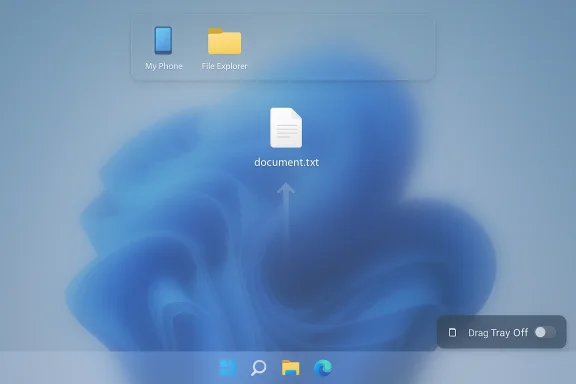
At face value, Drag Tray is a small, context-aware UI that slides down from the top edge of the screen when you start dragging one or more files. Its stated purpose is to speed up sharing and moving operations: while dragging, you can pause at the top edge and drop items onto a target app, a connected phone (via Phone Link), or into a File Explorer folder exposed in the tray itself. For touch and convertible devices the gesture makes a lot of sense—dragging to an edge is a natural motion on tablets and 2‑in‑1s.Under the hood, Drag Tray is implemented on top of Windows’ Connected Devices Platform (CDP), the service that mediates Nearby Sharing, companion device workflows, Phone Link, and other cross‑device features. Because CDP watches drag activity globally, the tray activates whenever the pointer crosses the activation zone—there’s limited contextual awareness today to distinguish “I’m moving icons on my own desktop” from “I want to share this file.” That global monitoring is efficient for proximity and sharing scenarios but problematic for precision desktop workflows.
Why it’s annoying
Power users—designers, developers, system administrators, and anyone who treats the desktop as an active workspace—report the Drag Tray appears too readily and in unhelpful places. Typical complaints include:- The tray appears even when you clearly intend only to move or drop files on a desktop folder near the top of the screen, blocking the target locatioargets cannot be pinned or customized, so it surfaces items that aren’t useful to the user.
- When desktop icons are densely packed, incidental pointer movement toward the top activates the tray and forces a retry of the drag operation.
- The tray’s activation zone is insensitive to context: it can’t yet tell the difference between reordering desktop icons, dragging between File Explorer tabs, and initiating a share.
Who benefits—and when Drag Tray makes sense
The Drag Tray design clearly targets devices and users where edge gestures and quick cross‑device sharing are common:- Touchscreen laptops and convertibles where dragging toward an edge is a gesture-like shortcut.
- Users who frequently send files to a paired phone using Phone Link, or who frequently share attachments to chat apps that appear as share targets in the tray.
- Casual users who prefer a visual, touch-friendly sharing surface rather than context menus or nested file‑picker flows.
How to disable Drag Tray (the supported way)
If with your workflow, Microsoft now provides a built‑in switch. Follow these steps:- Press Win + I to open Settings.
- Click System.
- Select Nearby sharing.
- At the top of the Nearby sharing page, toggle the Drag Tray option to Off.
Advanced ways to disable or control it (for power users and admins)
Before Microsoft exposed the supported toggle, enterprising users and IT pros used registry edits, ViVeTool flags and service-level controls to disable Drag Tray or connected features. These remain relevant for older build environments, automated deployments, or locked-down enterprise scenarios.- Registry: Create or edit a DWORD at HKEY_CURRENT_USER\Software\Microsoft\Windows\CurrentVersion\CDP named DragTrayEnabled and set it to 0 to disable the tray for the current user. Reverse by setting it to 1. Always back up the registry before editing.
- ViVeTool / deployment toggles: Insiders and advanced users used third‑party tooling to toggle experimental features in preview builds; enterprises should avoid this in production and prefer supported controls.
- Service-level mitigation: The tray relies on the Connected Devices Platform service (CDPSvc) for discovery and sharing. Administrators who need to remove CDP functionality system‑wide (understanding the impact) can stop or disable the CDPSvc service via Group Policy, PowerShell or endpoint management tooling—note this disables Nearby Sharing, Phone Link tie‑ins and other companion device features. For security-conscious organizations, disabling CDPSvc was an emergency mitigation for certain CDP vulnerabilities in 2025, but it has significant functional trade‑offs.
How to use Drag Tray effectively (if you keep it enabled)
If you decide the Drag Tray is worth retaining, it’s worth learning Microsoft’s intended gesture to reduce accidental activations:- Move deliberately toward the top edge: drag a file toward the very top and pause for a split second. The tray slides down to reveal share targets and folders.
- Use it as a one‑step share path: dropping on Phone Link / My Phone hands files directly to the connected device without launching additional windows. This is faster than right‑click → Share when you’re repeatedly moving files to a phone. ([windowslatest.com](Windows 11’s Drag Tray keeps popping up during drag-and-drop, frustrating desktop users explicit gestures over incidental moves: keep small desktop rearrangements within the desktop area and reserve the top-edge gesture for intentional cross-device moves.
UX and customization shortcomings (what’s missing)
Even defenders of the feature admit the Drag Tray is immature in three key UX areas:- Lack of pinning or user-set app targets. The tray automatically ranks targets by perceived relevance but doesn’t let users pin their commonly used comms apps (for example, Telegram, Slack, or third‑party cross‑platform tools). If you want Nearby Share or a third‑party tool to appear, you’re out of luck for now.
- Poor contextual awareness. The tray can’t reliably differentiate between desktop icon reordering and share intent. That global activation model is the single biggest source of complaint.
- No fine-grained sensitivity controls. Power users would benefit from an adjustable activation delay or an “edge dead zone” setting to prevent accidental invocation near the topmost row of icons.
Security and privacy considerations
Because Drag Tray sits on top of the Connected Devices Platform, there are two security angles worth noting:- Attack surface and past vulnerabilities: CDP (CDPSvc) has been a high‑impact component in security advisories during 2025; multiple community analyses labeled certain CDP defects as use‑after‑free or elevation‑of‑privilege risks. Administrators who are concerned about CDP’s attack surface should prioritize patching; disabling CDPSvc is a temporary mitigation, not a long‑term substitute for updates. Disabling CDPSvc also disables all CDP-dependent features, including Nearby Sharing and Phone Link.
- Data flow and sharing targets: the tray surfaces a mix of local folders, apps, and connected devices as targets. Sharing to a third party or a nearby device is subject to the same permission flows and telemetry as the underlying services (Nearby Sharing, Phone Link). For enterprises and privacy-focused users, it’s important to understand what gets transferred and whether the destination device is trusted—especially in environments where accidental data exfiltration is a concern.
Enterprise guidance: rollout, control, and remediation
For IT teams managing large fleets, Drag Tray represents both an operational question and a support burden:- If users complain en masse, apply the supported toggle via guidance documents or user communications. For locked-down environments, enforce the registry key or control CDPSvc centrally—after assessing functional impacts.
- If you need to prevent Phone Link or Nearby Sharing system‑wide, the recommended approach is policy‑driven control of the Connected Devices Platform rather than ad hoc registry edits. That preserves a consistent support surface and traceability for audits.
- Maintain patch discipline. CDP-related vulnerabilities in 2025 were remediated in scheduled LCUs; administrators should map CVE entries to KB numbers and deploy the appropriate cumulative updates. Disabling CDPSvc is a temporary mitigation for exceptional cases, not a replacement for patching.
Recommendations (for Microsoft and for users)
For Microsoft- Add per-app and pinning controls for Drag Tray targets so users can surface the apps they actually use.
- Introduce a configurable activation delay and a small top-edge dead zone option so incidental cursor paths don’t trigger the tray.
- Improve contextual awareness: use heuristics or a short timeout to detect desktop reordering versus share intent; consider a second‑factor gesture (e.g., hold Shift while dragging to force the tray).
- Surface enterprise policy controls for the tray itself (not only CDP on/off) so organizations can selectively enable it for eligible hardware profiles.
- If Drag Tray disrupts your daily work, turn it off via Settings → System → Nearby sharing immediately. That gives you the classic drag flow back with zero risk.
- If you like the idea, practice a deliberate top-edge pause and customize your habits: small deliberate gestures reduce false activations.
- Power users who manage multiple machines can script the registry key change or push a simple GPO preference, but always test such changes before wide deployment.
Final analysis: innovation vs. muscle memory
Drag Tray is emblematic of a larger tension in modern Windows UX: Microsoft must reconcile decades of mouse‑and‑keyboard muscle memory with bold, touch-first gestures and cross‑device ambitions. The feature is not inherently flawed—on touch devices it accelerates common flows and reduces context switching. But the current global activation model and limited customization turn a convenience for some into an irritant for others.The company’s decision to ship a supported toggle is the correct, pragmatic response: it acknowledges that one size does not fit all and restores agency to users who rely on predictable drag‑and‑drop. For those willing to adopt the gesture, Drag Tray can be a genuine time saver; for others, disabling it restores a known, reliable workflow. The sensible path forward for Microsoft is to keep refining the tray’s heuristics, add user-level controls, and surface enterprise policy support so the feature can be helpful without being disruptive.
Windows users have long had to adapt to periodic UX experiments—some succeed and become permanent improvements, others retreat under user pressure. Drag Tray sits squarely in that experimental category: useful, imperfect, and now user‑toggleable. If you’re frustrated by repeated, accidental activations, you don’t have to fight your muscle memory—flip the switch and carry on. If you’re curious about a new, gesture-driven sharing shortcut, keep it on and try the deliberate top‑edge pause; in the right hardware and the right habits, it can speed up the small chores that add up over a day.
Source: Windows Latest Windows 11’s Drag Tray keeps popping up during drag-and-drop, frustrating desktop users
