

Windows 11’s promise of brighter highlights, deeper blacks and richer color often falls flat on PCs — especially when a single toggle is meant to cover both polished HDR games and everyday desktop browsing. The short version: Microsoft’s HDR pipeline can leave desktop content washed out or oversaturated, Auto HDR sometimes wrecks tonal intent, and even well‑engineered monitors need careful calibration to behave correctly on Windows. The fixes I use are a mix of Microsoft’s own HDR Calibration tool, GPU vendor features (notably NVIDIA’s RTX HDR and RTX Video enhancements), and a few practical display and driver checks that together transform messy HDR into something I actually enjoy for both browsing and gaming. The following is a detailed, practical walkthrough: what’s happening, why Windows behaves this way, step‑by‑step tweaks, and the trade‑offs you should expect. HDR on Windows feels broken to many users
High Dynamic Range (HDR) on modern displays expands the range of luminance and color compared with Standard Dynamic Range (SDR), but it also introduces a new complexity: tone mapping. Tone mapping is the process that maps an image’s brightness and colors into what a display can actually reproduce. On consoles and purpose‑built HDR players the pipeline is usually consistent: the game or movie outputs HDR metadata and the display interprets it. On Windows, dozens of pieces interact — the app, the OS, GPU drivers, the monitor’s firmware and the cable — and when any link in that chain misreports capabilities or applies ill‑fitted tone mapping, the result can be lifted blacks, thin contrast, blown highlights, or neon‑bright UI elements.
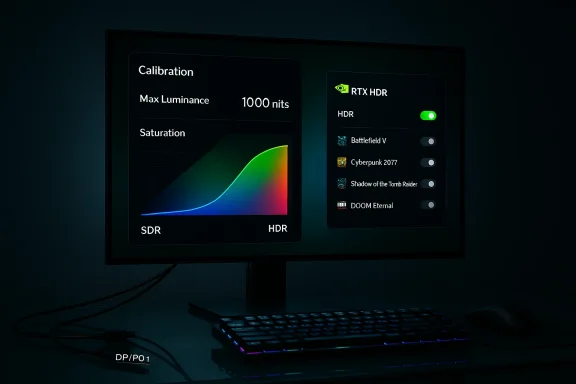
Microsoft ships tools meant to help. The Windows HDR Calibration app (available from the Microsoft Store) is specifically for calibrating an HDR panel on Windows 11. It walks you through maximum luminance for whites and blacks, full‑frame tests and color saturation checks so that Windows’ HDR pipeline has accurate reference points for your display. If you haven’t run it, you should — it’s the single most important baseline step.
But calibration alone is often not enough. Windows also offers Auto HDR to convert older SDR games into HDR, a feature intended to make legacy titles look more vibrant. Auto HDR lives in Settings → System → Display → HDR (the Auto HDR toggle) and can be useful, but it’s also a frequent source of complaints after feature updates — mismatched brightness and game crashes have been widely reported after some Windows 11 updates. If you rely on Auto HDR for specific games, treat it as a per‑game experiment, not a global solution.
Finally, GPU vendors have introduced compensating features. NVIDIA’s RTX HDR/RTX Video features use Tensor cores and AI‑assisted processing to convert SDR content to HDR or to enhance HDR signals, and many enthusiasts now prefer these over Windows’ Auto HDR in specific cases. NVIDIA packages these controls into the new NVIDIA app (the successor to GeForce Experience) and overlays; the implementation has matured to support multi‑monitor setups and both games and video.
I run a high‑end gaming PC and a Samsung Odyssey OLED G9 (49", DQHD 5120×1440, 240Hz), so my expectations for HDR are high. Left to Windows defaults I observed:
Panel manufacturers like Samsung have shipped impressive hardware (the Odyssey OLED G9 is an example of a high‑end HDR gaming panel with DQHD and 240Hz capability), but hardware alone can’t solve tone mapping mismatches that occur upstream in the OS and driver stack. The best user experience comes from calibrating Windows properly, then selectively choosing the right vendor or community tool per title or content type.
Source: MakeUseOf Windows 11 HDR looks bad for browsing and gaming, so I fixed it with these tweaks
High Dynamic Range (HDR) on modern displays expands the range of luminance and color compared with Standard Dynamic Range (SDR), but it also introduces a new complexity: tone mapping. Tone mapping is the process that maps an image’s brightness and colors into what a display can actually reproduce. On consoles and purpose‑built HDR players the pipeline is usually consistent: the game or movie outputs HDR metadata and the display interprets it. On Windows, dozens of pieces interact — the app, the OS, GPU drivers, the monitor’s firmware and the cable — and when any link in that chain misreports capabilities or applies ill‑fitted tone mapping, the result can be lifted blacks, thin contrast, blown highlights, or neon‑bright UI elements.
Microsoft ships tools meant to help. The Windows HDR Calibration app (available from the Microsoft Store) is specifically for calibrating an HDR panel on Windows 11. It walks you through maximum luminance for whites and blacks, full‑frame tests and color saturation checks so that Windows’ HDR pipeline has accurate reference points for your display. If you haven’t run it, you should — it’s the single most important baseline step.
But calibration alone is often not enough. Windows also offers Auto HDR to convert older SDR games into HDR, a feature intended to make legacy titles look more vibrant. Auto HDR lives in Settings → System → Display → HDR (the Auto HDR toggle) and can be useful, but it’s also a frequent source of complaints after feature updates — mismatched brightness and game crashes have been widely reported after some Windows 11 updates. If you rely on Auto HDR for specific games, treat it as a per‑game experiment, not a global solution.
Finally, GPU vendors have introduced compensating features. NVIDIA’s RTX HDR/RTX Video features use Tensor cores and AI‑assisted processing to convert SDR content to HDR or to enhance HDR signals, and many enthusiasts now prefer these over Windows’ Auto HDR in specific cases. NVIDIA packages these controls into the new NVIDIA app (the successor to GeForce Experience) and overlays; the implementation has matured to support multi‑monitor setups and both games and video.
 What I saw on my rig — the symptoms and why they matter
I run a high‑end gaming PC and a Samsung Odyssey OLED G9 (49", DQHD 5120×1440, 240Hz), so my expectations for HDR are high. Left to Windows defaults I observed:- Elevated black levels and lifted shadows in dim scenes, which sapped perceived contrast.
- Washed‑out browser images and screenshots: photographic content looked limp compared with the same files on an HDR‑aware console.
- Color banding and posterization in gradients where the display should have been smooth.
- Variable behavior between native HDR games (which could look great) and older titlesced odd highlight clipping.
The short checklist — the order I run through when HDR looks wrong
Use this checklist as a quick diagnostic. Run these in order: the fixes earlier in the sequence are low‑risk and often fix most issues.- Run the Windows HDR Calibration app and save a profile.
- Confirm Windows HDR is enabled: Settings → System → Display → HDR. Check the HDR/SDR brightness slider and start with a conservative value.
- Update GPU drivers to the latest WHQL/Game Ready drivers and install the current NVIDIA app (or AMD equivalent). Many HDR fixes ship in drivers.
- Use the NVIDIA app’s RTX Video / RTX HDR options for video and games on RTX GPUs when appropriate. Toggle per‑app if you need different behavior.
- Check cables and ports: use certified HDMI 2.1 or DisplayPort 1.4 capable of 10‑bit chroma and the monitor’s max refresh/resolution. Firmware matters — check for monitor firmware updates.
- If Auto HDR makes a game worse, try disabling it and use RTX HDR or community tools such as NvTrueHDR for more control. (More on NvTrueHDR later.)
Deep dive: Step‑by‑step HDR tuning that actually works
1) Calibrate Windows HDR properly (baseline)
- Open the Windows HDR Calibration app from the Microsoft Store. Microsoft’s guide describes exactly the sequence: measure Maximum Luminance levels, run the Max Full Luminance Frame Test, then compare SDR vs HDR color saturation. Run through each screen slowly and save the resulting profile. This gives Windows a correct starting point for tone mapping.
- After calibration, go to Settings → System → Display → HDR and double‑check the HDR/SDR brightness slider. This slider is critical — it influences how SDR desktop content is scaled onto the HDR panel. Small adjustments here have immediate, large visual effect.
2) GPU controls: NVIDIA’s RTX HDR / RTX Video
If you have an NVIDIA GPU, install the latest NVIDIA app (the updated client replacing GeForce Experience) and confirm your driver is current. NVIDIA’s RTX HDR (an image‑filter based approach) and RTX Video HDR enhancements process games and video with Tensor‑core‑accelerated algorithms to remap SDR to HDR or to enhance HDR output. You can apply them:- Globally via the NVIDIA app’s Graphics → Global Settings → RTX HDR: On (note: the app’s UI has evolved; you may also enable per‑game from Program Settings). You can also use the in‑game overlay to add the RTX HDR filter (Alt+Z/Alt+F3 depending on overlay version).
- For video (browser/streaming), enable the RTX Video/Enhancements → HDR option in the NVIDIA app’s Video/System panel so the effect applies to browser video playback. NVIDIA’s RTX Video FAQ explains how these video enhancements work and which apps they affect.
- RTX HDR can incur a GPU cost (Tensor core cycles). On modern RTX cards the hit is modest on low presets, but expect some overhead if you run the highest quality options.
- Some users report the RTX HDR control is greyed out or behaves inconsistently across updates or multi‑monitor setups; update the NVIDIA app and drivers if that happens, and check that HDR is enabled in Windows before expecting the NVIDIA options to be active.
3) When Auto HDR fails: consider per‑game alternatives
Auto HDR is useful for many titles, but on Windows 11 it has occasionally caused crashes or poor color reproduction after system updates; the Windows ecosystem has seen multiple incidents after feature releases where Auto HDR created regressions for certain titles. If a specific game looks worse with Auto HDR, disable it for that title and either:- Use NVIDIA’s RTX HDR filter for that game (enable per‑game), or
- Use NvTrueHDR (a community tool that wraps NVIDIA’s RTX HDR style processing and can be applied to non‑HDR games). NvTrueHDR is available on Nexus Mods and has become a popular alternative to Auto HDR for older games where you want more predictable results.
4) Monitor settings and connection details
- Ensure the monitor is connected using a cable and port that support the panel’s advertised color depth and refresh rate. For the Samsung Odyssey OLED G9 (DQHD 5120×1440 @ 240Hz), use DisplayPort 1.4 or HDMI 2.1 depending on your GPU’s port capabilities and the monitor’s inputs. Samsung and independent reviews list the port options and the panel’s characteristics; matching these in Windows (bit depth, dynamic range) is essential.
- On the GPU control panel, set dynamic range to Full and color format to the highest supported (10‑bit if available) when running HDR. Many problems arise when the OS or GPU driver negotiates a limited range (e.g., limited RGB) that clips or scales values incorrectly.
- Turn off unnecessary monitor image processing features that can interfere with tone mapping (over‑aggressive “dynamic contrast” or “adaptive brightness” modes), and check for monitor firmware updates from the manufacturer.
5) Browser and desktop content: special handling
- Modern browsers can play HDR content in the video element, but the OS video pipeline often controls tone mapping. NVIDIA’s RTX Video enhancements specifically target browser video and can clean up compressed video artifacts and restore natural‑looking highlights. In the NVIDIA app’s Video settings you’ll find toggles that apply to supported browsers (Edge, Chrome, Firefox) and player apps.
- For desktop images, the HDR/SDR brightness slider and the Windows calibration profile are the keys. If images still look wrong, compare the result with an HDR‑capable standalone device (console or TV) to determine whether Windows’ pipeline or the monitor’s OSD is at fault.
Troubleshooting: common problems and how to fix them
RTX HDR greyed out or invisible
- Make sure HDR is enabled in Windows first. NVIDIA’s app checks for an active HDR session. If HDR is off at the OS level, RTX HDR options will often be disabled. Update the NVIDIA app and drivers; some early releases required specific app betas for multi‑monitor or per‑game RTX HDR options.
Bright UI elements or text too bright with RTX HDR
- RTX HDR alters the entire image; in some games or UIs this can brighten text or UI overlays undesirably. Use per‑game profiles to disable RTX HDR for titles that natively support HDR, or reduce the RTX HDR strength/quality. Community discussions show users toggling RTX HDR per‑title to avoid UI clipping.
Auto HDR causes crashes or bad rendering after system updates
- If you begin seeing crashes immediately after a Windows feature update, consider temporarily disabling Auto HDR for affected titles and roll back drivers if necessary. Microsoft has documentation and support guidance for Auto HDR, and the Windows update release notes sometimes mention fixes for Auto HDR regressions.
Performance hits with RTX HDR
- On modern RTX cards the marginal cost is usually acceptable on a high‑end rig, but if you’re GPU‑limited you can drop the RTX HDR quality/preset to “Low” (many users report minimal visual loss at low cost). For streamers, also watch capture overlays and OBS settings — HDR plus capture can add complexity.
How the industry tools compare — Windows Calibration vs NVIDIA vs community mods
- Windows HDR Calibration app (Microsoft): official, low‑risk, and essential. It sets accurate baseline parameters for Windows’ HDR pipeline and should be your first step. It cannot, however, do aggressive per‑game image transforms; that’s not its purpose.
- NVIDIA RTX HDR / RTX Video (NVIDIA app): powerful, per‑app, and AI‑assisted. It can improve SDR games and compressed video on HDR panels, and for many users it provides a more satisfying look than Auto HDR. It’s a driver/vendor‑side solution so it’s fast and integrates into the GPU pipeline, but UI artifacts can occur and some games interact badly with double HDR pipelines.
- NvTrueHDR and similar community tools (Nexus Mods, GitHub): flexible and sometimes more compatible with older titles that won’t cooperate with the NVIDIA overlay. They represent a modding approach that can be extremely effective — but they require extra caution (trusted downloads, awareness of what the injector modifies). Use them when vendor tools don’t meet your needs.
A concrete, repeatable recipe I use (copy and adapt)
Follow this exact sequence to get the best blend of desktop fidelity and gaming punch on an HDR PC:- Install the latest GPU drivers and the NVIDIA app (or AMD equivalent). Reboot.
- Connect the monitor with a certified cable (HDMI 2.1 or DP1.4) to support 10‑bit color at the panel's resolution/refresh. Put the monitor into its native HDR mode and disable gimmicky dynamic contrast OSD options.
- Run Windows HDR Calibration (Microsoft Store) and save the profile. After this, fine‑tune the HDR/SDR brightness slider in Settings → System → Display until desktop images look natural.
- Launch the NVIDIA app and enable RTX Video HDR for browsers/video if you watch HDR content in a browser. For games that lack native HDR, enable RTX HDR per‑game rather than globally and test visually. If HDR appears worse, disable and try the game without RTX HDR.
- If a problematic title refuses to look right, try NvTrueHDR on a per‑game basis (community tool). Use the low preset first to minimize GPU overhead. Always get community tools from reputable pages (Nexus Mods or the project’s official GitHub).
- Revisit monitor firmware and driver updates monthly; HDR components evolve, and driver updates often resolve odd corner cases.
Risks, limitations and what to watch for
- System updates can break HDR behavior. Microsoft’s Auto HDR and Windows 11 feature updates have produced regressions in the past. Keep a restore point and be ready to rnew update creates problems.
- Vendor overlays and injector mods can conflict. Running multiple image injectors (NVIDIA app filters, ReShade, NvTrueHDR) concurrently can create visual artifacts or higher overhead. Use one solution at a time and test before stacking overlays.
- Performance trade‑offs exist. AI‑assisted upscalers and HDR converters use additional GPU resources. For competitive play you may prefer native SDR or running RTX features selectively.
- Modding tools carry security and stability risks. Only install community tools from reputable sources and review the project’s issues/feedback threads before use. If the tool requires DLL injection, be aware that anti‑cheat or game integrity systems might flag it.
Why this matters for users and the path forward
HDR is a meaningful visual leap when done right: more truthful highlights, more natural speculars, and richer midtones. But on Windows the experience is a work‑in‑progress because the ecosystem is fragmented: multiple display types, numerous games (some with native HDR, many without), and GPU vendors trying to fill gaps created by a general OS approach to HDR. The tools we now rely on — Microsoft’s calibration, NVIDIA’s RTX HDR/Video, and community projects like NvTrueHDR — are complementary. Run the Microsoft baseline, then apply vendor or community fixes where necessary.Panel manufacturers like Samsung have shipped impressive hardware (the Odyssey OLED G9 is an example of a high‑end HDR gaming panel with DQHD and 240Hz capability), but hardware alone can’t solve tone mapping mismatches that occur upstream in the OS and driver stack. The best user experience comes from calibrating Windows properly, then selectively choosing the right vendor or community tool per title or content type.
Final recommendations — what to do this afternoon
- If you haven’t: run the Windows HDR Calibration app now and save a profile. It takes a minute and prevents many common problems.
- If you own an NVIDIA RTX GPU: install the NVIDIA app, enable RTX Video HDR for browser/video playback, and experiment with RTX HDR on a per‑game basis. Start with conservative quality settings.
- If a legacy game still looks wrong: try NvTrueHDR (or equivalent) on that game with the low preset before dismissing HDR entirely. Test performance and visual results carefully.
- Keep backups and restore points before applying kernel‑level tools or injector‑style mods; treat driver and firmware updates as routine maintenance and test after each change.
Source: MakeUseOf Windows 11 HDR looks bad for browsing and gaming, so I fixed it with these tweaks
