

MusicBee is the kind of music player that still surprises Windows users: deceptively lightweight yet packed with pro-level features for library management, tagging, high-quality playback, device syncing, skins and plugin support—everything you need to organize a local music collection on Windows 11 without paying for a subscription. This feature examines how to install, configure, and master MusicBee on Windows 11, verifies the key technical claims, highlights workflow best practices for large libraries, and flags the few points that need careful attention before you migrate or commit a primary library to a new tool.
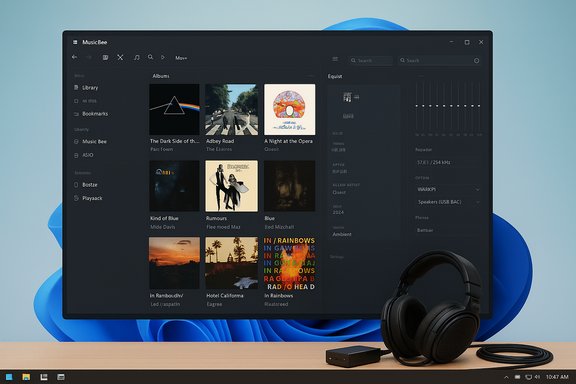
MusicBee occupies a unique niche among Windows music players: it’s a free, actively maintained desktop application that balances powerful library tools with a polished, customizable interface. It targets music enthusiasts who want precise control of metadata, flexible playback (including gapless playback and advanced equalization), and reliable device sync without the bloat of subscription-based streaming UIs. The official MusicBee site details core capabilities—10‑band or 15‑band equalizer options, WASAPI/ASIO audio output, gapless playback, and sync with Android devices—while community writeups and third‑party reviews corroborate those claims. Why MusicBee on Windows 11 matters:
Key features:
Source: Windows Report How to Use MusicBee on Windows 11 for Music Organization
 Background / Overview
MusicBee occupies a unique niche among Windows music players: it’s a free, actively maintained desktop application that balances powerful library tools with a polished, customizable interface. It targets music enthusiasts who want precise control of metadata, flexible playback (including gapless playback and advanced equalization), and reliable device sync without the bloat of subscription-based streaming UIs. The official MusicBee site details core capabilities—10‑band or 15‑band equalizer options, WASAPI/ASIO audio output, gapless playback, and sync with Android devices—while community writeups and third‑party reviews corroborate those claims. Why MusicBee on Windows 11 matters:- It gives fine-grained control over metadata and album art, which is essential for large collections.
- The player supports both portable and installer editions so you can run it from a USB drive or install it for system‑wide use.
- Advanced playback features (DSP effects, volume leveling, crossfade, gapless) satisfy both casual and audiophile listeners.
- Strong plugin and skin ecosystems let you extend or simplify the UI depending on workflow needs.
What MusicBee Does Well
Library management and tagging
MusicBee’s library engine is built for large collections. It can import folders or migrate libraries from other players, maintain a real-time index, and apply sweeping changes via batch tagging. It integrates auto‑tagging and online metadata lookups to fill missing album art and track information—useful when you’re cleaning decades of ripped CDs or mixed downloads. Community feedback shows MusicBee’s auto‑tag workflows are effective but should be used with a plan (backups and manual review) for big batches.Key features:
- Auto‑tagging and metadata lookup (MusicBrainz, other providers configurable).
- Batch tag edit, file renaming from tags, and smart auto‑playlists.
- Import helpers for iTunes and Windows Media Player libraries.
Playback quality and DSP
MusicBee exposes a rich audio stack:- 10‑band and 15‑band equalizer options, DSP effects, and support for WASAPI / ASIO outputs for low‑latency, high‑fidelity playback.
- Gapless playback and crossfade controls so albums or live recordings play without audible gaps.
- ReplayGain and volume normalization features to smooth level differences across tracks.
Customization and extensibility
- Skins and layout options let you move panels, use compact player modes, or create a full library browser.
- Plugins from the MusicBee add‑ons page enable extra functions (format converters, web integrations, visualizers).
This makes it easy to tune the application for living‑room use, a lightweight mini‑player, or a serious workstation.
Installation on Windows 11 — step‑by‑step
- Choose your edition (Installer or Portable):
- Installer: integrates with Windows and creates Start menu shortcuts and file associations.
- Portable: unzip to a folder or USB drive and run without modifying the system registry—ideal for testing or a secondary profile.
- Download:
- Get the binary from the official MusicBee downloads page and prefer the official mirror. Avoid third‑party bundles.
- Run the Installer (if chosen):
- Follow the installer prompts (accept defaults unless you want a bespoke install path).
- If offered, opt into the Windows Store edition only if you prefer automatic updates via the Store; otherwise the installer and portable editions give more control.
- First launch and library import:
- On first run, choose the folder(s) where your music files live.
- Let MusicBee scan and build the library index—initial scans can take minutes to hours depending on library size and drive speed. Back up your existing player settings before importing large, mission‑critical collections.
- Optional for Windows 11 N editions:
- If you’re on a Windows 11 N SKU (media features excluded), install the Media Feature Pack to restore some media technologies and codecs that certain apps expect. This is an OS optional feature provided by Microsoft and is necessary only on N editions.
First‑Run: Essential settings to configure
- Library monitor:
- Enable automatic folder monitoring if you add songs frequently; set indexing schedule and ignored file types to avoid scanning temporary folders.
- Tagging and Auto‑Tag:
- Configure which online providers to use for metadata and album art. If you run a large auto‑tag operation, test on a small subset and always keep a backup of your library database (MusicBee stores its DB and settings in AppData or your portable folder).
- Playback device & output:
- Select WASAPI or ASIO when you need direct device access; otherwise use Windows Audio (WASAPI Shared) for normal desktop audio mixing.
- Equalizer and DSP:
- Load an equalizer preset or create per‑track equalizer settings. MusicBee supports both a 10‑band and optional 15‑band EQ per the official feature description; audiophiles can combine the EQ with DSP effects for room correction.
- Visual space and panels:
- Swap between default full library mode and the compact player depending on desk space and workflow.
Organizing your library: practical workflows
Cleaning tags safely
- Back up MusicBee’s database and the files you’ll edit.
- Use MusicBee’s Auto‑Tagging with a strict provider preference (for example, MusicBrainz first).
- Review suggested changes before writing them to disk—don’t mass‑apply without verification.
- Use file renaming templates to standardize directory trees: Artist\Album\Disc # - Track # Title.
- For large multi‑disc reissues, verify Disc and Track tags to avoid misgrouped releases.
Using smart playlists & AutoDJ
- Auto‑playlists let you create dynamic lists based on criteria (genre, play count, rating). Use weighted rules to generate workout, chill, or party lists automatically.
- AutoDJ analyzes track metadata to build continuous mixes; configure crossfade and gapless behavior for better transitions.
Handling large libraries (thousands of tracks)
- Keep your library files on fast storage (SSD or a fast NAS) and keep the MusicBee DB on a local SSD where possible.
- Consider splitting a very large library into multiple MusicBee libraries if you manage distinct collections (example: personal vs. archival).
- Use MusicBee’s scanning exclusion rules to avoid indexing downloads or temporary folders.
Device sync and mobile playback
MusicBee supports syncing playlists and tracks to mobile devices, including Android (via MTP) and many generic portable players. It can convert formats on‑the‑fly if the target device does not support the original file format. For Android phones, using a wired MTP connection or an MTP‑capable third‑party sync plugin is the most reliable route. Test a few tracks before committing a full sync and confirm metadata (especially for WAV files—WAV carries limited tag support on many devices). Practical notes:- If your phone’s native player doesn’t show tags for WAVs, convert to FLAC or MP3 for robust metadata support.
- Use MusicBee’s device presets to define bitrate and format conversion rules for different devices.
Skins, Plugins, and the Add‑Ons Ecosystem
MusicBee’s add‑ons page includes skins, visualizers, and plugins that expand functionality. Popular extensions handle:- Additional metadata sources
- Visualizers and spectrum analyzers
- Extra export/conversion tools
Troubleshooting common issues
MusicBee won’t open or crashes on startup
- Run the portable edition to determine if the problem is in your AppData config.
- Move/rename the MusicBee configuration folder (AppData\Roaming\MusicBee) and start fresh to isolate corrupt settings.
- If a plugin or skin caused the failure, reinstall MusicBee without add‑ons and add them back incrementally.
Metadata or artwork re‑downloading unexpectedly
- MusicBee can re‑fetch artwork and tags if auto‑update options are enabled. Disable automatic online searches in Tags and Artwork settings if you need offline stability. Community reports show the setting can revert in rare cases—if that happens, lock network access via firewall rules for a portable instance.
Missing codecs on Windows 11 N
- If audio playback is broken on an N edition, install Microsoft’s Media Feature Pack (Optional Feature) to restore media components required by some players and system features. This is an OS‑level remedy, not a MusicBee setting.
Comparison: MusicBee vs. other Windows players
- MusicBee vs. Foobar2000: MusicBee offers richer UI defaults and integrated tagging; foobar2000 wins on ultra‑lightweight core and component‑driven customization.
- MusicBee vs. MediaMonkey: MediaMonkey is enterprise‑grade for very large libraries and automation; MusicBee is friendlier for power users who want a great UI out of the box.
- MusicBee vs. AIMP: AIMP is lean and focuses on audio effects; MusicBee is the better choice if library organization and metadata management are the priority.
Security, privacy, and network features to watch
MusicBee performs online lookups for album art, tags, and lyrics by default if you enable those features. That means outbound queries to third‑party services and potential privacy exposure of what you play. Recommended mitigations:- Use explicit opt‑in for tagging / lyrics fetch.
- Prefer local, offline metadata sources if privacy is essential.
- If you must block network lookups, use the portable edition and a firewall rule to prevent MusicBee from connecting at all. Community reports document users doing exactly this to prevent automatic downloads.
Verifying technical claims (what we checked)
- Equalizer: MusicBee advertises support for both 10‑band and 15‑band equalizers on the official site, and multiple independent reviews confirm the presence of those options.
- Supported formats: MP3, FLAC, AAC, WAV, OGG and WMA support is listed on the official site and confirmed by third‑party download/review pages.
- Gapless playback and WASAPI/ASIO support: The official feature list and hands‑on reviews verify gapless playback and professional audio output options.
- Installer vs. Portable editions: MusicBee’s downloads page offers distinct installer and portable editions; use the one that fits your deployment strategy.
- Media Feature Pack requirement for Windows 11 N: Microsoft documentation confirms that Windows N editions omit certain media technologies and that the Media Feature Pack restores them. This is an OS requirement, not a MusicBee limitation.
- Memory usage profiles (e.g., exact RAM ranges for specific library sizes) vary widely with library contents, skin/plugins, and OS configuration; published figures are useful as rough guides but should not be taken as guaranteed performance bounds.
- Claims about “exact installer size” or precise release‑date build numbers should be verified directly against the official downloads page at the moment you install, because packaging and release artifacts change with each update. If packaging or binary size is critical for distribution in a locked‑down environment, download the official release and verify checksums locally.
Recommended setup checklist (for power users)
- Backup existing library and playlists.
- Install MusicBee (portable for testing, installer for daily use).
- Import a representative subset of the library (100–500 tracks) to validate tagging rules, artwork fetching, and playback settings.
- Configure audio output (WASAPI/ASIO) and test with your DAC/headphones.
- Tune the auto‑tag settings and run a dry run before committing changes.
- Set up automatic library monitoring with exclusion rules.
- If using Windows 11 N, install the Media Feature Pack before troubleshooting missing codecs.
- Keep a rollback plan (backup DB and config) before mass metadata writes.
Conclusion
For Windows 11 users who care about precise control over their local music libraries, MusicBee remains a best‑in‑class option: free, flexible, and feature‑rich. Its tag management, multiple equalizer options, gapless playback, and device sync capabilities make it suitable both for audiophiles and for users with sprawling collections. The trade‑offs are typical for a highly configurable tool—an initial learning curve and the need for cautious use of automated tagging and online metadata retrieval. Verify your core playback and metadata workflows with a small test set, keep backups before mass edits, and prefer the portable edition when you want full control over network access or configuration. With those precautions, MusicBee can be the backbone of a robust Windows 11 music workflow.Source: Windows Report How to Use MusicBee on Windows 11 for Music Organization
