

Windows 10’s built‑in Gaming settings—Game Bar, Captures, Game Mode, Xbox Networking, and Graphics options—are small switches with outsized influence on how games feel and behave. This guide explains what each control does, why it matters, and how to test changes safely so players can extract smoother frame pacing, cleaner captures, and more reliable online play without chasing false promises.
Windows consolidated gaming controls into a single Gaming section to give players easy access to overlays, capture tools, and performance options. That consolidation began in early Insider builds and matured as Microsoft added features like Game Mode and Game Bar overlays to help gamers manage system resources and in‑game capture without third‑party tools. These core features are now common on Windows 10 installs and are intended to reduce background interruptions and make performance more consistent across hardware.
This article breaks down each Windows 10 Gaming setting, explains the technical effect it has on CPU/GPU/network behavior, evaluates trade‑offs and risks, and provides practical, repeatable workflows for testing and tuning. Recommendations are based on documented Windows behavior and community testing practices, and include notes on when a setting is likely to matter—plus what to watch for if enabling it creates instability.
These features deliver the best results when used with a measured approach: update drivers, change one setting at a time, and record the baseline and follow‑up metrics. Expect variable outcomes—some titles and systems will respond very well, others less so—and treat any suggestion to disable security features or use hidden power plans as an advanced, documented trade‑off rather than a routine tweak.
Follow the testing workflow above and use the quick checklist to get a stable, repeatable improvement. The combination of careful measurement and selective use of Game Mode, HAGS, and capture settings is the safest path to smoother gameplay on Windows 10.
Source: Windows Report Windows 10 Gaming Settings Explained for Smoother Gameplay
 Background / Overview
Windows consolidated gaming controls into a single Gaming section to give players easy access to overlays, capture tools, and performance options. That consolidation began in early Insider builds and matured as Microsoft added features like Game Mode and Game Bar overlays to help gamers manage system resources and in‑game capture without third‑party tools. These core features are now common on Windows 10 installs and are intended to reduce background interruptions and make performance more consistent across hardware.This article breaks down each Windows 10 Gaming setting, explains the technical effect it has on CPU/GPU/network behavior, evaluates trade‑offs and risks, and provides practical, repeatable workflows for testing and tuning. Recommendations are based on documented Windows behavior and community testing practices, and include notes on when a setting is likely to matter—plus what to watch for if enabling it creates instability.
Xbox Game Bar: overlay, performance widgets, and capture helpers
What it does
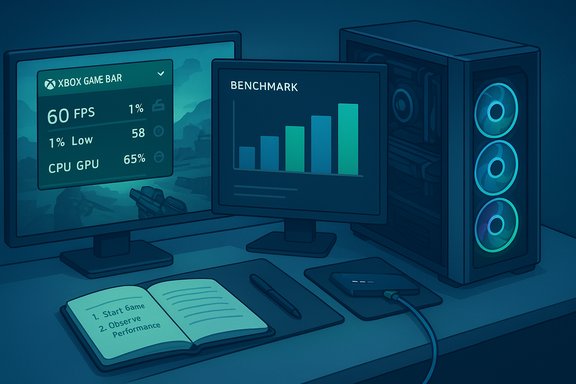
Xbox Game Bar provides a system overlay (Win + G) that surfaces performance widgets, audio controls, chat, and quick capture actions without alt‑tabbing. Its overlay can show real‑time metrics such as FPS, CPU/GPU load, RAM consumption, and network use. That makes it a convenient, low‑barrier monitoring tool for quick diagnostics while gaming.Strengths
- Convenience: Instant access to performance metrics and audio controls while remaining in the game.
- Integration: Works with Windows capture stack and the rest of the Gaming settings.
- Low barrier: No third‑party installation required for quick monitoring.
Downsides and risks
- Resource use: Loading many widgets increases background overhead and can slightly affect performance. The impact is usually small but measurable on lower‑end systems or when the overlay records gameplay simultaneously. Measure with and without the overlay when testing.
- Overlay conflicts: Some in‑game overlays (Discord, NVIDIA/AMD overlays, Steam) may conflict; disabling redundant overlays is advisable for stability.
Practical tuning tips
- Enable only the performance widgets you need (FPS and 1% lows are often the most valuable).
- Disable recording if not using it; background recording consumes CPU cycles and storage writes.
- Use Game Bar as a quick monitoring tool, but retain MSI Afterburner or PresentMon for detailed frame‑time logging on reproducible test runs.
Captures: recording quality vs. system load
What it does
The Captures pane controls how Windows records gameplay clips and screenshots: capture resolution, frame rate, audio sources, and background recording duration. Higher capture settings raise video quality but also increase CPU usage, GPU driver overhead, and disk throughput.When capture settings matter
- Competitive play: Turn off background recording and lower capture quality to preserve lowest possible latency.
- Content creation: Use higher resolution and frame rate, but prepare for heavier CPU/disk load and larger files.
- System balance: On mid‑range systems, a high capture bitrate while gaming can push CPU/GPU to the point of reducing frame rates or increasing micro‑stutters. Test capture settings with a benchmark or run a consistent gameplay sequence to compare.
Recommended settings by use case
- Casual recording: 1080p at 30 FPS, background recording off for battery life.
- Content creators: 1080p/60 FPS or 4K/30 FPS depending on disk bandwidth; use an NVMe SSD for capture destinations.
- Competitive: Background recording off, minimal capture overlays; prefer external capture if streaming and playing on the same machine.
Game Mode: priority for the active game
How Game Mode works
Game Mode tells Windows to prioritize the foreground game by reducing background activity and shifting system scheduling to favor the active process. It’s not a magical FPS booster, but it helps stabilize frame pacing—especially on systems where background tasks can intermittently steal CPU time. Game Mode is globally available in Settings → Gaming and was introduced as part of the consolidated Gaming area in insider builds.Measurable benefits
- Reduced stutters: Game Mode can limit scheduled background activities and lower the chance of unpredictable system interrupts.
- Better CPU prioritization: On CPU‑bound scenes, Game Mode can raise the consistency of CPU time allotted to the game.
Limits and when gains are small
If a game is strictly GPU‑bound or the GPU is already saturated, Game Mode will deliver little to no FPS increase. Gains vary by title, driver, and system configuration; some users see clear improvements while others notice minimal change. Always test with a repeatable benchmark.Practical advice
- Toggle Game Mode on in Settings.
- Run a repeatable benchmark or in‑game scenario and record average FPS plus 1%/0.1% lows.
- Toggle Game Mode off and compare metrics.
- If you see instability with Game Mode on, it’s a good candidate to test per‑title (some games opt out or behave differently).
Xbox Networking: diagnosing NAT, latency, and multiplayer readiness
What Xbox Networking checks
The Xbox Networking tool verifies NAT type, latency, and multiplayer compatibility with Xbox services, helping identify voice chat, lobby, and connectivity problems. It’s a quick way to confirm whether local network configuration or ISP behavior is likely to cause lag or packet loss.Why it matters
Online games are sensitive to latency and packet loss; even well‑tuned local hardware can be undermined by NAT issues or asymmetric routing. Xbox Networking reveals whether the system can make peer‑to‑peer connections and highlights NAT type problems to fix on the router.Troubleshooting checklist
- Confirm NAT: Open NAT or Moderate NAT requires router configuration (UPnP or port forwarding).
- Prefer wired Ethernet for competitive play; disable power saving on the adapter to avoid wake‑sleep cycles affecting ping.
- Pause OneDrive and other sync clients before high‑priority sessions.
- Use the Xbox Networking test as a baseline diagnostic before chasing in‑game issues.
Graphics settings: forcing GPUs and Hardware‑accelerated GPU Scheduling (HAGS)
Per‑app GPU preference
Windows allows assigning High performance to specific apps to force use of the discrete GPU on hybrid systems. This is essential on laptops that otherwise default to integrated graphics for battery life. Use Settings → System → Display → Graphics settings to pin title executables to the desired GPU.Hardware‑accelerated GPU Scheduling (HAGS): what it is
HAGS offloads certain scheduling responsibilities from the CPU to the GPU scheduler to reduce CPU overhead and improve frame‑time consistency. It is available on Windows 10 (starting with the 2004/May 2020 update) and requires vendor driver support. Many users report improved minimums and reduced CPU latency, but results are driver and game dependent.Benefits, caveats, and testing
- Benefits: Lower scheduling latency and potentially improved frame pacing for some titles.
- Caveats: Driver maturity matters. Some driver versions have reported regressions with HAGS enabled; if instability appears, toggle it off and retest.
- Update GPU drivers and Windows.
- Enable HAGS: Settings → System → Display → Graphics → Advanced graphics settings → toggle Hardware‑accelerated GPU scheduling.
- Reboot.
- Run identical benchmarks with HAGS off and on, tracking average FPS and 1%/0.1% lows.
- If problems occur (glitches, crashes), disable HAGS until a driver update resolves them.
Additional GPU features to know about
- Variable Refresh Rate (VRR) at the OS level reduces tearing and helps frame‑pacing variability when matched with a VRR‑capable display and compatible driver.
- Per‑vendor features (NVIDIA Low Latency modes, AMD Anti‑Lag/Boost/RSR) are complementary to Windows features and often produce larger gains when used selectively per title.
How to test effectively: the discipline of measurement
Why methodology matters
Small changes can create subtle effects that feel meaningful but are not statistically significant. Use disciplined measurement to avoid chasing placebo tweaks.A reproducible testing workflow
- Update Windows and GPU drivers.
- Record a baseline: average FPS, 1%/0.1% lows, CPU/GPU temps, and load times.
- Change only one setting at a time (Game Mode, HAGS, capture quality).
- Run a repeatable in‑game sequence or benchmark for 2–5 minutes and log results.
- Compare metrics and rollback if instability or regressions occur.
What to monitor
- Average FPS and 1%/0.1% lows (real measure of smoothness).
- CPU/GPU utilization and temperatures to detect throttling.
- Disk I/O and capture write throughput if recording.
- Network jitter and packet loss for multiplayer tests.
Risks, security trade‑offs, and when not to tweak
Security features vs. performance
Disabling features like Memory Integrity (Core isolation) or the Virtual Machine Platform can reduce perceived overhead but also reduces system security. These should only be toggled temporarily and re‑enabled when not gaming. The security trade‑off is real and should be weighed against any performance benefit.Power plans and thermal limits
Switching to High performance or Ultimate Performance increases heat and power draw and may accelerate thermal throttling if cooling isn’t adequate. Monitor temperatures after enabling aggressive power profiles.Driver rollbacks and experimental features
Enabling HAGS or other experimental features may expose driver bugs. Prefer official vendor drivers and avoid unofficial “tweak packs.” If a change causes visual corruption or instability, revert and wait for updated drivers.Quick optimization checklist (practical)
- Update Windows and GPU drivers.
- Enable Game Mode and test.
- Set Power Mode to Best performance when gaming (use AC power on laptops).
- Disable unnecessary startup apps and background sync (OneDrive, cloud clients).
- Use Xbox Game Bar sparingly—enable only the performance widgets needed.
- Test HAGS on and off with benchmarks; keep vendor drivers up to date.
- Set per‑game GPU preference to High performance for discrete GPUs.
- For online play, prefer wired Ethernet and run the Xbox Networking test to check NAT and latency. Pause background downloads before matches.
Conclusion
Windows 10’s Gaming settings provide practical, low‑effort levers to improve responsiveness, stabilize frame pacing, and manage captures without specialist tools. Game Mode helps prioritize CPU time for the foreground game, Xbox Game Bar offers easy monitoring, Captures controls the quality vs. cost trade‑off of recording, Xbox Networking diagnoses multiplayer connectivity, and Graphics options (including HAGS and per‑app GPU control) give players finer control over GPU usage.These features deliver the best results when used with a measured approach: update drivers, change one setting at a time, and record the baseline and follow‑up metrics. Expect variable outcomes—some titles and systems will respond very well, others less so—and treat any suggestion to disable security features or use hidden power plans as an advanced, documented trade‑off rather than a routine tweak.
Follow the testing workflow above and use the quick checklist to get a stable, repeatable improvement. The combination of careful measurement and selective use of Game Mode, HAGS, and capture settings is the safest path to smoother gameplay on Windows 10.
Source: Windows Report Windows 10 Gaming Settings Explained for Smoother Gameplay
