

Windows 11’s keyboard shortcuts are more than nostalgia for power users — they’re a practical productivity toolkit that, when learned and combined, can shave minutes off routine tasks and keep you in flow for hours. What reads like a simple list of keystrokes on the surface actually unlocks modern features — fast window management, clipboard history, OCR in the Snipping Tool, a dedicated Copilot hotkey, and subtle typographic shortcuts — that make everyday work faster and less interruptive. The payoff is compound: small time savings repeated dozens of times per day become meaningful gains to focus and throughput.
Windows has carried keyboard shortcuts since the early days of the OS, but Windows 11 folded a number of new system apps and features into that muscle memory. Modern shortcuts are intentionally tied to utilities like the Snipping Tool, Clipboard history, Snap Layouts, Magnifier, and the Windows-integrated Copilot — turning what used to be mouse-heavy workflows into near-instant keystrokes. These additions are evolutionary rather than revolutionary, but they integrate tightly with Windows 11’s refreshed UI and accessibility stack, giving both casual and power users immediate wins.
This feature digs beyond the usual Ctrl+C/Ctrl+V refresher. It groups high-impact shortcuts, explains how and when to use them, highlights a few under‑the‑radar wins (like Snipping Tool OCR and system-wide en‑dash/em‑dash shortcuts), and calls out the practical trade-offs and privacy considerations every user should know. Where a claim touches a recent change or Insider-stage feature, I flag it and cross-check it with independent reporting and WindowsForum coverage.
Practical tip: if you use screenshots with sensitive data (passwords, PII), remember capture is instantaneous and often saved by default (e.g., to the Screenshots folder). Make sure your backup and sharing policies account for those files, and teach collaborators the difference between clipboard-only capture (no file left behind) and file-saved capture.
Security note: Clipboard history persists across reboots only if you opt in to sync or cloud features; otherwise it’s local and ephemeral. Still, because clipboard contents may include secrets, treat its persistence as you would any temporary file.
Conclusion
Keyboard shortcuts in Windows 11 remain one of the most accessible performance multipliers available to any user. They are stable, low-risk, and especially potent when paired with the modern Snipping Tool, Clipboard history, and Snap Layouts. Add a dash of customization for repetitive workflows and a bit of security hygiene around screenshot and clipboard use, and you’ll reclaim measurable minutes every day. Start small, practice deliberately, and the keyboard will repay your attention with speed and serenity.
Source: supercarblondie.com Here’s some incredible Windows 11 keyboard shortcuts that will save you so much time
 Background / Overview
Windows has carried keyboard shortcuts since the early days of the OS, but Windows 11 folded a number of new system apps and features into that muscle memory. Modern shortcuts are intentionally tied to utilities like the Snipping Tool, Clipboard history, Snap Layouts, Magnifier, and the Windows-integrated Copilot — turning what used to be mouse-heavy workflows into near-instant keystrokes. These additions are evolutionary rather than revolutionary, but they integrate tightly with Windows 11’s refreshed UI and accessibility stack, giving both casual and power users immediate wins.This feature digs beyond the usual Ctrl+C/Ctrl+V refresher. It groups high-impact shortcuts, explains how and when to use them, highlights a few under‑the‑radar wins (like Snipping Tool OCR and system-wide en‑dash/em‑dash shortcuts), and calls out the practical trade-offs and privacy considerations every user should know. Where a claim touches a recent change or Insider-stage feature, I flag it and cross-check it with independent reporting and WindowsForum coverage.
The essential baseline: shortcuts everyone should know
Start here if you only want a compact set that returns the biggest everyday value. These are the keystrokes that replace the most frequent mouse trips.- Ctrl + C / Ctrl + V / Ctrl + X / Ctrl + Z / Ctrl + Y — copy, paste, cut, undo, redo. The foundation of everything.
- Alt + Tab — switch between open apps quickly. Great for short task hops.
- Windows key + D — show/hide desktop (rapidly clear windows for a clean screen).
- Windows key + L — lock your PC instantly when stepping away. A tiny habit that improves security.
- Alt + F4 — close the active window or app (handy when you don’t want to hunt for the close button).
The Windows key: your gateway to modern features
The Windows key is the backbone of Windows 11’s keyboard ergonomics. Microsoft layered quick access to system functions, accessibility, and AI tools under combinations with this key.- Windows key + S / Windows key + Q — Search (system-wide and local). Great for files and apps.
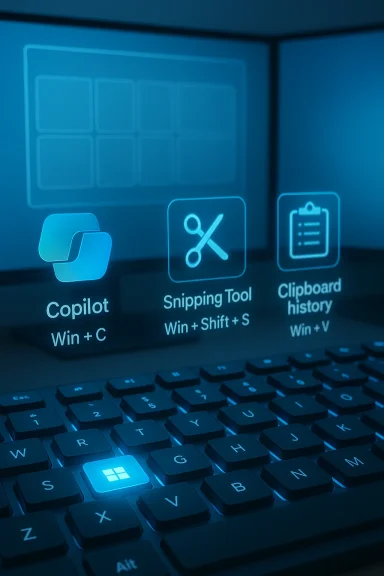
- Windows key + C — open Microsoft Copilot (where available on your build). This dedicated Copilot hotkey reflects Microsoft’s push to make the assistant a first-class OS component. Note: availability and behavior can differ by Insider ring or build.
- Windows key + I — Settings. Fast access to system controls without hunting through menus.
- Windows key + G — Game Bar for recordings, widgets, and overlays relevant to gamers and screen-capture workflows.
Window management and Snap Layouts — stop dragging, start snapping
Windows 11’s Snap Layouts made window tiling easier to discover with the mouse, but keyboard shortcuts give you precision and speed.- Windows key + Left / Right arrow — snap the active window to the left or right half of the screen.
- Windows key + Up / Down arrow — maximize or minimize (or snap a snapped window into the top/bottom half).
- Windows key + Shift + Left / Right arrow — move the active window to another monitor instantly. Crucial for multi‑monitor setups.
- Windows key + Home — minimize all windows except the active one; repeat restores them. Use this to declutter quickly.
Screenshots and image-to-text: the Snipping Tool you should master
Screenshots are a frequent task for documentation, bug reports, and sharing. Windows 11 consolidates capture into a smarter Snipping Tool and a group of keyboard shortcuts that make capture fast and flexible.- PrtScn (Print Screen) — copies a screenshot of the entire screen to the clipboard. Useful when you want to paste immediately into an app.
- Windows key + PrtScn — save a full-screen screenshot directly to your Screenshots folder. Great for archival capture.
- Windows key + Shift + S — open the Snipping Tool overlay to select a rectangular region, freeform snip, window, or full screen capture. This is the fastest way to capture precisely what you need.
Practical tip: if you use screenshots with sensitive data (passwords, PII), remember capture is instantaneous and often saved by default (e.g., to the Screenshots folder). Make sure your backup and sharing policies account for those files, and teach collaborators the difference between clipboard-only capture (no file left behind) and file-saved capture.
Clipboard history and the storage ergonomics of copy/paste
Additionally, Windows key + V opens Clipboard history — a simple but powerful time-saver that stores multiple recent clipboard items (text, images, HTML) and lets you paste any of them. Turn it on once and stop relying on “copy, paste, recopy” cycles. Clipboard history is especially useful when assembling an email or report from bits and pieces across several sources.Security note: Clipboard history persists across reboots only if you opt in to sync or cloud features; otherwise it’s local and ephemeral. Still, because clipboard contents may include secrets, treat its persistence as you would any temporary file.
File Explorer: hidden hotkeys and efficiency tricks
The keyboard can be a turbocharger in File Explorer, and several lesser-known shortcuts are huge time-savers.- F2 — rename selected item. Faster than right-click + Rename.
- F3 — focus Search in File Explorer. Useful in folders with many files.
- F4 — highlight the address bar (type a path or jump to a parent).
- F5 — refresh the current view (helpful for network folders after a remote copy finished).
- Alt + Up / Alt + Left / Alt + Right — navigate the folder tree efficiently (back, forward, up).
Typographic shortcuts and small quality-of-life additions
Windows 11 has also added subtle text conveniences that reduce mental friction for writers and editors.- Windows key + - (minus) and Windows key + Shift + - (minus) — on some recent builds, Microsoft added system shortcuts to insert an en dash (–) and an em dash (—) without Alt codes or character maps. This is a small but real time-saver for anyone who types polished prose frequently. This change landed initially through Insider channels and has been noted in Windows update coverage.
Accessibility and magnifier: keyboard-first control
Windows 11 places accessibility at the center of its keyboard design, and several shortcuts are geared to assistive workflows.- Windows key + Plus / Minus — control Magnifier zoom levels quickly without opening an app.
- Ctrl + Win + Enter — launch or control Narrator (varies by configuration).
Advanced workflow tips: chaining shortcuts and automation
Shortcuts are most powerful when combined into predictable chains or automated with small tools.- Create a quick research workflow: Win + S (search) → find file or web result → Enter to open → Win + Left to snap research to the left → Alt + Tab to return to writing window. Repeat.
- Capture and annotate: Win + Shift + S → select region → Snipping Tool opens → use built-in annotation or OCR to extract text.
- Multi-monitor move: Win + Shift + Left to move a window across screens without mouse hunting.
Pitfalls, compatibility notes, and privacy cautions
Shortcuts feel universal, but a few practical warnings are in order.- Vendor or application conflicts: Some OEM utilities reserve function keys or Windows combinations (for example, hybrid laptop Fn layers or third-party apps that intercept Win + C), which can cause inconsistent behavior across machines. If a shortcut doesn’t work, check the keyboard’s Fn lock, manufacturer utilities, and any running global hotkey managers.
- Insider-only features: A handful of recent additions (typography shortcuts, preview Snipping Tool features) started in Insider channels and may not be present on stable releases immediately. If you rely on a particular hotkey, verify your Windows build and Insider channel status.
- Screenshot privacy: Screenshots and Snips often default to being saved; a single accidental capture can leak credentials or private content. Use clipboard-only capture when you don’t want a persistent file.
- Clipboard history sensitivity: Clipboard history can hold passwords or tokens copied to the clipboard. Clear your clipboard history or disable sync if you handle secrets frequently.
How to learn and retain shortcuts: a practical plan
Muscle memory forms with repetition. Here’s a minimalist learning path that yields fast wins.- Week 1 — Core set: Ctrl+C / Ctrl+V / Alt+Tab / Win+L / Win+D. Use them exclusively for a week.
- Week 2 — Window control: add Win+Left/Right/Up/Down and Win+Shift+Left/Right. Reshape your desktop to a comfortable layout.
- Week 3 — Capture and clipboard: adopt Win+Shift+S, Win+PrtScn, and Win+V for daily capture and paste tasks. Use Snipping Tool OCR when you encounter images with text.
- Week 4 — Explorer and advanced: practice F2, F3, F4, F5, and experiment with PowerToys or AutoHotkey for one recurring automation.
Why keyboard literacy still matters in an AI-era desktop
As AI assistants like Copilot appear more directly in the OS, keyboard fluency keeps your cognitive loops tight: a single keystroke to call Copilot, another to paste its output, and a third to snap the results beside your main document. This keeps context switching low and trust in the tool high. The keyboard remains the fastest, least interruptive interface for steering both the OS and the AI features Microsoft is building into Windows.Final verdict: what to learn first and what’s worth customizing
- Learn immediately: Ctrl+C/Ctrl+V, Alt+Tab, Win+L, Win+D. These are universal and low-risk.
- Adopt next: Win+Left/Right/Up/Down, Win+Shift+S, Win+V. These deliver large workflow improvements for multi‑window work and screenshot-heavy tasks.
- Customize only when it counts: Use PowerToys or AutoHotkey to solve a single recurring annoyance; avoid remapping standard shortcuts globally unless you and your team agree on the change (it breaks muscle memory for collaborators).
Conclusion
Keyboard shortcuts in Windows 11 remain one of the most accessible performance multipliers available to any user. They are stable, low-risk, and especially potent when paired with the modern Snipping Tool, Clipboard history, and Snap Layouts. Add a dash of customization for repetitive workflows and a bit of security hygiene around screenshot and clipboard use, and you’ll reclaim measurable minutes every day. Start small, practice deliberately, and the keyboard will repay your attention with speed and serenity.
Source: supercarblondie.com Here’s some incredible Windows 11 keyboard shortcuts that will save you so much time
