

Windows multitasking doesn’t feel like magic because Windows is doing the work — you’re simply not using the right tools or workflows to let it do that work for you. A short, keyboard-focused reframe — plus a handful of built-in features and PowerToys utilities — will transform a cluttered screen into a fast, context-aware workspace. The common complaint “multitasking on Windows 11 feels bad” is accurate only if you limit yourself to dragging windows around and hunting for icons; use the OS as it was designed (and extend it where Microsoft intentionally left gaps) and the experience becomes markedly better. How-To Geek made that precise point in a recent explainer that highlights keyboard mastery, Snap Layouts, virtual desktops, Task View, and PowerToys as the practical levers that change everything. rview
Windows’ approach to multitasking is the result of two decades of incremental design: early tiling and snap ideas matured into Aero Snap in the Windows 7 era, later joined by task and desktop-level features in Windows 10, and then polished again with Snap Layouts and Snap Groups in Windows 11. The evolution preserved the principle that fewer mouse moves + predictable keyboard shortcuts = faster context switches, while also adding modern convenience features for touch and high-resolution displays. The same design lineage explains why advanced users can be faster than novices: the keyboard and layout tools are optimized for repeatable workflows and low friction.
In practical terms, the multitasking toolset you should master on Windows 11 is:
Most users treat Windows like a point-and-click environment — and that’s OK for discovery. But once you know what you need to do repeatedly, the mouse becomes a time sink. Keyboard shortcuts are the most direct route to low-friction context switches because they eliminate pointer travel time and visual hunting.
Windows 11’s multitasking isn’t broken — it’s layered. The OS gives you low-friction building blocks (Snap Layouts, Task View, keyboard shortcuts) and a supported extension platform (PowerToys) to tune behavior for power workflows. The productivity gap you feel today is not a flaw in the operating system so much as a missed opportunity to learn a few habits and tools that scale tremendously with repetition. Learn the key shortcuts, model your work in a few virtual desktops, define a FancyZones template, and you’ll stop rearranging windows and start getting work done instead. For readers who want a compact primer: start with Win+Z, Win+Tab, Alt+Tab, Win+E, and a single FancyZones layout — that combination alone converts a messy desktop into a productive workspace.
Source: How-To Geek Windows 11 multitasking feels bad because you’re doing it wrong
Windows’ approach to multitasking is the result of two decades of incremental design: early tiling and snap ideas matured into Aero Snap in the Windows 7 era, later joined by task and desktop-level features in Windows 10, and then polished again with Snap Layouts and Snap Groups in Windows 11. The evolution preserved the principle that fewer mouse moves + predictable keyboard shortcuts = faster context switches, while also adding modern convenience features for touch and high-resolution displays. The same design lineage explains why advanced users can be faster than novices: the keyboard and layout tools are optimized for repeatable workflows and low friction.
In practical terms, the multitasking toolset you should master on Windows 11 is:
- Keyboard shortcuts (Alt+Tab, Win+Tab, Win+E, Win+Z, Win+arrow combinations)
- Snap Layouts and Snap Assist (built into Windows 11; invoke with Win+Z or the maximize-hover UI).
- Virtual desktops / Task View (create, name, and assign contexts to desktops; move windows between desktops with drag-and-drop or keyboard shortcuts).
- PowerToys (FancyZones, Always on Top, and related utilities) to fill gaps, especially on multi-monitor setups.
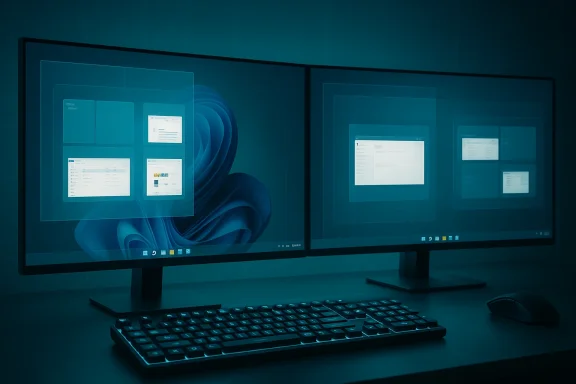 Why the mouse-first habit is the productivity trap
Most users treat Windows like a point-and-click environment — and that’s OK for discovery. But once you know what you need to do repeatedly, the mouse becomes a time sink. Keyboard shortcuts are the most direct route to low-friction context switches because they eliminate pointer travel time and visual hunting.- Example: Pressing Win+E launches File Explorer instantly. That single habit alone saves multiple seconds compared with hunting for an icon or a Start menu entry, repeated dozens of times per day. Microsoft documents these keyboard primitives as core UI behavior for system navigation.
- Alt+Tab and Win+Tab are not redundant: Alt+Tab gives a fast, linear switcher for open windows; Win+Tab opens Task View (virtual desktop manager), which is spatial and persistent across sessions. Learn both and let context guide which you use.
Snap Layouts: use the OS’ tiler, not crude dragging
What Snap Layouts do and why they matter
Windows 11’s Snap Layouts are an evolution of the old snap/tiling model. Hover the maximize button or press Win+Z to see layout options tailored to your screen resolution and orientation; pick a zone and Snap Assist helps fill the remaining spots with other open windows. This is faster and less error-prone than manually dragging windows into corners or resizing by eye. Microsoft documents this behavior and how apps can opt into better support for Snap Layouts.How to use Snap Layouts (practical steps)
- Focus any window.
- Press Win+Z to open the Snap Layout menu.
- Press the number key shown for the layout you want, or click the zone with the mouse.
- Use the keyboard to pick the next app (Alt+Tab) or click a thumbnail to fill other zones.
Quick tips and customization
- Enable or disable aspects of Snap in Settings > System > Multitasking if you prefer manual control.
- If Snap Layouts don’t appear for an app, it may be an older or non-native app; using Win+arrow keys still works for manual snapping.
Virtual desktops and Task View: design workspaces, don’t pile windows
The core idea
Virtual desktops let you partition work into purpose-driven spaces — e.g., one for writing, one for research, one for communication, one for media — so your taskbar and window clutter don’t cross contexts. Windows introduced Task View and native virtual desktops in Windows 10, then refined the experience in Windows 11 with visual improvements and per-desktop wallpaper options. Use them to reduce cognitive switching cost: switching desktops instantly changes the visual context that signals what work you should be doing.Key shortcuts and steps
- Create a new desktop: Win + Ctrl + D.
- Switch desktops: Win + Ctrl + Left / Right Arrow.
- Close current desktop: Win + Ctrl + F4.
- Open Task View: Win + Tab (gives an overview of desktops and lets you drag windows between them).
Practical setup pattern (a suggested workflow)
- Desktop 1: Email, Calendar, Slack (communication)
- Desktop 2: Browser tabs, reference docs (research)
- Desktop 3: Editor or IDE (deep work)
- Desktop 4: Media/entertainment (music/Plex)
Alt-Tab and focus: manage attention, don’t fake multitasking
Alt-Tab is often misused as a frantic cycle through everything open. Use it strategically:- Hold Alt and click to jump directly to the application preview you want — a hybrid mouse/keyboard move that short-circuits cycling.
- Use Alt-Tab for intra-desktop window switching. Use Win+Tab for desktop-level switching and bulk window moves.
PowerToys: why Microsoft leaves the best toys out of the core OS
Microsoft actively maintains PowerToys as a set of utilities for power users, and the suite intentionally includes advanced window and productivity tools that many professionals rely on. Two PowerToys utilities deserve immediate attention:- FancyZones — a configurable window-tiling editor and layout manager that creates per-monitor grids, flexible zone shapes, and templates you can recall instantly. It’s a lightweight, persistent tiling manager that plays nicely with multiple monitors and high-DPI layouts.
- Always On Top — pins a window above others with a hotkey (default Win+Ctrl+T), useful for reference windows, video PIP, or status panes. The utility is configurable with a visible border and exclusions.
How to get started with FancyZones (recommended setup)
- Install PowerToys from the official distribution channel.
- Open the PowerToys settings and click FancyZones.
- Launch the Layout Editor and create a layout for each monitor (you can create column grids, asymmetric editorial layouts, or custom shapes).
- Enable Override Windows Snap if you prefer FancyZones to handle drag-and-drop placement.
- Use the zone activation shortcut (Shift by default while dragging) to drop windows precisely.
Practical keyboard cheat sheet (memorize these)
- Win + E = Open File Explorer.
- Alt + Tab = Switch windows (hold and click a preview to jump).
- Win + Tab = Task View / virtual desktops / drag windows between desktops.
- Win + Z = Open Snap Layouts on Windows 11.
- Wn = Snap and maximize/restore windows.
- Win + Ctrl + D = New virtual desktop; Win + Ctrl + Left/Right = switch desktops.
- PowerToys Always On Top default: Win + Ctrl + T to pin/unpin windows.
Multi-monitor and ultrawide tips
- Snap Layouts are screen-size aware and will suggest different layouts for ultrawide or portrait monitors. Use Win+Z to see layouts tailored to the current screen.
- FancyZones supports per-monitor layouts and will remember a layout for each monitor; this is crucial when monitors have different resolutions or aspect ratios.
- If you use multiple monitors with different DPIs, test your FancyZones settings for rounding and scaling behaviors — PowerToys has fixes and updates for high-DPI quirks, but you may need to tweak zone margins for pixel-perfect placement.
Common problems, edge cases, and risks
No system is perfect. Here are real-world caveats and how to mitigate them.- Shortcut conflicts and discoverability: As you adopt more hotkeys (especially with PowerToys), conflicts can appear. PowerToys has a hotkey conflict detection tool; check the settings and reassign shortcuts if necessary. Overloaded shortcuts are the most common cause of accidental disruption.
- App compatibility: Not every app exposes the standard window caption behaviors required for Snap Layouts to appear on hover. Some Electron-based or legacy apps may not show the maximize-hover menu; Win+Z or manual Win+arrow snapping still works in those cases.
- System bugs and regressions: Windows updates sometimes introduce regressions that affect window management (e.g., reported Alt+Tab or Task View issues after specific preview releases). If you encounter a regression after an update, document exact build numbers and consider reinstalling recent fixes or rolling back temporarily while Microsoft issues a patch. Community threads and update previews sometimes surface these problems early.
- Always On Top limitations: PowerToys’ Always On Top does not force overlays aboveapplications (like some games). It also respects certain system modes (Game Mode) and can be excluded for some applications. Don’t rely on it for security-sensitive overlays.
- Cognitive overload: Creating dozens of virtual desktops or obsessively snapping every window can become its own management burden. Keep desktops focused and limit them to contexts that actually reduce friction.
A realistic quick-start plan (30 minutes to better multitasking)
- Spend 5 minutes: Memorize four core shortcuts — Win+E, Alt+Tab, Win+Tab, Win+Z. Practice each until it feels stable.
- Spend 10 minutes: Create two virtual desktops (Win+Ctrl+D), move your browser to Desktop 2 and your editor to Desktop 1, and switch between them a dozen times to make the mental model stick.
- Spend 10 minutes: Install PowerToys and create one FancyZones layout that matches your most common task (two-column research layout or a three-column dev layout). Enable Always On Top if you need a persistent PIP.
- Spend 5 minutes: Tweak Settings > System > Multitasking to match how Snap works for you (enable/disable “When I snap a window, show what I can snap next” etc.).
Why Microsoft keeps PowerToys separate (and why that’s OK)
PowerToys is intentionally a sidecar: it lets Microsoft iterate quickly on niche power features without bloating the core OS or forcing design trade-offs on mainstream users. The suite is maintained officially and updated frequently, giving power users access to advanced tools like FancyZones, Always On Top, Keyboard Manager, and more — often before Microsoft considers those features for the mainline OS. For users who want a low-friction, curated multitasking setup, PowerToys is a supported, high-quality option.Final analysis: strengths, weaknesses, and best-practice recommendations
Strengths
- Built-in, discoverable tiling (Snap Layouts) that adapt to screen size and orientation reduces error and increases speed.
- Native virtual desktops make mental context switching trivial and persistent.
- PowerToys provides a pragmatic extension point for power users who require finer control (FancyZones, Always On Top) and evolving utilities that Microsoft can ship faster than core OS changes.
Weaknesses / Risks
- App compatibility remains inconsistent; some apps won’t honor hover-based Snap Layouts or may behave oddly under FancyZones.
- Shortcut conflicts and update regressions can temporarily degrade the experience; the community often surfaces these quickly, so follow update notes and community reports if you rely on a stable workflow.
- Learning curve: there’s cognitive overhead to building new muscle memory. The payoff is large, but not instantaneous.
Best-practice recommendations
- Learn the 6–8 fastest keyboard shortcuts and use them exclusively for a week.
- Build 1–2 FancyZones templates that match your everyday tasks; don’t try to model everything all at once.
- Use virtual desktops as task contexts (not as catch-alls). Assign one desktop to the task at hand and keep it focused.
- Keep PowerToys updated but monitor release notes for breaking changes if you use it in production-critical workflows.
Windows 11’s multitasking isn’t broken — it’s layered. The OS gives you low-friction building blocks (Snap Layouts, Task View, keyboard shortcuts) and a supported extension platform (PowerToys) to tune behavior for power workflows. The productivity gap you feel today is not a flaw in the operating system so much as a missed opportunity to learn a few habits and tools that scale tremendously with repetition. Learn the key shortcuts, model your work in a few virtual desktops, define a FancyZones template, and you’ll stop rearranging windows and start getting work done instead. For readers who want a compact primer: start with Win+Z, Win+Tab, Alt+Tab, Win+E, and a single FancyZones layout — that combination alone converts a messy desktop into a productive workspace.
Source: How-To Geek Windows 11 multitasking feels bad because you’re doing it wrong
