

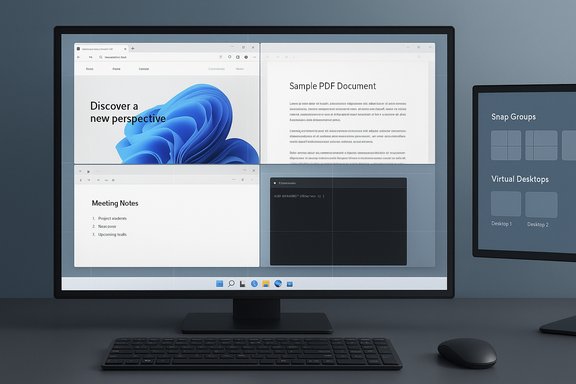
Snap Layouts is quietly becoming one of the most practical productivity features in Windows 11, turning chaotic desktops into orderly, task-focused workspaces with a single hover or keyboard press.
Background / Overview
Windows 11 introduced Snap Layouts as a visible, user-friendly expansion of the long-standing window snapping tools in Windows. Instead of manually dragging and resizing windows, users can now select from preset grid templates that place multiple apps into neat, predictable zones — two-up side-by-side, three-column workspaces, four-way grids and wider multi-pane templates for ultrawide monitors. These presets are exposed visually when hovering over a window’s maximize button or by pressing the Windows key + Z, and Snap Assist then helps populate the remaining zones with other open apps.Snap Layouts sits alongside other multitasking tools — Snap Assist, Snap Groups, Virtual Desktops, and PowerToys’ FancyZones — to create a cohesive toolkit for everyday multitasking. The combination gives knowledge workers, creators, hybrid employees, and students deterministic ways to recreate workspace setups and switch contexts faster.
How Snap Layouts works: the essentials
The feature is simple on the surface but powerful in practice. Here’s the step-by-step flow built into Windows 11:- Open the app windows you want to arrange.
- Hover the cursor over the window’s maximize button (the square between Minimize and Close) or press Windows + Z to summon the layout grid.
- Choose a layout (two-up, three-up, four-way, or wider templates on larger displays). Hovering previews the result.
- Click the zone where you want the active window to snap; Snap Assist shows thumbnails of other open apps for the remaining panes.
- Click additional app thumbnails to fill each empty region until your workspace is complete.
What Snap Layouts adds vs classic snapping
- Classic Snap (Windows 7/10): drag to screen edges or corners for half/quarter splits.
- Snap Layouts (Windows 11): visual templates that let you pick multi-pane grids and get guided suggestions for the remaining spaces, combined with Snap Groups that remember the arrangement.
Practical tips and power-user techniques
Quick wins (everyday)
- Turn on Snap windows: Settings > System > Multitasking. This enables the hover previews and Snap Assist suggestions.
- Use Win + Z to call layouts immediately when an app is active — faster than hunting for the maximize button.
- Combine Snap Layouts with Virtual Desktops to create dedicated “stations” (e.g., Research, Meetings, Creative) and avoid mixing contexts.
Keyboard sequences that save seconds
- Activate your primary app.
- Press Win + Left (or Right) to snap it half-screen.
- Alt+Tab to the second app and press Win + Right to place it into the other half.
- Use Win + Z when you need more complex grids beyond halves.
Custom and persistent layouts (FancyZones)
For reproducible, nonstandard grids (for example, uneven columns for a code editor + preview + debug console), PowerToys FancyZones lets you create custom zones per monitor and snap windows to them — a must-have for power users and multi-monitor setups. FancyZones requires PowerToys to run (and to control elevated apps you must run it as Administrator).Snap Groups and workspace recall
A major convenience is Snap Groups: once multiple windows are snapped together, Windows remembers that group as a unit on the taskbar. Hovering the taskbar thumbnail shows the group, and clicking restores the full arrangement. For repetitive workflows — drafting while monitoring chat and files — Snap Groups eliminate the manual re-assembly step. This can save minutes every session when projects require frequent context switches.Practical workflows: templates for common roles
For knowledge workers and researchers
- Layout: three-up (browser with source, PDF reader, notes app).
- Setup: create a “Research” Virtual Desktop and snap the three apps into a 3-column layout.
- Benefit: immediate side-by-side citation and note-taking context; Snap Group saves session.
For coders and QA
- Layout: wide central editor, preview pane, terminal or logs in a narrow side zone.
- Setup: FancyZones with a 60/20/20 split saved per monitor for reproducible sessions.
- Benefit: consistent layouts reduce time lost to window juggling during iterative testing.
For creators and streamers
- Layout: media editor large, reference window smaller, chat/OBS in a vertical sidebar.
- Setup: Snap Layouts for quick swaps; Snap Groups to restore editing + streaming configuration.
- Benefit: fast transitions between editing, previewing, and broadcasting workflows.
Troubleshooting: common problems and fixes
Snap Layout menu doesn’t appear
- Confirm you’re on Windows 11 and that Snap windows is enabled: Settings > System > Multitasking. Some OEM builds or Windows 11 versions may hide or vary the feature.
Snap shortcuts aren’t working
- Check for third‑party window managers or shell replacements that may intercept shortcuts.
- Update display drivers and Windows to the latest build; some features and layout templates change with updates.
FancyZones won’t snap elevated apps
- Run PowerToys as Administrator so FancyZones can control elevated processes; without elevation the module cannot reposition elevated windows.
Off-screen or stuck windows
- Use Alt + Space → Move, or Alt + Tab to focus the app and then Win + Arrow keys to bring it back. Classic fixes documented in troubleshooting threads remain effective.
When to use registry tweaks (caution)
Some community guides include a registry DWORD (EnableSnapAssistFlyout) to restore or tweak Snap flyout behaviors, but editing the registry carries risk. Use this only if comfortable with regedit and after backing up the registry; reboot is required to apply changes. Flagging: this is an advanced measure for stubborn configurations and should be treated with caution.Strengths: why Snap Layouts matters
- Speed and predictability: Quick templates remove repetitive resizing and reduce cognitive load when dealing with multiple windows.
- Low friction: Visual hover UI and keyboard entry (Win + Z) let both mouse and keyboard users adopt the feature easily.
- Reproducible workflows: Snap Groups and Virtual Desktops combine to make returning to a complex workspace near-instant.
- Scalability: From laptops to ultrawide monitors, the preset templates adapt, and FancyZones fills the niche for custom, persistent layouts.
Risks, limitations and caveats
- Build and OEM variability: The availability and exact behavior of Snap Layout templates can vary with Windows 11 build/version and OEM customizations. Users on older builds or on modified OEM images may not see the same options. This environment-dependence is important for IT admins to note when standardizing workstations.
- Multi-monitor & DPI quirks: High-DPI scaling and multiple monitors can produce odd snapping behavior or imperfect sizing. Some legacy apps don't respect modern snapping constraints. Test layouts on your actual hardware before rolling out standardized templates.
- Security/elevation boundaries: Third-party utilities and elevated processes can block FancyZones or other snapping tools — requiring PowerToys to run with administrator privileges for full control. This raises operational concerns for managed environments.
- Clipboard and privacy tradeoffs: While not directly a Snap Layout issue, the multitasking ecosystem (Clipboard history, cross-device sync) can expose sensitive clipboard contents if enabled—organizations should audit clipboard sync policies where privacy matters.
- Over-reliance & context fragmentation: Too many Virtual Desktops or Snap Groups can lead to “where did I put that?” cognitive overhead. Best practice is to keep a small number of consistent workspace templates. Community guidance emphasizes measured use to avoid switching costs.
Recommendations for IT pros and power users
- Enable Snap features in a pilot build and document a small set of recommended layouts for common roles (Developer, Designer, Analyst).
- If deploying PowerToys FancyZones for custom layouts, distribute configuration JSON files and instruct users on running PowerToys with administrative rights where necessary.
- Include Snap Layouts and Snap Groups in end-user training so muscle memory forms around a few reliable templates rather than ad-hoc resizing.
- For multi-monitor setups, test DPI scaling settings and set expectations about which apps reproduce reliably in grids; document known exceptions.
- Audit Clipboard synchronization policies if enterprise privacy is a concern; clipboard convenience comes with tradeoffs.
Accessibility and inclusion
Snap Layouts improves accessibility by reducing precise mouse dragging and enabling keyboard-first workflows. The visual templates and keyboard entry (Win + Z) make window organization accessible to users who prefer or require keyboard navigation. That said, some screen-reader behaviors and UI label changes depend on Windows updates; administrators should verify compatibility with assistive technologies on their specific builds.Final analysis and outlook
Snap Layouts is a pragmatic, high-impact UX improvement that turns a formerly fiddly part of desktop computing — window placement — into a fast, repeatable, and largely predictable part of work routines. It complements existing shortcuts and tooling (Virtual Desktops, Snap Groups, PowerToys FancyZones) to form a layered productivity strategy that scales from single monitors to complex multi‑display setups. The most notable strengths are speed, reduced friction, and reproducibility; the primary risks are environment-dependent behavior (builds, OEM customizations), DPI/multi-monitor quirks, and the need for administrative handling of elevated processes when using third-party tools.For organizations and individuals, the pragmatic path is to adopt a small number of standard layouts, train users on Win + Z and the core snapping shortcuts, and bring FancyZones into the workflow only when custom, persistent templates are needed. When deployed thoughtfully, Snap Layouts doesn’t simply make desktops tidier — it converts fragmented attention into repeatable, efficient workstations that save time every day.
Conclusion
Snap Layouts is not a flashy addition — it’s a quietly transformative productivity tool. When combined with Snap Groups, Virtual Desktops, and PowerToys FancyZones, it offers a modern, flexible approach to multitasking that reduces friction, preserves context, and scales across devices. The biggest gains come from consistent use and small investments in setup and training; the main caveats relate to variability across Windows builds and hardware configurations and the administrative considerations for third‑party snapping tools. Adopted wisely, Snap Layouts helps turn crowded desktops into focused, efficient workspaces.
Source: livemint.com Snap Layouts is turning busy Windows 11 users into multitasking pros - find out how to make it work for you | Mint
