

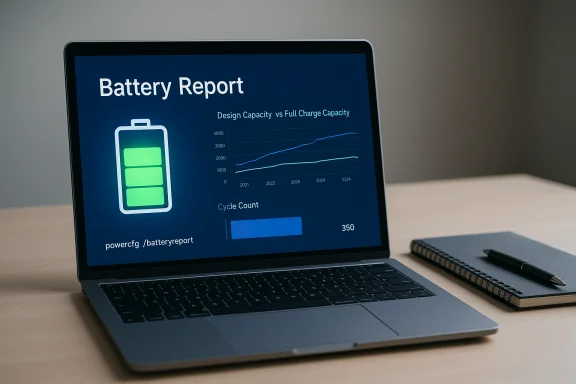
Windows hides a surprisingly powerful diagnostic for laptop owners: one command — powercfg /batteryreport — will generate a human-readable HTML battery report that exposes design capacity, current full‑charge capacity, recent usage, capacity history and life estimates, allowing you to see exactly how much your battery has degraded and whether it’s time to replace it.
Windows has offered a one‑line battery report utility for years, and it remains available on modern systems running Windows 10 and Windows 11. The command writes a rich HTML file you can open in any browser; there’s no third‑party software required. Microsoft documents the procedure and recommends running the command from an elevated terminal — the file path for the saved HTML is shown when the command completes. Why this matters: laptop batteries are consumable. They age chemically and lose capacity with use; a battery that once held 90 Wh (90,000 mWh) will, over months or years, hold less until runtime falls below what you need. The battery report gives objective numbers to replace guesswork and vague taskbar estimates with measurable data. The concept and workflow behind a battery report are simple — but few users actually run it regularly, which is the core point developers and power‑users keep repeating in forums and articles.
For anyone who owns a Windows laptop: generate a battery report now, save a copy as baseline, and make it part of periodic device maintenance. If you’re buying a used laptop or supporting multiple devices, it’s a small command that pays back in real, measurable insight.
Source: XDA Making a Windows battery report is the best feature you're not using for your laptop
 Background and overview
Windows has offered a one‑line battery report utility for years, and it remains available on modern systems running Windows 10 and Windows 11. The command writes a rich HTML file you can open in any browser; there’s no third‑party software required. Microsoft documents the procedure and recommends running the command from an elevated terminal — the file path for the saved HTML is shown when the command completes. Why this matters: laptop batteries are consumable. They age chemically and lose capacity with use; a battery that once held 90 Wh (90,000 mWh) will, over months or years, hold less until runtime falls below what you need. The battery report gives objective numbers to replace guesswork and vague taskbar estimates with measurable data. The concept and workflow behind a battery report are simple — but few users actually run it regularly, which is the core point developers and power‑users keep repeating in forums and articles. What the battery report contains — quick tour
The battery report is a single HTML document divided into labeled sections. The most important blocks for everyday diagnosis are:- System and report header — device name, BIOS/UEFI and the timestamp when the report was generated.
- Installed batteries — manufacturer, chemistry, Design Capacity and Full Charge Capacity (both reported in mWh), and the Cycle count where exposed by the firmware.
- Recent usage — a three‑day log of AC vs battery states showing time stamps and percent remaining during events.
- Battery usage — short‑term graphs and tables that visualize drains over the last 72 hours.
- Usage history — weekly/daily summaries of how long the device ran on battery vs AC power, often including total runtime.
- Battery capacity history — a time series that compares Design Capacity vs Full Charge Capacity to show degradation.
- Battery life estimates — realistic run‑time estimates at current full‑charge capacity versus the theoretical run time at design capacity.
How to generate the battery report (step‑by‑step)
- Open a terminal with administrator privileges: right‑click Start → Windows Terminal (Admin) or search for Command Prompt and choose “Run as administrator”.
- Type the command exactly: powercfg /batteryreport
- When the command finishes it prints the path to the generated HTML (commonly C:\Users\<your‑username>\battery‑report.html). Open that file in any browser.
Reading the numbers: capacity, cycles and life estimates
The two most important numeric fields are Design Capacity and Full Charge Capacity (both shown in mWh):- Design Capacity — the energy the battery was built to hold when new (manufacturer spec).
- Full Charge Capacity — the battery’s current maximum observed energy storage (this typically declines with age).
- ≥ 80% of design capacity — normal aging; monitor.
- 60–80% — noticeable degradation; consider replacement for mobile users who need full runtime.
- < 60% — replacement recommended for users who rely on portability.
A note on units: watts vs watt‑hours
The XDA article’s example cited a “90‑watt battery” and a design capacity of 90,000 mWh. That is a typical confusion between power and energy: a battery has an energy capacity expressed in watt‑hours (Wh or mWh, where 1 Wh = 1,000 mWh), while a watt (W) is a unit of power — the rate at which energy flows. The correct phrasing is 90 Wh battery, not 90 W. This distinction matters because runtime estimates are energy‑based (Wh), not instantaneous power (W). Practical conversion: 90 Wh = 90,000 mWh; that’s why battery report numbers often appear in the thousands (mWh) even for laptop batteries.Why the battery report is practical and where it shines
- Objective visibility: the taskbar icon and Windows Settings give usage hints, but the battery report supplies hard numbers and historical trends you can’t get anywhere else without OEM tools.
- No third‑party installs: built‑in, persistent, easy to generate from an admin shell. You don’t need to trust external utilities with device telemetry.
- Useful for buying and selling: buyers can request a battery report to verify actual capacity and remaining life; sellers can prove the state of the battery at the time of sale. The report’s dated timestamp makes it practical evidence.
- Diagnostic baseline: abrupt changes in Full Charge Capacity or steep drops correlate to hardware issues (aging or failing cells) and can guide whether firmware updates, recalibration, or full replacement is needed.
Limits, common gotchas and how to interpret anomalies
The battery report is powerful but not infallible. Be aware of the most common limitations:- Missing values: On some devices (notably certain Surface models and some OEM laptops), the report may omit capacity or cycle count values because the Embedded Controller (EC) or firmware doesn’t expose those fields to Windows. Microsoft support threads and community troubleshooting explain this as a firmware/OEM behavior more than an OS bug. If values are missing, check OEM diagnostics or firmware updates.
- Estimates depend on usage patterns: Battery life estimates are based on historical usage logged by Windows; they are helpful trends but not absolute guarantees. Heavy or atypical workloads will shorten runtime compared to the average estimate.
- Cycle count ambiguity: The Windows battery report counts cycles as reported by firmware; differences in what constitutes a “cycle” can vary slightly by vendor documentation. Some manufacturers count partial recharges differently. If you need precise warranty‑related metrics, consult OEM diagnostics or the vendor’s official battery management app.
- Overwriting reports: Running powercfg /batteryreport again overwrites the previous file unless you explicitly change the output path. Save copies if you want a historical archive.
Safety considerations and the real‑world risk of ignored batteries
Li‑ion batteries degrade by chemistry and heat. As Microsoft notes, severely deteriorated batteries can expand (swell) and should be handled carefully — stop using devices with visibly bulging batteries and seek service. The battery report won’t tell you swelling, but large drops in capacity, sudden voltage collapse under load, or erratic shutdowns are red flags prompting inspection. Microsoft recommends stopping use if the battery is visibly deformed and outlines storage and care best practices (store ~50% when idle, avoid prolonged high temperatures, etc.. Practical guidance:- Replace the battery if Full Charge Capacity is very low (e.g., well under 60% of design) or if the device shuts down under moderate load even when reporting charged.
- If you see rapid declines in capacity over weeks or new symptoms like heat and swelling, power down and contact OEM service.
OEM tools, third‑party apps and how they relate to powercfg
Many OEM utilities (Dell Power Manager, Lenovo Vantage, HP Support Assistant) expose battery health features that may present the same underlying numbers more nicely. Third‑party utilities (BatteryInfoView, BatteryFlyout, etc. can offer real‑time monitoring and nicer UI, but they generally read the same OS/firmware values that powercfg reports. That makes the powercfg battery report the authoritative, OS‑level export for troubleshooting and support conversations. If a vendor tool disagrees with the powercfg report, the discrepancy usually stems from sampling times, conservation modes (which limit full charge), or units and formatting differences — not fundamentally different battery telemetry.Practical workflows and checklists
For everyday users, buyers, and IT admins, here are simple, repeatable workflows:- Generate a baseline: After buying a laptop, generate a battery report and save it as baseline with timestamp. Use powercfg /batteryreport /output "C:\LaptopModel‑initial‑battery.html".
- Monitor quarterly: Repeat the export every 3 months (or after firmware updates) and store copies to observe trends.
- Correlate drops: If Full Charge Capacity drops sharply after driver/firmware changes, roll back or contact OEM support before replacing hardware.
- Before travel: If a trip requires full battery life, check the latest report to estimate realistic run time at current capacity (the Battery Life Estimates table gives you an expected runtime at current capacity vs design capacity).
Advanced troubleshooting: when runtime looks wrong despite healthy numbers
If the report shows modest wear but actual runtime is poor:- Check Recent Usage for heavy background activity or runaway processes that drain battery.
- Use Task Manager’s Power Usage and Power Usage Trend columns to spot culprits and cross‑reference with the battery report’s recent usage graphs.
- Run powercfg /energy to generate an energy diagnostics HTML that can reveal driver or device issues causing continuous wakeups or excessive consumption.
- Update chipset drivers, BIOS/UEFI and EC firmware — these are common fixes when runtime collapses despite reasonable capacity figures.
When to replace the battery — pragmatic thresholds
There’s no single universal “replace now” figure because use cases differ. However, experienced tech communities and reviewers converge on practical rules:- If Full‑charge capacity is < 60% of design capacity and you rely on battery portability — replace it.
- If Full‑charge capacity is 60–80% and you need long unplugged sessions — consider replacement soon.
- If the laptop powers off abruptly while reporting a high percentage, or the battery physically swells — replace immediately.
Strengths and risks — critical analysis
Strengths- No‑install, transparent: the built‑in battery report is a privacy‑friendly, transparent, and free diagnostic tool that doesn’t require trust in third parties.
- Actionable historical data: capacity history and usage logs let you correlate events (updates, heavy usage periods) with degradation, which helps differentiate software causes from hardware failure.
- Authoritative export: for help from support teams or when buying/reselling, the report is an OS‑level record that third‑party GUI tools may not match exactly.
- Firmware/OEM dependency: some fields (cycle count, precise chemistry details) depend on what the battery controller exposes; missing data can confuse users and lead to incorrect conclusions.
- Misleading units and language: casual misuse of W vs Wh (power vs energy) in media and forum posts leads to confusion; users should read capacity numbers as energy (Wh or mWh).
- Overreliance on a single metric: designers of the battery report intentionally do not recommend a single numerical threshold for replacement: user needs, safety signs (heat, swelling), and behavior matter; the report should be one input among several.
Recommended best practices to slow battery wear
- Enable OEM conservation/limit charging if you mostly use the laptop on AC power (typical options cap at ~60–80% to slow aging). Check vendor utilities for these features.
- Avoid prolonged exposure to high temperatures. Heat accelerates chemical degradation.
- Store batteries at around 50% charge if you won’t use the device for months. Microsoft recommends below 50% for storage to reduce capacity loss.
- Use Best Power Efficiency or Energy Saver modes when portability matters; reduce brightness and background activity.
Conclusion
The Windows battery report is an under‑used, high‑value diagnostic: one command, a browser, and you have a timestamped, detailed record of your battery’s design capacity, current capacity, usage history and life estimates. It cuts through the guesswork, helps you decide when to replace a battery, and supports vendor or warranty discussions with objective numbers. But it’s not magic — missing firmware‑reported fields, unit confusion (W vs Wh), and the report’s dependence on past usage patterns mean the output must be interpreted carefully and supplemented with visual and behavioral checks (swelling, sudden shutdowns, heat).For anyone who owns a Windows laptop: generate a battery report now, save a copy as baseline, and make it part of periodic device maintenance. If you’re buying a used laptop or supporting multiple devices, it’s a small command that pays back in real, measurable insight.
Source: XDA Making a Windows battery report is the best feature you're not using for your laptop
