

Windows 11 quietly contains more battery tools than most users realize — from a deep, technician-grade battery report you can generate in under a minute to new, hidden taskbar battery UI options being tested in Insider builds. These features give ordinary laptop owners and power users alike the ability to diagnose battery health, track capacity degradation, and get clearer at-a-glance status, but they come with important caveats: some options are still hidden inside preview builds and unlocking them via third-party utilities is unsupported and can be risky.
Windows has long included a low-level battery diagnostic that technicians use to move beyond guesswork and see exact numbers for capacity, charging history, and runtime estimates. In parallel, Microsoft’s Windows Insider program has quietly been testing visual and usability improvements for the taskbar battery indicator — including a toggle to show battery percentage and color-coded icons for charging and energy-saver states. Enthusiast outlets and community threads have documented both the command-line diagnostic and the newer taskbar options.
These capabilities fall into two useful but distinct categories:
This report is valuable because it transforms vague complaints such as “my laptop dies too fast” into objective, measurable data. You get numbers for:
If you’re troubleshooting battery life:
Source: Inbox.lv News feed at Inbox.lv -
Source: Inbox.lv Hidden Features Found in Windows
 Background / Overview
Windows has long included a low-level battery diagnostic that technicians use to move beyond guesswork and see exact numbers for capacity, charging history, and runtime estimates. In parallel, Microsoft’s Windows Insider program has quietly been testing visual and usability improvements for the taskbar battery indicator — including a toggle to show battery percentage and color-coded icons for charging and energy-saver states. Enthusiast outlets and community threads have documented both the command-line diagnostic and the newer taskbar options.These capabilities fall into two useful but distinct categories:
- A built-in diagnostic export (the battery report generated via the powercfg tool) that is vendor-agnostic and intended for troubleshooting.
- A set of UI refinements and experimental indicators appearing in Insider preview builds that improve at-a-glance awareness (and which some users try to surface early using third-party toggles).
The built-in battery report: a free, authoritative diagnostic
What it is and why it matters
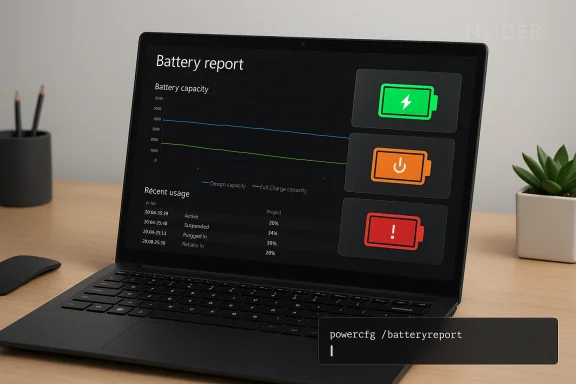
Windows ships with a built-in battery report generator accessible from an elevated command prompt. The report is written as a static HTML file and contains structured information about installed batteries, recent usage sessions, capacity history, and estimated runtimes based on both design and current capacity. Because it’s generated by the OS and saved locally as a single HTML file, it’s a practical, privacy-friendly baseline that technicians and experienced users rely on when diagnosing poor battery life.This report is valuable because it transforms vague complaints such as “my laptop dies too fast” into objective, measurable data. You get numbers for:
- Design Capacity (what the battery was rated for when new),
- Full Charge Capacity (what it actually holds now),
- Recent usage timeline (AC vs battery sessions and timestamps),
- Battery life estimates (runtimes calculated from both design and current capacity),
- Manufacturer and chemistry information (when exposed by firmware).
How to generate the battery report (practical, step-by-step)
- Open an elevated terminal: right‑click Start → Windows Terminal (Admin) or search for Command Prompt / PowerShell and choose “Run as administrator.”
- Run the command:
- powercfg /batteryreport /output "C:\battery-report.html"
- Windows writes an HTML file and prints its full path when complete. Open File Explorer, navigate to C:\, and double-click battery-report.html to view it in your browser.
What to look for inside the report
- Installed batteries: Manufacturer, chemistry (Li‑ion, Li‑polymer), Design Capacity (mWh), Full Charge Capacity (mWh), and cycle count if the firmware exposes it.
- Battery capacity history: A table/graph comparing Design Capacity versus Full Charge Capacity over time — this is your primary evidence of degradation.
- Recent usage: A timestamped log showing AC vs battery sessions and percentage at events — useful to correlate abrupt drains with app activity or firmware changes.
- Battery life estimates: Calculated runtimes based on both the battery’s original design and its current full-charge capacity.
The taskbar battery improvements: percentage and color-coded icons
What’s changing in Insider builds
Microsoft has been testing subtle but meaningful taskbar battery changes in Windows Insider preview builds. The user-facing additions include:- A toggle in Settings > System > Power & battery to display battery percentage directly next to the system-tray icon.
- Redesigned color-coded battery icons: green for charging, orange/yellow for Battery Saver or low-energy states, and red for critical levels — making charge state readable at a glance.
Hidden flags, ViVeTool, and the risks of forcing features
The new visuals and toggles have been discovered in Dev/Canary channel preview builds and are sometimes hidden behind feature flags. Enthusiasts have used third-party utilities such as ViVeTool to force-enable these flags using feature IDs like 48822452, 48433719, and 53092139, which have been reported in community write-ups and hands-on previews. While this can surface a feature early, it carries downside risks:- It’s unsupported by Microsoft and may break after updates or rollbacks.
- Preview builds and enabled-but-not-yet-finished features can be buggy, including visual glitches or unexpected behavior.
- Using third-party toggles can leave your system in a mixed state if Microsoft changes the flag implementation later.
Third-party alternatives and the evolving ecosystem
Battery Flyout and modern GUI tools
Third-party apps such as Battery Flyout have filled gaps in Windows’ native battery UX, offering richer dashboards, exportable reports, historical tracking, and support for ARM64/ Snapdragon devices. Recent updates to tools like Battery Flyout add a “Battery Report” button, charge cycle counts, capacity data, and personalized recommendations — features that mirror or surface the same kinds of information the powercfg battery report provides but in a GUI-first way. These apps can be handy for users who prefer one-click access or a polished visual interface.Trade-offs: convenience vs control and privacy
Third-party tools are convenient, but they introduce trade-offs:- They may collect telemetry or require permissions that some users prefer not to grant.
- Their accuracy depends on how they query firmware and APIs — sometimes they show values that differ slightly from the system’s own battery report.
- Paid apps can be useful but always evaluate whether the feature set justifies the cost and whether the vendor is trustworthy.
Interpreting results and making decisions
When the report indicates aging vs software issues
The battery report can help separate hardware degradation from software misconfiguration:- Steady decline in Full Charge Capacity vs Design Capacity across multiple report timestamps indicates wear — typical for lithium batteries after many charge cycles.
- Sudden drops in capacity or sudden changes in recent usage correlated with an OS update or driver install may point to firmware/driver issues or a reporting anomaly.
- Abnormal background drains visible in the Recent usage log suggest apps or processes are causing extra power draw even when the system is idle or on battery.
A practical decision flow
- Generate a battery report (powercfg).
- Compare Design Capacity vs Full Charge Capacity.
- Check Recent usage for unexpected AC/battery session behavior.
- If capacity is low, confirm cycle count (if present) and assess replacement options.
- If capacity looks healthy but runtime is poor, audit power settings and background apps; consider a clean boot test.
Strengths of Microsoft’s approach — and where it still lags
Notable strengths
- Free and built-in diagnostic: The powercfg battery report is authoritative, does not install anything, and is ideal for support scenarios. The output is human-readable HTML you control locally.
- Insider-driven iteration: Microsoft’s testing in Insider channels is refining small but meaningful UX gaps — adding a visible battery percentage and color-coded cues improves everyday usability.
- Ecosystem parity: Third-party developers are complementing the OS with polished interfaces and extra features (historical charts, export options), offering choice for users who want more than a static HTML export.
Where Microsoft still falls short
- Discoverability and friction: The best diagnostic (powercfg) still lives in the command line; ordinary users don’t know it exists unless they read a help article or community post.
- Partial telemetry/firmware blind spots: Cycle counts and some metrics depend on OEM firmware; not all laptops report every useful field, which can confuse interpretation.
- Hidden features in preview builds: Useful UI improvements are sometimes hidden behind flags in Dev/Canary builds, encouraging risky workarounds to surface them early. That creates a gap between what power users can find and what average users can comfortably access.
Practical advice: how to use these tools safely
For everyday users
- Start with the built-in GUI: Settings > System > Power & battery to explore the visible battery settings and the new percentage toggle if your build supports it.
- Generate a battery report with powercfg for a single, shareable diagnostic before contacting support or considering a battery replacement. It’s fast and safe and gives concrete numbers for any support technician.
For power users and technicians
- Use powercfg /batteryreport as the authoritative baseline and cross-check third-party app output.
- If testing Insider-only features, do so on a non-critical machine or VM. Avoid forcing flags with ViVeTool on a work device unless you accept the risk of instability and possible complications after updates.
For those considering third-party apps
- Evaluate vendor reputation, permissions, and whether the app stores data off-device.
- Use third-party apps for convenience and visualization, but confirm important metrics against the OS battery report.
Risks, caveats, and unverifiable claims
- Some community reports list specific ViVeTool feature IDs (for example, 48822452, 48433719, 53092139) used to enable hidden battery UI changes. These IDs have circulated in hands-on previews, but using them is unsupported; Microsoft may change or remove flags without notice. Treat any ID-based instructions as temporary, experimental, and potentially risky.
- Firmware-reported values such as cycle count are only as reliable as the OEM’s firmware exposes them. If the battery report’s cycle count is absent, it doesn’t necessarily mean the battery hasn’t cycled — it may simply be unreported by firmware. That’s an important limitation to keep in mind when interpreting results.
- Insider build numbers and rollout timelines are fluid. Community reports referencing particular build numbers that surfaced the UI toggle are accurate at the time of reporting, but Microsoft’s testing cadence and branch assignments change; don’t assume a specific build number guarantees the presence of a flag at a later date. If you must know whether a build contains the feature now, check your device’s Windows Update/Insider notes rather than relying on older write-ups.
Final verdict: practical, free diagnostics — use them, but wisely
Windows already gives you a powerful, free, and local battery diagnostic in powercfg /batteryreport. It’s fast, accurate for the fields it can read, and the first tool you should use if your laptop’s battery life has become unpredictable. The recent Insider work to add visible percentage and color-coded battery icons addresses real usability gaps and will help users manage power more intuitively, but those visual features are still rolling out and can be hidden behind flags in preview builds.If you’re troubleshooting battery life:
- Generate a battery report first and read the Design vs Full Charge Capacity numbers.
- Use Settings and the power slider to minimize background drain.
- Reserve ViveTool or forced flags for non-critical test machines, and rely on official Insider channels if you want to preview new UI safely.
Source: Inbox.lv News feed at Inbox.lv -
Source: Inbox.lv Hidden Features Found in Windows
