

Customization is the secret handshake of power users: with a handful of trusted utilities you can reshape Windows into a faster, cleaner, and more productive workspace — but only if you respect the risks. This feature examines six widely used tools — Microsoft PowerToys, WinAero Tweaker, ExplorerPatcher, Rainmeter, TranslucentTB, and EarTrumpet — explains what they do, shows how to use them safely, and evaluates their trade-offs so you can decide which belong in your toolkit.
Windows ships with broad personalization options, but many useful tweaks remain hidden or are intentionally removed as the OS evolves. A vibrant ecosystem of third-party utilities fills those gaps, offering everything from window-tiling power to system-deep visual patches. These tools fall into two camps: official extensions with explicit support from Microsoft, and community-built programs that change registry keys or patch system binaries. Both types can deliver major productivity and aesthetic gains — but both can also create maintenance and stability costs if not handled carefully.
However, the deeper you go — using registry tweakers like WinAero or shell patchers like ExplorerPatcher — the more you trade long-term stability for short-term preference. These tools can be incompatible with future Windows updates and may require manual maintenance after OS upgrades. For business-critical systems, these are not recommended unless you manage change and backup processes rigorously.
Security considerations are also important: prefer signed binaries and reputable GitHub releases. Community projects are often safe, but the responsibility for vetting, patching, and trusting third-party code falls to you. When a utility offers the option to disable Windows Defender, telemetry, or driver updates, resist the temptation unless you understand the security trade-offs.
Source: Хабр Utilities for Customizing Windows
 Background
Windows ships with broad personalization options, but many useful tweaks remain hidden or are intentionally removed as the OS evolves. A vibrant ecosystem of third-party utilities fills those gaps, offering everything from window-tiling power to system-deep visual patches. These tools fall into two camps: official extensions with explicit support from Microsoft, and community-built programs that change registry keys or patch system binaries. Both types can deliver major productivity and aesthetic gains — but both can also create maintenance and stability costs if not handled carefully.Overview: who should customize Windows — and why
- Users who value productivity (developers, designers, content creators) will benefit most from tools like FancyZones, PowerToys Run, and per-app audio mixers.
- Visual tinkerers and desktop artists love Rainmeter and taskbar styling utilities for desktop identity.
- Power users and system tweakers who need to restore classic UI behavior or reclaim lost controls often rely on WinAero Tweaker and ExplorerPatcher.
- Anyone experimenting at this level should treat it like a small OS project: back up, test in stages, and understand how to roll back changes.
Microsoft PowerToys — official, powerful, and evolving
What it is and why it matters
PowerToys is Microsoft’s open-source collection of small utilities designed for power users. It restores and extends functionality that professional users rely on: advanced window management, a quick launcher, batch tools, and useful standalone features like a color picker and text extraction. Because it’s officially supported and community-driven, it’s one of the safest bets for deep customization.Key utilities that change how you work
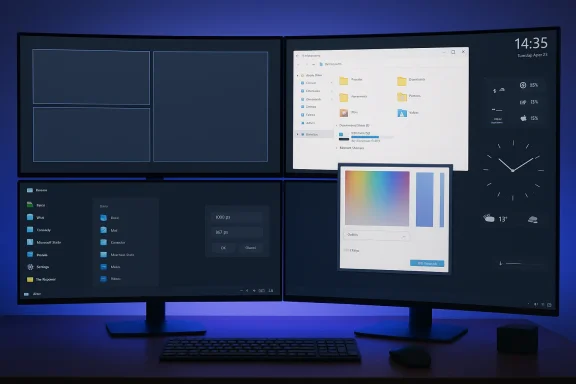
- FancyZones — custom desktop layouts that go far beyond built-in Snap Layouts; ideal for multi-monitor and ultrawide setups.
- PowerToys Run — instant launcher (Alt+Space) for apps, files, calculations, and plugins; a Spotlight-style speed boost.
- PowerRename — File Explorer context integration for bulk renames using patterns and regular expressions.
- Always On Top — keyboard shortcut to pin any window above others for reference while you work.
- Image Resizer, Keyboard Manager, Color Picker, Video Conference Mute, Text Extractor — small but high-value utilities for daily workflows.
Strengths
- Official and open-source — reduced risk of malware and better forward compatibility.
- Modular — run only the components you need to minimize resource use.
- Frequent updates and community suggestions mean features evolve quickly.
Risks and mitigation
- Some utilities (especially those with background services or real-time hooks) consume RAM and can affect performance on low-RAM systems. Run only what you need.
- As with any tool that interacts with the shell and input hooks, conflicts occasionally appear after major Windows updates; keep PowerToys updated and read the release notes.
WinAero Tweaker — the deep registry kit (handle with respect)
What it does
WinAero Tweaker exposes hundreds of hidden Windows settings by changing registry keys and system options. It lets you enable themes, restore classic behaviors, change fonts across the shell, and toggle system features not exposed in Settings. For anyone who wants granular control, it’s an efficient one-stop toolbox. But it also operates at a depth where a misclick can break UI expectations. The community often praises its breadth — and warns about the consequences of aggressive use.Typical uses
- Re-enable classic themes and visual elements.
- Turn off UI animations, change fonts, or hide interface elements.
- Disable specific telemetry or driver update behaviors (use caution).
Strengths
- Extremely broad feature set that surfaces options Microsoft no longer exposes.
- Lightweight and actively developed by a dedicated community.
Major cautions
- Registry changes are permanent until reversed: they can survive uninstalls and produce unexpected side effects. Always note the setting you changed and how to revert it.
- Use one change at a time and reboot to confirm behavior. If anything goes wrong, restore your system state (see the backup checklist below).
- Some changes may be unsupported by Microsoft and could be reverted by Windows feature updates or lead to driver incompatibilities.
ExplorerPatcher — restore and reshape core shell behavior
What ExplorerPatcher is for
ExplorerPatcher patches the Windows shell to restore classic Start menu, taskbar, and File Explorer behaviors — particularly useful for Windows 11 users who prefer the older Windows 10 interface. It can reposition the taskbar, restore the full context menu, and bring back legacy volume and network menus. Because it modifies shell behavior, it must be used with careful versioning in mind.What it enables
- Bring back left-aligned taskbar, system tray compactness, and classic context menus.
- Move the taskbar to the top or sides (capability Microsoft has removed natively).
- Customize taskbar size, ALT+TAB behavior, and File Explorer visual components.
Strengths
- Free and open-source, with a helpful focus on restoring familiar workflows.
- Granular UI toggles enable a true Windows 10-style experience on Windows 11.
Risks and practical advice
- ExplorerPatcher hooks into Explorer.exe and can cause system instability if Windows Update changes internal APIs. Keep a recovery plan: know how to uninstall ExplorerPatcher in Safe Mode and how to restart Explorer or use Task Manager to revert changes.
- Because it affects core shell components, test on a non-critical machine first if you rely on your PC for critical work.
Rainmeter — full desktop skinning and information widgets
Why Rainmeter remains essential for desktop artists
Rainmeter is the premier tool for building dynamic desktop "skins": widgets that show system metrics, clocks, weather, launchers, audio visualizers, and more. It’s highly scriptable and community-driven; users can craft suites of skins to create cohesive desktop themes or fully functional dashboards. Rainmeter’s customization depth is unmatched for those who want both aesthetics and telemetry on-screen.What Rainmeter does well
- Displays real-time system stats (CPU, RAM, disk, network) with minimal overhead.
- Acts as an application launcher and can replace desktop icons with interactive controls.
- Extensive skin libraries and suites let you adopt complete themes quickly.
Strengths and caveats
- Extremely flexible — nearly every visual and functional aspect is editable.
- Community-created content ranges from polished suites to hobby projects; pick well-maintained skins.
- Rainmeter is safe for the system (mostly user-level); the main risk is visual clutter and performance impact from poorly optimized skins.
TranslucentTB — sleek taskbar transparency without complexity
The niche it fills
TranslucentTB is a focused utility: it controls the taskbar’s opacity, blur, and gradient effects. It’s lightweight and does one thing well, which has made it popular for users who want a modern or minimal taskbar aesthetic without heavy system modifications.Strengths
- Minimal CPU and memory footprint.
- Simple presets and state-aware transparency (different settings for normal, maximized, or when the Start menu is open).
Limitations
- Limited feature set — not a full taskbar remapper or menu restorer (pair with ExplorerPatcher or Start11 for more extensive UI changes).
EarTrumpet — professional-grade audio control
What separates EarTrumpet from built-in volume controls
EarTrumpet replaces the default Windows volume flyout with a modern, per-application mixer that’s fast and predictable. It makes switching audio devices and adjusting individual app volumes simple — essential for content creators, streamers, and anyone mixing audio from multiple sources.Why you want it
- Per-app volume sliders and the ability to send apps to different outputs quickly.
- Hotkey support and a compact system tray interface that feels native to Windows.
- Lightweight and stable; less likely to cause system-wide problems compared with shell-level patchers.
Caveats
- Rare compatibility quirks with specialized audio drivers or virtual audio devices; test with your hardware setup if you use professional audio routing.
Practical safety checklist: how to experiment without breaking your system
Before you modify the shell or registry, follow these steps exactly.- Create a full disk image or system image backup using your preferred backup tool. This is the only complete rollback for catastrophic changes.
- Create a Windows System Restore point and confirm it’s listed under System Protection. System Restore helps with many registry-level mistakes.
- Note the Windows build and current version number (Settings > System > About). If you must roll back after an update, you’ll know what changed.
- Install utilities one at a time and reboot after each change. Validate behavior for at least 24 hours before adding the next tweak.
- Keep installer copies and the exact settings you changed in a small text file — this accelerates recovery.
- Use Safe Mode to uninstall or revert shell-level tools if the UI becomes unresponsive.
A recommended rollout plan (for the cautious tinkerer)
- Install PowerToys first and run only non-invasive utilities (FancyZones, PowerToys Run, Image Resizer). Evaluate productivity gains.
- Add EarTrumpet for audio workflows if you need per-app mixing. Test with headphones and speakers.
- For visual polish, add TranslucentTB and a conservative Rainmeter skin. Confirm memory and CPU impact.
- Only after you have backups and restore points, experiment with WinAero Tweaker for isolated, reversible settings. Change one registry tweak at a time.
- Reserve ExplorerPatcher for users who truly need a different Start/menu/taskbar experience; test in a controlled environment first.
Troubleshooting and rollback strategies
- If File Explorer crashes or the taskbar is missing after applying a shell patch:
- Press Ctrl+Shift+Esc and restart Explorer.exe from Task Manager.
- Boot into Safe Mode and uninstall the offending utility if Explorer won’t restart.
- If you lose a setting or an app behaves incorrectly after a registry change:
- Use System Restore to revert the registry to the restore point you created.
- If a Windows update breaks a third-party patch:
- Check the utility’s release notes and community threads for compatibility advice; maintain copies of older installers to revert if necessary.
Alternatives and complementary tools
- Paid, polished alternatives for Start/taskbar restoration: Start11 and StartAllBack provide refined UIs with commercial support. Choose them if you prefer a stable, supported experience rather than free, community-driven patches.
- For live wallpapers and richer desktop motion: Lively Wallpaper or similar apps complement Rainmeter when you want dynamic backgrounds.
- For multi-PC input control beyond PowerToys: Logitech Flow or third-party apps may offer better cross-platform support, but PowerToys’ Mouse Without Borders is an excellent free option for Windows-only setups.
Critical analysis — balancing benefits, maintenance, and security
Customization tools deliver real user value: faster window management, quicker launches, better audio control, and a desktop that reflects how you work. PowerToys stands out as a low-risk, high-reward suite because of Microsoft’s involvement and its modular design. Rainmeter offers near-limitless aesthetic and functional customization at minimal system risk.However, the deeper you go — using registry tweakers like WinAero or shell patchers like ExplorerPatcher — the more you trade long-term stability for short-term preference. These tools can be incompatible with future Windows updates and may require manual maintenance after OS upgrades. For business-critical systems, these are not recommended unless you manage change and backup processes rigorously.
Security considerations are also important: prefer signed binaries and reputable GitHub releases. Community projects are often safe, but the responsibility for vetting, patching, and trusting third-party code falls to you. When a utility offers the option to disable Windows Defender, telemetry, or driver updates, resist the temptation unless you understand the security trade-offs.
Final verdict: which tools to use and when
- Use PowerToys as your baseline — it gives the most immediate productivity wins with minimal risk. Turn on only the modules you need.
- Add EarTrumpet if per-app audio routing and quick device switching matter to you.
- Use Rainmeter when you want a personalized desktop that communicates system telemetry and organizes shortcuts.
- Reserve WinAero Tweaker and ExplorerPatcher for experienced users who maintain reliable backups and accept the maintenance overhead. Treat them as advanced tools, not everyday utilities.
Closing recommendations (practical next steps)
- If you’re just starting: install PowerToys, configure FancyZones, and try PowerToys Run for one week. Track time saved and comfort improvements.
- If you customize visuals: combine TranslucentTB with a curated Rainmeter suite and measure system impact (RAM and CPU).
- If you manage multiple machines or a small fleet, standardize any customization with scripted installers and documented rollback procedures — treat personalization like configuration management.
Source: Хабр Utilities for Customizing Windows
