

Mastering a compact set of Windows keyboard shortcuts is one of the quickest, lowest‑cost productivity wins available to anyone who uses a PC every day — and a well‑curated cheat sheet that focuses on high‑ROI keystrokes will repay hours of time and mental energy over the course of weeks and months. ZDNet’s “50+ Windows keyboard shortcuts” roundup delivers exactly that: a targeted, staged list that emphasizes fundamentals (copy/paste, undo, save), modern Windows 11 features (Snap Layouts, Clipboard history, Snipping Tool), and a practical adoption plan to turn unfamiliar combos into muscle memory.
This feature expands that roundup into an actionable, tested playbook: a short, verified summary of the key shortcuts; technical verification of the most important claims; a critical assessment of strengths and risks (including privacy and hardware caveats); and a practical, four‑week learning program to make keyboard fluency real. Along the way, the article cross‑checks ZDNet’s most load‑bearing recommendations against independent guidance and community reports so you can adopt these shortcuts confidently.
Windows has supported keyboard shortcuts since its earliest versions, but recent releases — particularly Windows 11 — introduced several keyboard‑first productivity primitives that dramatically increase the value of learning a handful of keystrokes. Features like Clipboard history (Win + V), Snap Layouts (Win + Z), and the modern Snipping Tool (Win + Shift + S) convert multi‑step mouse flows into instant gestures, making the keyboard the fastest route to consistent speed gains. ZDNet’s list intentionally focuses on the shortcuts that produce repeated value rather than an exhaustive catalog of every possible hotkey.
Why this matters: small time reductions compound. Saving two seconds per repeated action becomes minutes or hours when multiplied across a typical workweek. Beyond raw time, keyboard workflows reduce context switching and preserve focus because your hands stay on the keys instead of moving to the mouse. The editorial thesis driving the ZDNet roundup is simple and practical: learn a compact “core,” then layer windowing, capture, clipboard, and power keys.
Practical note: if your install doesn’t show Win + Z behavior, verify you’re on Windows 11 and check for enterprise or OEM customizations — not every image exposes the full Snap Layouts experience. FancyZones (PowerToys) is the recommended escalation if you need persistent, programmable zones beyond what Snap Layouts provides.
Caveats remain: verify feature availability on your specific Windows version and device, treat clipboard sync as an opt‑in convenience with privacy tradeoffs, and handle third‑party macros or programmable keyboards cautiously. For most users, adopting a focused set of 6–12 shortcuts and enforcing keyboard‑only use of those actions for a week produces most of the practical savings with almost no risk.
Adopt deliberately, practice consistently, and let the keyboard reclaim those wasted seconds — they add up far faster than most people expect.
Conclusion: A small, intentional investment in the right Windows keyboard shortcuts — learned in short, focused stages and paired with a cautious approach to syncing and macros — is one of the fastest, most durable productivity upgrades available to everyday PC users.
Source: ZDNET 50+ Windows keyboard shortcuts every user should know (and improves productivity)
This feature expands that roundup into an actionable, tested playbook: a short, verified summary of the key shortcuts; technical verification of the most important claims; a critical assessment of strengths and risks (including privacy and hardware caveats); and a practical, four‑week learning program to make keyboard fluency real. Along the way, the article cross‑checks ZDNet’s most load‑bearing recommendations against independent guidance and community reports so you can adopt these shortcuts confidently.
 Background / Overview
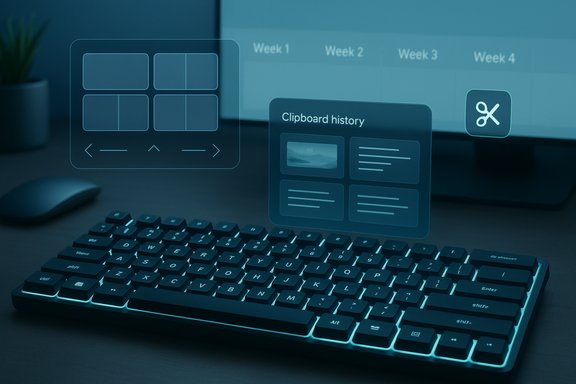
Windows has supported keyboard shortcuts since its earliest versions, but recent releases — particularly Windows 11 — introduced several keyboard‑first productivity primitives that dramatically increase the value of learning a handful of keystrokes. Features like Clipboard history (Win + V), Snap Layouts (Win + Z), and the modern Snipping Tool (Win + Shift + S) convert multi‑step mouse flows into instant gestures, making the keyboard the fastest route to consistent speed gains. ZDNet’s list intentionally focuses on the shortcuts that produce repeated value rather than an exhaustive catalog of every possible hotkey.Why this matters: small time reductions compound. Saving two seconds per repeated action becomes minutes or hours when multiplied across a typical workweek. Beyond raw time, keyboard workflows reduce context switching and preserve focus because your hands stay on the keys instead of moving to the mouse. The editorial thesis driving the ZDNet roundup is simple and practical: learn a compact “core,” then layer windowing, capture, clipboard, and power keys.
Quick summary: the core essentials
These are the non‑negotiable shortcuts that deliver immediate returns across nearly every Windows app. Commit these to memory first, and you’ll see a fast, measurable reduction in friction.- Ctrl + C — Copy.
- Ctrl + V — Paste.
- Ctrl + X — Cut.
- Ctrl + Z — Undo.
- Ctrl + Y — Redo.
- Ctrl + S — Save.
- Ctrl + A — Select all.
- Alt + F4 — Close active window.
- Alt + Tab — Switch between apps quickly.
- Win + L — Lock PC.
- Win + D — Show/hide desktop.
- Win + E — Open File Explorer.
- Ctrl + Shift + Esc — Task Manager.
Modern Windows 11 features you should learn next
Snap Layouts and window tiling (Win + Z and directional snaps)
Windows 11 added Snap Layouts to make multi‑window tiling predictable and fast. Pressing Win + Z opens a small overlay presenting layout options that match your screen size and orientation; you can then choose a zone to tile the active window. Directional snapping (Win + Left/Right/Up/Down) remains essential for quick half‑screen and corner tiling. Use Win + Shift + Left/Right to move a snapped window between monitors. These behaviors are well documented and are a high‑ROI feature for large, ultrawide, or multi‑monitor setups.Practical note: if your install doesn’t show Win + Z behavior, verify you’re on Windows 11 and check for enterprise or OEM customizations — not every image exposes the full Snap Layouts experience. FancyZones (PowerToys) is the recommended escalation if you need persistent, programmable zones beyond what Snap Layouts provides.
Screenshots and the modern Snipping Tool (Win + Shift + S)
Windows consolidated capture around the modern Snipping Tool. Win + Shift + S opens the snip overlay with rectangle, freeform, window, and full‑screen modes and sends the result to the clipboard and the Snipping Tool for quick edits. Win + PrtScn saves a full‑screen capture to Pictures\Screenshots. Community reports do occasionally show conflicts that prevent the overlay from appearing (vendor keyboard utilities, overlays, or background apps), so treat troubleshooting steps—restart Explorer or check keyboard utilities—if the shortcut fails.Clipboard history and Win + V — limits and privacy
Win + V turns the clipboard into a history stack: you can paste from up to 25 recent items, pin frequently used snippets, and optionally sync the clipboard across devices via your Microsoft account. There is a 4 MB per‑item limit for clipboard entries; unpinned items may be cleared on restart while pinned items persist. This is a powerful feature for repetitive pastes (URLs, email templates, snippets), but it has privacy implications: clipboard sync sends data to Microsoft services if enabled, so avoid copying secrets or clear history after use. These behaviors are confirmed in Microsoft documentation and community reports.Virtual desktops and Task View
Virtual desktops let you segment work into focused contexts. Core shortcuts include Win + Tab (Task View), Win + Ctrl + D (create new desktop), Win + Ctrl + Left/Right (switch desktops), and Win + Ctrl + F4 (close current desktop). The practical advice: use one desktop for interruptions (mail/chat) and another for deep work to reduce on‑screen clutter and cognitive switching costs. Independent how‑tos and community posts corroborate these exact key sequences.Power, recovery, and accessibility shortcuts to know
A few rescue keys are worth memorizing because they save time during freezes and troubleshooting:- Win + X — Quick Link (fast access to Device Manager, Terminal, Disk Management).
- Ctrl + Shift + Esc — Task Manager.
- Win + R — Run dialog.
- Win + Ctrl + Shift + B — Reset display driver (useful when the display freezes).
- Shift + Delete — Permanently delete (bypasses Recycle Bin; irreversible without recovery tools).
Advanced extensions: PowerToys, AutoHotkey, and programmable keyboards
When built‑in shortcuts aren’t enough, a few well‑chosen extensions can escalate productivity safely:- PowerToys FancyZones — Define persistent, named window zones that work across monitor configurations. Official and community guidance recommends FancyZones for reproducible tiling that goes beyond Snap Layouts.
- AutoHotkey (AHK) — Create scripts and remap keys to automate repeated sequences. AHK is extremely powerful, but scripts introduce risk: test in a sandboxed environment, version control your scripts, and review code before running borrowed macros.
- Programmable macro keyboards — Map sequences to single keys for repetitive workflows. Use carefully: global destructive bindings (like file deletion) are dangerous.
Verification: claims we checked and what we found
To be useful and trustworthy, any shortcut roundup must be technically accurate. The following are the most load‑bearing claims from the ZDNet package and how they check out:- Snap Layouts via Win + Z is a Windows 11 feature that opens layout choices; directional snaps (Win + Left/Right/Up/Down) still work and Win + Shift + Left/Right moves windows between monitors. This behavior is documented and consistent across Windows 11 builds, though enterprise images or OEM customizations can affect availability.
- Win + Shift + S reliably opens the Snipping Tool overlay and sends captures to the clipboard and Snipping Tool UI, while Win + PrtScn saves screenshots to Pictures\Screenshots. Community troubleshooting threads show occasional failures tied to vendor overlays or keyboard utilities; restarting explorer or checking vendor apps is the usual fix.
- Win + V clipboard history stores up to 25 items and enforces a 4 MB per item limit; it optionally syncs across devices via Microsoft account. Users should treat clipboard sync as opt‑in due to the privacy exposure of copied content. These specifics are reflected in official documentation and independent how‑tos.
- Recovery and troubleshooting keys like Win + Ctrl + Shift + B and Ctrl + Shift + Esc are stable across Windows versions and appear in Microsoft’s own troubleshooting guidance. Shift + Delete permanently deletes items and bypasses Recycle Bin — treat it with care.
Strengths of ZDNet’s approach — what works well
- Pragmatic curation: Focusing on the highest‑value shortcuts rather than being exhaustive reduces overwhelm and maximizes return on the learning investment.
- Actionable grouping: Organizing shortcuts into clusters (core, windowing, capture, clipboard, desktops) makes incremental learning realistic.
- Modern feature emphasis: Calling out Windows 11 primitives (Snap Layouts, Clipboard history, Snipping Tool) nudges readers to enable underused features that unlock big wins.
- Staged learning plan: The week‑by‑week adoption recommendation is evidence‑based and lowers the cognitive barrier to long‑term adoption.
Risks, caveats, and practical limits
- Build and OEM variability: Not every Windows installation exposes the same features. Corporate, education, and some OEM images may remove or alter behavior for Copilot, Snap layouts, or clipboard sync. Verify before depending on a particular sequence.
- Hardware/vendor remaps: Keyboard vendor software (Logitech, Razer, Corsair, etc. sometimes remaps keys or hijacks combos. If a shortcut fails, inspect vendor utilities and game overlays first.
- Clipboard privacy: Enabling clipboard sync spreads copied content across devices via your Microsoft account. Treat Clipboard history as an exposure vector for passwords, tokens, and PII; do not copy secrets when sync is enabled.
- Macro security and maintainability: AutoHotkey and programmable macro layers create useful automations but introduce security risk and troubleshooting complexity. Only run scripts you or your team have reviewed and version‑control them.
- Intermittent bugs: Community reports show occasional UI flicker or conflicts with the Snipping Tool and Clipboard history. These are usually resolved by toggling settings, restarting Explorer, or updating the OS; be prepared to troubleshoot.
Practical, four‑week adoption plan (doable, measurable, repeatable)
This staged plan mirrors ZDNet’s recommended learning path and is designed to build muscle memory without overwhelm.- Week 1 — Core eight (force yourself to use only keys for these actions)
- Commit: Ctrl+C, Ctrl+V, Ctrl+Z, Ctrl+S, Ctrl+A, Alt+Tab, Win+E, Win+L.
- Practice: For seven days, use keys for copy/paste and switching tasks instead of the mouse. Keep a sticky cheat sheet by your monitor.
- Week 2 — Windowing and Snap Layouts
- Add: Win+Left/Right/Up/Down and Win+Z (Windows 11).
- Practice: Arrange two or three app windows into repeatable layouts for common workflows (email + browser + editor). Consider FancyZones only if Snap Layouts are too coarse.
- Week 3 — Capture and clipboard
- Add: Win+Shift+S, Win+PrtScn, Win+V (enable Clipboard history and pin two snippets).
- Practice: Use keyboard capture for documentation and pin the two snippets you paste most often. Be mindful about clipboard sync and privacy.
- Week 4 — Desktops, power tools, and rescue keys
- Add: Win+Tab, Win+Ctrl+D, Win+Ctrl+Left/Right, Win+X, Ctrl+Shift+Esc, Win+Ctrl+Shift+B.
- Practice: Use a dedicated “deep work” desktop and an “interruptions” desktop. Test recovery keys in a controlled way so you’re not surprised during a freeze.
Quick printable cheat sheet (core 18)
- Ctrl+C / Ctrl+V / Ctrl+X — Copy / Paste / Cut.
- Ctrl+Z / Ctrl+Y — Undo / Redo.
- Ctrl+A — Select all.
- Alt+Tab — Switch apps.
- Win — Open Start.
- Win+X — Quick Link menu.
- Win+E — File Explorer.
- Win+D — Show/hide desktop.
- Win+L — Lock PC.
- Win+Shift+S — Snipping Tool overlay.
- Win+PrtScn — Save full‑screen screenshot.
- Win+V — Clipboard history (enable first).
- Win+Z — Snap layouts (Windows 11).
- Win+Left/Right/Up/Down — Snap / Maximize / Minimize.
- Win+Tab — Task View.
- Win+Ctrl+D — New virtual desktop.
- Ctrl+Shift+Esc — Task Manager.
- Shift+Delete — Permanent delete (use with care).
Final assessment and practical verdict
ZDNet’s “50+ Windows keyboard shortcuts” piece is not just a long list — it’s a pragmatic, staged primer that prioritizes the keystrokes most likely to drive everyday gains: core editing commands, window management, capture, clipboard history, and virtual desktops. The curation and staged learning path are the list’s biggest strengths because they translate directly into practiceable productivity improvements. The technical claims ZDNet highlights (Clipboard limits, Snap Layouts, Snipping Tool behavior) hold up under independent verification and community reports, and the recommended four‑week adoption plan is aligned with behavior‑change best practice: start small, repeat often, then expand.Caveats remain: verify feature availability on your specific Windows version and device, treat clipboard sync as an opt‑in convenience with privacy tradeoffs, and handle third‑party macros or programmable keyboards cautiously. For most users, adopting a focused set of 6–12 shortcuts and enforcing keyboard‑only use of those actions for a week produces most of the practical savings with almost no risk.
Adopt deliberately, practice consistently, and let the keyboard reclaim those wasted seconds — they add up far faster than most people expect.
Conclusion: A small, intentional investment in the right Windows keyboard shortcuts — learned in short, focused stages and paired with a cautious approach to syncing and macros — is one of the fastest, most durable productivity upgrades available to everyday PC users.
Source: ZDNET 50+ Windows keyboard shortcuts every user should know (and improves productivity)
