

Capturing a moment on-screen — whether a crashing error, an important receipt, or a how‑to step for a colleague — is a basic but essential skill for every Windows user, and in 2025 you have more options than ever to do it quickly, accurately, and with built‑in editing tools ready to polish the result.
Windows has supported screenshots since the early days, but the last several releases—particularly Windows 10 and Windows 11—have turned screen capture into a first‑class, integrated workflow. The old Print Screen key still works exactly as it always did, but Microsoft now layers modern tools like the Snipping Tool, a flexible overlay shortcut (Windows + Shift + S), and the Xbox Game Bar on top of that foundation to give users the right tool for every situation. This guide synthesizes the practical, step‑by‑step techniques from existing community documentation while verifying the behavior and defaults against Microsoft's official guidance and leading tech publications to present a single, definitive 2025 reference for capturing screens on Windows devices.
Source: Technology Org How to Take Screenshot on Windows: Complete Guide - Technology Org
 Background
Windows has supported screenshots since the early days, but the last several releases—particularly Windows 10 and Windows 11—have turned screen capture into a first‑class, integrated workflow. The old Print Screen key still works exactly as it always did, but Microsoft now layers modern tools like the Snipping Tool, a flexible overlay shortcut (Windows + Shift + S), and the Xbox Game Bar on top of that foundation to give users the right tool for every situation. This guide synthesizes the practical, step‑by‑step techniques from existing community documentation while verifying the behavior and defaults against Microsoft's official guidance and leading tech publications to present a single, definitive 2025 reference for capturing screens on Windows devices. Overview: When to use which screenshot tool
Choose a capture method based on three simple questions: do you need a saved file or just a clipboard copy; do you want to capture the whole screen, a single window, or a custom region; and do you need annotation, OCR (text extraction), or video recording afterward?- Quick archival PNG file (auto‑saved): press Windows + Print Screen. This is the fastest way to create a timestamped PNG in Pictures\Screenshots.
- Clipboard copy (paste into email/doc): press Print Screen (or Fn + PrtSc on compact keyboards) for full screen, or Alt + Print Screen for the active window.
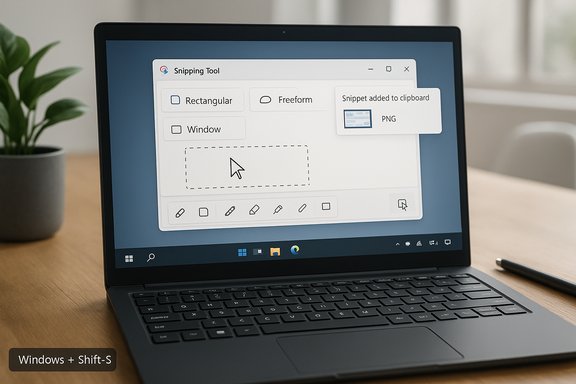
- Flexible region/window capture + instant edit: press Windows + Shift + S to open the Snipping Tool overlay, choose Rectangular / Freeform / Window / Full‑screen, and paste or click its notification to edit and save.
- Gaming or stubborn full‑screen apps: press Windows + G to open Xbox Game Bar and use the Capture widget (screenshots save to Videos\Captures by default).
- Advanced needs (scrolling pages, custom hotkeys, include cursor): third‑party tools such as PicPick, ShareX, and Greenshot fill power‑user gaps. PicPick supports scrolling captures and can include the mouse cursor.
How screenshots are saved and where to find them
Understanding where a capture goes is half the battle.- Windows + Print Screen — captures the entire display and automatically saves a PNG file to C:\Users\<YourUser>\Pictures\Screenshots. The screen flashes briefly as confirmation. This is the default auto‑save flow for quick archival captures.
- Print Screen and Alt + Print Screen — place the image on the clipboard only. No file is written unless you paste (Ctrl + V) into an editor (Paint, Word, etc. and save manually.
- Windows + Shift + S (Snipping Tool overlay) — copies the snip to the clipboard and in Windows 11 usually shows a notification; clicking the notification opens the Snipping Tool editor where you can annotate and save. If you dismiss the notification and don't paste, the snip is transient.
- Xbox Game Bar — saves screenshots to Videos\Captures by default (configurable in Game Bar settings). Use this for games and apps that don't play nicely with overlayed UIs.
Windows 11: the modern Snipping Tool and Win + Shift + S
Windows 11 bundles a reworked Snipping Tool that merges features from older utilities and adds new functionality such as basic OCR (text actions), video snips, a cleaner editor, and annotation tools.Quick capture (Win + Shift + S)
Press Windows + Shift + S to invoke the overlay. A compact toolbar appears with four modes:- Rectangular Snip — drag to select a rectangle.
- Freeform Snip — draw any shape to capture irregular areas.
- Window Snip — click a window to capture it cleanly.
- Full‑screen Snip — capture everything at once.
Editing and text extraction
The Snipping Tool editor includes:- Pen and Highlighter tools for markup.
- Shapes and text to annotate screenshots for guides and reports.
- Crop for quick framing.
- Text Actions / OCR in newer builds to extract selectable text from an image — useful for copying a receipt or command output. Microsoft documents the Snipping Tool text and video workflows; independent outlets confirm these features are now common in modern Windows 11 builds.
Video snips and Clipchamp integration
Snipping Tool now supports short video recordings (screen snippets) you can open and edit in Clipchamp for captions and audio adjustments. This makes Snipping Tool more than a static image utility—it’s a simple multimedia capture tool in line with Microsoft’s direction. The video snip and Clipchamp connectivity are documented by Microsoft and showcased on its learning pages. Caveat: Some features (video snip shortcut, OCR availability, or auto‑save options) can be build‑dependent and may vary between Insider, Dev, and stable channel installs, or be affected by enterprise policies. If a shortcut or feature is missing, check Snipping Tool settings and Windows Update. Community troubleshooting threads and Microsoft Q&A show intermittent problems after updates; restarting or reinstalling the app often resolves these issues.Windows 10: Snipping Tool and Snip & Sketch
Windows 10 provides both the legacy Snipping Tool and the newer Snip & Sketch; Microsoft has been consolidating functionality under Snipping Tool. The Windows + Shift + S overlay works in Windows 10 (1809 and later) and operates similarly: it copies snips to the clipboard and surfaces the Snip & Sketch / Snipping Tool editor when you click the notification. If you rely on Snip & Sketch and the overlay isn’t working after an update, Microsoft’s community forums recommend re‑registering app packages or resetting the app in Settings > Apps > Advanced options as a troubleshooting step.Full‑screen and window‑specific captures: the keyboard shortcuts to memorize
- Press Print Screen (PrtScn) — copies the entire screen to the clipboard (paste with Ctrl + V). Useful for quick copy‑paste workflows.
- Press Alt + Print Screen — copies the active window only to the clipboard. Great when you don’t want to reveal the rest of your desktop.
- Press Windows + Print Screen — captures the entire screen and automatically saves a PNG to Pictures\Screenshots (fast archival).
- Press Windows + Shift + S — opens the Snipping Tool overlay for precise region/window capture and quick annotations.
Delayed screenshots, menus and tooltips
Some menus and tooltips disappear when you press a shortcut. Use the Snipping Tool’s Delay option (3, 5, or 10 seconds) to set up the menu, then let the timer trigger the capture. The overlay shortcut (Win + Shift + S) does not provide a built‑in delay in the same way, so open the Snipping Tool app directly if you need a timed capture. This is documented both in community guides and Microsoft's documentation.Xbox Game Bar: in‑game screenshots and capture settings
The Xbox Game Bar (Win + G) is optimized for games but works in any full‑screen app. Use the Capture widget to take screenshots and recordings; Game Bar files are stored by default in Videos\Captures. The Game Bar also exposes settings such as capturing the mouse cursor and configuring keyboard shortcuts for captures, which can be turned on if you need the cursor visible in game screenshots. Microsoft’s documentation and community resources confirm these defaults.Third‑party tools and when to use them
Windows’ built‑ins cover most use cases, but third‑party utilities fill several real gaps:- PicPick — supports scrolling capture (entire pages), including cursor capture, customizable hotkeys, and a full-featured image editor. PicPick remains a popular paid/ freemium utility for users who need scrolling screenshots and advanced editing in one app. The official PicPick feature pages and changelogs confirm scrolling captures and cursor inclusion as supported options.
- ShareX — free and highly configurable; ideal for automation, hotkeys, cloud upload workflows, and advanced processing.
- Greenshot — lightweight and easy, great for annotation and quick sharing.
Including the mouse cursor in screenshots
By default, Windows screenshot tools typically do not include the mouse cursor. To capture the cursor:- Use third‑party tools that explicitly support cursor capture (PicPick, ShareX, IrfanView). PicPick’s feature list and ShareX settings both document cursor inclusion.
- Some captures made by Steps Recorder include the cursor, but Steps Recorder is designed for step‑by‑step logging rather than pixel‑perfect screenshots. Use it when you need a sequence of actions with cursors visible. Community guides and how‑to outlets describe this workaround.
- Xbox Game Bar can capture the cursor for game clips if the setting is enabled in its capture options. Verify in Game Bar settings if this option is required for your workflow.
Troubleshooting common screenshot problems
- Print Screen seems to do nothing: Check whether the key is mapped to open Snipping Tool (Settings > Accessibility > Keyboard) and whether you need to press Fn with PrtScn on small keyboards. Also confirm the image was copied to the clipboard by pasting into Paint.
- Win + Shift + S doesn't open: Some users experience issues after updates; reinstalling or resetting Snipping Tool, re‑registering app packages, or enabling the Snipping Tool shortcut in its settings usually fixes it. Microsoft Q&A and community threads document these remedies.
- Screenshots look distorted or scaled: High‑DPI scaling can affect capture quality. Set display scale to 100% for precise captures or ensure you capture at native resolution. Tech guides recommend verifying display resolution and scale in Settings > System > Display.
- Screenshots not saving to expected folder: Check whether OneDrive (or another cloud app) is intercepting screenshots and redirecting them to a cloud folder; enterprise policies can also override defaults. A quick test: take a Windows + PrtScn capture and then search Pictures\Screenshots and OneDrive\Pictures for the file.
Best practices for screenshot hygiene and organization
- Remove or blur any personal or sensitive information before sharing publicly. Use built‑in redaction/highlighter tools or a lightweight image editor.
- Use PNG for screenshots with text and sharp UI elements (lossless), and JPEG for photo‑heavy images where file size matters.
- Adopt a consistent filename strategy: include date and short descriptor, e.g., 2025-11-05_Budget-Report_Error-Message.png.
- Create subfolders within Pictures\Screenshots for projects to avoid a cluttered screenshot backlog. Use the Snipping Tool editor’s Save dialog to pick a project folder and the app will remember it next time.
Verification of key claims (what I checked for this guide)
- The Windows + Print Screen auto‑save behavior and default Pictures\Screenshots destination are documented by Microsoft support pages and confirmed by multiple community guides.
- The Win + Shift + S overlay modes and clipboard behavior are present in Windows 10 (1809+) and Windows 11 and are verified by Microsoft documentation and independent how‑to articles.
- The Snipping Tool’s text actions (OCR) and video snip features are included in recent Windows 11 builds and Microsoft guidance shows how video snips edit in Clipchamp; feature availability can differ by build and channel.
- PicPick supports scrolling captures, cursor inclusion, auto‑save, and custom hotkeys per the vendor’s feature pages and changelogs.
Step‑by‑step cheat sheet (memorize these for instant productivity)
- Windows + Print Screen — Save entire screen to Pictures\Screenshots. Quick archive.
- Print Screen — Copy entire screen to clipboard (paste into document).
- Alt + Print Screen — Copy active window to clipboard. Good for confidentiality.
- Windows + Shift + S — Open Snipping Tool overlay; choose Rectangular/Freeform/Window/Full. For precise edits, click the notification to open the Snipping Tool editor.
- Windows + G — Xbox Game Bar capture for games; screenshots saved to Videos\Captures by default.
- Use PicPick / ShareX — for scrolling pages, include cursor, or automation.
Risks, limitations and what to watch for
- Feature variability across Windows builds: New features (OCR, video snip, automatic saves from Snipping Tool) can differ between Insider channels and stable releases. Treat these as optional until validated on your machine.
- Enterprise policies and third‑party software: Corporate group policies, OneDrive sync settings, or keyboard remaps can change defaults (e.g., redirecting screenshots to OneDrive). Check local settings or IT policy if behavior differs.
- Privacy risk when sharing: Screenshots often reveal sensitive data (open emails, participant names in chat windows). Always scrub or redact before sharing publicly. This is a universal best practice; use the Snipping Tool’s drawing tools or a dedicated editor for redaction.
- Cursor capture confusion: The most‑used built‑in tools do not include the cursor by default; expecting it to appear can lead to rework. Use third‑party tools or Steps Recorder when the cursor must be shown.
Final take
Mastering screenshots on Windows in 2025 means knowing two things: the right shortcut for your immediate need, and how to follow it with the right post‑capture action (paste, edit, save, or annotate). For most users, the combination of Windows + Shift + S (flexible, clipboard-first capture) and Windows + Print Screen (instant file save) will cover 90% of daily tasks. For power users—those who need scrolling captures, cursor inclusion, or advanced automation—third‑party tools like PicPick and ShareX remain indispensable. The modern Snipping Tool’s additions (OCR, video snips, Clipchamp integration) close the gap between static screenshots and lightweight multimedia documentation, but availability can vary by Windows build, so verify your device’s feature set if a particular capability matters. Practice the few shortcuts you’ll use most, organize captures with a simple filename convention, and choose the tool that fits the task — that’s how screenshotting becomes a seamless part of productive Windows work.Source: Technology Org How to Take Screenshot on Windows: Complete Guide - Technology Org
