

Windows 11 gives you more ways than ever to capture what’s on your screen — from a single-key full-screen snap to precise region captures and even short screen recordings — and most of them are built into the OS. This guide distills all working methods, explains where screenshots go, fixes common problems, and compares built-in tools with the best third‑party alternatives so you can pick the fastest workflow for your needs.
Windows 11 ships with several built‑in screenshot methods that cover almost every use case: quick full‑screen saves, active‑window captures, flexible region snips, and lightweight video recording. The Snipping Tool (the modern replacement for Snip & Sketch) is now the central hub for most screen capture tasks, while the classic Print Screen key and the Xbox Game Bar still offer dedicated workflows for keyboard fans and gamers.
A recent plain‑language summary of the current state of these tools highlights the following core points: the Print Screen key can be mapped to open Snipping Tool by default (with an option to restore the old clipboard behavior), traditional PrtSc combinations still work, Win + Shift + S is the most universally convenient shortcut for region capture, and Snipping Tool includes delay timers and an editor — plus an increasing set of recording features. The same overview also notes common third‑party tools to fill gaps, such as Lightshot and ShareX.
Below is a complete, practical guide that expands on those claims, corrects small inconsistencies, and gives step‑by‑step instructions, troubleshooting, and recommendations for power users.
Note: Some recording features roll out gradually — availability can depend on your Windows build and Snipping Tool app version.
Caveat: some users report a slight delay between hitting Record and actual capture start. The recording feature has seen incremental improvements but remains subject to device performance and build‑specific behavior.
Windows 11 now puts a complete screenshot toolbox at your fingertips — from one‑tap full saves to precise, annotated region captures and the ability to record short clips without extra software. The built‑ins will satisfy most users, but a small set of third‑party apps remains indispensable for advanced capture, cursor inclusion, or automated uploads. Use the steps and troubleshooting tips above to choose the right method, secure your captures, and build a screenshot workflow that’s both fast and reliable.
Source: NEWS.am TECH How to take a screenshot in Windows 11: All working methods | NEWS.am TECH - Innovations and science
 Background / Overview
Windows 11 ships with several built‑in screenshot methods that cover almost every use case: quick full‑screen saves, active‑window captures, flexible region snips, and lightweight video recording. The Snipping Tool (the modern replacement for Snip & Sketch) is now the central hub for most screen capture tasks, while the classic Print Screen key and the Xbox Game Bar still offer dedicated workflows for keyboard fans and gamers.A recent plain‑language summary of the current state of these tools highlights the following core points: the Print Screen key can be mapped to open Snipping Tool by default (with an option to restore the old clipboard behavior), traditional PrtSc combinations still work, Win + Shift + S is the most universally convenient shortcut for region capture, and Snipping Tool includes delay timers and an editor — plus an increasing set of recording features. The same overview also notes common third‑party tools to fill gaps, such as Lightshot and ShareX.
Below is a complete, practical guide that expands on those claims, corrects small inconsistencies, and gives step‑by‑step instructions, troubleshooting, and recommendations for power users.
The fastest shortcuts (quick reference)
- Win + Shift + S — Open the Snipping overlay for rectangular, freeform, window, or full‑screen capture (copies to clipboard).
- PrtSc / Print Screen — By default can open Snipping Tool; legacy behavior copies the full screen to the clipboard if you disable the Print‑Screen mapping in Accessibility settings.
- Alt + PrtSc — Copies the active window to the clipboard.
- Win + PrtSc — Saves a full‑screen PNG automatically to Pictures → Screenshots.
- Win + Alt + PrtSc — Game Bar screenshot: saves to Videos → Captures (used primarily for games / full‑screen apps).
- Win + G — Open Xbox Game Bar overlay (useful for screenshots and video recording).
- On laptops with compact keyboards, add Fn where needed: Fn + PrtSc, Fn + Win + PrtSc, etc.
How to take a screenshot in Windows 11 — step‑by‑step
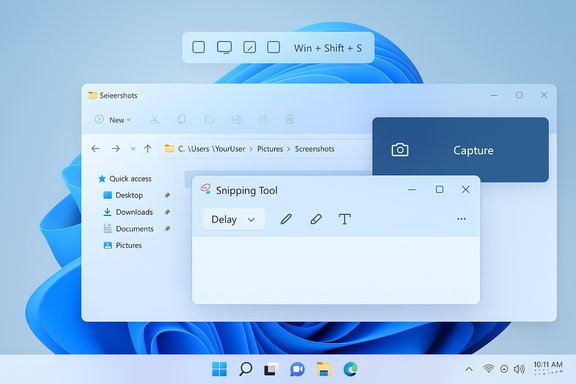
1) Instant region: Win + Shift + S (Snipping overlay)
- Press Win + Shift + S.
- A small toolbar appears at the top with four modes: Rectangular, Freeform, Window, Full‑screen.
- Choose the mode, then click and drag or select the target.
- The image is copied to the clipboard and a notification appears — click it to open the Snipping Tool editor and save or annotate.
2) Quick full‑screen save: Win + PrtSc
- Press Win + PrtSc at the same time.
- Windows saves a PNG automatically to Pictures → Screenshots.
- Use File Explorer or paste
shell:Screenshotsinto the address bar to jump to the folder.
3) Active window quickly: Alt + PrtSc
- Select the window you want to capture (click its title bar).
- Press Alt + PrtSc.
- The active window image is copied to the clipboard; paste into Paint, Word, or any editor (Ctrl + V).
4) Game Bar screenshots: Win + Alt + PrtSc or Win + G
- For games or full‑screen apps press Win + Alt + PrtSc to capture immediately.
- Or open Win + G → Capture widget → camera icon.
- Game Bar saves images to Videos → Captures (or the Captures folder you’ve configured).
5) Use the Snipping Tool app for delay, editing, and recording
- Open Snipping Tool from Start (or type Snipping Tool).
- Click the Delay (clock) icon and pick 3, 5, or 10 seconds if you need to capture a menu or tooltip.
- Click New to start the capture and then choose your region.
- Use the built‑in editor to annotate, crop, or save.
Note: Some recording features roll out gradually — availability can depend on your Windows build and Snipping Tool app version.
Where screenshots are saved (and how to find them)
- Full‑screen saves via Win + PrtSc go to: C:\Users\<YourUser>\Pictures\Screenshots
- Game Bar captures (Win + Alt + PrtSc or Win + G → Capture) go to: C:\Users\<YourUser>\Videos\Captures
- Win + Shift + S snips go to the clipboard by default — you must click the pop‑up to open the editor and save a file.
- If OneDrive is configured to automatically save screenshots, they may be stored in OneDrive\Pictures\Screenshots instead (OneDrive’s backup setting can override local locations).
- Use the shell shortcuts in File Explorer’s address bar to open these locations quickly: type
shell:Screenshotsorshell:Capturesand press Enter.
Deep dive: Snipping Tool features, tips, and caveats
Modes and editor
- Rectangular — draw a rectangle.
- Freeform — draw a custom shape.
- Window — click to capture a window.
- Full screen — capture the entire display(s).
- Pen/Highlighter/Shapes/Text
- Crop and zoom
- Blur or redact sensitive areas
- Save as PNG/JPEG/GIF
- Share via native Windows Share menu
Delay timers
Snipping Tool offers 3, 5, and 10 second delays to let you open menus or hover elements before the capture starts. This is the supported way to capture transient UI like drop‑down menus.Screen recording
The Snipping Tool can record a selected rectangular area to a video file, and some builds support capturing microphone audio as well. This functionality has been added progressively to Windows 11 and may not be present on older or unupdated machines. If record options aren’t visible, update the Snipping Tool from the Microsoft Store or verify you’re on a Windows build that includes the feature.Caveat: some users report a slight delay between hitting Record and actual capture start. The recording feature has seen incremental improvements but remains subject to device performance and build‑specific behavior.
Clipboard speed and snip latency
- If clipboard snips appear slow, try switching the default screenshot handler in Settings or update the Snipping Tool app.
- Third‑party clipboard managers or cloud sync apps (OneDrive, Dropbox) can interfere with or slow down screenshot handling.
- If Win + Shift + S seems slower than a direct PrtSc paste to Paint, that’s expected: the overlay architecture and editor pipeline add some overhead for instant editing.
Troubleshooting common screenshot problems
Print Screen opens Snipping Tool instead of copying to clipboard
Windows 11 may map the Print Screen key to open Snipping Tool by default. To restore the classic behavior:- Open Settings → Accessibility → Keyboard.
- Toggle Use the Print screen button to open screen snipping off.
Screenshots capture both monitors or wrong monitor
- By default, fullscreen shortcuts capture all attached displays as one image when monitors are arranged as an extended desktop.
- To capture only one display, select the monitor you want and use Snipping Tool’s Window mode or crop the full screenshot afterward.
- If behavior changes after a Windows update or driver change, update GPU drivers and check multi‑monitor display settings.
Snips not saving or missing pop‑up
- Win + Shift + S copies to clipboard; you must click the notification thumbnail to save from the Snipping Tool editor.
- If there’s no notification, open the Snipping Tool manually and paste (Ctrl + V) — the snip may still be in the clipboard history (Win + V) if enabled.
- Check that Snipping Tool notifications are allowed: Settings → System → Notifications.
Game Bar shortcuts not working
- Game Bar must be enabled: Settings → Gaming → Xbox Game Bar → toggle On.
- Full‑screen exclusive apps or certain drivers can block overlay hotkeys; try half‑window mode or alternate capture methods.
- Game Bar saves to Videos → Captures by default; if you can’t find captures, type
shell:Capturesin File Explorer to open the folder.
Advanced tips and workflows
- To jump straight to the Screenshots or Captures folder in File Explorer: type
shell:Screenshotsorshell:Capturesin the Explorer address bar. - Use Win + V to access clipboard history (enable in Settings) — handy when you take multiple clipboard snips and want to paste older images.
- If you want the Print Screen key to open Snipping Tool but still prefer instant full‑screen PNG files, map a second hotkey or use a lightweight automation tool (AutoHotkey) to trigger Win + PrtSc behavior.
- For repeated automated captures, use third‑party tools (ShareX or commercial screen capture apps) to assign custom hotkeys, auto‑name files, and upload to cloud storage.
Third‑party tools: when built‑ins aren’t enough
- ShareX — powerful, free, open‑source. Screenshots, region capture, scrolling capture workarounds, video recording, animated GIFs, automatic file naming, and extensive auto‑upload options. Best for power users and automation.
- Lightshot — lightweight, quick editor, instant upload + shareable link. Good for users who need a fast editor and easy sharing.
- Greenshot — simple, open source, fast with a familiar menu for capture → edit → save or upload.
- Snagit (TechSmith) — premium, polished tool with advanced video capture, cursor capture, built‑in editor, templates, and workflow integration. Good for professional documentation.
- PicPick — all‑in‑one (screenshot, editor, color picker) and supports cursor capture in some workflows.
- You need cursor included in screenshots by default.
- You need automated file naming, cloud upload, or image processing.
- You need high‑performance capture during gameplay or FPS profiling (some tools are more efficient than Snipping Tool for real‑time capture).
Privacy and security considerations
- OneDrive auto‑save: If you enable OneDrive to automatically save screenshots, images are uploaded to Microsoft cloud storage. That’s convenient for sync across devices, but not ideal for highly sensitive screenshots (banking, medical, passwords).
- Auto‑upload in third‑party apps: ShareX et al. can auto‑upload images to external services (Imgur, FTP, S3). Review settings to avoid leaking private screenshots.
- Clipboard data: Anything copied to clipboard can be read by other apps with clipboard access. Clear clipboard history (Win + V → Clear all) if you handle sensitive content.
- Temporary files and captures: Some tools save temporary files in AppData or cache; periodically clean temp folders if you’re concerned about local traces.
Correcting common misconceptions and clarifying small conflicts
- The Print Screen key does not universally stop copying to the clipboard in Windows 11 — Windows can map PrtSc to open the Snipping Tool by default on many installations, but that behavior is a setting and can be disabled to restore the classic clipboard behavior.
- The claim that Win + Alt + PrtSc saves to the same Pictures → Screenshots folder as Win + PrtSc is not accurate: Win + Alt + PrtSc is an Xbox Game Bar shortcut and saves to the Videos → Captures folder by default.
- Snipping Tool’s video recording features are being rolled out incrementally; if you don’t see recording in your Snipping Tool, check for app updates and your Windows build. Availability may vary across devices and Insider/Stable channels.
- The built‑in Snipping Tool and Win + Shift + S are excellent for most workflows, but users who need cursor capture or higher performance should consider Game Bar (for cursor, with setting enabled) or third‑party capture tools.
Recommended setups by user type
- Casual users / social sharing:
- Use Win + Shift + S for quick snippets → click notification to edit → save/share.
- Use Win + PrtSc when you want immediate file saves to Pictures → Screenshots.
- Power users / documentation:
- Use Snagit or ShareX for templated captures, cursor inclusion, and batch uploads.
- Combine Win + V clipboard history with a lightweight editor for fast pastes.
- Gamers / streamers:
- Enable Xbox Game Bar and use Win + Alt + PrtSc for screenshots, Win + Alt + R for recordings.
- Configure Game Bar to capture cursor if you need it visible.
- Privacy‑conscious users:
- Disable OneDrive automatic screenshots upload.
- Use local folders and clear clipboard history after sharing sensitive images.
Final checklist: six quick setup steps to make screenshots reliable
- Decide whether you want PrtSc mapped to Snipping Tool: Settings → Accessibility → Keyboard → toggle Use the Print screen button to open screen snipping on/off.
- Enable clipboard history (Win + V) if you take many snips you need to paste later.
- Configure OneDrive only if you want automatic cloud backups; otherwise disable screenshot backup in OneDrive settings.
- Enable Xbox Game Bar and its Capture mouse cursor setting if you need cursor included for game captures.
- Update Snipping Tool from the Microsoft Store to get the latest editor and recording features.
- Install ShareX or Greenshot if you require advanced automation, cursor capture, or custom upload workflows.
Windows 11 now puts a complete screenshot toolbox at your fingertips — from one‑tap full saves to precise, annotated region captures and the ability to record short clips without extra software. The built‑ins will satisfy most users, but a small set of third‑party apps remains indispensable for advanced capture, cursor inclusion, or automated uploads. Use the steps and troubleshooting tips above to choose the right method, secure your captures, and build a screenshot workflow that’s both fast and reliable.
Source: NEWS.am TECH How to take a screenshot in Windows 11: All working methods | NEWS.am TECH - Innovations and science
