

Windows 11’s quiet evolution over the past few years has produced a stack of small, focused wins that together deliver a noticeably smoother, more productive PC experience — from a remarkably rebuilt Snipping Tool to a Game Bar optimized for handhelds, deeper package management, and tighter integrations that blur the line between desktop and phone. These are the changes that matter in day-to-day use: practical, visible, and often under-appreciated. This feature takes the praise from Windows-focused editors and power users as a starting point, verifies the technical advances where possible, and weighs the strengths, trade-offs, and risks of the most meaningful Windows 11 improvements.
Windows 11 launched with a design-first agenda that divided opinion: rounded corners, central Start alignment, and a renewed focus on Microsoft Store apps. Since then, Microsoft has moved into an iterative phase: packing the OS with incremental but impactful refinements that improve productivity, compatibility, and platform reach without requiring full-scale UI overhauls.
That progression has clear winners. Some come from modernizing core utilities; others are strategic platform bets aimed at gaming and developer audiences. A few highlights discussed by Windows‑facing editorial teams and captured in product coverage include the Snipping Tool’s transformation into a multi‑modal capture and OCR utility, Game Bar updates for handheld gaming, a reinvigorated Microsoft Store, growing acceptance of the Windows Package Manager (winget), and improved developer features such as Windows Subsystem for Linux (WSL) and PowerToys innovations. The Snipping Tool updates in particular have drawn repeated praise for turning a once-basic app into a go-to productivity tool.
Notable functional additions include:
Editors focused on handheld gaming report that this is one of Windows 11’s more meaningful recent advancements: it narrows the gap between desktop‑oriented Windows and the streamlined interfaces gamers expect on portables. The result is a less clunky, more controller‑first experience that makes gaming on Windows handhelds more practical outside of docked or desktop scenarios.
Source: Windows Central We’re talking about the best of Windows 11, and we want your input.
 Background
Windows 11 launched with a design-first agenda that divided opinion: rounded corners, central Start alignment, and a renewed focus on Microsoft Store apps. Since then, Microsoft has moved into an iterative phase: packing the OS with incremental but impactful refinements that improve productivity, compatibility, and platform reach without requiring full-scale UI overhauls.That progression has clear winners. Some come from modernizing core utilities; others are strategic platform bets aimed at gaming and developer audiences. A few highlights discussed by Windows‑facing editorial teams and captured in product coverage include the Snipping Tool’s transformation into a multi‑modal capture and OCR utility, Game Bar updates for handheld gaming, a reinvigorated Microsoft Store, growing acceptance of the Windows Package Manager (winget), and improved developer features such as Windows Subsystem for Linux (WSL) and PowerToys innovations. The Snipping Tool updates in particular have drawn repeated praise for turning a once-basic app into a go-to productivity tool.
Why small utilities matter: the Snipping Tool renaissance
From simple screenshot to full capture suite
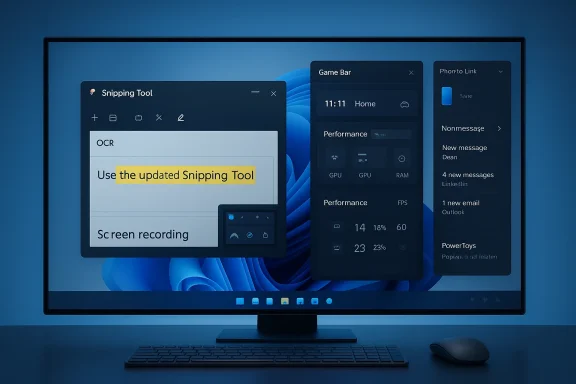
The new Snipping Tool is no longer just a clipboard shortcut; it now bundles advanced annotation, OCR, and video capture features into a single, maintained app. Rather than bouncing between third‑party tools, users can capture, edit, extract text, redact sensitive data, and record short screencasts — all with first‑party stability and update cadence from Microsoft. This consolidation significantly reduces friction for users who create documentation, clip examples, or produce quick how‑tos.Notable functional additions include:
- Built‑in optical character recognition (OCR) to copy text from images, with direct copy/paste support and a new “text actions” workflow that eliminates intermediate steps.
- Screen recording (with system and microphone audio) so the tool covers both static and dynamic capture needs without resorting to the Xbox Game Bar or external tools.
- Custom save locations, emoji overlays, QR detection, and precision helpers like an on‑screen ruler — small features that improve organization and speed.
Why this matters for real users
Consolidation into a single, system‑maintained tool reduces cognitive load. Power users who historically relied on ShareX, OBS, or PowerToys Text Extractor now have comparable features natively. That lowers the barrier for less technical users while preserving advanced functionality for professionals who need fast, reliable captures. Multiple outlets and community testing note that the tool’s keyboard shortcuts (Win + Shift + S and configurable Print Screen behavior) make it immediate to invoke, which matters more to workflow than flashy feature lists.Caveats and verification
OCR accuracy varies with font, contrast, and complex layouts. While the built‑in OCR is fast and convenient, users working with high‑volume or mission‑critical text extraction (large PDFs, multilingual documents) should verify results and retain specialized OCR tools where needed. The platform‑level integration is a majorr usability win, but it is not an absolute replacement for dedicated OCR suites in every scenario.Handheld gaming and compact UX changes
Compact Mode and Game Bar evolution
Windows 11’s Game Bar has been updated with a Compact Mode designed specifically for handheld PCs and controller navigation. These changes aim to make the Game Bar more usable on small screens and with gamepad input: a unified home view, easier widget navigation with shoulder buttons, direct game management actions, and quick access to performance metrics. Early testing through Insider channels demonstrated clear usability gains for devices like the Asus ROG Ally and Lenovo Legion Go.Editors focused on handheld gaming report that this is one of Windows 11’s more meaningful recent advancements: it narrows the gap between desktop‑oriented Windows and the streamlined interfaces gamers expect on portables. The result is a less clunky, more controller‑first experience that makes gaming on Windows handhelds more practical outside of docked or desktop scenarios.
Strengths and limitations
- Strengths:
- Better navigation for controller users and clearer single‑screen summaries for game sessions.
- Performance awareness without leaving a game (quick telemetry displays).
- Launcher convergence (recently played titles and installed launchers in one spot) reduces friction when switching between stores and ecosystems.
- Limitations:
- The handheld UX still runs atop a full desktop OS, so it cannot match the instant resume and ultra‑low overhead of purpose‑built console interfaces.
- Thermal and battery management remain hardware issues; software improvements in the Game Bar do not change battery chemistry or cooling constraints.
What this means for Microsoft and OEMs
These UI refinements position Windows as a viable platform for handheld gaming devices, not just a stopgap for enthusiasts. For OEMs, the onus remains to pair optimized hardware with Windows’ improved UI to deliver a competitive handheld experience. Microsoft’s move to focus on controller and small‑screen ergonomics is the right play to capture this emerging niche.The modern app ecosystem: Microsoft Store, winget, and discovery
Microsoft Store’s redemption arc
A persistent criticism of Windows has been the fragmented, unreliable app distribution experience. Recent Store updates — a more curated, stable, and secure environment — have won praise from editors who now encourage users to give the Store another chance. The Store’s improvements aim to restore it as a primary discovery surface and a safer alternative to arbitrary web downloads. This is a strategic priority: better discovery increases app quality signals and improves security posture by reducing risky installers.winget, Command Palette, and PowerToys: command‑line and power‑user wins
The arrival and maturation of the Windows Package Manager (winget) and tools like PowerToys (and its Command Palette evolution) reflect Microsoft’s focus on developer and power‑user productivity. Winget allows repeatable, scriptable package installs; Command Palette provides a keyboard‑centric launcher and command runner that sidesteps Start Menu inefficiencies; PowerToys continues to deliver focused tooling for UI and workflow tweaks. These changes are small but deeply useful for users who configure devices frequently, manage multiple machines, or prefer keyboard‑driven workflows.Why discovery and package management matter together
A reliable Store improves discovery for mainstream users, while winget and Command Palette serve the needs of advanced users and IT pros. When both exist and interoperate cleanly, the Windows ecosystem benefits from both a safe, curated front door and a powerful, automatable backend. That balance is crucial for enterprise deployment pipelines, education settings, and enthusiasts who want repeatable setups.Compatibility and the legacy advantage
Decades of compatibility remain Windows’ crown jewel
Windows’ compatibility story — the ability to run legacy apps and a huge catalog of games — is still a major advantage. Compatibility layers and virtualization options extend the lifespan of older software, which many businesses still rely on. This legacy compatibility also benefits gamers, who can access titles spanning multiple generations with fewer barriers than on other platforms. Editors highlight this as a core strength of Windows today.Risks of legacy support
Supporting a vast legacy surface brings complexity:- Security exposure: older applications can carry unpatched vulnerabilities, requiring isolation strategies.
- User confusion: permission models and compatibility shims can produce inconsistent behavior across systems.
- Maintenance burden: ensuring new features don’t regress compatibility places development constraints on future OS changes.
Developer tooling and WSL: Windows as a development platform
WSL as “proper Linux on Windows”
Windows Subsystem for Linux (WSL) provides a near‑native Linux environment inside Windows, saving developers from juggling separate machines or heavyweight VMs. For many developers, WSL means simpler workflows, easier cross‑platform testing, and the ability to run Linux tooling seamlessly within a Windows desktop environment. It’s a “killer feature” for developers who want Linux tooling without leaving Windows.The broader developer story
Microsoft is prioritizing developer experience across multiple fronts: integrated package management, improved terminal experiences, and tighter tooling with Visual Studio and VS Code. Those investments reduce friction for cross‑platform development and make Windows more attractive for cloud, web, and systems developers.Phone Link and cross‑device conveniences
Practical day‑to‑day integration
Phone Link — the feature that connects an Android phone to a Windows PC — gets a lot of praise for reducing context switches: notifications, quick photo transfers, and message replies become native PC actions. For users who spend long stretches at a PC, this integration is a genuine time‑saver and removes the need to reach for a phone constantly. Editor experiences highlight Phone Link as among their most‑used daily tools.Limitations and platform coverage
Phone Link’s functionality is currently more complete for Android devices; full parity with iOS remains limited by platform restrictions. Users should evaluate compatibility before building workflows around Phone Link. The user experience on Android is strong, but Apple device users will continue to see functional gaps.Security, privacy, and platform governance
Positive steps, persistent questions
Microsoft has made privacy tweaks and controls in Windows 11, such as allowing opt‑outs for certain personalized experiences. However, full transparency around telemetry and the interaction between cloud services and local utilities remains an area where vigilance is warranted. Users should review privacy settings during setup and keep an eye on new features that may introduce additional data flows.App store governance trade‑offs
While Store curation improves security, it also centralizes gatekeeping. A stronger Store is good for safety but raises questions around developer economics and discoverability for independent software makers. Microsoft’s decisions on fees, policies, and distribution will shape how vibrant the Windows app ecosystem remains over the long term.What to watch next: hardware, Arm, and performance
Arm Windows and Snapdragon momentum
Editors have pointed to Arm‑based Windows devices and Qualcomm platforms (for example the X2 Plus generation referenced by platform coverage) as an inflection point: if silicon and software converge, Arm machines could gain significant traction for battery life and thermals. These claims require hardware benchmarking and longer‑term market data to verify, but the ecosystem shift is one to monitor. Any claims about long‑term dominance should be treated cautiously until sustained market share and a robust developer and driver story materialize. Editor commentary suggests optimism but not definitive proof.Performance realities
Windows 11’s surface‑level improvements won’t replace hardware choices. Performance, battery life, and thermals still come down to OEM design and chip choices. The OS can smooth workflows and improve perceived performance through features like better resource visibility and newer scheduling, but the hardware layer remains decisive.Practical recommendations for users and IT
- Embrace the Snipping Tool for everyday captures and small video recordings; verify OCR results for critical documents and keep specialized OCR tools where necessary.
- Try the Game Bar Compact Mode on handheld PCs to judge whether Windows’ handheld UX fits your device and play style; if you own an Ally/Legion Go class device, these updates materially improve usability.
- Use the Microsoft Store for mainstream apps where possible to reduce attack surface, but keep trusted third‑party options for niche or specialized tools.
- Adopt winget and PowerToys if you regularly configure machines — they save time and reduce configuration drift.
- For cross‑device workflows, test Phone Link with your Android device to see if it replaces frequent phone interactions.
- If you rely on legacy applications, maintain a disciplined approach to updates, isolation, and backups; compatibility is a strength but also a vector for risk.
Critical analysis: the big wins and the outstanding risks
Notable strengths
- Practical feature improvements: The Snipping Tool and Game Bar updates are examples of Microsoft shipping features that directly reduce friction in common tasks.
- Developer and power‑user gains: Winget, WSL, PowerToys, and the Command Palette are making Windows friendlier for automation, scripting, and high‑efficiency workflows.
- Ecosystem breadth: Windows’ compatibility, app variety, and hardware diversity remain unmatched, and Microsoft is making targeted investments to keep these strengths relevant.
Potential risks and weak spots
- Privacy and telemetry: Centralized services and cloud‑linked utilities require continuous transparency and strong user controls.
- Hardware fragmentation: With rising Arm interest, inconsistent driver and app optimization could create fragmentation headaches if not managed carefully.
- Store economics and developer trust: A safer Store is valuable, but Microsoft must balance curation with fair policies to keep independent developers engaged.
- Perception gap: Visible, high‑impact changes are often small and gradual; users who expect instant transformation may miss the subtle cumulative value and continue to fixate on cosmetic criticisms.
Conclusion
Windows 11’s best changes are a lesson in compounding incrementalism: a rebuilt Snipping Tool, compact Game Bar improvements for handheld gaming, hardened app discovery via the Store, and a stronger tooling story for developers add up to a more productive and flexible platform. These aren’t always headline‑grabbing shifts, but they materially improve the workflows of billions of users in quiet, practical ways. The challenges — privacy, hardware fragmentation, and governance trade‑offs — are real and deserving of scrutiny, but they do not negate the practical progress that recent updates represent. For users who spend a lot of time on a PC, Windows 11 today is less about flash and more about fewer frictions: improved capture and sharing, better device continuity, and the steady maturation of tools that professionals and enthusiasts rely on every day.Source: Windows Central We’re talking about the best of Windows 11, and we want your input.
