

You can learn a surprising amount of Windows power in the space of a single afternoon — and the set of keyboard shortcuts below is the one I now use instinctively, even on older machines where new features aren’t available. These are not trivia: they are workflow levers that cut micro‑latency, keep your hands on the keyboard, and make multi‑window, multi‑monitor work genuinely faster. This article distills a practical 50+ shortcut cheat sheet, verifies the important technical limits you need to know, explains which shortcuts are Windows‑version dependent, and offers a staged learning plan so you can actually remember them.
Windows has shipped with keyboard shortcuts since its earliest days, but recent Windows 10 and Windows 11 releases added modern productivity primitives — Clipboard history, the Snipping Tool overlay, and Snap Layouts — that turn multi‑step mouse flows into single keystrokes. The productivity case is simple: a small cluster of keystrokes, learned and enforced for a few weeks, pays back with daily time saved and fewer context switches. ZDNet’s original roundup framed this as a practical, staged adoption plan; the same structure underpins the recommendations I’ll expand here. a number of system behaviors explicit: Clipboard history has size and item limits, Snap Layouts are a Windows 11 feature (with a keyboard trigger), and some diagnostics shortcuts (like the graphics reset) are recommended recovery actions in Microsoft troubleshooting guidance. I verified each of those claims against Microsoft documentation and community guidance so you can trust which shortcuts are safe to adopt across different Windows versions. For core product lifecycle context, Windows 10 reached end of support on October 14, 2025; plan accordingly if you’re still running legacy machines.
Power & Troubleshooting
The technical claims you need to know are already verified: Clipboard history has a 25‑item / 4 MB per‑item limit and requires enabling; Snap Layouts are a Windows 11 feature triggered by Win+Z; and Win+Ctrl+Shift+B is the built‑in display recovery shortcut recommended in Microsoft troubleshooting threads. If a specific shortcut behaves differently on your PC, confirm your Windows build and check for vendor utilities or enterprise image customizations before assuming the OS is at fault. Adopt the staged learning plan, keep a short printed cheat sheet for two weeks, and resist the urge to memorize everything at once. The keyboard will repay that small, deliberate investment many times over.
Source: ZDNET 50+ Windows keyboard shortcuts that I can no longer work without (even on older versions)
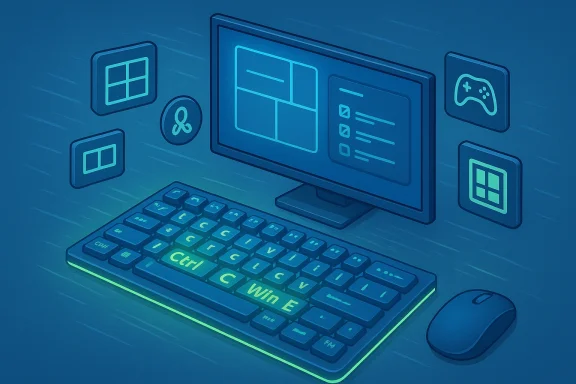 Background / Overview
Windows has shipped with keyboard shortcuts since its earliest days, but recent Windows 10 and Windows 11 releases added modern productivity primitives — Clipboard history, the Snipping Tool overlay, and Snap Layouts — that turn multi‑step mouse flows into single keystrokes. The productivity case is simple: a small cluster of keystrokes, learned and enforced for a few weeks, pays back with daily time saved and fewer context switches. ZDNet’s original roundup framed this as a practical, staged adoption plan; the same structure underpins the recommendations I’ll expand here. a number of system behaviors explicit: Clipboard history has size and item limits, Snap Layouts are a Windows 11 feature (with a keyboard trigger), and some diagnostics shortcuts (like the graphics reset) are recommended recovery actions in Microsoft troubleshooting guidance. I verified each of those claims against Microsoft documentation and community guidance so you can trust which shortcuts are safe to adopt across different Windows versions. For core product lifecycle context, Windows 10 reached end of support on October 14, 2025; plan accordingly if you’re still running legacy machines. Why these shortcuts matter (the case for keyboard fluency)
Shortcuts reduce “micro‑latency” — the seconds you lose hunting for menu items, dragging windows, or opening tools via the Start menu. They also:- Improve focus by keeping hands on the keyboard.
- Reduce repetitive mouse travel that can cause fatigue.
- Provide deterministic workflows (snap + desktop + pinned clips) that scale across sessions.
- Offer emergency recovery paths (Task Manager, GPU reset) when apps freeze.
How I grouped the shortcuts (and why)
To make retention practical, the cheat sheet below is organized by intent:- System basics and navigation
- Window management and snap layouts
- Screenshots and capture
- Clipboard history and paste control
- Virtual desktops and Task View
- Power, troubleshooting, and recovery
- Accessibility and text/emoji input
- Power‑user tools and remapping
Core shortcuts you should learn first
These are the “non‑negotiables” — universal across most Windows versions and apps.- Ctrl + C — Copy
- Ctrl + V — Paste
- Ctrl + X — Cut
- Ctrl + Z — Undo
- Ctrl + Y — Redo
- Ctrl + S — Save
- Ctrl + A — Select all
- Alt + F4 — Close active window
System navigation and quick launch (high frequency)
- Win — Open Start menu
- Win + E — Open File Explorer
- Win + I — Open Settings
- Win + R — Run dialog
- Win + S / Win + Q — Search
- Win + X — Quick Link (power user) menu
- Win + number (1–9) — Launch or switch to the pinned taskbar app at that position
- Win + T — Cycle taskbar items
- Alt + Tab — Switch between open apps
- Alt + Esc — Cycle through windows in open order
- Win + L — Lock PC
Window management and Snap Layouts (desktop control)
- Win + Left / Right / Up / Down — Snap window to half, corner, maximize, minimize
- Win + Z — Open Snap Layouts overlay (Windows 11 only). If you’re on Windows 11, Win+Z presents layout grids tailored to screen size.
- Win + Shift + Left / Right — Move the active window to another monitor
- Win + Home — Minimize all except the active window
- Win + D — Show/Hide desktop
- Alt + Space, then M — Move window (useful for off‑screen windows)
- Alt + Space, then N — Minimize via system menu
Screenshots, capture, and quick share
- PrtScn — Copy full screen to clipboard (classic behavior; hardware dependent)
- Alt + PrtScn — Copy active window to clipboard
- Win + PrtScn — Save full screen to Pictures\Screenshots (auto‑save)
- Win + Shift + S — Open Snipping Tool overlay (rectangle, freeform, window, fullscreen) and copy to clipboard; this is the recommended quick‑capture flow across modern Windows versions.
- Win + G — Open Xbox Game Bar (capture/recording overlays)
- Win + V (after enabling) — Paste from clipboard history (see next section)
Clipboard history and paste control — modern copy/paste
- Win + V — Open Clipboard history (must be enabled in Settings → System → Clipboard)
- Ctrl + Shift + V — Paste without formatting (app dependent)
- Shift + Insert — Classic paste alternative
Virtual desktcus zones
- Win + Tab — Open Task View (visual overview of desktops & windows)
- Win + Ctrl + D — Create a new virtual desktop
- Win + Ctrl + Left / Right — Switch virtual desktop
- Win + Ctrl + F4 — Close current virtual desktop
- Win + N — Open notifications/calendar flyout (Windows 11 feature)
Power, troubleshooting, and recovery shortcuts
- Ctrl + Shift + Esc — Open Task Manager (direct)
- Ctrl + Alt + Del — Security options (screen with Lock, Task Manager, Sign out)
- Win + X then U — Power menu (shutdown/restart)
- Win + Ctrl + Shift + B — Graphics driver reset / display recovery shortcut. If your display driver misbehaves (flicker, brief), pressing this key combo triggers a display pipeline refresh or driver reinitialization; it’s a recommended first step in many Microsoft troubleshooting threads.
- Win + R then type msconfig /devmgmt.msc — quick path to diagnostics (Run then Device Manager)
Accessibility, input, and emoji/dictation
- Win + U — Open Accessibility settings
- Win + . (period) or Win + ; (semicolon) — Open emoji / symbol picker
- Win + H — Start voice typing (dictation overlay)
- Shift (five times) — Toggle Sticky Keys (if enabled)
- Win + + / Win + - — Magnifier zoom in/out; Win + Esc to exit Magnifier
Terminal, command‑line, and developer helpers
- Win + R, then type wt or terminal — Open Windows Terminal quickly (depending on install)
- Ctrl + Shift + C / Ctrl + Shift + V — Copy/Paste in modern terminals when enabled in settings
- Alt + Enter — Properties (File Explorer details) or toggle full screen in some consoles
- Ctrl + Shift + N — Create a new folder (File Explorer)
Power‑user tools and remapping (when the built‑ins aren’t enough)
- Microsones: create deterministic, multi‑window zones (remaps visual Snap layouts into reproducible grids)
- PowerToys → Keyboard Manager: remap keys or create custom shortcuts (watch for conflicts)
- AutoHotkey: deep scripting and macros (extremely powerful but treat untrusted scripts as potential security risks)
Compatibility and version checks — what works on older Windows?
- Most editing and navigation shortcuts above are universal (Ctrl+C/V, Alt+F4, Win+E).
- Clipboard history (Win + V) is available in Windows 10 (1809+) and Windows 11 but must be enabled; it behaves consistently with the 25‑item / 4 MB limits across supported builds.
- Snap Layouts (Win + Z) are a Windows 11 addition and may not be present on Windows 10 or heavily customized corporate images. If you don’t see the Win+Z overlay, check OS versiotasking. ([learn.microsoft.com](Support snap layouts for desktop apps on Windows 11 - Windows apps + B works across recent Windows 10 and Windows 11 builds as a display recovery shortcut, but it is not a panacea for hardware failures.
Privacy and security considerations
- Clipboard history can sync to the cloud. If enabled, sensitive text can be exposed across devices tied to the same Microsoft account. Treat Win+V as a convenience that carries privacy trade‑offs; don’t copy secrets unless you pin and manage them carefully.
- Shift + Delete permanently deletes files (bypasses Recycle Bin). This is irreversible without data recovery tools. Use with care.
- AutoHotkey and third‑party scripts are powerful but potentially dangerous; only run scripts you or trusted colleagues have audited. Macros that launch at startupectors.
The 30‑day staged learning plan (practical habit formation)
- Week 1 — The “non‑negotiables” (practice only with keyboard):
- Ctrl+C / Ctrl+V / Ctrl+X / Ctrl+Z / Alt+F4 / Ctrl+S / Alt+Tab / Win+E / Win+L
Practice these until you feel them in your fingers. - Week 2 — Window management and layout:
- Win + Left/Right/Up/Down, Win + D, Win + Z (if on Windows 11), Win + Shift + Left/Right
- Week 3 — Capture and clipboard:
- Win + Shift + S, Win + PrtScn, Win + V (enable and pin two snippets), Shift + Delete (use carefully)
- Week 4 — Desktops and troubleshooting:
- Win + Tab, Win + Ctrl + D, Win + Ctrl + Left/Right, Ctrl + Shift + Esc, Win + Ctrl + Shift + B
Quick printable cheat sheet — 50+ shortcuts you’ll never want to live without
Core / Editing- Ctrl + C, Ctrl + V, Ctrl + X, Ctrl + Z, Ctrl + Y, Ctrl + S, Ctrl + A, Ctrl + Shift + N (new folder)
- Win, Win + E, Win + I, Win + R, Win + S, Win + X, Win + number (1–9), Win + T, Alt + Tab, Alt + Esc, Win + L
- Win + Left/Right/Up/Down, Win + Z (Win11 Snap Layouts), Win + Shift + Left/Right (move monitor), Win + Home, Win + D, Alt + Space + M/N
- PrtScn, Alt + PrtScn, Win + PrtScn, Win + Shift + S, Win + G
- Win + V (Clipboard history), Ctrl + Shift + V (paste plain text, app dependent), Shift + Insert
Power & Troubleshooting
- Ctrl + Shift + Esc, Ctrl + Alt + Del, Win + X then U, Win + Ctrl + Shift + B, Win + R → devmgmt.msc
- Win + U, Win + . / Win + ; (emoji), Win + H (dictation), Win + + / Win + -
- Win + R → wt or terminal, Ctrl + Shift + C / V (terminal copy/paste if enabled), Alt + Enter
- PowerToys FancyZones, Powe, AutoHotkey (use cautiously)
Strengths and practical verdict
Strengths- High ROI: A compact set of keystrokes addresses the most frequent fricwindow management, capture, and clipboard. Real practical guides converge on the same high‑value clusters.
- Low cost: No new hardware is needed; shortcuts are a pure time multiplier.
- Modern features are keyboard‑first: Clipboard history, Snap Layouts, and Snipping Tool are intentionally designed for quick discovery via keystrokes.
- Build and OEM variability: Some shortcuts (Win+Z for Snap Layouts, certain Copilot mappings) are Windows 11 specific or gated by OEM images; verify behavior on your machine.
- Privacy trade‑offs: Clipboard sync can expose data; configure and use Win+V thoughtfully.
- Tooling risk: Third‑party remaps and macros can create conflicts or security concerns; vet scripts and use PowerToys’ conflict detector before global remaps.
When a shortcut doesn’t work — troubleshooting checklist
- Check OS/build: Is this a Windows 11‑only feature? (e.g., Win+Z).
- Look for remapping utilities (Logitech/G Hub, Razer Synapse, PowerToys Keyboard Manager). Disable or reassign if needed.
- Inspect Fn/Lock keys on laptops — Print Screen or function keys may require Fn combos.
- For Snipping Tool/Win+Shift+S issues — restart the Snipping process or reinstall the app from the Store.
- For display hangs — try Win + Ctrl + Shift + B before resorting tos repeatedly, update or reinstall GPU drivers.
Final takeaway
Keyboard shortcuts aren’t a nostalgic badge of honor — they’re practical workflow tools. Commit to the core eight this week, add windowing keys next week, and then introduce capture and clipboard tools. Within a month you’ll have 30–50 shortcuts that feel natural and cut friction from everyday work.The technical claims you need to know are already verified: Clipboard history has a 25‑item / 4 MB per‑item limit and requires enabling; Snap Layouts are a Windows 11 feature triggered by Win+Z; and Win+Ctrl+Shift+B is the built‑in display recovery shortcut recommended in Microsoft troubleshooting threads. If a specific shortcut behaves differently on your PC, confirm your Windows build and check for vendor utilities or enterprise image customizations before assuming the OS is at fault. Adopt the staged learning plan, keep a short printed cheat sheet for two weeks, and resist the urge to memorize everything at once. The keyboard will repay that small, deliberate investment many times over.
Source: ZDNET 50+ Windows keyboard shortcuts that I can no longer work without (even on older versions)
