

ZDNet's popular roundup of Windows keyboard shortcuts is more than a checklist — it's a practical pathway to reclaiming minutes every day by turning repetitive mouse hunts into reflex keystrokes. This feature expands that roundup into a consolidation, verification, and critique tailored for every Windows user type: from casual browser-scrollers to power users running multi‑monitor developer rigs. The piece verifies the most important technical claims behind the recommendations, highlights high‑ROI shortcuts you should learn first, flags real-world caveats (hardware, privacy, build differences), and delivers a staged, hands‑on plan that turns shortcuts into durable productivity habits.
Windows has shipped with keyboard shortcuts since the 1990s, but recent Windows 10 and Windows 11 updates added keyboard‑first productivity primitives — Snap Layouts, Clipboard history, and the consolidated Snipping Tool — that dramatically increase the payback of learning a small, targeted set of keystrokes. ZDNet’s editorial approach is deliberately curated: it prioritizes shortcuts that produce repeated value for most users rather than listing every obscure hotkey. That pragmatic curation and staged learning advice are the strengths this guide builds on.
Microsoft’s support documentation remains the authoritative technical reference for exact behavior and device-specific differences; where behavior depends on Windows build (for example, Snap Layouts and Win+Z), verify on your machine before relying on a sequence in production workflows.
Caveats matter: verify build-dependent shortcuts on your machine, treat clipboard sync as an opt‑in convenience with privacy tradeoffs, and approach third‑party automation with caution. For most users, adopting 6–10 focused shortcuts over one to two weeks captures the majority of the real-world benefits with minimal cognitive overhead.
Source: ZDNET My ultimate Windows keyboard shortcuts guide to give every user type a productivity boost
 Background / Overview
Windows has shipped with keyboard shortcuts since the 1990s, but recent Windows 10 and Windows 11 updates added keyboard‑first productivity primitives — Snap Layouts, Clipboard history, and the consolidated Snipping Tool — that dramatically increase the payback of learning a small, targeted set of keystrokes. ZDNet’s editorial approach is deliberately curated: it prioritizes shortcuts that produce repeated value for most users rather than listing every obscure hotkey. That pragmatic curation and staged learning advice are the strengths this guide builds on.Microsoft’s support documentation remains the authoritative technical reference for exact behavior and device-specific differences; where behavior depends on Windows build (for example, Snap Layouts and Win+Z), verify on your machine before relying on a sequence in production workflows.
The core thesis: learn a compact “core,” then layer features
ZDNet and corroborating community guides converge on the same editorial thesis: pick a compact set of non‑negotiables and make them automatic first, then add windowing, capture, clipboard, and power-user shortcuts. The proposed learning order reflects return on investment: the first few shortcuts you adopt will produce the largest, immediate time savings.The “Core Eight” (learn these now)
- Ctrl + C — Copy
- Ctrl + V — Paste
- Ctrl + X — Cut
- Ctrl + Z — Undo
- Ctrl + Y — Redo
- Ctrl + S — Save
- Alt + F4 — Close active window
- Ctrl + A — Select all
Key categories and the highest‑value shortcuts
Below are the practical buckets every Windows user should know, with the highest‑value keystrokes for each. Short paragraphs, no fluff.System basics and navigation
- Win — Open Start
- Win + E — Open File Explorer
- Win + I — Open Settings
- Win + R — Run dialog
- Win + X — Quick Link (Power User) menu
- Alt + Tab — Switch between open applications quickly
- Win + L — Lock PC (security habit)
These are the shortcuts that reduce context-switch latency: less clicking, more doing.
Window management and Snap Layouts (Windows 11)
- Win + Left / Right / Up / Down — Snap windows to halves, corners, maximize/minimize
- Win + Z — Open Snap Layouts overlay (Windows 11)
- Win + Shift + Left / Right — Move a window to another monitor
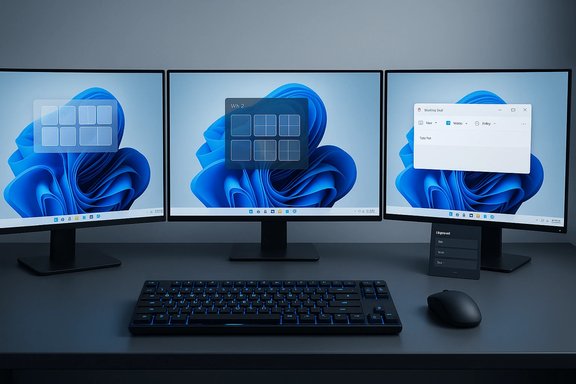
Snap Layouts are a Windows 11 addition that presents layout options adapted to screen size and orientation. For multi‑monitor and ultrawide setups, Snap Layouts produce deterministic, repeatable tiling and are a high‑ROI feature to learn. If your install doesn’t show the Win+Z overlay, verify you are on Windows 11 and check for OEM or enterprise image customizations.
Screenshots and capture
- PrtScn — Copy full-screen screenshot to clipboard
- Win + PrtScn — Save full-screen screenshot to Pictures\Screenshots
- Win + Shift + S — Open Snipping Tool overlay (rectangle, freeform, window, fullscreen)
The Snipping Tool flow is now clipboard-centered: Win+Shift+S sends captures to the clipboard and offers quick edit/annotation in the Snipping Tool. Some third‑party utilities can block the overlay — restart Explorer or disable conflicting utilities if it doesn't appear.
Clipboard history and text snippets
- Win + V — Open Clipboard history (must be enabled in Settings)
Clipboard history stores recent items and supports pinning frequent snippets. Community testing and official documentation indicate practical limits and opt‑in behavior; treat cloud sync as an opt‑in convenience only, and avoid storing secrets in synced clipboard history. Verify storage behavior on your build if Clipboard sync is critical for your workflows.
Virtual desktops and focus zones
- Win + Tab — Open Task View
- Win + Ctrl + D — Create new virtual desktop
- Win + Ctrl + Left/Right — Switch virtual desktop
- Win + Ctrl + F4 — Close current virtual desktop
Virtual desktops are excellent for context separation: dedicate a desktop for communication apps, another for deep work, and switch between them without losing app state.
Power and troubleshooting shortcuts
- Ctrl + Shift + Esc — Task Manager
- Win + X then U — Power options (shutdown, restart)
- Win + Ctrl + Shift + B — Graphics driver reset (display freeze recovery)
- Shift + Delete — Permanently delete (bypasses Recycle Bin — irreversible)
Use the last one cautiously; it is a powerful but dangerous keystroke.
Verification of the most load‑bearing claims
Several claims in broad shortcut roundups are technical and worth verifying before you depend on them in production.- Snap Layouts via Win + Z are a Windows 11 feature and will not behave the same on Windows 10. Confirmed by Microsoft’s UI behavior descriptions and community testing; if a Win+Z overlay does not appear, you are likely on an older build or have vendor customizations.
- Clipboard history is opt‑in and can sync to Microsoft’s cloud if enabled. Community guides and documentation describe a 25‑item store and per‑item size limits in common reporting; treat these numbers as subject to change across future updates and verify in Settings → System → Clipboard on your device. Flag: verify the exact limits against your Windows build if you plan to rely on them.
- The “50+” or “73” shortcut counts used in different roundups are packaging devices — editorial choices to group related shortcuts for readability. The exact number is less important than which shortcuts you actually use. ZDNet’s curation focuses on high‑utility keys rather than counting for counting’s sake.
Strengths of ZDNet’s and similar curated shortcut guides
- Pragmatic curation: Prioritizing repeated value helps users avoid learning an exhaustive but unusable list. The curated “core + windowing + capture” model produces rapid returns.
- Staged adoption path: Learning in short phases (core week, windowing week, capture week, advanced week) reduces cognitive load and increases retention. Evidence from productivity behavior research and community testing supports this approach.
- Modern feature emphasis: Calling out modern Windows 11 capabilities — Snap Layouts, Clipboard history, Snipping Tool — surfaces features many users never enable, unlocking immediate new workflow shortcuts.
Risks, caveats, and real‑world troubleshooting
Shortcuts are simple, but the environment where they run is complex. The following are common failure modes and safety notes.- Hardware and vendor variability: Laptop Fn‑lock behavior, Print Screen mapping, and OEM utilities sometimes change default behavior. If PrtScn doesn't do what you expect, check your Fn lock and manufacturer keyboard utility.
- Conflicts with overlays and third‑party apps: Game overlays, clipboard cleaners, or vendor utilities can intercept or block shortcut overlays (Snipping Tool overlay, FancyZones hooks). Disable or reconfigure these utilities if a built-in shortcut stops working. Community troubleshooting threads frequently point here.
- Macro and scripting security: AutoHotkey, macros, and programmable keyboards are powerful but introduce configuration complexity and security risk. Test scripts in a confined environment, inspect code from third parties before running, and avoid running downloaded compiled scripts you don’t trust.
- Clipboard privacy and sync: Clipboard sync may propagate snippets to the cloud. Avoid copying passwords or secrets into synced clipboard history and consider disabling cloud sync if compliance or privacy is a concern. Microsoft documents the opt‑in nature of clipboard sync; treat it as a convenience with privacy tradeoffs.
How to adopt shortcuts without overwhelm — a practical four‑week plan
Learn in small, deliberate chunks. Set a simple rule: for seven days, do the action only with the keyboard. Repeat cycles until muscle memory forms.- Week 1 — The foundation (Core Eight)
- Focus: Ctrl+C/Ctrl+V/Ctrl+Z/Ctrl+S/Alt+F4/Ctrl+A.
- Practice: Replace mouse copy/paste/save operations with keyboard-only use. Keep a sticky note cheat sheet and force yourself to use keystrokes.
- Week 2 — Windowing and workspace
- Focus: Win+Left/Right/Up/Down, Win+Z (Windows 11), Alt+Tab.
- Practice: Arrange your daily three-app workflow using only keyboard tiling. Try Win+Shift+Left/Right to move apps between monitors.
- Week 3 — Capture and clipboard
- Focus: Win+Shift+S (Snip), Win+PrtScn, Win+V (enable Clipboard history).
- Practice: Capture five screenshots and annotate them using only keystrokes; pin two frequently used snippets in Clipboard history. Verify cloud sync settings.
- Week 4 — Context separation and power tools
- Focus: Win+Tab, Win+Ctrl+D, Win+Ctrl+Left/Right, Ctrl+Shift+Esc, Win+X.
- Practice: Create a “meeting” desktop and a “deep work” desktop; move apps accordingly. Add one PowerToys FancyZones layout for a recurring workflow.
Advanced options for power users
When built‑in shortcuts are not enough, escalate deliberately.- PowerToys FancyZones: Create persistent, programmable window zones and instant layouts — ideal for multi‑monitor or developer setups. Microsoft produces PowerToys as an official tool and it’s the recommended escalation beyond Snap Layouts.
- AutoHotkey and macros: Automate repetitive multi‑step flows. Use text expansion for boilerplate responses and remap keys for missing hardware. Security and maintainability are the downsides — document scripts and test thoroughly.
- Programmable macro keyboards: Map long sequences to a single physical key for repetitive tasks (video editing, CAD workflows, complex transfers). Evaluate maintenance costs and ensure macros are discoverable by others if used in shared workstations.
A practical cheat sheet (print or pin it)
- Core: Ctrl+C, Ctrl+V, Ctrl+Z, Ctrl+S, Alt+F4, Ctrl+A.
- Windowing: Win+Left/Right/Up/Down, Win+Z (Win11), Win+Shift+Left/Right.
- Screenshots: Win+Shift+S, Win+PrtScn, PrtScn.
- Clipboard & snippets: Win+V (enable in Settings; mind sync and limits).
- Desktops: Win+Tab, Win+Ctrl+D, Win+Ctrl+Left/Right, Win+Ctrl+F4.
- Troubleshooting: Ctrl+Shift+Esc, Win+Ctrl+Shift+B, Win+X.
Quick troubleshooting checklist if a shortcut fails
- Confirm Windows build and feature availability (Win+Z only on Windows 11).
- Check Fn Lock and keyboard driver utilities.
- Disable overlays and third‑party utilities that may capture keys.
- Test in a fresh user profile or safe-mode equivalent to rule out profile-level conflicts.
- For automation scripts, isolate and test scripts step-by-step to find conflicts.
Final assessment — what to take away
Keyboard shortcuts are one of the simplest, lowest‑cost productivity multipliers you can adopt. ZDNet’s curated roundup is strong because it focuses on high‑ROI keystrokes and a staged learning path that mirrors how people adopt durable technical habits. The biggest wins come from learning a small set of universally applicable keys first, then adding Windows 11’s modern primitives: Snap Layouts (Win+Z), Clipboard history (Win+V), and the Snipping Tool (Win+Shift+S). These are practical, repeatable, and produce measurable time savings when practiced deliberately.Caveats matter: verify build-dependent shortcuts on your machine, treat clipboard sync as an opt‑in convenience with privacy tradeoffs, and approach third‑party automation with caution. For most users, adopting 6–10 focused shortcuts over one to two weeks captures the majority of the real-world benefits with minimal cognitive overhead.
Closing — make the keyboard your productivity engine
Practice deliberately, lock in the core shortcuts for one week, then add windowing and capture. Use the four‑week plan as a scaffold and escalate to PowerToys or AutoHotkey only when the built‑in keys no longer meet your workflow needs. Shortcuts shrink micro‑latency, preserve focus, and — most importantly — deliver compound time savings. The keyboard is still the fastest path to doing more with your PC; make it count.Source: ZDNET My ultimate Windows keyboard shortcuts guide to give every user type a productivity boost
