

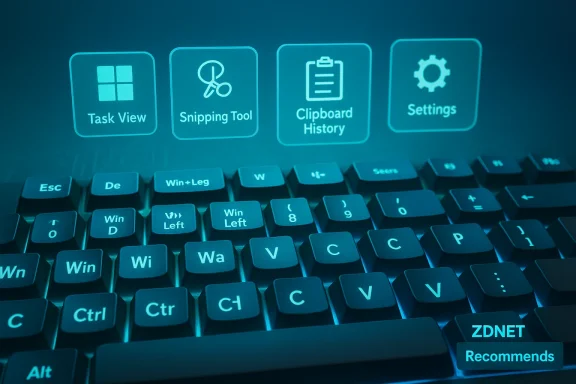
ZDNet’s recent “ultimate” Windows keyboard shortcut roundup landed as the kind of practical, no‑nonsense guide that turns curiosity into action: a compact, learn‑as‑you‑go collection of the keystrokes that cut mouse clicks, speed navigation, and unlock hidden productivity wins across modern Windows desktops. The piece is framed as a hands‑on editorial — labeled under the publication’s testing‑oriented “ZDNET Recommends” banner — and its value is straightforward: assemble high‑impact shortcuts, group them by daily use, and give readers a quick path from beginner to confident typist. mises is reliable: a single reference you can memorize or keep pinned until the combos become muscle memory. What it omits — or cannot guarantee — is universal behavior across every Windows build, keyboard layout, and managed corporate environment. In short: the shortcuts themselves are powerful and largely stable, but how they behave in your specific setup depends on Windows version, organization policies, accessory software, and whether you enable optional features like clipboard sync. This article walks through the guide’s practical recommendations, verifies the keystrokes that matter most, explains how to adopt them safely, and flags the real‑world caveats every reader must know.
hortcut support for decades, layering new system features on top of the core keystrokes that power users have relied on since the 1990s. The modern era — Windows 10 and Windows 11 — brought new combos tied to multitasking (virtual desktops, Snap layouts), capture utilities (Snipping Tool), and cloud‑aware features (clipboard history and sync). Those additions changed the ROI of learning keyboard shortcuts: a handful of keystrokes now produce outsized time savings across document editing, window management, and content capture. The official Microsoft keyboard reference documents these default shortcuts for both Windows 10 and Windows 11 and remains the canonical source for windowing, taskbar, and text‑editing keystrokes.
Industry roundups — like the one ZDNet published — curate the highest‑value shortcuts from Microsoft’s long lists and present them in groups readers can learn incrementally. Independent outlets such as Windows Central and How‑To‑Geek produce similar catalogues; cross‑checking those lists lets us confirm which combinations are system features and which are app‑specific or optional. This cross‑reference is critical because some keystrokes are gated behind settings (clipboard history), are version‑dependent (certain Copilot integrations), or can be disabled by policy in managed environments.
Below are the high‑impact shortcuts most readers should learn first — each verified against Microsoft’s documentation and leading Windows help sites.
But the guide is not a one‑size‑fits‑all magic wand. The main threats to a smooth transition are:
Conclusion: ZDNet’s “ultimate” Windows keyboard shortcut guide is an effective, editor‑tested starting point that pairs well with Microsoft’s official documentation and community cheat sheets. Use it to identify the handful of shortcuts that fit your workflow, verify those commands on your machines, and adopt them incrementally — and you’ll reclaim real minutes every day without sacrificing security or manageability.
Source: ZDNet I made the ultimate Windows keyboard shortcut guide (and they'll work for anyone)
 Background
hortcut support for decades, layering new system features on top of the core keystrokes that power users have relied on since the 1990s. The modern era — Windows 10 and Windows 11 — brought new combos tied to multitasking (virtual desktops, Snap layouts), capture utilities (Snipping Tool), and cloud‑aware features (clipboard history and sync). Those additions changed the ROI of learning keyboard shortcuts: a handful of keystrokes now produce outsized time savings across document editing, window management, and content capture. The official Microsoft keyboard reference documents these default shortcuts for both Windows 10 and Windows 11 and remains the canonical source for windowing, taskbar, and text‑editing keystrokes.Industry roundups — like the one ZDNet published — curate the highest‑value shortcuts from Microsoft’s long lists and present them in groups readers can learn incrementally. Independent outlets such as Windows Central and How‑To‑Geek produce similar catalogues; cross‑checking those lists lets us confirm which combinations are system features and which are app‑specific or optional. This cross‑reference is critical because some keystrokes are gated behind settings (clipboard history), are version‑dependent (certain Copilot integrations), or can be disabled by policy in managed environments.
What the guide covers — and the shortcuts you’ll actually use
ZDNet’s guide focuses on practical, repeatable wins: navigation, window and workspace control, screenshots, clipboard management, and accessibility helpers. Across multiple summaries and community reactions the roundup is described as a 40–50+ shortcut cheat sheet; the exact headline number varies across rewrites and reposts, so treat that count as descriptive rather than definitive.Below are the high‑impact shortcuts most readers should learn first — each verified against Microsoft’s documentation and leading Windows help sites.
- Window and workspace management
- Windows key + Left/Right Arrow — snap an active window to the left or right half of the screen.
- Windows key + Up/Down Arrow — maximize or restore/minimize a window.
- Windows key + Tab — open Task View (virtual desktop overview).
- Windows key + Ctrl + D / Windows key + Ctrl + Left/Right — create and switch virtual desktops.
- Screenshots & capture
- Windows key + Shift + S — open the Snipping Tool / Screen snip overlay to capture a region. This is the fastest way to capture part of your screen and is documented by Microsoft.
- Print Screen / Windows key + PrtScn — classic screen capture options; Win + PrtScn saves a full screenshot to the Screenshots folder (behavior listed in major cheat sheets).
- Clipboard and text productivity
- Ctrl + C / Ctrl + V / Ctrl + X — copy, paste, cut (ubiquitous across apps).
- Windows key + V — open Clipboard history; you can turn it on the first time you press Win+V and optionally sync content across devices. Microsoft documents the toggle and limits (25 stored items, 4 MB per item). This feature improves copy/paste workflows but introduces a data‑persistence vector that requires conscious management.
- Search, settings, and system shortcuts
- Windows key + I — open Settings.
- Windows key + D — show/hide desktop.
- Windows key + C — by default opens Microsoft Copilot (on supported builds). This shortcut’s behavior is customizable in Settings.
Why these shortcuts matter (the productivity math)
Shortcuts are micro‑optimizations with macro effects. A single keystroke that avoids a three‑click menu — repeated dozecompounds into real time saved. Examples:- Snap Layouts and the window arrow keys let you reorganize workspace in a second rather than dragging and resizing manually.
- Win+Shift+S creates an immediate, editable screenshot and drops it on the clipboard for a paste workflow — n app, saving, and attaching.
- Win+V permanently removes the “I pasted that from somewhere” friction by letting you access recent items without hunting through windows.
Strengths of the ZDNet approach
- Practical curation: The article distills Microsoft’s sprawling lists into a compact practice plan that suits real users rather than keyboard theory nerds. That curation is consistent with other trade guides and with the productivity heuristics endorsed by Windows Central and How‑To‑Geek.
- Editorial testing and transparency: ZDNet’s “ZDNET Recommends” label indicates editorial testing and an affiliate‑disclosure policy; readers should understand this label means the recommendations are tested by editors, not paid endorsements. The disclosure language explains how the recommendations were derived and that affiliate links support the website’s work without altering coverage. This is useful context for readers evaluating trust.
- Learning pathway: Good lists group shortcuts into beginner, intermediate, and power user tiers. The best guides push readers e keystrokes and then layer specialty commands, which is precisely the habit‑formation model ZDNet and other outlets suggest.
Risks, limitations, and real‑world caveats
No guide — however careful — can remove the contextual friction that changes how shortcuts behave for individual users. Below are the main risks you must consider before mass‑adopting any global cheat sheet.- Version differences and feature gating. Some shortcuts only exist on modern Windows builds or were enhanced in later updates (Copilot integration for Win+C is an example). Always verify a given keystroke on your OS build. Microsoft’s keyboard shortcuts page is the authoritative reference for current default behavior.
- Enterprise and policy‑level disabling. Administrators can disable Windows key hotkeys centrally using Group Policy or MDM (the ADMX setting commonly labeled “Turn off Windows Key hotkeys” / NoWindowsHotKeys). If you use a managed PC, the shortcuts ZDNet recommends may be partially or wholly disabled. This explains many reports of shortcuts “not working” in enterprise fleets. Confirm policy configuration before assuming a system bug.
- Keyboard hardware and layout variance. Compact keyboards, laptops with function‑lock layers, and international layouts sometimes omit keys (Print Screen, dedicated Windows key, or a differently positioned AltGr) or change behavior. The result: some combos are hardware‑dependent or require physical key presses (Fn + key) beyond the simple notation in cheat sheets. ZDNet’s guide is broadly applicable but cannot rewrite hardware. Test shortcuts on the machines you actually use.
- Privacy surface: clipboard history and cloud sync. The built‑in clipboard history (Win+V) can persist items locally and — if enabled — sync them to Microsoft cloud services. That convenience carries privacy and security tradeoffs: sensitive strings (passwords, tokens, PII) copied into the clipboard can be pinned or uploaded if sync is active. Microsoft documents the sync toggle and limits; treat clipboard history as a productivity tool that should be configured consciously.
- Conflicts with third‑party apps and remappers. Tools that intercept keyboard input — gaming overlays, custom remap utilities, or PowerToys Keyboard Manager — can change the effective mapping of hotkeys. If you use remapping software, either document your custom mappings or keep a canonical reference so your muscle memory doesn’t conflict with the system state. PowerToys is an excellent way to remap keys, but it runs in user space and requires being active at startup.
- Feature regressions and update‑related bugs. The Windows ecosystem is large and sometimes an update can temporarily break specific keystrokes or behavior (community reports of clipboard or taskbar shortcut regressions are not uncommon). When a shortcut fails, check for pending patches and searre concluding the shortcut is deprecated.
How to adopt the guide without breaking things
If you want to take ZDNet’s cheat sheet from “useful article” to “workflow habit,” follow this staged approach.1. Start with the five‑minute set
- Memorize these 6 keystrokes: Win+D, Win+Left/Right, Alt+Tab, Ctrl+C/Ctrl+V, Win+Shift+S, Win+V.
- Practice them for one week in your normal tasks (file handling, browser tab juggling, screenshots). These are the shortest path to measurable time savings. Microsoft and multiple outlets list these as core shortcuts.
2. Verify system settings
- Press Win+V and confirm clipboard history is enabled (you’ll be prompted the first time). If your organization removed the setting or a GPO blocks it, consult IT. Microsoft documents the Win+V flow and sync options.
- Confirm your Windows build supports the Copilot behavior for Win+C if you intend to use it; the shortcut is customizable in Settings.
3. Harden privacy
- Disable clipboard sync if you’re handling sensitive information or set a policy with your IT team for how clipboard sync is used.
- Clear or avoid pinning items that contain credentials; treat clipboard history as ephemeral and secure sensitive content through a password manager instead.
4. Use remapping tools cautiously
- If you need to remap or customize shortcuts, use Microsord Manager** or AutoHotkey. PowerToys provides a GUI, runs at startup, and documents remapping limitations; AutoHotkey provides more power but requires scripting discipline and understanding of scope. Both approaches change the effective shortcut set and should be documented for continuity.
5. Maintain a personal cheat sheet
- Keep a simple reference file or a pinned note with the shortcuts you actually use. The adoption wall collapses when you can glance and execute; ZDNet’s guide is a great starter but your customized cheat sheet is the one you’ll actually internalize.
Technical verification roundup — what I checked and why it matters
When I cross‑checked the guide’s key claims I focused on five load‑bearing facts users rely on:- Win+Shift+S launches the Snipping Tool overlay — verified against Microsoft’s capture guidance. If your Snip shortcut doesn’t fire, check for keyboard lock, background snipping processes, or a disabled Windows hotkey policy.
- Win+V opens Clipboard history and will prompt you to “Turn on” the feature when first used — verified on Microsoft’s clipboard documentation, including the 25‑item limit and 4 MB per item size cap. These specifics matter for users who paste large images and expect full history retention.
- Windows key + Left/Right/Up/Down behavior and Task View / Virtual Desktops are default OS behaviors — confirmed on Microsoft’s keyboard shortcuts page and duplicated in Windows Central lists. These are among the most stable, cross‑release keystrokes.
- The Copilot binding for Win+C is adjustable and depends on Copilot availability — Microsoft documents both the default behavior and how to customize the key. If Copilot isn’t available, Win+C falls back to search. This is why readers shouldn’t expect identical behavior across every machine.
- Administrators can disable Windows key hotkeys through policy (NoWindowsHotKeys / Turn off Windows Key hotkeys) — validated in Microsoft’s ADMX/Policy documentation and multiple IT how‑tos. This explains a large share of “shortcuts not working” reports in enterprise environments.
Practical cheat sheet (starter pack you can memorize today)
- Ctrl + C / Ctrl + V / Ctrl + X — copy / paste / cut. (Universal)
- Alt + Tab — switch between open windows. (Universal)
- Windows + D — show/hide desktop. (Universal)
- Windows + Left / Right — snap window left/right. (High ROI)
- Windows + Shift + S — snip region (Snipping Tool). (Capture)
- Windows + V — clipboard history (enable with first use). (Productivity + privacy)
- Windows + Tab — Task View / virtual desktops. (Workflow)
- Windows + I — open Settings. (Quick access)
Final analysis: who benefits, and how to avoid the pitfalls
ZDNet’s keyboard shortcut guide succeeds because it solves a common problem with a practical playbook: it tells readers what to learn, when to learn it, and how to put a few keystrokes to immediate use. For everyday office workers, developers, content creators, and IT pros, the ROI is high: a single habit change multiplies across thousands of routine tasks.But the guide is not a one‑size‑fits‑all magic wand. The main threats to a smooth transition are:
- Organizational policy and device management that block hotkeys.
- Hardware and locale differences that change key mapping.
- Third‑party remapping or overlay software that intercepts shortcuts.
- Privacy decisions (clipboard sync) that require deliberate configuration.
Closing recommendations — a short action plan
- Memorize the six high‑impact keys in the Starter Pack and use them for one week.
- Press Win+V and Win+Shift+S to validate feature availability and privacy settings; disable clipboard sync if needed.
- If a shortcut doesn’t work, check for Group Policy “Turn off Windows Key hotkeys” or a PowerToys/third‑party remap.
- Create a single personal cheat sheet with the shortcuts you actually use — pin it to your desktop or note app.
- Revisit the canonical Microsoft keyboard shortcut page when moving between machines or Windows builds.
Conclusion: ZDNet’s “ultimate” Windows keyboard shortcut guide is an effective, editor‑tested starting point that pairs well with Microsoft’s official documentation and community cheat sheets. Use it to identify the handful of shortcuts that fit your workflow, verify those commands on your machines, and adopt them incrementally — and you’ll reclaim real minutes every day without sacrificing security or manageability.
Source: ZDNet I made the ultimate Windows keyboard shortcut guide (and they'll work for anyone)
