

On June 9, 2026, Redmondmag columnist Brien Posey described a recurring Microsoft 365 Apps update prompt that gives Office users roughly 30 minutes before Word, Excel, Outlook, and other Office apps are closed, updated, and reopened unless the user postpones the process. His complaint is not that Microsoft updates Office too often. It is that the update mechanism can turn a routine patching workflow into a surprise productivity hazard. The uncomfortable lesson is that Microsoft 365’s update model is now secure enough to be forceful, but not always humane enough to be trusted with a half-finished spreadsheet.
The modern Microsoft 365 Apps update process is designed around a sensible premise: Office cannot fully update while its applications are still running. That premise has been true for years, and it is not particularly controversial. If Word or Excel is holding files, add-ins, and application state in memory, the update engine eventually needs those processes to close.
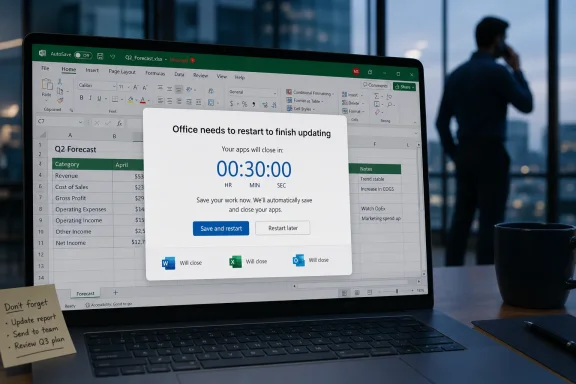
The trouble begins when a technical requirement becomes a workplace interruption. Posey describes the now-familiar sequence: a large Microsoft 365 notification appears, warning that Office needs to restart to finish updating. The user can update immediately or postpone, often for a couple of hours, but the postponement well eventually runs dry.
At that point, the prompt stops behaving like a request and starts behaving like an ultimatum. Save your work, close your apps, or Microsoft 365 will do it for you. In Posey’s case, the problem was not theoretical; twice in a month, he says, Excel data was lost after an unwanted Office update closed applications while recent spreadsheet changes had not been saved.
That is the story’s sharp edge. Microsoft is not merely shipping patches in the background. It is asserting control over foreground applications that people are actively using, and sometimes it is doing so when the user has stepped away just long enough to miss the warning.
The company’s documentation has long made clear that Microsoft 365 Apps updates are normally installed silently in the background, but that users may see notifications when updates cannot be applied because Office apps remain open for days. In managed environments, administrators can also configure deadlines, after which Office applications may be closed so updates can be installed. That is the compliance logic: downloaded updates do not protect anyone until they are actually applied.
This is where the administrator’s view and the user’s view diverge. To a security team, a deadline is a necessary backstop against permanent deferral. To the person living inside Excel, it can feel like a random application crash with better branding.
Microsoft has spent the Windows 10 and Windows 11 eras trying to make updates less chaotic than the bad old days of surprise reboots. Active hours, restart notifications, update deadlines, and management controls all exist because users rebelled against machines that treated their work as disposable. Office now has its own version of that tension, only the blast radius is narrower and more intimate: not the whole PC, but the open document.
AutoSave and AutoRecover are supposed to soften the risk. But anyone who has worked with local files, cloud sync delays, network shares, add-ins, protected workbooks, large models, or inherited spreadsheet habits knows that “supposed to” is doing a lot of work. AutoSave is not a universal guarantee, and AutoRecover is not the same as preserving every intended change.
Posey’s frustration lands because it violates a basic user expectation: an application should not close itself in a way that loses active work. If a user clicks “Don’t Save,” that is on the user. If a power outage hits an unsaved workbook, that is bad luck. But when a vendor-controlled update agent closes the app after a countdown the user never saw, the trust calculation changes.
Microsoft would fairly respond that the prompts exist precisely to give users time to save. But prompts are only useful when seen, understood, and acted upon. A warning that appears while someone is away from the desk is operationally similar to no warning at all.
That does not mean home users should ignore updates. Quite the opposite: home PCs often lack the layered defenses, monitoring, and policy enforcement that enterprise devices enjoy. A fully patched Office installation may be even more important when the user is their own IT department.
But the home office also changes the rhythm of work. People step away to answer the door, take a call, get lunch, check on a child, or walk the dog. They may not lock the computer every time, because the threat model inside a private home is different from the threat model on a shared corporate floor.
Microsoft’s update UX seems to assume that the user is present, attentive, and ready to make an update decision within the timer window. That assumption is fragile. A prompt that is reasonable in a managed office can be reckless in a home office if it closes unsaved local work before the user returns.
But manual updates are a trade, not a cure. The user gains control over timing and loses the safety of automatic maintenance. That might be acceptable for a disciplined power user who sets a calendar reminder, checks for updates regularly, and understands the security stakes. It is a terrible default for the average user who will disable updates in anger and forget about them for six months.
The risk is especially acute because Microsoft 365 Apps are updated not only for features but also for security fixes and reliability improvements. Falling behind may not hurt immediately. That is what makes it dangerous: the cost of missed updates is usually invisible until a malicious document, broken add-in, compliance audit, or compatibility issue makes it visible all at once.
For administrators, the “just disable updates” answer is even less satisfying. In many managed environments, users may not have that option at all, because policy hides or controls update settings. That is by design. A company cannot reasonably run endpoint security on the honor system.
Those controls matter, but they do not erase the core UX problem. The person staring at the countdown is not thinking about channel cadence or compliance baselines. They are thinking, “Why is Excel threatening me?”
This is a classic Microsoft problem: the management plane is sophisticated, while the human-facing surface can still feel blunt. The company often builds powerful administrative machinery first, then asks users to live with whatever compromise falls out of that machinery. That approach works tolerably well when the endpoint is a locked-down kiosk. It works less well when the endpoint is a knowledge worker’s open workbook.
There is also ambiguity in the update experience itself. Some users see prompts because updates have been pending for days. Some see them because an administrator configured a deadline. Some may be on devices where update policy is mediated by Configuration Manager or cloud management. To the user, all of those cases collapse into one experience: Office wants to close.
The better question is how forced updates should behave when they collide with unsaved work. In 2026, a productivity suite with deep cloud integration should be able to do more than warn and close. It should be able to make a stronger guarantee about state preservation, or at least distinguish between low-risk and high-risk closures.
Microsoft has already explored less disruptive update approaches, including updating under lock in scenarios where apps can be closed and restored while the device is locked. That idea points in the right direction: patch when the user is least likely to care, preserve application state where possible, and reduce the need for abrupt prompts. But “less disruptive” is not the same as “safe enough.”
A modern Office update experience should treat unsaved local data as a first-class blocker. If Excel contains unsaved changes, the update engine should be extremely reluctant to close it without a recoverable snapshot. If Outlook is idle and Word has no unsaved documents, the calculus is different. The software knows more about application state than the current prompt suggests.
That is not merely nostalgia for boxed Office DVDs. The old model had its own mess: unpatched installations, inconsistent versions, broken compatibility, and users who never installed service packs. The subscription model solved real problems by making Office a continuously serviced platform.
But continuous servicing changes the implicit contract. If Microsoft is going to update the applications continuously, then Microsoft also has to own the continuity of the user’s work. “We warned you” is not enough when the software has the technical means to understand whether unsaved data exists.
This is where users become less forgiving than IT departments. Administrators can tolerate a certain amount of disruption in exchange for security posture. Individual users remember the one lost spreadsheet. Trust is not averaged across the fleet; it is experienced at the desk.
Organizations should examine how deadlines are configured and whether they align with actual work patterns. A deadline that lands in the middle of business hours may be technically compliant and culturally self-defeating. A prompt that allows postponement but eventually forces closure may be acceptable, but users need to know what is happening before the first countdown appears.
There is also a supportability angle. If users believe Office randomly closes and loses work, they will develop countermeasures. Some will disable updates if allowed. Some will leave fewer apps open, which may be healthy. Others will distrust AutoSave, create duplicate files, or avoid cloud-backed workflows. Bad update experiences create folk remedies, and folk remedies become shadow IT.
The smarter play is to make Office updates visible on the organization’s terms. Tell users what to expect. Encourage regular restarts of Office apps. Configure update windows and deadlines thoughtfully. Most importantly, make clear that saving work remains necessary even in a cloud-first suite.
That does not absolve Microsoft. Software should be designed around how people actually behave, not how manuals say they should behave. People leave spreadsheets open. People step away. People assume that a modern productivity suite backed by OneDrive, SharePoint, and Microsoft 365 intelligence will protect them from ordinary interruptions.
The healthiest posture is mutual realism. Users should save deliberately, especially before stepping away from active Office sessions. Microsoft should make forced closures safer, clearer, and more deferential to unsaved work. Administrators should avoid update policies that turn normal business hours into patching roulette.
The current system too often relies on a brittle chain of assumptions. The user sees the prompt. The user understands the deadline. The user saves everything. AutoSave behaves as expected. The update closes and reopens applications cleanly. Break any link, and the update process becomes the villain.
A better compromise for many users is behavioral: close Office apps at the end of the day, save aggressively, and restart the machine or Office suite often enough that updates can apply without building pressure behind a deadline. That sounds like advice from 1998, but it remains effective because modern software still has old-fashioned process locks underneath.
For organizations, the boring work is policy review. Look at Microsoft 365 Apps update channels, deadlines, user notification settings, and management tooling. Ask whether your update configuration reflects how people actually work, not just how quickly a compliance dashboard turns green.
The fix is not to fear updates. The fix is to stop pretending that application restarts are invisible.
Microsoft has spent years convincing customers that Microsoft 365 is not a bundle of desktop apps but a continuously managed productivity platform. That promise cuts both ways. If the platform is going to reach into a running Excel session to finish servicing itself, it must be judged not only by whether the patch installed, but by whether the person using the spreadsheet can trust what happens next.
 Microsoft’s Office Update Machine Has Become a Workplace Actor
The modern Microsoft 365 Apps update process is designed around a sensible premise: Office cannot fully update while its applications are still running. That premise has been true for years, and it is not particularly controversial. If Word or Excel is holding files, add-ins, and application state in memory, the update engine eventually needs those processes to close.The trouble begins when a technical requirement becomes a workplace interruption. Posey describes the now-familiar sequence: a large Microsoft 365 notification appears, warning that Office needs to restart to finish updating. The user can update immediately or postpone, often for a couple of hours, but the postponement well eventually runs dry.
At that point, the prompt stops behaving like a request and starts behaving like an ultimatum. Save your work, close your apps, or Microsoft 365 will do it for you. In Posey’s case, the problem was not theoretical; twice in a month, he says, Excel data was lost after an unwanted Office update closed applications while recent spreadsheet changes had not been saved.
That is the story’s sharp edge. Microsoft is not merely shipping patches in the background. It is asserting control over foreground applications that people are actively using, and sometimes it is doing so when the user has stepped away just long enough to miss the warning.
The Security Argument Is Real, but It Does Not End the Debate
Microsoft has a strong case for aggressive patching. Office remains one of the most valuable targets in enterprise computing because it sits at the intersection of documents, identity, email, macros, collaboration, and sensitive business data. A stale Office installation is not just a feature laggard; it can be a security liability.The company’s documentation has long made clear that Microsoft 365 Apps updates are normally installed silently in the background, but that users may see notifications when updates cannot be applied because Office apps remain open for days. In managed environments, administrators can also configure deadlines, after which Office applications may be closed so updates can be installed. That is the compliance logic: downloaded updates do not protect anyone until they are actually applied.
This is where the administrator’s view and the user’s view diverge. To a security team, a deadline is a necessary backstop against permanent deferral. To the person living inside Excel, it can feel like a random application crash with better branding.
Microsoft has spent the Windows 10 and Windows 11 eras trying to make updates less chaotic than the bad old days of surprise reboots. Active hours, restart notifications, update deadlines, and management controls all exist because users rebelled against machines that treated their work as disposable. Office now has its own version of that tension, only the blast radius is narrower and more intimate: not the whole PC, but the open document.
The Spreadsheet Is Where Theory Meets Pain
Excel is the perfect application to expose the weakness in this model. A spreadsheet can be both a casual scratchpad and the financial nervous system of a business. Users often leave workbooks open for hours or days because the workbook is the work environment, not just a file.AutoSave and AutoRecover are supposed to soften the risk. But anyone who has worked with local files, cloud sync delays, network shares, add-ins, protected workbooks, large models, or inherited spreadsheet habits knows that “supposed to” is doing a lot of work. AutoSave is not a universal guarantee, and AutoRecover is not the same as preserving every intended change.
Posey’s frustration lands because it violates a basic user expectation: an application should not close itself in a way that loses active work. If a user clicks “Don’t Save,” that is on the user. If a power outage hits an unsaved workbook, that is bad luck. But when a vendor-controlled update agent closes the app after a countdown the user never saw, the trust calculation changes.
Microsoft would fairly respond that the prompts exist precisely to give users time to save. But prompts are only useful when seen, understood, and acted upon. A warning that appears while someone is away from the desk is operationally similar to no warning at all.
The Home Office Makes Enterprise Assumptions Look Strange
Posey’s scenario also highlights a shift Microsoft has never fully digested: many Microsoft 365 users now work in hybrid, home, or single-user settings that do not map cleanly onto enterprise assumptions. In a corporate office, a locked workstation, centrally managed update windows, and help desk messaging can make forced app closure feel like part of a larger IT regime. At home, it feels like your software made a unilateral decision.That does not mean home users should ignore updates. Quite the opposite: home PCs often lack the layered defenses, monitoring, and policy enforcement that enterprise devices enjoy. A fully patched Office installation may be even more important when the user is their own IT department.
But the home office also changes the rhythm of work. People step away to answer the door, take a call, get lunch, check on a child, or walk the dog. They may not lock the computer every time, because the threat model inside a private home is different from the threat model on a shared corporate floor.
Microsoft’s update UX seems to assume that the user is present, attentive, and ready to make an update decision within the timer window. That assumption is fragile. A prompt that is reasonable in a managed office can be reckless in a home office if it closes unsaved local work before the user returns.
Manual Updates Are a Workaround, Not a Strategy
Posey’s practical recommendation is simple: disable automatic Office updates and update manually from File, Account, Update Options, Update Now. Microsoft’s own support materials describe the same surface area for updating Office on Windows, and in unmanaged consumer or small-business installs the option to disable updates may be available from that menu. It is a tempting fix because it restores agency.But manual updates are a trade, not a cure. The user gains control over timing and loses the safety of automatic maintenance. That might be acceptable for a disciplined power user who sets a calendar reminder, checks for updates regularly, and understands the security stakes. It is a terrible default for the average user who will disable updates in anger and forget about them for six months.
The risk is especially acute because Microsoft 365 Apps are updated not only for features but also for security fixes and reliability improvements. Falling behind may not hurt immediately. That is what makes it dangerous: the cost of missed updates is usually invisible until a malicious document, broken add-in, compliance audit, or compatibility issue makes it visible all at once.
For administrators, the “just disable updates” answer is even less satisfying. In many managed environments, users may not have that option at all, because policy hides or controls update settings. That is by design. A company cannot reasonably run endpoint security on the honor system.
Microsoft Gives Admins Knobs, but Users Feel the Timer
Enterprise IT does have more control than the average user sees. Microsoft 365 Apps can be managed through update channels, Group Policy, the Office Deployment Tool, Configuration Manager, Intune, and cloud update mechanisms. Administrators can influence when updates are offered, how deadlines work, and whether users see certain notifications.Those controls matter, but they do not erase the core UX problem. The person staring at the countdown is not thinking about channel cadence or compliance baselines. They are thinking, “Why is Excel threatening me?”
This is a classic Microsoft problem: the management plane is sophisticated, while the human-facing surface can still feel blunt. The company often builds powerful administrative machinery first, then asks users to live with whatever compromise falls out of that machinery. That approach works tolerably well when the endpoint is a locked-down kiosk. It works less well when the endpoint is a knowledge worker’s open workbook.
There is also ambiguity in the update experience itself. Some users see prompts because updates have been pending for days. Some see them because an administrator configured a deadline. Some may be on devices where update policy is mediated by Configuration Manager or cloud management. To the user, all of those cases collapse into one experience: Office wants to close.
The Better Design Is Not “Never Force Updates”
It would be easy to frame this as Microsoft arrogance: Redmond knows best, users be damned. That is too simple. A world in which Office updates can be postponed forever is not a serious option for businesses, schools, governments, or anyone handling sensitive documents.The better question is how forced updates should behave when they collide with unsaved work. In 2026, a productivity suite with deep cloud integration should be able to do more than warn and close. It should be able to make a stronger guarantee about state preservation, or at least distinguish between low-risk and high-risk closures.
Microsoft has already explored less disruptive update approaches, including updating under lock in scenarios where apps can be closed and restored while the device is locked. That idea points in the right direction: patch when the user is least likely to care, preserve application state where possible, and reduce the need for abrupt prompts. But “less disruptive” is not the same as “safe enough.”
A modern Office update experience should treat unsaved local data as a first-class blocker. If Excel contains unsaved changes, the update engine should be extremely reluctant to close it without a recoverable snapshot. If Outlook is idle and Word has no unsaved documents, the calculus is different. The software knows more about application state than the current prompt suggests.
The Countdown Is a Symptom of a Deeper Trust Problem
The most damaging part of this story is not the 30-minute timer. It is the feeling that Microsoft 365 is gradually shifting from software the user operates to software the user negotiates with. The subscription model, cloud identity, policy-driven defaults, connected experiences, and automatic updates all make Microsoft 365 more maintainable. They also make it feel less owned.That is not merely nostalgia for boxed Office DVDs. The old model had its own mess: unpatched installations, inconsistent versions, broken compatibility, and users who never installed service packs. The subscription model solved real problems by making Office a continuously serviced platform.
But continuous servicing changes the implicit contract. If Microsoft is going to update the applications continuously, then Microsoft also has to own the continuity of the user’s work. “We warned you” is not enough when the software has the technical means to understand whether unsaved data exists.
This is where users become less forgiving than IT departments. Administrators can tolerate a certain amount of disruption in exchange for security posture. Individual users remember the one lost spreadsheet. Trust is not averaged across the fleet; it is experienced at the desk.
IT Departments Should Treat Office Restarts as Change Events
For sysadmins, Posey’s anecdote is a reminder that Microsoft 365 Apps updates should not be treated as invisible maintenance. If users are seeing forced closure prompts, that is a communications and policy issue, not just a patching issue. The fact that the update is “only Office” does not mean it is operationally minor.Organizations should examine how deadlines are configured and whether they align with actual work patterns. A deadline that lands in the middle of business hours may be technically compliant and culturally self-defeating. A prompt that allows postponement but eventually forces closure may be acceptable, but users need to know what is happening before the first countdown appears.
There is also a supportability angle. If users believe Office randomly closes and loses work, they will develop countermeasures. Some will disable updates if allowed. Some will leave fewer apps open, which may be healthy. Others will distrust AutoSave, create duplicate files, or avoid cloud-backed workflows. Bad update experiences create folk remedies, and folk remedies become shadow IT.
The smarter play is to make Office updates visible on the organization’s terms. Tell users what to expect. Encourage regular restarts of Office apps. Configure update windows and deadlines thoughtfully. Most importantly, make clear that saving work remains necessary even in a cloud-first suite.
Users Need Better Habits, but Microsoft Needs Better Guardrails
There is an uncomfortable user-side lesson here too: unsaved work is still unsaved work. AutoSave is helpful, not magical. AutoRecover is insurance, not a workflow. If the only copy of important data exists in the volatile state of an open Excel window, the user is already balancing on a railing.That does not absolve Microsoft. Software should be designed around how people actually behave, not how manuals say they should behave. People leave spreadsheets open. People step away. People assume that a modern productivity suite backed by OneDrive, SharePoint, and Microsoft 365 intelligence will protect them from ordinary interruptions.
The healthiest posture is mutual realism. Users should save deliberately, especially before stepping away from active Office sessions. Microsoft should make forced closures safer, clearer, and more deferential to unsaved work. Administrators should avoid update policies that turn normal business hours into patching roulette.
The current system too often relies on a brittle chain of assumptions. The user sees the prompt. The user understands the deadline. The user saves everything. AutoSave behaves as expected. The update closes and reopens applications cleanly. Break any link, and the update process becomes the villain.
The Practical Fix Is Boring, Which Is Why It Matters
For individual users, the immediate answer is not glamorous. If Microsoft 365 update prompts have become disruptive, check the Office account update settings and decide whether automatic updates are still the right fit. If disabling updates is available and you choose that route, pair it with a recurring manual update habit rather than treating it as a permanent escape hatch.A better compromise for many users is behavioral: close Office apps at the end of the day, save aggressively, and restart the machine or Office suite often enough that updates can apply without building pressure behind a deadline. That sounds like advice from 1998, but it remains effective because modern software still has old-fashioned process locks underneath.
For organizations, the boring work is policy review. Look at Microsoft 365 Apps update channels, deadlines, user notification settings, and management tooling. Ask whether your update configuration reflects how people actually work, not just how quickly a compliance dashboard turns green.
The fix is not to fear updates. The fix is to stop pretending that application restarts are invisible.
The Spreadsheet That Should Change the Policy Meeting
The concrete lessons from Posey’s experience are small enough to fit on a sticky note, which is exactly why they are easy to ignore. Microsoft 365 Apps updating is not a background abstraction when Office apps must close. It is a user-facing event with consequences.- Microsoft 365 Apps updates often need Office applications to close before installation can complete.
- Users may receive countdown prompts when updates have been pending or when update deadlines are enforced.
- Postponement is temporary, and the final prompt may leave no practical option except saving work before Office closes.
- Disabling automatic Office updates can reduce surprise restarts, but it also shifts security maintenance onto the user.
- Excel users should not assume AutoSave or AutoRecover will preserve every unsaved local change in every scenario.
- Administrators should treat Microsoft 365 Apps restart behavior as part of endpoint change management, not as a harmless background task.
Microsoft has spent years convincing customers that Microsoft 365 is not a bundle of desktop apps but a continuously managed productivity platform. That promise cuts both ways. If the platform is going to reach into a running Excel session to finish servicing itself, it must be judged not only by whether the patch installed, but by whether the person using the spreadsheet can trust what happens next.
References
- Primary source: redmondmag.com
Published: 2026-06-09T22:12:17.688789
Coping With the Microsoft 365 Update Process -- Redmondmag.com
Forced Microsoft 365 restarts can keep Office apps current, but they can also disrupt work and put unsaved data at risk.redmondmag.com - Official source: learn.microsoft.com
End-user update notifications for Microsoft 365 Apps - Microsoft 365 Apps | Microsoft Learn
You probably don't want users in your organization to notice when security and other updates are applied to Microsoft 365 Apps on their computers. In most cases, they don't notice as updates are installed automatically in the background. There are times when users see notifications that...learn.microsoft.com - Official source: support.microsoft.com
Update Microsoft 365 on your work or school macOS or iOS device - Microsoft Support
 support.microsoft.com
- Official source: techcommunity.microsoft.com
Update under lock: Improved update experience for Microsoft 365 Apps | Microsoft Community Hub
Swift and silent updates for your Microsoft 365 Apps to help you reach compliance faster! techcommunity.microsoft.com
- Related coverage: tomshardware.com
Microsoft Store change removes the ability to stop App updates — pausing automatic updates now limited to a 5-week duration | Tom's Hardware
You get updates, you get updates, everybody gets updates!www.tomshardware.com - Related coverage: hungerford.tech
- Related coverage: longwhitecloud.net.nz
Change the Microsoft 365 Apps update channel for devices in your organization Deploy Office Microsoft Docs
PDF documentlongwhitecloud.net.nz
- Related coverage: techriver.com
