

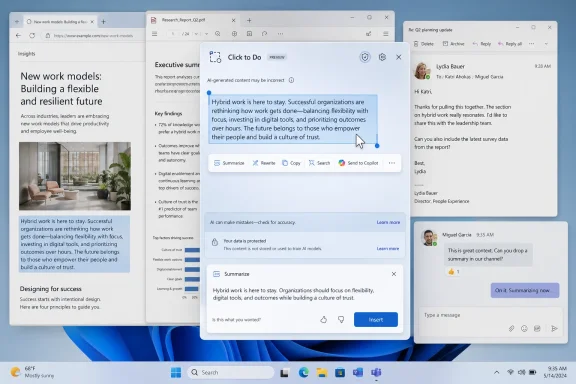
Microsoft’s Click to Do is a Copilot+ PC feature in Windows 11 that lets users invoke an AI overlay, select text or images on screen, and trigger contextual actions such as summarizing, rewriting, copying, searching, or sending content to Copilot. The problem is not that the feature is useless. The problem is that Microsoft is still treating “AI on the PC” as a feature-discovery challenge when the real crisis is workflow trust. Click to Do hints at the future of Windows, but in its current form it also exposes why that future feels less inevitable than Microsoft wants it to.
Click to Do is, on paper, the kind of thing Windows should have had years ago. The PC screen is full of inert information: text trapped inside PDFs, screenshots, browser windows, Teams chats, emails, settings panes, and apps that were never designed to talk to one another. A tool that can look at what is visible, understand the selected object, and offer the next useful action is a perfectly sensible idea.
That is why the MakeUseOf critique lands harder than a routine “AI is bad” complaint. The author does not reject the premise. He tests the thing Microsoft has been selling: a local, contextual assistant that should make the PC feel less like a stack of disconnected panes and more like a coherent workspace.
The verdict is familiar to anyone who has spent the last two years watching Microsoft staple AI buttons onto mature software. Click to Do can summarize. It can rewrite. It can copy. It can route some selections to Copilot or Microsoft 365 Copilot. It can detect images and offer edits through Photos or Paint. But it does not yet feel like a new operating model for Windows.
That distinction matters. A feature can be technically interesting and still fail the daily-use test. The daily-use test is not “Can I make it do something?” It is “Would I reach for this before the muscle-memory tools I already trust?”
Right now, Click to Do too often loses that contest.
Recall was the attention magnet, for better and worse. Live Captions translation, Cocreator-style image tools, improved Windows Search, and local AI models filled out the pitch. Click to Do sits in that same family: an attempt to show that AI hardware in the client PC can produce experiences that feel immediate, private, and integrated.
The idea is strategically sound. If Microsoft can make Windows itself the surface where AI action happens, it does not have to depend entirely on users opening a chatbot tab. The assistant becomes ambient. It appears when the user selects something, right-clicks something, presses a shortcut, or asks the system to interpret what is already visible.
That is the dream version of Click to Do: not a chatbot, not a sidebar, not a novelty, but a new interaction layer. Windows has always had copy, paste, drag, drop, print, share, search, and open-with. Click to Do wants to join that grammar.
But grammar is unforgiving. A verb that only works sometimes is not a verb users internalize. It is a menu item they forget.
That design has an appealing directness. Instead of asking the user to copy content into a chatbot, explain context, and request an output, Microsoft lets the user point at the thing. It is the difference between “Please analyze the paragraph in the browser tab behind this window” and “This. Do something with this.”
For screenshots, documents, and fragments of text, that is a genuinely attractive model. The PC has spent decades making users do the integration work manually. They select, copy, switch apps, paste, clean formatting, summarize, reformat, attach, send, and file. A contextual action layer could collapse that friction.
But Click to Do also asks users to learn a new habit without yet rewarding them consistently. The MakeUseOf testing describes an experience where some actions feel redundant, some are useful only in narrow circumstances, and some vary across machines. One device surfaces Microsoft 365 Copilot. Another offers regular Copilot. Image actions appear on one machine and not another.
That kind of inconsistency is deadly for a system-level affordance. Users can tolerate feature differences inside individual apps. They are less forgiving when the operating system itself seems to be improvising.
Local processing gives Microsoft a better privacy story and a better latency story. It also gives Copilot+ PC hardware a reason to exist beyond battery life and marketing stickers. If Windows can perform useful inference locally, then the NPU becomes part of the user experience rather than an idle spec-sheet trophy.
The catch is that local models are constrained. They are improving quickly, but they are not magic. A small model optimized for fast local actions can rewrite a sentence, summarize a visible block, or generate a prompt suggestion. It is not necessarily going to reason across an entire article, understand the user’s project history, pull in missing context, and produce a polished answer that rivals a larger cloud model.
That tension shows up in the MakeUseOf examples. Summaries are limited to what is on screen. Rewrites can help, but they do not feel meaningfully superior to existing cloud-based tools. Sending content onward to Copilot may be more useful, but then the local-first story becomes a handoff story.
There is nothing wrong with that hybrid model. In fact, hybrid is probably the future: small local models for recognition and quick transformations, larger cloud models for deeper reasoning and current information. But Click to Do needs to make that division feel intentional. At the moment, it can feel like the local feature is a lobby for the cloud feature.
Users do need summaries. They summarize long emails, policy documents, articles, Teams threads, support tickets, and technical documentation. But a summary that only sees the visible slice of the screen is often less useful than a summary generated inside the app that owns the content. A browser assistant can summarize the full page. A document assistant can see the whole document. A mail assistant can understand the thread.
Click to Do’s screen-level view is both its superpower and its limitation. It can operate across app boundaries, but it may not have the semantic depth of the source app. It sees what you see, which sounds intuitive until you realize that users often want help with what they do not see: the hidden paragraphs, earlier messages, metadata, attachments, revision history, or linked material.
That is why the MakeUseOf author’s example is important. A summary of an article fragment can accurately describe the visible fragment and still remove the procedural steps that made the fragment valuable. The feature is doing what it was asked to do. It is just solving the wrong unit of work.
The user does not want a summary of pixels. The user wants a useful reduction of a task.
Even here, though, Microsoft is competing against entrenched workflows. Many users already write in Word, Outlook, Gmail, Slack, Teams, Notion, Google Docs, or a browser-based AI assistant. Those environments increasingly have their own writing tools. If Click to Do cannot preserve context, tone, formatting, destination, and intent better than the host app, it becomes another way to do the same thing.
The most promising version of rewriting is not “make this sound better.” It is “make this sound like me, suitable for this recipient, in this channel, using the constraints of this project.” That requires memory, app awareness, identity, policy, and trust. It also requires Microsoft to be careful, because the same capabilities that make an assistant useful can make it feel invasive.
This is the tightrope Microsoft is walking across Windows AI. The more context Click to Do has, the more useful it becomes. The more context it has, the more users and admins will ask where that context lives, who can inspect it, how it is governed, and how mistakes are audited.
To be fair, screen-level copy can be useful when text is otherwise difficult to select. Optical character recognition and visual extraction are valuable. Anyone who has copied serial numbers from screenshots, error text from remote sessions, or text from locked-down PDFs understands the appeal. But the value comes from extracting inaccessible content, not from adding an alternate route to the clipboard.
That is the larger issue. Microsoft sometimes frames AI as if the bottleneck in computing is the lack of suggestions. Often, the bottleneck is the lack of reliable action. Users do not need five more ways to start a task. They need fewer dead ends after the task begins.
The AI layer should not merely expose commands. It should complete chains of work that Windows currently makes painful.
These are not science-fiction tasks. They are daily administrative sludge. They are the things knowledge workers perform between the “real” parts of the job. They are also where Windows has historically been powerful but clumsy: everything is possible, almost nothing is elegant.
A system-level AI action layer could shine here because it is not confined to a single app’s worldview. It can see the PDF, the browser, the mail client, the chat window, the file system, and the clipboard. If it can understand user intent and safely orchestrate actions across those surfaces, it becomes the connective tissue Windows has always lacked.
That is a much harder product than summarization. It requires permissions, confirmations, app integration, error recovery, and clear previews. It also requires Microsoft to decide whether Click to Do is a universal Windows feature, a Copilot launcher, a Microsoft 365 companion, or a developer platform.
At present, it feels like a little of each.
The history lesson is the Windows shell itself. Context menus, file associations, share targets, protocol handlers, jump lists, thumbnail previews, and search indexing all became useful because developers could attach themselves to system behaviors. The result was never perfectly clean, but it made Windows extensible.
Click to Do needs a modern version of that extensibility without repeating the worst habits of shell integration. Users should not end up with a chaotic AI context menu full of vendor spam. Admins should be able to govern which actions are available. Developers should have clear rules for what data their actions receive and what they can do with it.
If Microsoft gets this right, Click to Do could become an action broker. If it gets it wrong, it becomes Clippy with a hardware requirement.
Any feature that reads screen content, identifies text and images, and offers to send selections into cloud services immediately raises questions. What happens on regulated desktops? How does it behave with confidential documents? Can administrators disable specific actions while allowing local ones? Are prompts logged? Are outputs retained? Can data cross tenant boundaries? What happens in virtual desktops or Cloud PCs?
Microsoft has been more careful with this generation of Windows AI than the initial Recall backlash suggested it would be. The company has repeatedly emphasized local processing, user control, Windows Hello protections for Recall, and enterprise management options. But skepticism is not irrational. It is the default posture of competent IT departments.
Click to Do may be easier to defend than Recall because it is explicitly user-invoked rather than continuously building a timeline. Still, the optics are adjacent: Windows is looking at the screen and offering AI actions. That needs boring, precise, enforceable policy.
The enterprise version of success is not a flashy demo. It is a configuration profile.
Click to Do is especially vulnerable because it sits at the intersection of several moving targets. Copilot+ PC eligibility depends on hardware. AI actions depend on Windows builds, models, Store app versions, regional availability, language support, and whether Copilot or Microsoft 365 Copilot is installed or enabled. Enterprise policies may remove or redirect features. Consumer and business editions may not expose the same pathways.
The result is a feature that can be technically available but experientially uncertain. That is poison for habit formation. Users do not build workflows around “maybe this option will appear.”
This is where Microsoft’s AI push collides with the lived reality of Windows servicing. Staged rollouts, A/B tests, controlled feature releases, Store-delivered app updates, and cloud service flags may be rational from a deployment perspective. But to the user, they can make Windows feel arbitrary.
An AI assistant that aspires to reduce friction cannot itself become another source of friction.
Click to Do is trying to insert itself into that reflex layer. That is an ambitious place to compete. It means the feature must be fast, predictable, and obviously superior for a class of tasks. “Interesting” is not enough. “Sometimes helpful” is not enough.
This is why latency and cognitive interruption matter as much as raw capability. If invoking Click to Do creates a visual mode shift, requires selection, waits for recognition, shows a menu, launches another app, and then asks the user to continue elsewhere, the total interaction may feel heavier than the manual path.
The best operating system features disappear into the hands. Snap Assist, clipboard history, window switching, and screenshot shortcuts work because they do not demand a new theory of computing every time they are used. Click to Do will need to reach that level of obviousness.
Right now, it still feels like something you try because you remembered it exists.
But users do not want to go to AI. They want to finish the email, understand the error, clean the spreadsheet, rename the files, extract the quote, book the meeting, fix the setting, or send the message. AI should be the means, not the place.
Click to Do is at its best when it forgets the brand and simply offers a useful next action. Remove the background. Extract text. Rewrite this paragraph. Summarize this selection. Those are verbs users understand.
It is weaker when it becomes another junction in Microsoft’s Copilot maze. Consumer Copilot, Microsoft 365 Copilot, Copilot in Word, Copilot in Edge, Copilot Vision, Copilot on Windows, and Copilot+ PC features may make sense inside Redmond’s product taxonomy. To normal users, the distinctions blur.
When the wrong Copilot appears — or no useful Copilot appears — the brand architecture becomes the problem.
Trust here has several layers. The output has to be good enough. The feature has to appear where expected. The action has to preserve context. The privacy model has to be understandable. The user has to remain in control. The system has to fail gracefully.
A bad summary is not catastrophic, but it teaches the user not to rely on summaries. A missing menu item is not catastrophic, but it teaches the user not to build habits. A confusing Copilot handoff is not catastrophic, but it teaches the user that Microsoft’s AI stack is messier than the task it claims to simplify.
That is how promising features die. Not in scandal, but in disuse.
Microsoft has the resources to fix the individual problems. The harder task is choosing a product philosophy. Is Windows AI there to advertise NPUs? To route users into Microsoft 365 subscriptions? To make Windows more accessible? To automate cross-app workflows? To compete with ChatGPT and Claude? To modernize the shell?
The answer can be “several of these,” but the user experience cannot feel like all of them are fighting for the same right-click menu.
On an invoice, it might extract vendor, amount, due date, and purchase order, then offer to save the PDF, create a reminder, or draft an approval note. On an error dialog, it might copy the code, search known fixes, collect system details, and prepare a support ticket. On a meeting transcript, it might identify decisions, owners, and dates, then update Planner or Outlook. On a photo, it might route the user directly to the right edit rather than merely opening another app.
The point is not that Microsoft should make Windows act autonomously without restraint. The point is that AI becomes useful when it compresses a chain of intent into a supervised action. Show the plan. Ask for confirmation. Execute. Let the user undo.
That is a Windows feature worth pushing.
The current implementation solves the easy demo problems first. It can summarize a selected area. It can rewrite a bit of text. It can expose image actions. It can hand work to Copilot. Those capabilities are real, but they are not yet transformative.
The harder commitments are product commitments. Microsoft must make the feature consistent across eligible devices. It must clarify when local AI is being used and when cloud services enter the loop. It must give developers a disciplined way to add actions. It must give admins granular controls. It must move beyond summarizing what is visible toward completing what the user is trying to do.
Until then, Click to Do will remain caught between two identities: too ambitious to be judged as a small convenience, too limited to be trusted as a new way to use Windows.
Source: MakeUseOf The Windows 11 feature Microsoft keeps pushing should be useful, but it solves the wrong problem
 Microsoft Built a Shortcut for a Workflow That Still Hasn’t Arrived
Click to Do is, on paper, the kind of thing Windows should have had years ago. The PC screen is full of inert information: text trapped inside PDFs, screenshots, browser windows, Teams chats, emails, settings panes, and apps that were never designed to talk to one another. A tool that can look at what is visible, understand the selected object, and offer the next useful action is a perfectly sensible idea.That is why the MakeUseOf critique lands harder than a routine “AI is bad” complaint. The author does not reject the premise. He tests the thing Microsoft has been selling: a local, contextual assistant that should make the PC feel less like a stack of disconnected panes and more like a coherent workspace.
The verdict is familiar to anyone who has spent the last two years watching Microsoft staple AI buttons onto mature software. Click to Do can summarize. It can rewrite. It can copy. It can route some selections to Copilot or Microsoft 365 Copilot. It can detect images and offer edits through Photos or Paint. But it does not yet feel like a new operating model for Windows.
That distinction matters. A feature can be technically interesting and still fail the daily-use test. The daily-use test is not “Can I make it do something?” It is “Would I reach for this before the muscle-memory tools I already trust?”
Right now, Click to Do too often loses that contest.
The Copilot+ PC Pitch Needed a Hero Feature
Microsoft introduced Copilot+ PCs in May 2024 as a new class of Windows machines built around neural processing units capable of more than 40 TOPS. That branding needed more than benchmark language. It needed visible demonstrations that buyers could understand without reading a silicon white paper.Recall was the attention magnet, for better and worse. Live Captions translation, Cocreator-style image tools, improved Windows Search, and local AI models filled out the pitch. Click to Do sits in that same family: an attempt to show that AI hardware in the client PC can produce experiences that feel immediate, private, and integrated.
The idea is strategically sound. If Microsoft can make Windows itself the surface where AI action happens, it does not have to depend entirely on users opening a chatbot tab. The assistant becomes ambient. It appears when the user selects something, right-clicks something, presses a shortcut, or asks the system to interpret what is already visible.
That is the dream version of Click to Do: not a chatbot, not a sidebar, not a novelty, but a new interaction layer. Windows has always had copy, paste, drag, drop, print, share, search, and open-with. Click to Do wants to join that grammar.
But grammar is unforgiving. A verb that only works sometimes is not a verb users internalize. It is a menu item they forget.
The Overlay Is Clever, but the Mental Model Is Muddy
The basic interaction is simple enough. Invoke Click to Do with a shortcut such as Windows key + Q or other supported gestures, watch Windows place a tinted overlay over the screen, then select the content you want to act on. The feature detects text or image regions and presents relevant actions.That design has an appealing directness. Instead of asking the user to copy content into a chatbot, explain context, and request an output, Microsoft lets the user point at the thing. It is the difference between “Please analyze the paragraph in the browser tab behind this window” and “This. Do something with this.”
For screenshots, documents, and fragments of text, that is a genuinely attractive model. The PC has spent decades making users do the integration work manually. They select, copy, switch apps, paste, clean formatting, summarize, reformat, attach, send, and file. A contextual action layer could collapse that friction.
But Click to Do also asks users to learn a new habit without yet rewarding them consistently. The MakeUseOf testing describes an experience where some actions feel redundant, some are useful only in narrow circumstances, and some vary across machines. One device surfaces Microsoft 365 Copilot. Another offers regular Copilot. Image actions appear on one machine and not another.
That kind of inconsistency is deadly for a system-level affordance. Users can tolerate feature differences inside individual apps. They are less forgiving when the operating system itself seems to be improvising.
Local AI Is the Right Architecture for the Wrong Demo
Microsoft deserves some credit for the architectural direction. Click to Do uses on-device AI capabilities on Copilot+ PCs, including the Phi Silica small language model for certain local text actions. That matters because screen understanding is exactly the kind of AI feature that becomes creepy if it feels like every selection is being shipped to a distant server by default.Local processing gives Microsoft a better privacy story and a better latency story. It also gives Copilot+ PC hardware a reason to exist beyond battery life and marketing stickers. If Windows can perform useful inference locally, then the NPU becomes part of the user experience rather than an idle spec-sheet trophy.
The catch is that local models are constrained. They are improving quickly, but they are not magic. A small model optimized for fast local actions can rewrite a sentence, summarize a visible block, or generate a prompt suggestion. It is not necessarily going to reason across an entire article, understand the user’s project history, pull in missing context, and produce a polished answer that rivals a larger cloud model.
That tension shows up in the MakeUseOf examples. Summaries are limited to what is on screen. Rewrites can help, but they do not feel meaningfully superior to existing cloud-based tools. Sending content onward to Copilot may be more useful, but then the local-first story becomes a handoff story.
There is nothing wrong with that hybrid model. In fact, hybrid is probably the future: small local models for recognition and quick transformations, larger cloud models for deeper reasoning and current information. But Click to Do needs to make that division feel intentional. At the moment, it can feel like the local feature is a lobby for the cloud feature.
Summarization Is Not a Workflow
The most revealing weakness in Click to Do is its reliance on summarization as a showcase. Summarization is easy to demo. It is also one of the least durable ways to prove that AI belongs inside an operating system.Users do need summaries. They summarize long emails, policy documents, articles, Teams threads, support tickets, and technical documentation. But a summary that only sees the visible slice of the screen is often less useful than a summary generated inside the app that owns the content. A browser assistant can summarize the full page. A document assistant can see the whole document. A mail assistant can understand the thread.
Click to Do’s screen-level view is both its superpower and its limitation. It can operate across app boundaries, but it may not have the semantic depth of the source app. It sees what you see, which sounds intuitive until you realize that users often want help with what they do not see: the hidden paragraphs, earlier messages, metadata, attachments, revision history, or linked material.
That is why the MakeUseOf author’s example is important. A summary of an article fragment can accurately describe the visible fragment and still remove the procedural steps that made the fragment valuable. The feature is doing what it was asked to do. It is just solving the wrong unit of work.
The user does not want a summary of pixels. The user wants a useful reduction of a task.
Rewriting Is Useful, but It Is Not Enough to Carry Windows AI
Rewriting fares better because it is naturally selection-based. If a user highlights a sentence, paragraph, draft reply, or awkward message, a local rewrite action can be genuinely convenient. This is where Click to Do feels closest to becoming a normal Windows affordance.Even here, though, Microsoft is competing against entrenched workflows. Many users already write in Word, Outlook, Gmail, Slack, Teams, Notion, Google Docs, or a browser-based AI assistant. Those environments increasingly have their own writing tools. If Click to Do cannot preserve context, tone, formatting, destination, and intent better than the host app, it becomes another way to do the same thing.
The most promising version of rewriting is not “make this sound better.” It is “make this sound like me, suitable for this recipient, in this channel, using the constraints of this project.” That requires memory, app awareness, identity, policy, and trust. It also requires Microsoft to be careful, because the same capabilities that make an assistant useful can make it feel invasive.
This is the tightrope Microsoft is walking across Windows AI. The more context Click to Do has, the more useful it becomes. The more context it has, the more users and admins will ask where that context lives, who can inspect it, how it is governed, and how mistakes are audited.
The Copy Button Is a Warning Sign
One of the oddities in the current Click to Do menu is how much of it overlaps with existing Windows behavior. Copy is the obvious example. If a user can already select text and press Ctrl+C, invoking an AI overlay to copy selected content is not progress. It is choreography.To be fair, screen-level copy can be useful when text is otherwise difficult to select. Optical character recognition and visual extraction are valuable. Anyone who has copied serial numbers from screenshots, error text from remote sessions, or text from locked-down PDFs understands the appeal. But the value comes from extracting inaccessible content, not from adding an alternate route to the clipboard.
That is the larger issue. Microsoft sometimes frames AI as if the bottleneck in computing is the lack of suggestions. Often, the bottleneck is the lack of reliable action. Users do not need five more ways to start a task. They need fewer dead ends after the task begins.
The AI layer should not merely expose commands. It should complete chains of work that Windows currently makes painful.
The Right Problem Is Cross-App Action
The MakeUseOf critique points toward the real opportunity: cross-app actions. That is where Click to Do could become more than a screen summarizer. The examples are mundane, which is precisely why they matter: copy part of a PDF into Slack, send a quote to Outlook, pull a snippet from a page into a note, extract a table into Excel, turn visible instructions into a checklist, file an attachment, create a calendar item from a paragraph.These are not science-fiction tasks. They are daily administrative sludge. They are the things knowledge workers perform between the “real” parts of the job. They are also where Windows has historically been powerful but clumsy: everything is possible, almost nothing is elegant.
A system-level AI action layer could shine here because it is not confined to a single app’s worldview. It can see the PDF, the browser, the mail client, the chat window, the file system, and the clipboard. If it can understand user intent and safely orchestrate actions across those surfaces, it becomes the connective tissue Windows has always lacked.
That is a much harder product than summarization. It requires permissions, confirmations, app integration, error recovery, and clear previews. It also requires Microsoft to decide whether Click to Do is a universal Windows feature, a Copilot launcher, a Microsoft 365 companion, or a developer platform.
At present, it feels like a little of each.
Developers Need Hooks, Not Another Microsoft-Only Surface
Microsoft’s documentation for Click to Do has begun positioning it as something developers can integrate with, including application cards and actions that can appear in the Click to Do experience. That is the correct direction. Windows does not become an AI operating system because Microsoft’s own apps get special menu items. It becomes one only if third-party software can participate.The history lesson is the Windows shell itself. Context menus, file associations, share targets, protocol handlers, jump lists, thumbnail previews, and search indexing all became useful because developers could attach themselves to system behaviors. The result was never perfectly clean, but it made Windows extensible.
Click to Do needs a modern version of that extensibility without repeating the worst habits of shell integration. Users should not end up with a chaotic AI context menu full of vendor spam. Admins should be able to govern which actions are available. Developers should have clear rules for what data their actions receive and what they can do with it.
If Microsoft gets this right, Click to Do could become an action broker. If it gets it wrong, it becomes Clippy with a hardware requirement.
Enterprise IT Will See the Risk Before the Magic
For Windows enthusiasts, Click to Do is a usability debate. For enterprise IT, it is a governance debate.Any feature that reads screen content, identifies text and images, and offers to send selections into cloud services immediately raises questions. What happens on regulated desktops? How does it behave with confidential documents? Can administrators disable specific actions while allowing local ones? Are prompts logged? Are outputs retained? Can data cross tenant boundaries? What happens in virtual desktops or Cloud PCs?
Microsoft has been more careful with this generation of Windows AI than the initial Recall backlash suggested it would be. The company has repeatedly emphasized local processing, user control, Windows Hello protections for Recall, and enterprise management options. But skepticism is not irrational. It is the default posture of competent IT departments.
Click to Do may be easier to defend than Recall because it is explicitly user-invoked rather than continuously building a timeline. Still, the optics are adjacent: Windows is looking at the screen and offering AI actions. That needs boring, precise, enforceable policy.
The enterprise version of success is not a flashy demo. It is a configuration profile.
Inconsistency Is the Old Windows Problem Wearing an AI Badge
The MakeUseOf testing highlights a classic Windows frustration: the same nominal feature behaves differently depending on device, edition, app state, account configuration, region, installed packages, and rollout stage. Some of that is inevitable in an ecosystem as broad as Windows. Some of it is self-inflicted.Click to Do is especially vulnerable because it sits at the intersection of several moving targets. Copilot+ PC eligibility depends on hardware. AI actions depend on Windows builds, models, Store app versions, regional availability, language support, and whether Copilot or Microsoft 365 Copilot is installed or enabled. Enterprise policies may remove or redirect features. Consumer and business editions may not expose the same pathways.
The result is a feature that can be technically available but experientially uncertain. That is poison for habit formation. Users do not build workflows around “maybe this option will appear.”
This is where Microsoft’s AI push collides with the lived reality of Windows servicing. Staged rollouts, A/B tests, controlled feature releases, Store-delivered app updates, and cloud service flags may be rational from a deployment perspective. But to the user, they can make Windows feel arbitrary.
An AI assistant that aspires to reduce friction cannot itself become another source of friction.
The Shortcut Is Competing With Muscle Memory
Windows is an operating system of accumulated reflexes. Ctrl+C, Alt+Tab, Win+V, Win+Shift+S, right-click, drag-and-drop, Ctrl+F, Alt+Space, File Explorer search, browser address bar search — users do not think about these tools. They fire them from muscle memory.Click to Do is trying to insert itself into that reflex layer. That is an ambitious place to compete. It means the feature must be fast, predictable, and obviously superior for a class of tasks. “Interesting” is not enough. “Sometimes helpful” is not enough.
This is why latency and cognitive interruption matter as much as raw capability. If invoking Click to Do creates a visual mode shift, requires selection, waits for recognition, shows a menu, launches another app, and then asks the user to continue elsewhere, the total interaction may feel heavier than the manual path.
The best operating system features disappear into the hands. Snap Assist, clipboard history, window switching, and screenshot shortcuts work because they do not demand a new theory of computing every time they are used. Click to Do will need to reach that level of obviousness.
Right now, it still feels like something you try because you remembered it exists.
Microsoft Is Still Selling AI as a Destination
There is a subtle but important product mistake running through much of Microsoft’s consumer AI work: it often treats AI as the destination rather than the accelerator. Press the Copilot key. Open the Copilot app. Ask Copilot. Send to Copilot. Draft with Copilot. The brand becomes the route.But users do not want to go to AI. They want to finish the email, understand the error, clean the spreadsheet, rename the files, extract the quote, book the meeting, fix the setting, or send the message. AI should be the means, not the place.
Click to Do is at its best when it forgets the brand and simply offers a useful next action. Remove the background. Extract text. Rewrite this paragraph. Summarize this selection. Those are verbs users understand.
It is weaker when it becomes another junction in Microsoft’s Copilot maze. Consumer Copilot, Microsoft 365 Copilot, Copilot in Word, Copilot in Edge, Copilot Vision, Copilot on Windows, and Copilot+ PC features may make sense inside Redmond’s product taxonomy. To normal users, the distinctions blur.
When the wrong Copilot appears — or no useful Copilot appears — the brand architecture becomes the problem.
The MakeUseOf Complaint Is Really About Trust
The MakeUseOf piece concludes that Click to Do has potential but is not yet worth using full-time. That is a measured criticism, and it gets at the central question for Microsoft’s AI strategy on Windows: can the company earn enough trust for users to let AI into their daily reflexes?Trust here has several layers. The output has to be good enough. The feature has to appear where expected. The action has to preserve context. The privacy model has to be understandable. The user has to remain in control. The system has to fail gracefully.
A bad summary is not catastrophic, but it teaches the user not to rely on summaries. A missing menu item is not catastrophic, but it teaches the user not to build habits. A confusing Copilot handoff is not catastrophic, but it teaches the user that Microsoft’s AI stack is messier than the task it claims to simplify.
That is how promising features die. Not in scandal, but in disuse.
Microsoft has the resources to fix the individual problems. The harder task is choosing a product philosophy. Is Windows AI there to advertise NPUs? To route users into Microsoft 365 subscriptions? To make Windows more accessible? To automate cross-app workflows? To compete with ChatGPT and Claude? To modernize the shell?
The answer can be “several of these,” but the user experience cannot feel like all of them are fighting for the same right-click menu.
The Future Is Not a Purple Overlay
It is easy to imagine a better Click to Do. It would understand not only the visible selection but the object behind it. It would know whether a paragraph came from a web page, a local PDF, an email thread, a Teams message, a PowerPoint deck, or a screenshot. It would offer fewer actions, but better ones.On an invoice, it might extract vendor, amount, due date, and purchase order, then offer to save the PDF, create a reminder, or draft an approval note. On an error dialog, it might copy the code, search known fixes, collect system details, and prepare a support ticket. On a meeting transcript, it might identify decisions, owners, and dates, then update Planner or Outlook. On a photo, it might route the user directly to the right edit rather than merely opening another app.
The point is not that Microsoft should make Windows act autonomously without restraint. The point is that AI becomes useful when it compresses a chain of intent into a supervised action. Show the plan. Ask for confirmation. Execute. Let the user undo.
That is a Windows feature worth pushing.
The Feature Microsoft Is Pushing Needs Fewer Demos and More Commitments
Click to Do is not a disaster. It is not shovelware. It is not merely a gimmick, either. It is a plausible first draft of a system-wide AI action layer, and that makes its shortcomings more frustrating than if it were simply useless.The current implementation solves the easy demo problems first. It can summarize a selected area. It can rewrite a bit of text. It can expose image actions. It can hand work to Copilot. Those capabilities are real, but they are not yet transformative.
The harder commitments are product commitments. Microsoft must make the feature consistent across eligible devices. It must clarify when local AI is being used and when cloud services enter the loop. It must give developers a disciplined way to add actions. It must give admins granular controls. It must move beyond summarizing what is visible toward completing what the user is trying to do.
Until then, Click to Do will remain caught between two identities: too ambitious to be judged as a small convenience, too limited to be trusted as a new way to use Windows.
The Windows AI Button Has to Earn Its Place Beside Copy and Paste
The practical lesson from the current Click to Do debate is not that Microsoft should abandon AI in Windows. It is that Windows AI has to compete with the best parts of Windows, not the worst parts of chatbots. Users will accept a new interaction layer only when it is faster, clearer, and more reliable than the habits it wants to replace.- Click to Do is most compelling when it acts on hard-to-use screen content, not when it duplicates ordinary copy-and-paste behavior.
- Its current summarization tools are limited by the visible selection, which makes them less useful than app-aware or page-aware assistants for longer material.
- Local AI gives Microsoft a credible privacy and performance foundation, but small models cannot carry the whole productivity promise alone.
- Inconsistent Copilot handoffs and device-to-device feature differences undermine the habit formation Microsoft needs.
- The real prize is not better summaries, but safe cross-app actions that turn selected content into completed work.
- Enterprise adoption will depend less on Microsoft’s demos than on policy controls, auditability, and predictable data boundaries.
Source: MakeUseOf The Windows 11 feature Microsoft keeps pushing should be useful, but it solves the wrong problem
