

Microsoft’s Copilot experiences another UX tweak: reports say the familiar “AI content may be inaccurate” warning that has accompanied Copilot chat responses will now be hidden by default, with administrators given an option to restore a stronger, configurable disclaimer if they choose. This change — first flagged in niche outlets and amplified by aggregators — would shift responsibility for reminding users about AI limits from a persistent UI cue to configuration settings under tenant control, a move with clear usability benefits and significant governance implications for enterprises, regulators, and everyday users alike.
Microsoft Copilot has been folded into an expanding set of Windows and Microsoft 365 surfaces — from in‑app Copilot Chat in Word, Excel and Outlook to the system‑level Copilot experience in Windows — and the product stack has layered a number of safety and governance signals on top of generative outputs. These include inline warnings, accuracy disclaimers, attribution and source cues, admin controls for tenant grounding, and per‑session consent for features such as Copilot Vision and agent actions. Administrators and IT teams have also been given controls to opt features in or out for groups and devices, reflecting Microsoft’s two‑tier approach of a broadly available web‑grounded chat plus paid tenant‑aware Copilot for internal data access.
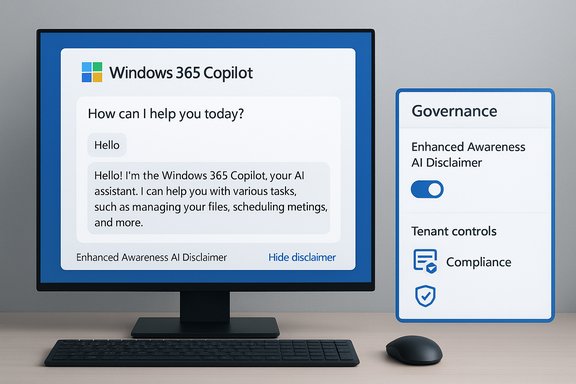
The specific report circulating now states that Microsoft will default the Copilot Chat UI to hide the small bottom‑of‑pane statement that reads “AI content may be inaccurate” and will provide an administrative toggle or management console option — sometimes described as an “Enhanced Awareness AI Disclaimer” — that organizations can enable if they want the stronger visible reminder (including bold text and an optional link). The rollout is described as gradual across tenants and channels.
For consumers and smaller organizations without robust governance, default warnings play an outsized role. Changing defaults without broad, transparent documentation and communication risks leaving those users exposed. For larger organizations, configuration options are welcome — provided they’re accompanied by clear guidance, visible Message Center announcements and versioned documentation.
Source: Gizchina.com https://www.gizchina.com/microsoft/...content-may-be-inaccurate-warning-by-default/
 Background / Overview
Microsoft Copilot has been folded into an expanding set of Windows and Microsoft 365 surfaces — from in‑app Copilot Chat in Word, Excel and Outlook to the system‑level Copilot experience in Windows — and the product stack has layered a number of safety and governance signals on top of generative outputs. These include inline warnings, accuracy disclaimers, attribution and source cues, admin controls for tenant grounding, and per‑session consent for features such as Copilot Vision and agent actions. Administrators and IT teams have also been given controls to opt features in or out for groups and devices, reflecting Microsoft’s two‑tier approach of a broadly available web‑grounded chat plus paid tenant‑aware Copilot for internal data access.The specific report circulating now states that Microsoft will default the Copilot Chat UI to hide the small bottom‑of‑pane statement that reads “AI content may be inaccurate” and will provide an administrative toggle or management console option — sometimes described as an “Enhanced Awareness AI Disclaimer” — that organizations can enable if they want the stronger visible reminder (including bold text and an optional link). The rollout is described as gradual across tenants and channels.
What the reports say
The headline claim
- Reported change: the Copilot Chat disclaimer “AI content may be inaccurate” will be hidden by default in Copilot UI across Microsoft 365 Copilot / Copilot Chat experiences.
- Admin opt‑in: administrators will reportedly be able to re-enable a more prominent “Enhanced Awareness AI Disclaimer” that displays a bolder warning and an optional link (configurable for tenant guidance).
- Rollout timing: the change is described as staged, rolling out gradually with fuller deployment expected over several weeks. Reported timelines are provisional and vary by outlet.
How this fits into Microsoft’s recent Copilot updates
- Copilot’s expansion across Windows and Microsoft 365 has included many default visuals and nudges (taskbar/sidepane entries, inline suggestions, and cautionary UI elements). Administrators have been given tools to control visibility and to manage tenant grounding — the new reported disclaimer toggle would be another admin control in that line.
- Past rollouts and messaging emphasized staged deployment, regional gating (e.g., EEA restrictions for some features), and admin governance as core tenets for the Copilot experience; the new disclaimer behavior is plausibly another configuration that Microsoft would deliver via admin controls.
Verification: what’s confirmed and what’s not
The most important journalistic point up front: this change has been reported by specialist and aggregator outlets, but at the time of writing there is no clearly traceable, authoritative Microsoft blog post or support document published that matches the headline claim. The coverage that surfaced the story is consistent across multiple secondary publishers, which suggests a common source (for example, an internal support update or admin console change log), but a primary Microsoft confirmation on an official Microsoft blog or support page was not found in public channels during review. Given the potential impact of the change, the absence of a clear Microsoft announcement is notable and should make readers treat the reports as provisional until Microsoft publishes a formal support article or Message Center notice. Why that matters:- If the change is real and already pushed through an admin UI, tenant administrators should see the option appear in the Microsoft 365 admin center or Copilot Control System and the Message Center would commonly include a rollout message and change ID.
- If the change is only a proposed or preview update, press coverage may reflect early notes or leaked documentation rather than an enforced behavior.
Why Microsoft might make this change
There are several rationales Microsoft could have for hiding a persistent accuracy disclaimer by default:- Improved UX and reduced clutter: repeated small warnings can be visually noisy and distract from the assistant’s core interaction flow. Enterprise users often request cleaner UIs for productivity tools.
- Enterprise confidence and governance: commercial customers — particularly regulated industries — often prefer governance controls at the tenant level rather than persistent consumer‑grade notices. Letting admins choose the visibility and prominence of the disclaimer means organizations can align UI behavior with their internal training and verification processes.
- Localization of responsibility: Microsoft may be shifting from always‑on consumer nudges toward a model where organizations take on more explicit responsibility to configure, document and train staff about AI limits — effectively making the disclaimer a governance artifact, not a default product billboard.
The risks and trade‑offs
Hiding a visible accuracy warning by default is not a neutral UX tweak; it touches on trust, legal risk, regulatory exposure and information hygiene. Below are the primary risks and the operational implications IT and compliance teams should weigh.1) Increased risk of overtrust and operational errors
Users are prone to trust polished AI output. Removing a repeated visual reminder that the content may be inaccurate increases the chance non‑technical users will accept outputs uncritically — especially in high‑stakes contexts like legal drafts, financial figures, medical information, or regulatory filings. The consequence: downstream errors, misstatements and potentially material harms when AI outputs aren’t verified.2) Regulatory and legal exposure
Organizations in regulated industries rely on UI cues, training and documented processes to show due diligence. If a tenant’s default UI does not surface reminders and a regulated decision relied on AI output goes wrong, investigators or courts may view the absence of visible disclaimers unfavorably — particularly where internal governance isn’t thorough. Companies should consider whether a hidden disclaimer changes their risk posture.3) Communication and trust costs
Transparency matters for user trust. A visible accuracy warning, even if repetitious, is an outward signal that the provider recognizes AI limitations. Removing that signal risks perceptual backfire if errors occur and users feel they were not adequately warned. It may also complicate external communications: customers, partners and auditors may ask why proactive cautioning was minimized.4) Fragmentation of experience across tenants and regions
If Microsoft makes the disclaimer configurable, some organizations will enable the stronger notice while others will not, producing inconsistent experiences across collaborators, contractors and partners. That fragmentation complicates cross‑tenant workflows where some participants expect and rely on visible warnings while others do not.Practical admin and IT guidance (what to do next)
If your organization uses any Copilot product, treat this report as a prompt to verify tenant settings and governance assumptions immediately. The steps below assume the change either is rolling out or may arrive soon; they’re structured to be conservative and practical.- Check the Message Center and Admin Notifications
- Action: Review Microsoft 365 admin Message Center for any Copilot notices, change IDs or rollout timelines.
- Why: Microsoft normally publishes tenant messages for changes that affect UI defaults and admin options; the Message Center provides the authoritative rollout ID and timing.
- Audit current Copilot settings and policies
- Action: Inventory who has access to Copilot Chat, whether tenant grounding is enabled, and what connectors (OneDrive, SharePoint, Graph) are allowed. Confirm whether any organizational policy or internal documentation references visible accuracy disclaimers.
- Why: A hidden accuracy warning only matters if your rules and training assume users will see it.
- Prepare a “Enhanced Awareness” policy (if available)
- Action: If an admin toggle appears for an enhanced disclaimer, evaluate enabling it for regulated groups (legal, finance, health) while piloting a more permissive configuration for low‑risk teams.
- Why: Granular enabling allows risk‑proportionate controls.
- Update training, process and acceptance gates
- Action: Wherever Copilot output might feed into official documents or external communications, require explicit human sign‑offs and add checklist items that verify factual claims and citations.
- Why: Human‑in‑the‑loop review reduces hallucination risk and demonstrates procedural rigor.
- Log and monitor Copilot usage
- Action: Ensure prompts and outputs are logged where your compliance regime needs them; integrate Copilot logs into SIEM and audit trails if available.
- Why: Traceability is essential for post‑incident analysis and for regulatory recordkeeping.
- Communicate the change to end users
- Action: If your tenant opts to hide the visible disclaimer, issue internal guidance telling staff why the visual cue is hidden, what that doesn’t mean (AI outputs still require verification), and where to find your internal review process.
- Why: Clear communication prevents mistaken assumptions that AI outputs are authoritative.
Suggested configurations for different risk profiles
- High‑risk (legal, financial, healthcare):
- Enable any available Enhanced Awareness disclaimer.
- Restrict Copilot to tenant‑grounded seats.
- Require human sign‑off for any externally published AI‑assisted content.
- Medium‑risk (marketing, HR drafts):
- Enable stronger disclaimer for public‑facing outputs.
- Keep Copilot connectors limited and apply sensitivity labels.
- Low‑risk (creative brainstorming, first drafts):
- Consider hiding persistent warnings to reduce friction, but require reviewers to run factual checks before publication.
Why this matters for Windows and Microsoft 365 users
This report is more than a UI quibble. It reflects how AI vendors are moving risk management from default product UX into the hands of customers and administrators. That transition makes sense in one way: enterprises can and should decide the trade‑offs. But it also raises a higher‑level question about the role of vendor defaults in shaping how people interact with and trust AI systems.For consumers and smaller organizations without robust governance, default warnings play an outsized role. Changing defaults without broad, transparent documentation and communication risks leaving those users exposed. For larger organizations, configuration options are welcome — provided they’re accompanied by clear guidance, visible Message Center announcements and versioned documentation.
How to verify this yourself (quick checklist)
- Look in Microsoft 365 admin Message Center and change logs for any Copilot/Chat disclaimers or “Enhanced Awareness” notices.
- Inspect your Copilot Control System or Microsoft 365 admin center for any new policy called Enhanced Awareness AI Disclaimer (or similar).
- Try the Copilot Chat UI in a test tenant and observe whether the bottom‑pane disclaimer appears or is hidden.
- Confirm any changes with Microsoft support or your account team before altering production policies.
Assessment: strengths, weaknesses and final verdict
- Strengths of the reported change
- Reduced UI clutter and a cleaner user experience for power users.
- Greater control for tenant admins to align disclaimers with internal training and legal posture.
- Weaknesses and risks
- Increased risk of overtrust where organizations or individual users lack rigorous verification processes.
- Potential regulatory and reputational exposure if high‑stakes errors occur and visible warnings were not present.
- Final verdict
- The move is plausible and consistent with Microsoft’s ongoing approach to move governance to tenant controls and staged rollouts, but the change should be treated as provisional until Microsoft publishes an official support/article or Message Center notice. Organizations should not passively rely on a missing visual warning — they must actively verify settings, update processes and ensure human review remains mandatory where accuracy matters.
Conclusion
The reported default hiding of the “AI content may be inaccurate” warning in Microsoft Copilot crystallizes a broader trend: control and risk are shifting from product defaults to tenant governance. That shift has practical benefits for productivity and a clearer mapping of responsibilities for enterprise IT — but it also raises the stakes for governance, auditing and user training. Until Microsoft issues an explicit, machine‑readable announcement or Message Center post confirming the change and documenting rollout mechanics, the reports should be considered credible but not authoritative. Administrators must verify their tenant settings today, update policies and ensure that hiding a small UI reminder is not mistaken for hiding the need for human verification.- Quick action checklist (one page)
- Check Message Center for Copilot rollout notices.
- Audit Copilot tenant settings and connectors.
- If available, evaluate the Enhanced Awareness disclaimer option by team and risk profile.
- Update internal training to require human verification of Copilot outputs.
- Log Copilot prompts/outputs and integrate into audits and SIEM.
Source: Gizchina.com https://www.gizchina.com/microsoft/...content-may-be-inaccurate-warning-by-default/
