

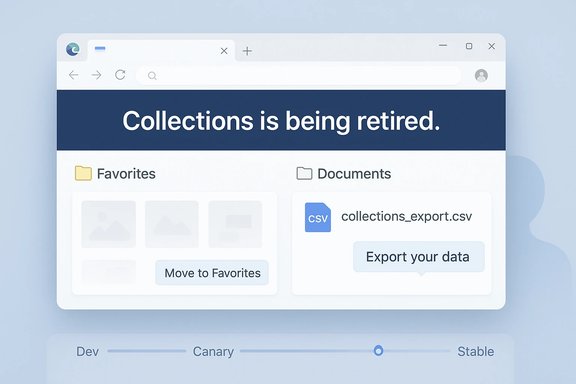
Microsoft Edge is showing an in‑product warning in preview builds that Collections is being retired, and that message forces a blunt choice: move pages to Favorites (losing images and notes) or export a CSV copy — leaving no way to keep Collections content inside Edge in its original form once the change completes.
Microsoft introduced Collections to Chromium‑powered Edge as a research and clipping tool that saves web pages, images, notes and allows Office export and cross‑device sync. Over the past several years the feature graduated from a niche Insider experiment to a first‑party productivity surface used by consumers and some knowledge‑worker workflows. Microsoft’s documentation and policies continue to describe Collections and provide administrative knobs to enable or disable it for managed environments. At the same time, Edge has been evolving rapidly: Microsoft has been pruning smaller toolbar and sidebar surfaces while pushing Copilot and integrated AI experiences to the foreground. Some changes are limited to Canary/Dev channels as UI experiments; others are declared deprecations with removal plans. The new Collections retirement notices — first spotted in Edge Dev and reported by multiple outlets — sit at the intersection of those two trends: consolidation around fewer, instrumentable surfaces and routine cleanups of lower‑usage features.
If Microsoft intends to rehome Collections’ capabilities into Copilot or a different Microsoft product, announcing a clear migration path (automated import, visual board replacement, or OneNote/Loop integration) would materially reduce user harm. Until then, the safe course for users and organizations is to export now, keep multiple backups, and evaluate third‑party alternatives for long‑term research needs.
Source: Windows Central Edge is killing Collections — and your data is caught in the crossfire
 Background
Microsoft introduced Collections to Chromium‑powered Edge as a research and clipping tool that saves web pages, images, notes and allows Office export and cross‑device sync. Over the past several years the feature graduated from a niche Insider experiment to a first‑party productivity surface used by consumers and some knowledge‑worker workflows. Microsoft’s documentation and policies continue to describe Collections and provide administrative knobs to enable or disable it for managed environments. At the same time, Edge has been evolving rapidly: Microsoft has been pruning smaller toolbar and sidebar surfaces while pushing Copilot and integrated AI experiences to the foreground. Some changes are limited to Canary/Dev channels as UI experiments; others are declared deprecations with removal plans. The new Collections retirement notices — first spotted in Edge Dev and reported by multiple outlets — sit at the intersection of those two trends: consolidation around fewer, instrumentable surfaces and routine cleanups of lower‑usage features. What exactly users are seeing now
- In Edge Dev builds a notice appears inside the Collections pane stating: "Collections is being retired." It says users can no longer add new items and provides two explicit actions: Move to Favorites or Export your data.
- The Move to Favorites flow creates a folder (reported as CollectionsExport) in Favorites and migrates saved pages into subfolders; images, notes and other non‑page items are not transferred. That preserves links inside the browser but strips richer, visual and note content.
- The Export your data flow writes a CSV file (commonly named collections_export.csv) to the Documents folder. The CSV contains a record of items but is a file‑based copy outside the browser; it does not preserve the Collections UI or in‑browser editing experience.
Why this matters: data, workflows and the UX tradeoffs
Collections was more than bookmarks for many users. It offered a lightweight, visual binder with notes and images, Office export, and sync across devices — useful for research, shopping, lesson planning, or multi‑step projects. Removing the feature (or even making it read‑only and forcing export) has several tangible consequences:- Data fidelity loss. Moving pages to Favorites preserves URLs but discards images, clipped screenshots and attached notes — the parts of Collections that made it useful as a visual research tool. The CSV export preserves a record but is not a functional in‑browser workspace.
- Workflow interruption. Users and teams that built workflows around Collections (for instance research folders, shared project boards, or classroom materials) will need to rebuild processes using Favorites, PWAs, third‑party tools or local files. That costs time and introduces friction.
- Enterprise governance and compliance gaps. Collections syncs to Microsoft accounts and can touch OneDrive/Office exports. Administrators should evaluate the data movement implications and whether the retirement affects any compliance or retention policies. Microsoft’s Group Policy / ADMX includes an EdgeCollectionsEnabled policy that controls the feature, but retirement may change observable data flows and the place where content is stored.
What we can verify — and what remains uncertain
Verified facts:- Dev/Canary channel users have reported and screenshot a retirement notice inside the Collections pane offering "Move to Favorites" or "Export your data."
- The Move to Favorites action moves pages but not images/notes; the Export action produces a CSV file.
- Microsoft documentation and support pages still describe Collections as a feature with export and sync capabilities. Administrators can still enable/disable Collections via Edge policies.
- Whether Microsoft will remove Collections from stable channel builds or mobile builds, and the concrete removal date, has not been published by Microsoft at the time of reporting. The evidence of retirement is currently strongest in preview builds and third‑party reporting; it is possible Microsoft will alter rollout plans. Treat Canary/Dev signals as probable but not definitive until Microsoft issues an explicit stable‑channel deprecation notice.
Immediate, practical steps every user should take
For anyone who relies on Collections — personal or enterprise — act now. The migration paths built into Edge are available but imperfect; preserve multiple copies and formats.- Export your Collections to Office (Word/Excel/OneNote) if you need editable, rich backups.
- Open Collections (Ctrl+Shift+Y), select a collection, click the "Sharing and more" menu and choose Send to Word/Excel/OneNote. This yields an editable web Office document with content preserved better than a CSV in many cases.
- Use the in‑product "Export your data" option to get the CSV, then store that CSV in a backed‑up location (OneDrive, external drive). The CSV is a useful machine‑readable index for rebuilding.
- Use "Move to Favorites" to preserve pages in‑browser if you prefer a bookmarks‑centric fallback — but understand that images/notes will be lost in this conversion. Create a named folder (CollectionsExport or similar) and keep it separate so you can review the migration.
- Make a local copy of your Edge profile files (advanced): copy the Collections SQLite DB from your user profile folder before any change if you want a raw snapshot. This is for advanced users and carries risk — always back up the whole profile folder first.
- Consider third‑party archival options for research data: save critical pages as PDFs (File → Print → Save as PDF) or use web‑archive tools to capture full pages, images and scripts. PDFs and web archives are portable and preserve visual fidelity.
Migration and replacement strategies
Collections' retirement forces users to choose replacements. Here’s a practical comparison of alternatives and how to approach migration.Built‑in Edge options
- Favorites (Bookmarks): Great for preserving URLs inside the browser, fast to use, and policy‑friendly for managed environments. Not suitable for image/note retention.
- Send to Word/Excel/OneNote: Best for preserving visual and textual context in an editable form. Works well if you use Microsoft 365 and OneDrive.
- Edge Bar / PWAs / Pinning: For recreating “glanceable” workflows (previously done with the Sidebar), install frequently used sites as PWAs or pin tabs. These reproduce the access model but are not a Collections replacement.
Third‑party cross‑browser services
- Pocket/Instapaper: Simple read‑later services that preserve articles and images, support tagging and have mobile apps. They are subscription‑based for advanced features.
- Raindrop.io / Pinboard: Modern bookmark managers that handle images, tags, and full‑text search; better for long‑term, cross‑browser research libraries.
- Local tools: Zotero (academic research tool) offers deep metadata capture and citation integration; suitable for students and researchers who need fidelity and export control.
Migration steps (recommended sequence)
- Export Collections to Word/Excel/OneNote and download CSV as a canonical backup.
- Bulk‑save critical pages as PDF if visual fidelity matters.
- Import the CSV or manually recreate organizational folders in your chosen third‑party tool (Raindrop, Pocket) using automated import scripts when available.
- For enterprise usage, define a migration policy, communicate timelines and train users on new workflows.
Strategy behind Microsoft’s move — analysis
There are three plausible strategic rationales behind retiring Collections:- Consolidation around Copilot and instrumentable surfaces. Microsoft wants fewer, consistent entry points it can measure and extend with AI — Copilot fits that description. Reducing the number of toolbar/side surfaces simplifies telemetry, QA and feature bundling.
- Low usage and maintenance cost. Collections appears to be lower‑usage relative to core browser features; removing it reduces the long‑tail maintenance burden for a feature that has had sync and reliability issues historically. Community reports of Collections bugs and disappearing data have persisted.
- Product simplification and focus. Microsoft may prefer to invest in features that feed broader business goals (Office integrations, Copilot workflows) rather than niche in‑browser productivity surfaces.
Risks and downsides Microsoft must manage
- User trust erosion. Long‑time Edge users have seen features vanish or change shape before; each retirement chips away at the expectation that the browser will reliably preserve long‑term user data and workflows. Visible, documented migration tooling reduces risk but doesn’t remove the emotional cost.
- Enterprise compliance gaps. If Collections data is subject to retention or discovery policies, admins need a clear timeline and export/retention guidance; otherwise compliance incidents could occur. Microsoft’s policy controls (EdgeCollectionsEnabled) help but do not substitute for a formal deprecation notice and admin migration guidance.
- Migration complexity. The two provided paths (Favorites vs CSV) are blunt instruments. They force users to rebuild rich research boards outside the browser or accept data loss for images/notes. A richer migration API or direct import into a recommended Microsoft product would be better for users.
How IT admins should respond
- Inventory usage. Use telemetry, endpoint management tools and surveys to find users and teams that rely on Collections. Prioritize high‑impact migrations.
- Export critical data. Instruct users to export Collections to Office and to archive CSVs as soon as possible. Keep exported copies in managed storage if necessary for compliance.
- Update policy and training. If you enforce Edge policies, evaluate whether to disable Collections proactively (EdgeCollectionsEnabled=false) to avoid partially‑migrated user states. Provide documented replacements and training sessions to reduce support load.
- Pilot Copilot and other replacements carefully. If Microsoft’s consolidation is a strategic pivot to Copilot, pilot the assistant in a restricted group to validate data flows and DLP implications before wide exposure.
Final assessment: pragmatic cleanup or feature erosion?
This is a nuanced episode. On balance, retiring under‑used features to focus engineering energy on a few, platform‑scale surfaces makes sense from a product and operations perspective. But the manner and speed of change matter: users need reliable migration tools, firm timelines, and clear admin guidance. The current in‑product prompt and CSV/favorites options are pragmatic short‑term remedies, but they do not replace Collections’ original value proposition: a rich, visual, note‑capable workspace inside the browser.If Microsoft intends to rehome Collections’ capabilities into Copilot or a different Microsoft product, announcing a clear migration path (automated import, visual board replacement, or OneNote/Loop integration) would materially reduce user harm. Until then, the safe course for users and organizations is to export now, keep multiple backups, and evaluate third‑party alternatives for long‑term research needs.
Quick exports & migration cheat‑sheet
- Open Collections: Ctrl+Shift+Y (or via toolbar if visible).
- To export to Office: Select a collection → Sharing and more → Send to Word/Excel/OneNote. Store the created document in OneDrive or local backup.
- To export CSV (if the retirement prompt is present): Choose Export your data → find collections_export.csv in Documents → copy to backup.
- To move pages to Favorites: Select Move to Favorites in the prompt → review CollectionsExport folder in Favorites and manually reattach notes to exported Office docs where needed.
- For visual fidelity: Save important pages as PDF (File → Print → Save as PDF) before migration.
Conclusion
Microsoft Edge’s Collections retirement signal is a clear moment: the browser is being reshaped around fewer, Microsoft‑owned assistant surfaces, and some convenience features are being reclassified as low‑priority or legacy. The retirement prompt in Dev channel gives users basic export and migration options, but those paths trade richness for portability. Export now, preserve multiple copies, and plan to migrate critical workflows — whether into Word/Excel/OneNote, third‑party services, or local archives — because the current choices make it unlikely your Collections will survive in Edge in their original form without intervention.Source: Windows Central Edge is killing Collections — and your data is caught in the crossfire
