

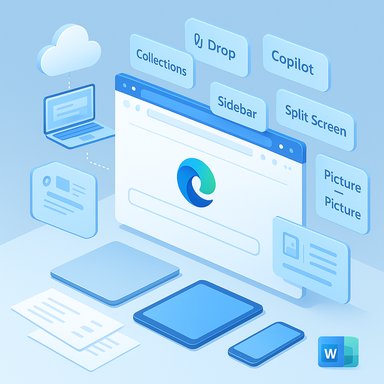
Microsoft Edge quietly does a lot of the heavy lifting most browsers only promise — and for many power users it’s become less of a “web page viewer” and more of a productivity hub that shaves hours off research, planning, and repetitive busywork every week. The browser’s Collections, Workspaces, sidebar mini‑apps (including Copilot), Drop cross‑device clipboard, and built‑in split‑screen / picture‑in‑picture tools are modest individually but, when combined, form a workflow ecosystem that reduces tab bloat, avoids constant context switching, and automates repeatable tasks. The net result: fewer lost links, fewer open windows, and faster turnarounds on tasks that used to require copying, pasting, re‑formatting and repeated manual checks.
Microsoft has steadily repositioned Edge from a Chromium‑based browser that “just renders pages” into a browser that remembers, organizes, and assists. This strategy layers Microsoft services (OneDrive, Microsoft accounts, and Bing AI/Copilot) directly into the browsing experience and adds focused features designed for research, collaboration and task completion rather than just browsing. Many of the modern Edge features were rolled out across Insider channels and the Stable release over the last several years, and Microsoft documents and support pages now formally describe how these features behave and what they share. That shift — toward a browser-as-workspace model — is deliberate and shows up in how Collections, Workspaces and Copilot are designed. Edge’s incremental approach matters: a feature like Collections began as a lightweight “clip and gather” tool and now integrates with export, sync and accessibility flows; Workspaces moved from personal tab groups into shareable, tenant‑aware collaboration spaces; Copilot evolved from a sidebar chat into an opt‑in, multi‑tab assistant that can summarize and compare content when allowed. Those changes make Edge more than the place to open a tab — it becomes a workspace you can save, re-open or share.
Note: product behavior (sidebar search defaults, Copilot capabilities, and platform‑specific availability) has changed across Edge releases and regional rollouts; where a behavior is sensitive to browser channel or region, test on your current Edge version and review the browser’s settings and permission prompts before using agentic features in sensitive workflows.
Source: MakeUseOf These 5 Microsoft Edge features save me hours of busywork each week
 Background
Microsoft has steadily repositioned Edge from a Chromium‑based browser that “just renders pages” into a browser that remembers, organizes, and assists. This strategy layers Microsoft services (OneDrive, Microsoft accounts, and Bing AI/Copilot) directly into the browsing experience and adds focused features designed for research, collaboration and task completion rather than just browsing. Many of the modern Edge features were rolled out across Insider channels and the Stable release over the last several years, and Microsoft documents and support pages now formally describe how these features behave and what they share. That shift — toward a browser-as-workspace model — is deliberate and shows up in how Collections, Workspaces and Copilot are designed. Edge’s incremental approach matters: a feature like Collections began as a lightweight “clip and gather” tool and now integrates with export, sync and accessibility flows; Workspaces moved from personal tab groups into shareable, tenant‑aware collaboration spaces; Copilot evolved from a sidebar chat into an opt‑in, multi‑tab assistant that can summarize and compare content when allowed. Those changes make Edge more than the place to open a tab — it becomes a workspace you can save, re-open or share. Collections: research without the chaos
What Collections does and how it saves time
Collections is a lightweight research binder built right into the browser. Use it to collect web pages, screenshots, notes and images into named groups you can reopen later. Items in a Collection can be launched en‑masse, exported to Word/Excel, or shared — and Collections sync across devices when you sign into Edge. That combination turns dozens of ad‑filled, ephemeral tabs into a compact, actionable list you can return to or hand off. Benefits:- Rapid capture: drag‑and‑drop or right‑click to add pages, images and snippets.
- Persistence: save a research session as a single collection, close Edge, and return later with everything intact.
- Cross‑device continuity: collections sync to your other signed‑in Edge instances so research travels with you.
Tips for power users
- Name collections by project (e.g., “Laptop buying — April”) so they’re discoverable.
- Use the export feature to generate a quick Word or Excel draft — it’s faster than copy/paste and preserves links.
- Pin the Collections pane (Ctrl+Shift+Y) during active research sessions to keep the tool visible.
Risks and limitations
- Collections content is tied to your Microsoft account; syncing depends on account sign‑in. If privacy or account separation matters, be deliberate about which account you use.
- Collections is great for capture, less suited for complex knowledge management (no full‑text tagging, limited metadata). Heavy research teams may still prefer a dedicated tool for long‑term archival.
Workspaces: project silos that actually sync
Why Workspaces matter
Workspaces let you create a dedicated browser window with its own tabs, favorites and browsing session — and now Edge lets you invite others to that workspace. That means you can create a shared browsing session where colleagues see the same tabs and updates in real time. For group research, event planning or onboarding, that removes the endless back‑and‑forth of “here’s the link I used,” and the workspace acts as a live, shared whiteboard of web resources. What Workspaces shares:- Tabs, favorites and browsing history within the workspace.
- Live indicators of where group members are browsing.
- Personal logins, passwords, collections, downloads, extensions or cookies. Workspaces are intended to share public browsing context, not private credentials.
Practical uses
- Team research: create a workspace for a marketing brief and invite collaborators — everyone instantly has the same set of pages.
- Event planning: share itineraries, vendor pages and booking confirmations (but be mindful of account logins).
- Project handoffs: save a workspace as the thread‑bare context for the next person stepping into a project.
Controls and enterprise considerations
- For organizations using Microsoft Entra (Azure AD), Workspaces created inside a tenant are restricted to users in that tenant; you can’t freely share with external users from outside your organization. Workspace data is stored in OneDrive for Business and inherits its protections. That’s excellent for enterprise governance, but it means that collaboration outside your organization needs alternative sharing workflows.
The sidebar: mini‑apps that follow you
A pocket of persistent utility
Edge’s sidebar puts lightweight web apps a click away: messaging (WhatsApp/Web), music (Spotify), news, finance tickers and quick search — all in a slim, persistent panel. That avoids tab switching for routine tasks (replying to a chat, skipping a song) and keeps your main tab focused on the primary task. Users can add sites to the sidebar and toggle visibility to keep the toolbar compact.Copilot and quick tasks
The sidebar also hosts Copilot (Edge’s integrated AI assistant) and a built‑in Bing search: Copilot can summarize pages, create images, or — with permission — analyze and compare content across open tabs. That ability to synthesize multiple pages into a short brief is a genuine time saver when researching products, summarizing articles, or digesting long-form content. However, Copilot’s multi‑tab reasoning is opt‑in and subject to permission prompts; it’s not active by default.The sidebar search engine caveat
Historically, the sidebar’s search tools have favored Bing, and the context‑menu “Search in sidebar” option has at times been limited to Bing or required Bing to be available in the search engines list. While Edge has iterated on sidebar search to support additional engines in some builds, this behavior varies by version and region — and in many installations the sidebar defaults to Bing. If having a different default engine in the sidebar matters, check your Edge version and the sidebar settings; behavior can change with updates. In short: the sidebar is immensely convenient, but search engine behavior may be constrained by Edge’s current build and Microsoft’s platform choices. This is a nuanced area that has changed over releases; test on your Edge channel to confirm.Drop: a frictionless bridge between your devices
How Drop works
Drop is Edge’s built‑in “send to self” feature. Drag files, screenshots, notes or links into the Drop panel and they are uploaded to your OneDrive account where they appear in a dedicated “Microsoft Edge Drop Files” folder. The content then becomes immediately accessible on other Edge instances logged into the same Microsoft account. It’s essentially a browser‑native clipboard and quick file dropper that uses OneDrive as storage. Benefits:- Fast ad‑hoc transfers between desktop and phone (or between two desktops).
- Notes feature doubles as a one‑way chat to yourself for quick reminders.
- Files are backed by OneDrive, so they are part of your cloud backup.
Practical workflow example
- Find an invoice PDF on a work PC.
- Drag the file into Drop and tap Send.
- Open Edge on your phone and download the file from the Drop panel — no email, no USB, no upload to a third party.
Caveats and risks
- Drop consumes OneDrive storage. Large or frequent transfers can fill a free OneDrive quota quickly unless you monitor storage.
- Some users report occasional download or sync glitches; when Drop fails, the OneDrive folder still typically contains the file and a direct download from OneDrive can be a fallback. In short: Drop is convenient, but not a guaranteed replacement for robust file‑transfer tools in every environment.
Split screen and picture‑in‑picture: keep reference and work together
Split screen inside a tab
Edge’s split‑screen (side‑by‑side pages within a single tab) reduces the need for separate windows and makes comparison workflows frictionless: open two pages in one tab, resize the divider and work without losing context. This is especially useful when drafting research reports while referencing source pages, or when comparing two product pages. Each tab can keep its own split layout, which streamlines switching between discrete workflows.Picture‑in‑picture (PiP)
Picture‑in‑picture lets you pop videos into a floating, always‑on‑top mini player. Controls include play/pause, 10‑second skip forward/back, mute and the progress bar on supported sites — but behavior can vary by website and exact Edge build. In practice, PiP is indispensable for following tutorials, lectures or background streams while working in other tabs. If PiP controls are missing or buggy, it’s often a site‑specific limitation or a temporary browser issue.Security, privacy and governance — the tradeoffs
Edge’s integrated features provide convenience but create tradeoffs that need explicit consideration.- Sync and cloud dependency: Collections, Drop and synced Collections require a Microsoft account and OneDrive. That’s convenient but ties data to Microsoft’s cloud and to the account’s security posture. Users who require local‑only data or strict separation should avoid enabling sync or should use separate profiles for personal vs. work.
- Copilot and data access: Copilot’s value comes from its ability to reason over pages and, optionally, connected content (OneDrive, Outlook, Google connectors where offered). Microsoft presents these as opt‑in, with visible permission prompts, but the very capability to surface personalized or cross‑app insights raises governance and privacy questions for enterprises and privacy‑conscious users. Use explicit policies and admin controls where required.
- Storage and cost: Drop files count against OneDrive storage. Heavy users should monitor quotas or set a cleanup routine to avoid surprises.
- Enterprise limits on collaboration: Edge Workspaces’ sharing is tenant‑aware and stored in OneDrive for Business. That’s good for enterprise security but prevents ad‑hoc sharing with external collaborators unless you export or share links outside the workspace.
Strengths: why Edge saves time in real workflows
- Low‑friction capture and retrieval: Collections + Drop replace dozens of ad‑hoc notes and screenshots with named, persistent artifacts you can re‑use or export. That reduces repeated copying and formatting work.
- Context preservation: Workspaces and Copilot keep the “why” behind your tabs. Instead of dumping URLs into chat or email, a workspace preserves the session and lets collaborators see the same thing in real time.
- Integrated assistant: Copilot automates repetitive synthesis tasks — summarizing pages, comparing prices or producing a draft export — which would otherwise be manual and time‑consuming.
- Built‑in utilities: PiP, split views, vertical tabs, and the PDF editor reduce the number of separate apps needed for routine tasks. Edge bundles the small helpers that together save big chunks of time.
Weaknesses and things to watch
- Feature behavior varies by channel and region. Some sidebar and Copilot behaviors differ between Canary, Dev, Beta and Stable channels, and regional rollouts can gate features. Always test features on your target Edge build before committing a workflow.
- Dependency on Microsoft services. Deep integration with OneDrive and Microsoft accounts is the source of value — and of vendor lock‑in. If cross‑platform continuity is required beyond Microsoft’s ecosystem, plan for export or hybrid workflows.
- Privacy & governance complexity. Copilot’s ability to access tabs and connected stores improves productivity but requires careful consent management and admin controls for enterprise deployments.
- Occasional reliability quirks. Community reports show intermittent PiP control issues and occasional Drop sync/download failures; these are usually resolved by updates, but they’re worth noting for mission‑critical workflows.
Practical playbook: make Edge your time‑saving browser
- Start with a single purpose: enable Collections and practice saving three research sessions this week.
- Create Workspaces by project (Work, Personal, Travel) and use colors and names to switch context quickly. Invite one collaborator to a workspace to test shared syncing.
- Enable Drop and use it as your “send to self” buffer for screenshots and quick reference files — but keep an eye on OneDrive storage and set a weekly cleanup reminder.
- Try Copilot for summarizing multi‑tab research only after reviewing permission prompts; use it for first drafts and confirmation rather than final verification.
- Use split view and PiP for multitasking: tutorials in PiP while you follow steps in the main window; two reference pages in split view while drafting.
The bottom line
Microsoft Edge has quietly evolved into a productivity platform more than a simple tabbed browser. Its suite of modest‑sounding features — Collections, Workspaces, Drop, the sidebar with Copilot, split‑screen and PiP — combine to reduce manual busywork, keep project context intact, and make collaborative web research materially faster. These gains are real for people who do heavy web research, manage multiple projects, or routinely move content between devices. The tradeoff is greater dependency on Microsoft’s account and cloud services and an elevated need for governance in enterprise contexts. For most individual users and many teams, however, Edge’s bundled toolbox delivers time savings that add up quickly — and for that reason it’s worth reconsidering as more than “just another browser.”Note: product behavior (sidebar search defaults, Copilot capabilities, and platform‑specific availability) has changed across Edge releases and regional rollouts; where a behavior is sensitive to browser channel or region, test on your current Edge version and review the browser’s settings and permission prompts before using agentic features in sensitive workflows.
Source: MakeUseOf These 5 Microsoft Edge features save me hours of busywork each week
