

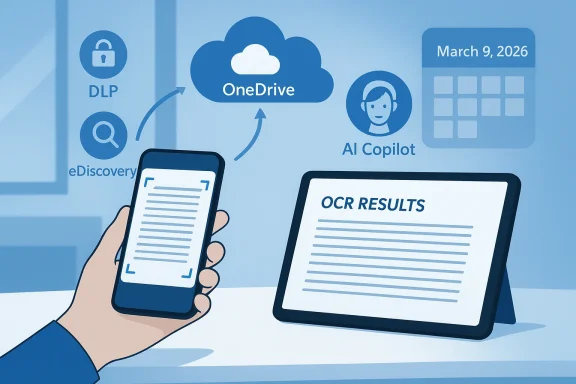
Microsoft’s quiet retirement of Microsoft Lens marks a small but meaningful shift in how the company expects people to capture, store, and process documents on mobile devices — and it should force every user and IT team to act fast to avoid lost scans, workflow breakage, or unexpected compliance exposure. rview
Microsoft Lens (originally released as Office Lens in 2015 and rebranded in 2021) was one of those tiny, indispensable utilities that turned a phone camera into a reliable document scanner: automatic cropping, cleanup, built‑in OCR, and one‑tap exports to PDF, Word, PowerPoint, OneNote, and local device storage. For many users — students, field workers, and knowledge workers — it was the easiest way to digitize notes, receipts, whiteboards, and business cards without a subscription or a complicated workflow.
Now Microsoft has s schedule that is concrete and non‑negotiable: Lens entered retired status, the app was removed from mobile app stores on February 9, 2026, and the backend services that allow new scans will be disabled on March 9, 2026. After that final cutoff you will not be able to create new scans in the app; existing scans may remain viewable only if the app remains installed and you are signed into the last active Microsoft account used in Lens.
Those dates matter. They give a short wirrs to inventory, export, and migrate important content. This article explains what changes, why Microsoft is doing it, what you’ll lose and gain, and a practical, prioritized playbook to migrate with minimal disruption. Along the way I’ll flag claims that need tenant‑level verification (for example, licensing or small UI differences) and offer alternative tools and mitigations where OneDrive or Copilot aren’t a good fit.
What Microsoft actually announced (the authoritative facts)
- Microsoft Lens entered retired status and will receive no future updates.
- The app was delisted from the Apple App Store and Google Play on **February 9, 2ns after that, it must already be installed on your device.
- Microsoft will disable the backend services powering new scanning in Lens on March 9, 2026; afterll not create new scans, although previously created scans may remain viewable under the conditions below.
- To access past scans within the Lens app after the retirement window begins, you must remain signed into the last active M in the app; uninstalling the app or losing access to that account risks losing local access to Lens‑stored scans.
---consolidating Lens into OneDrive / Copilot
At the product level this is a clear part of Microsoft’s wider strategy: reduce the engineering and maintenance cost of many single‑purpose utilities by folding capture and processing into centrally governed, AI‑enabled surfaces — primarily OneDrive and Microsoft 365 Copilot. That gives Microsoft the ability to:
- Centralize scanned content so it’s immediately available for AI processing (summaries, table extraction, knowledge agents).
- Apply tenant-level governance (retention, DLP, eDiscovery) more easily when files are stored in OneDrive/SharePoint.
- Prioritize investment into Copilot‑driven features where AI adds downstream value.
What you lose — and why it matters
Microsoft Lens wasn’t perfect, but it offered a set of micro‑features that mattered in day‑to‑day productivity:- Local-save convenience: Lens let you save scans directly to your device (camera roll or specific folders) without a cloud roundtrip. OneDrive’s scanner, by contrast, saves to the cloud by default and lacks a one‑tap local save option. That changes offline workflows and quick‑archive habits.
- One‑tap Office exports: Lens offered direct exports into OneNote, Word, and PowerPoint from the scan UI; early replacements may not provide exact parity for every export automation.
- tion and structured exports**: Quick extraction of contact details and table structures is not guaranteed to be identical in OneDrive/Copilot at launch.
- In‑scanner accessibility flowsd read‑aloud integration that were available in Lens may not be present inside OneDrive’s scan UI or Copilot in the same way. That can create regressions for users who depended oAccount dependency risk: If your important scans only live inside Lens and you or your organization later loses access to the Microsoft account used in Lens, those files may become inaccessible. The support guidance warns explicitly about this scenari underpin a workflow — e.g., a field team that must capture receipts offline and submit them later, or a teacher who scanned documents for students with accessibility needs — the retirement is an operational problem, not just a mild annoyance.
What yousoft’s alternatives are strong)
- Cloud‑first governance: OneDrive makes setting retention, DLP, eDiscovery, and sharing controls easier for enterprises than decentralized local copies. For organizations that prioritize audited records and tenant governance, that’s a win.
- Integration with Copilot AI: Scans saved into OneDrive can be immediately consumed by Copilot flows and, increasingly, by OneDrive agents — project‑scoped Copilot assistants that reason over a selected set of files. That unlocks cross‑document summarization, action‑item extraction, and persisHowever, note the licensing and governance caveats below.
- Consolidated maintenance and investment: For Microsoft, moving features into fewer surfaces allows faster improvements and deeper AI integrations over time.
OneDrive scanning: what it is — and a practical note about local saves
Microsoft’s recommended replacement is the OneDrive mobile app’s built‑in scannc flow is:- Open the OneDrive mobile app.
- Tap the + button in the bottom corner.
- Choose Scan (sometimes labeled "Scan photo") and capture the document.
- The scan is saved into your chosen OneDrive folder and can be edited, OCR’d, and shared from there.
- OneDrive saves to the cloud by default; there is no built‑in one‑tap “save to local device folder” option comparable to Lens. You can manually download files later, but that’s an extra step and not the same seamless local workflow.
- Offline capture scenarios degrade unless you explicitly manage local device storage or use a third‑party app that supports local saves. For field work or intermittent connectivity, this can impose real friction.
Microsoft is increasingly promoting OneDrive agents — .agent files that encapsulate a Copilot assistant scoped to a curated set of filesross multiple documents, extract owners, deadlines, risk items, and present cross‑document summaries. They open in a full‑screen Copilot interface and are stored in OneDrive like any other file.
Key technical constraints and governance points:
- Agents initially operate as a web‑first experience and are currently oriented toward commercial (work or school) tenants.
- Microsoft’s product messaging and independent coverage indicate that creating and using OneDrive agents requires a Microsoft 365 Copilot license for commercial tenants; consumer personal accounts are excluon at launch. If your tenant plans to rely on agents, confirm licensing and billing implications.
- Agents are permission‑aware: they only surface content that a viewer also has access to, which preserves OneDrive/SharePoint access controls.
- Agents introduce new governance challenges (prompt injection, sprawl, metered consumption) that require integration with DLP, conditional access, and logging. Microsoft has launched management primitives — Copilot Studio, Agent 365, managed agent identities — boike a new application platform.
Security, privacy, and compliance considerations
The Lens retirement and the OneDrive consolidation change the data residency and threat model for scanned documents in several ways:- Data residency and retention: Moving scans to Oneage under tenant controls. That simplifies retention and eDiscovery for enterprises but also means scanned content might now be subject to cloud retention policies and cross‑region storage behaviors. Verify your tenant’s storage region and retention rules before migrating sensitive content.
- DLP and tenant governance: OneDrive makes it possible to apply Purview sensitivity labels and DLP rules directly to scanned files, which is good — but you must configure these policies proactively. Don’t assume scanned files will inherit the right controls by default.
- Prompt injection and agent risk: Agents are powerful because they reason over document content; that same property creates a new attack surface where adversarial document content could influence agent outputs. Inclests and human verification for high‑impact agent outputs.
- Account‑based access risk for Lens‑stored scans: Because previously created scans inside Lens may only be viewable if you remain signed into the last active account used in Lens, losing that account or uninstaan permanent local loss of those scans. Export now rather than rely on later access.
A prioritized migration playbook (practical, day‑by‑day steps)
If you still rely on Lens, here’s a practical playbook organized by urgency.Immediate (do this now — Day 0–7)
- Inventory devices with entify owners. Ask users to confirm where they save scans (OneDrive vs local device vs inside the Lens app).
- On every device with Lens installed, open the app and verify you are signed into the Microsoft account you want to retain for access. If you are not signed in to the intended account, sign in now and export needll important scans to durable storage:
- Export as PDF/Word from Lens and upload to a centrally managed OneDrive/SharePoint folder (preferred for tenant governance).
- Or copy files to a local PC/NAS and keep an encrypted backup if the content is sensitive.
- If Lens is not installed on a device and you need it after Feb 9, ensure you install it now — once delisted you cannot reinstall from the store.
Near term (Day 7–30)
- Test the OneDrive scan workflow for your most common use cases: receipts, whiteboards, business cards. Confirm OCR quality, exporting behavior.
- For workflows that require local saves, either:
- Adjust the workflow to use OneDrive and a follow‑up local download step, or
- Adopt a third‑party scanning app that still supports local device saves and has enterprise manageability (Adobe Scan / Acrobat Mobile, Scanner Pro, etc.).
- If Copilot agents are of interest, run a licensing and governance assessment:
- Confirm which users need Copilagents.
- Pilot agents on non‑sensitive projects with human verification and telemetry.
Before March 9, 2026 (final cutoff)
- Stop depending operationally on Lens for new scans.
- Finising local-only scans into OneDrive/SharePoint or another managed archive.
- Update helpdesk documentation and MDM/Intune catalogs to point to OneDrive or approved third‑party alternatives.
- Revoke or manage Lens app availability via MDM policies to prevent accidental uninstalls before migr--
Enterprise checklist — what IT teams must do
- Inventory: Identify devices with Lens and owners, and locate scans that are only stored locally.
- Archive & retention strategy: Export important scans to governed OneDrive/Sattach retention labels as required by compliance policy.
- MDM actions: Use Intune or your MDM to block uninstalls or to prevent reinstallation after delisting (if that fits your policy).
- Pilot agents responsibly: If experimenting with OneDrive agents, start with non‑sensitive projects, run adversarial prompt tests, and map agent activity to SIEM logs.
- Licensing review: Verify Copilot seat requirements if agents or Copilot featurer workflows.
- Cost governance: If your tenant uses Copilot metered consumption, set quotas or monitor consumption to avoid surprise bills.
Alternatives worth evaluating (short product guide)
If OneDrive or Copilot doesn’t fit your needs, consider these alternatives for scanning and OCR:- Adobe Scan / Acrobat Mobile — strong OCR, robust PDF tooling, and local save options; subscription required for advanced features.
- Third‑party scanner apps (Scanner Pro, CamScanner alternatives with enterprise offerings) — choose one that supports local saves, exports, and MDM policy control.
- Copilot + OneDrive — best if you want cloud governance and AI augmentation (but verify Copilot licensing and govollout).
How to think about the “local save” loss without panicking
The emotional reaction to losing a beloved single‑purpose app is understandable. But the operationle if you act deliberately:- Export now: don’t assume local scans will stay accessible after the retirement window starts.
- Rebuild simple automation: a short Power Ascript can copy OneDrive scans to a local network share at a cadence if you need local archival for compliance.
- Use MDM to control uninstalls: Preveremoving the Lens app until you confirm all important scans are secured.
- Train users: A one‑page job aid ("How to scan with OneDrive and download locally") will reduce helpdesk tickets.
Critical caveats and claims that need tenant verification
- Exact feature parity between Lens and OneDrive/Copilot varies by tenant and rollout stage; test the exact exports and accessibility flows you rely on. Early community reporting and Microsoft’s guidance make it clear that some micro‑features are not present at parity.
- Licensing: OneDrive agents and many Copilot features reCopilot license for commercial tenants. Confirm licensing and billing terms with your Microsoft licensing contact. This is not a rumor — product messaging and independent coverage designate Copilot seats as a gating surface for agent creation.
- Install counts, ratings, and lifetime totals for Lens vary across trackers; reported totals (tens of millions of installs) are useful for gauging adoption but are not a single authoritative number — treat them as approximate.
Final assessment — who wins, who loses, and the pragmatic tradeoffs
- Winners: Cloud‑first organizations that prioritize governance, tenant control, and AI‑augmented workflows. For these teams, centralizing capture into OneDrive + Copilot simplifies compliance and enables richer
- Losers (short term): Offline‑first users, people who need fast local saves, and users dependent on specific Lens micro‑features (business‑card workflows, certain accessibility hooks). These groups will face friction unless IT deploys mitigations or third‑party replacements.
- Pragmatic middle: Most organizations can adapal scans, piloting OneDrive agents in controlled projects, and using MDM to manage the transition. The key is to treat this as an operational migration (inventory, test, migrate) — not a simple app swap.
Quick reference list (short, actionable)
- Export any locally stored Lens scans now; do not rely on later access.
- Install and test OneDrive’s Scan flow for your common use cases.
- If you require local saves, pick and pilot a third‑party scanner that supports them.
- If you plan to use OneDrive agents or Copilopilot licensing and run a governance pilot.
- Update helpdesk and MDM policies; prevent accidental uninstalls until migration is complete.
Microsoft’s decision to retire Lens is the kind of product consolidation we should expect in an era where AI and cloud governancnter of gravity for major platform companies. The technical case for consolidation is understandable; the human and operational costs are real. If you rely on Lens, act now: inventory, export, and test replacements before March 9, 2026. Do the migration deliberately, and tnd Copilot as capabilities to pilot and govern — not as a zero‑cost substitute.
Above all, back up your scans today, and don’t assume that an app yd is a long‑term archive.
Source: Windows Central Microsoft Lens is dead — long live OneDrive I guess
