

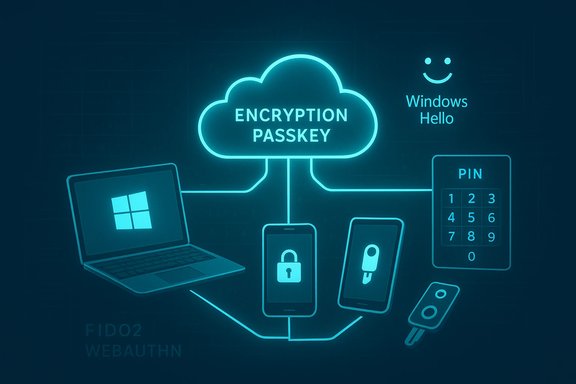
Microsoft’s step to let Windows users save and synchronize passkeys to their Microsoft Account changes the practical calculus for passwordless security: the company has combined Windows Hello’s local biometric and PIN unlock with a cloud-backed passkey vault (Microsoft Password Manager) so users can create a passkey once and use it across their Windows devices, while an encryption passkey and a separate vault PIN protect cross-device recovery and synchronization.
Background
Microsoft has been building passkey support into Windows and Edge for several years, following the FIDO2 / WebAuthn standards that underpin device-bound, phishing-resistant credentials. The new synchronization flow surfaces in two places: Windows Settings (Settings > Accounts > Passkeys) and Microsoft Edge’s password manager. Users can choose to save a newly created passkey locally (device-bound) or to their Microsoft Account (synced via Microsoft Password Manager). The synced model encrypts passkeys before upload, requires a Microsoft Password Manager PIN for vault operations on new devices, and ties local use to Windows Hello for biometric or PIN-based verification. Edge’s implementation that introduced cloud-backed passkey saving and sync shipped as part of Edge version 142 (Windows desktop initial rollout). The change makes passkeys a first‑class, cross-device option inside Microsoft’s ecosystem and aligns Microsoft with Apple’s iCloud Keychain and Google’s Password Manager in terms of user convenience. Independent coverage and Microsoft’s own blog post describe layered protections: client-side encryption of passkeys, a vault PIN, Windows Hello local unlock, and immutable logging of unlock/reset events for auditability.What Microsoft’s support guidance says — a concise summary
- To begin synchronization, open Settings > Accounts > Passkeys (or use the Settings shortcut) and follow the on-screen flows to choose how passkeys are saved: locally to the device or to your Microsoft Account. If you already have other Windows devices syncing passkeys, select Sync/Next; otherwise, choose Set up or Save to your Microsoft account and complete the setup.
- The first time you enable passkey synchronization to your Microsoft Account, Windows/Edge will create a special credential called the encryption passkey. This passkey is used to provide end-to-end encryption for your synced passkeys and is required when enrolling additional devices into sync. Microsoft recommends creating more than one encryption passkey (storing extras on another device or security key) and warns strongly not to delete the last encryption passkey, because doing so would prevent configuring passkey sync on new devices. Only create encryption passkeys on devices you control.
- Encryption passkeys can be stored on phones, tablets, or hardware security keys; saving to a phone or tablet generally requires Bluetooth proximity verification. The Microsoft Password Manager PIN (created when saving your first passkey to the cloud) protects vault access for new device enrollments and has a limited number of initial attempts (Microsoft documents a 10-attempt limit during first unlock on a fresh device). Unlock/reset events are logged with integrity protections.
- Passkeys remain FIDO2/WebAuthn-compliant: the public key is held by the site, the private key is unlocked locally to sign challenges, and the cloud copy is an encrypted export for convenience and recovery. Users retain the option to keep passkeys device-bound if they prefer the strongest, hardware-tethered model.
How the setup flow differs by scenario
First Windows device you configure for sync
- Open Settings > Accounts > Passkeys (or follow the on-screen prompt when creating a passkey in Edge).
- When prompted with "Choose how to save passkeys", select Save to your Microsoft account and follow the setup to create the Microsoft Password Manager PIN and the first encryption passkey.
- Optionally create an additional encryption passkey and store it on a phone, tablet, or hardware security key for recovery. Do not delete your only encryption passkey.
If you already sync passkeys on another Windows device
- Sign into Edge or Windows with the same Microsoft Account on the new device.
- In the “Let’s sync your passkeys” prompt, select Sync or Next, then provide the Microsoft Password Manager PIN (or follow device-provided attestation flows).
- Complete Windows Hello verification to enable local usage of the retrieved passkeys.
One-time setup from an app or website
- When an app or website that supports passkeys offers to create a passkey, you’ll be prompted to choose a destination: this device, Microsoft Password Manager, a third‑party passkey manager, a phone/tablet, or a hardware security key. Different destinations use different flows (for example, pairing a phone typically requires QR scan/Bluetooth proximity).
The encryption passkey — what it is and why it matters
Microsoft’s implementation creates an encryption passkey at the moment you enable passkey synchronization. The encryption passkey functions as the recovery and envelope key for your synced passkeys: it is one of the credentials that allow your new device to decrypt the passkeys stored in Microsoft Password Manager for your account.Key operational points and recommended actions:
- Create more than one encryption passkey. That way, if you wipe or lose the device that holds one encryption passkey, you still have another to complete recovery or enroll a new device. Microsoft explicitly warns against deleting all encryption passkeys.
- Store encryption passkeys on devices you control: phones, tablets, or hardware security keys. Each storage medium has trade-offs: a hardware security key offers the greatest portability and durability, while a phone/tablet is convenient but requires proximity checks and could be lost.
- Treat the encryption passkey as a critical recovery artifact. If your account’s recovery channels are weak or attackers control account recovery, cloud‑stored passkeys would still be at risk if protections are bypassed; the encryption passkey adds a cryptographic barrier but does not eliminate the need for robust account security. This is a central reason to complement passkey sync with a hardened Microsoft Account (strong MFA, recovery email/phone hygiene, and device protections).
Security model and protections — technical verification
Microsoft’s design layers multiple protections to balance portability with safety:- Client-side encryption: passkeys are encrypted before leaving the device and stored in Microsoft Password Manager. The cloud stores only encrypted blobs.
- Vault PIN for initial enrollment: the Microsoft Password Manager PIN is required to unlock vault entries on new devices. Microsoft documents a limit of 10 attempts for the PIN during the initial unlock on a fresh device; repeated failures trigger recovery or protective workflows.
- Local unlock with Windows Hello: to use a passkey on a device, Windows Hello (face, fingerprint, or device PIN) is used to authorize signing with the private key. Biometric templates never leave the device.
- Immutable logging/audit: Microsoft records unlock and PIN reset attempts using an integrity-protected ledger construct (Microsoft references Azure Confidential Ledger) to provide tamper-evident logs for sensitive operations. This is positioned as an anti-abuse and auditing control.
- Compatibility with FIDO2/WebAuthn standards: the underlying create/assertion flow remains standards-based so sites and apps that support passkeys can continue to operate with these credentials.
Strengths: Why this matters for most Windows users
- Real convenience without sacrificing standard protections. Cloud sync eliminates the sticky, real‑world problem where passkeys are created on one device but unavailable on another. Users who switch or add Windows machines no longer need to re-register passkeys per device.
- Phishing-resistant authentication becomes practical. Passkeys’ cryptographic model removes the primary phishing vector that enables many account takeovers; combining this with Microsoft’s vault makes it feasible for mainstream users to adopt passkeys.
- Built-in recovery and reduced lockout risk. Device-bound passkeys are very secure but brittle; Microsoft’s synced option provides an accessible recovery path while still requiring local verification and vault controls to prevent simple theft.
- Integration with Windows Hello and Edge streamlines UX. Users who already rely on Windows Hello find passkey use familiar: biometric or PIN unlock is used for everyday authentication, and Edge surfaces passkey management within its Autofill/password manager.
- Planned plugin and third‑party support. Microsoft has signaled a plugin model that will let other apps and browsers on Windows use passkeys stored in Microsoft Password Manager, which is crucial to making synchronized passkeys broadly useful across native apps and non-Edge browsers. Early vendor support (1Password, Bitwarden) was announced for the Windows plugin model.
Risks, limitations, and operational cautions
While the design is thoughtful, the hybrid cloud model introduces trade-offs that IT teams and security-minded users must weigh.- Centralization and account risk. Synced passkeys are convenient but create a stronger dependency on the Microsoft Account. If the account’s recovery channels are weak or an attacker achieves full account takeover, cloud-synced secrets could be targeted. The vault PIN and encryption passkey mitigate risk but do not remove it. Harden the Microsoft Account: enable strong multi-factor authentication, remove weak recovery options, and audit recovery contacts.
- Recovery and single‑point failures. Users who delete all encryption passkeys or lose every enrolled device without a stored encryption passkey may face permanent enrollment problems for new devices. Microsoft warns explicitly against deleting the last encryption passkey. Organizations should publish clear user guidance and include hardware security keys or recovery passkeys in their support playbooks.
- Initial rollout scope and cross‑platform gaps. The early rollout targets Windows desktop and consumer Microsoft Accounts; mobile platforms, macOS, and enterprise (Entra/Azure AD) tenancy behavior may differ or arrive later. Until the plugin ecosystem and cross-platform parity land, users who traverse Windows, macOS, iOS, and Android may still need to rely on third‑party solutions or multiple passkey stores.
- Operational complexity for enterprises. Administrators must reconcile this consumer sync pathway with enterprise identity controls. The extent to which Microsoft Entra/Azure AD tenants can use the same sync model, or how enterprise recovery and audit controls apply, requires careful validation before broad rollouts. Policies around hardware-backed non-exportable credentials (FIDO2 security keys) remain relevant for high‑assurance or regulated scenarios.
- Human factors and PIN brute-force protections. The documented PIN attempt limits are a defensive control, but they can also lock legitimate users out if not well understood. Support channels must be ready to handle PIN resets that require an existing enrolled device.
Practical recommendations and best practices
- Harden your Microsoft Account before you enable passkey sync: enable a second factor that is not SMS-based, remove stale recovery email addresses/phones, and enable notifications for account security events. Treat the Microsoft Account as a high‑value root of recovery.
- Create and store multiple encryption passkeys immediately after enabling sync. Use a hardware security key for one copy when possible, and keep one copy on a personal phone or tablet as a second recovery option — but only on devices you control. Do not delete all encryption passkeys.
- Maintain at least one hardware FIDO2 security key for high‑value or enterprise accounts that require non-exportable credentials. The cloud sync option is convenient for consumer and standard business use, but hardware keys remain the gold standard for high assurance.
- For organizations, pilot the sync feature with a controlled user group. Validate how passkey sync interacts with Microsoft Entra policies, conditional access, and identity governance. Build a support playbook for PIN resets, lost-device scenarios, and encryption passkey recovery.
- If you use multiple ecosystems, evaluate a third‑party passkey manager that supports the Windows plugin model. Microsoft’s plugin path will expand interoperability on Windows, but cross-platform parity (macOS/iOS/Android) should guide which manager best fits your multi-device environment.
How this aligns with the broader passkey landscape
Apple and Google already offer cloud-backed passkey sync within their ecosystems (iCloud Keychain, Google Password Manager). Microsoft’s implementation fulfills the same user expectation — making passkeys portable and reducing lockout friction — while adding Windows-specific integrations (Windows Hello unlock and a plugin path for native apps). The broader standards (FIDO2/WebAuthn) ensure the credentials themselves remain interoperable where platform support is present; the practical user experience depends on how well platform vendors expose their vaults to apps and browsers. Independent reporting and Microsoft’s docs confirm Microsoft’s choice to prioritize Windows desktop in the initial rollout, with mobile and cross-platform parity on the roadmap. For now, Windows users benefit most from the new convenience; cross-device users spanning mobile and non-Windows platforms should audit their cross-platform passkey strategy.Troubleshooting and support notes
- If passkeys don’t appear on a newly signed-in Windows PC, verify: you’re signed into Edge and Windows with the same Microsoft Account, the Microsoft Password Manager PIN was entered on initial unlock, and Windows Hello is configured for local unlock. If PIN attempts are exhausted, use a device that already has passkey access to reset the PIN.
- To manage or revoke passkeys, use Settings > Accounts > Passkeys on Windows for device-bound entries, or manage synced passkeys through Edge’s password manager settings. For Microsoft account-specific passkeys used to sign in to the account itself, use the Microsoft Account Advanced Security options to remove passkeys as needed.
- If you need enterprise-level control, test interactions with Microsoft Entra ID and conditional access policies before enabling passkey sync broadly; document how passkey provisioning, resets, and audit logs surface in your security tooling.
Conclusion
Synchronizing passkeys to a Microsoft Account marks a practical turning point for Windows users: it combines the security advantages of passkeys (phishing resistance, cryptographic assurance) with the usability of cross-device sync and integrated Windows Hello unlock. Microsoft’s layered protections — client-side encryption, an encryption passkey, a vault PIN, and immutable logging — are sensible and align with industry approaches, but they do not remove the need for strong Microsoft Account hygiene, multiple recovery artifacts, and retention of hardware security keys where policy demands the highest assurance.For individual users, the feature makes passwordless sign-in far more convenient and safer than reusing passwords. For enterprises, the change is promising but requires careful piloting, recovery planning, and policy validation before wholesale adoption. Create extra encryption passkeys, harden the account that anchors your passkey vault, and keep at least one hardware key for your most important accounts. The new capability brings passkeys one step closer to replacing passwords in everyday Windows workflows — provided users and administrators treat the Microsoft Account vault as the high-value target it has become.
Source: Microsoft Support Synchronize Passkeys to Your Microsoft Account - Microsoft Support
