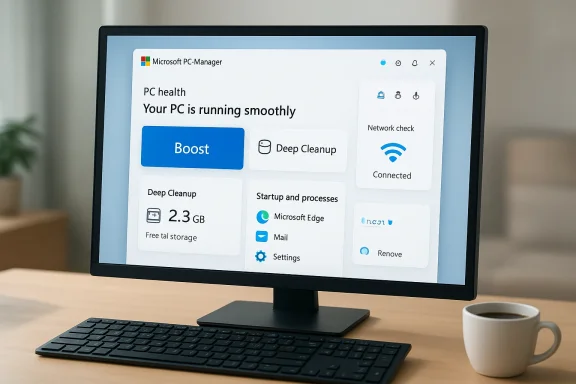
Microsoft’s PC Manager is best understood as Microsoft’s own take on the familiar “PC cleanup” category: a free, Store-distributed dashboard that bundles basic maintenance tasks—temporary-file cleanup, startup app control, a one‑click “Boost,” health checks, and quick links to security settings—into a single, user‑friendly app rather than introducing deep new system optimizations.
Microsoft has long provided the building blocks for PC maintenance inside Windows: Storage Sense, Disk Cleanup, Task Manager, and Windows Security are all mature tools intended to keep Windows running smoothly. What changed with PC Manager is not the technology under the hood but the packaging: Microsoft assembled many of those capabilities into a modern Store app with clearer explanations, one‑click actions, and some automation aimed mainly at non‑technical users.
The app appeared first in limited channels and regions and later rolled out more broadly. Microsoft’s official page lists compatibility with Windows 10 (build 19042.0 and above) and Windows 11 and describes PC Manager’s core goals as cleanup, “boost,” storage management, pop‑up reduction, and a health check experience. Those claims line up with hands‑on reviews and early tests conducted by major reviewers.
Key takeaway: expect convenience and some measurable recoveries in disk usage and transient responsiveness. Do not expect permanent, dramatic transformations on machines throttled by outdated CPU/GPU, low RAM, or slow HDDs. In those cases, hardware upgrades are the correct long‑term solution.
Microsoft states that PC Manager’s cleanup actions happen locally via Windows APIs and that it does not materially send file contents to Microsoft servers. Still, the app requires broad system permissions and the ability to control other apps; users should install only from official Microsoft channels to reduce the risk of counterfeit or trojanized packages. Verify the Microsoft Store publisher, and prefer the official Store listing when possible.
Community‑reported caveats: early community posts and forum threads included concerns about misleading third‑party websites, staged downloads, and the app’s initial appearance resembling third‑party UIs in some regional releases. Those issues underscore the importance of installing from the Microsoft Store and checking the publisher information.
However, don’t expect it to magically fix aging hardware, replace thoughtful troubleshooting, or eliminate the need for hardware upgrades. For power users, IT admins, and anyone who needs deep diagnostics, the native Windows tools and Sysinternals suite remain the definitive options. Use PC Manager for convenience; rely on proper diagnostics and hardware planning for lasting performance improvements.
If you’re unsure, try it once—review the cleanup suggestions, note the effects, and keep your regular backup routine. In most cases PC Manager won’t hurt anything, but it won’t substitute for fundamental fixes when those are required.
Source: KTAR News 92.3 FM What does Microsoft’s PC Manager do? A guide - KTAR.com
 Background
Microsoft has long provided the building blocks for PC maintenance inside Windows: Storage Sense, Disk Cleanup, Task Manager, and Windows Security are all mature tools intended to keep Windows running smoothly. What changed with PC Manager is not the technology under the hood but the packaging: Microsoft assembled many of those capabilities into a modern Store app with clearer explanations, one‑click actions, and some automation aimed mainly at non‑technical users. The app appeared first in limited channels and regions and later rolled out more broadly. Microsoft’s official page lists compatibility with Windows 10 (build 19042.0 and above) and Windows 11 and describes PC Manager’s core goals as cleanup, “boost,” storage management, pop‑up reduction, and a health check experience. Those claims line up with hands‑on reviews and early tests conducted by major reviewers.
What PC Manager actually does: a feature-by-feature guide
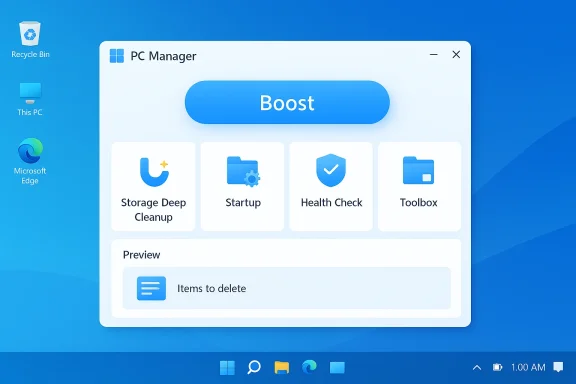
The “Boost” button (and Smart Boost)
- What it does: The prominent blue Boost button performs a short sequence of routine cleanups—clearing temporary files, trimming caches, and terminating selected background user‑mode processes—to free RAM and reduce disk I/O. It gives immediate visual feedback (lower memory/disk activity) but uses no kernel‑level or proprietary acceleration tricks.
- When it helps: Boost is useful in short, situational responsiveness problems—heavy background tasks, runaway helper processes, or when temporary caches balloon in size.
- Limits: The reclaimed memory and responsiveness gains are often modest and transient. Windows already reclaims memory and clears caches when required; Boost mainly speeds up that housekeeping on demand. Independent tests report small benchmark deltas and a few gigabytes of reclaimed storage in certain runs, but results vary by system state.
Storage management and Deep Cleanup
- What it does: PC Manager’s Storage module aggregates disk analysis, finds large files, surfaces duplicate files, and runs a Deep Cleanup routine that targets update residues, thumbnail caches, application caches, and other reclaimable artefacts. The interface previews what will be removed and asks for confirmation before deleting user data.
- When it helps: On systems with limited SSD/HDD capacity or where apps like Slack, video editors, or browsers accumulate multi‑GB caches, Deep Cleanup can free meaningful space quickly.
- Caveats: A thorough cleanup is only a maintenance convenience; it does not fix low physical storage over the long run. Review suggestions carefully—aggressive deletion of caches or logs can sometimes remove data you intended to keep. Real‑world reviewer runs freed several gigabytes in single passes, but those figures are system‑dependent.
Startup and process control
- What it does: PC Manager exposes a simplified Startup pane and a Task‑Manager‑style Process list that makes disabling auto‑start apps and ending misbehaving processes easier for non‑technical users.
- When itar with Task Manager or msconfig appreciate the clearer presentation. Disabling unnecessary startup items remains one of the most effective, long‑term ways to speed boot times and reduce resident memory usage.
- Limits: Power users will still prefer Task Manager, Process Explorer, or Sysinternals tools for advanced sorting, per‑process diagnostics, and persistent process analysis. PC Manager’s process list offers convenience at the expense of diagnostic depth.
Health Check and Protection
- What it does: The Health Check consolidates basic diagnostics—update status, security posture, pop‑up management, and surface‑level network checks—plus one‑click scans tied to Windows Security APIs.
- User value: This provides a handy triage for users who don’t know where to look for “Why is my PC weird?” prompts.
- Red flags to watch: Some reviewers and community threads flagged instances where PC Manager classifies having a non‑Microsoft default browser or modified Microsoft app settings as a “potential issue,” sometimes suggesting a switch back to Microsoft defaults. Those recommendations aren’t enforced, but users should treat default‑change nudges as optional, not required “repairs.”
Toolbox, mini‑toolbar, and widgets
- What it does: The app includes a Toolbox (quick access to Snipping Tool, Notepad, etc.), a floating mini‑toolbar for real‑time system info, and Windows 11 widget integration for quick actions.
- When it helps: These features reduce context switching for light tasks such as screen capture or quick clipboard utilities.
- Personalization: The toolbar items are editable and can be tucked away or disabled if they become intrusive.
How PC Manager compares to Windows built‑ins and third‑party cleaners
- Microsoft’s approach: PC Manager is an orchestration layer over existing Windows functionality—Storage Sense, Disk Cleanup backends, Task Manager APIs, and Windows Security—rather than a set of proprietary optimizations. That makes it safer than many third‑party “optimizers” that historically engaged in risky registry tweaks or bundling.
- Compared with built‑ins: If you’re comfortable navigating Settings and Task Manager, you can replicate every PC Manager action using native tools. PC Manager’s advantage is discoverability and a simplified single surface for maintenance.
- Compared with popular third‑party utilities: Many third‑party cleaners rely on alarms, upsells, ads, or aggressive registry surgery. PC Manager avoids paid upsells (for now) and doesn’t perform registry surgery, which reduces the risk profile but also limits what it can fix. Independent reviews emphasize that PC Manager is safer than the category average but not a miracle fix.
Real‑world results: what tests show
Independent hands‑on reviews show measurable but modest gains from PC Manager’s Boost and Healone widely cited test, running Health Check and Deep Cleanup freed around 9.1 GB on the reviewer’s system and produced modest improvements in synthetic benchmark scores; a fuller set of recommended cleanups produced larger deltas but remained situational. These are real effects on those hardware/software states, but they should not be generalized as guaranteed “double‑speed” outcomes for every PC.Key takeaway: expect convenience and some measurable recoveries in disk usage and transient responsiveness. Do not expect permanent, dramatic transformations on machines throttled by outdated CPU/GPU, low RAM, or slow HDDs. In those cases, hardware upgrades are the correct long‑term solution.
Privacy, permissions, and security considerations
PC Manager installs a privileged service to perform deep cleanup and uninstallation tasks. That service is necessary for elevated operations, but it also broadens the app’s privilege footprint—meaning administrators and careful users should treat it like any tool that runs with elevated rights. For managed environments, test the tool in a controlled setting before broad deployment.Microsoft states that PC Manager’s cleanup actions happen locally via Windows APIs and that it does not materially send file contents to Microsoft servers. Still, the app requires broad system permissions and the ability to control other apps; users should install only from official Microsoft channels to reduce the risk of counterfeit or trojanized packages. Verify the Microsoft Store publisher, and prefer the official Store listing when possible.
Community‑reported caveats: early community posts and forum threads included concerns about misleading third‑party websites, staged downloads, and the app’s initial appearance resembling third‑party UIs in some regional releases. Those issues underscore the importance of installing from the Microsoft Store and checking the publisher information.
Controversy: is PC Manager nudging users toward Microsoft defaults?
Several outlets and community posts have pointed out that PC Manager sometimes lists having a non‑Microsoft browser or deviation from Microsoft app defaults as a “potential issue” and includes an option to reset those defaults back to Microsoft choices. While PC Manager does not forcibly change defaults without user confirmation, the inclusion of such recommendations has been criticized as a nudge toward Microsoft products rather than a purely technical fix. Treat default‑related suggestions as optional and read prompts carefully before accepting them.Who should install Microsoft PC Manager —
- Install it if:
- You’re a non‑technical user who wants a single, safe place to check health, reclaim storage, and limit startup apps.
- You dislike hunting through multiple Settings panes and prefer a friendly dashboard with one‑click maintenance.
- You want a first‑party alternative to risky third‑party cleaners and value the Store‑publisher trust model.
- Skip it or be cautious if:
- You’re an IT admin managing domain controllers, servers, or enterprise endpoints—this tool installs a privileged service and can change local settings; it requires controlled testing beforexpect dramatic, lasting performance gains on hardware‑limited systems; a cleanup tool can only do so much.
- You’re uncomfortable with nudges to restore Microsoft defaults (if you prefer other browsers or defaults). Read prompts carefully.
Practical, safe usage tips
- Install only from the Microsoft Store and verify thounterfeit downloads.
- Run a one‑time Health Check and Deep Cleanup, reviewing the previewed deletions before confirming. Don’t auto‑accept everything.
- Use the Startup tab to disable nonessential launchers and services, but research unknown entries before disabling them. A quick web search of an unknown process name can prevent accieful software.
- Enable Smart Boost only if you trust automatic cleanups; otherwise, use Boost on demand. Automation can be convenient, but it’s best paired with occasional manual reviews.
- Back up important data before running aggressive cleanup routines or deep uninstalls. Even when deletion prompts look safe, backups provide a safety net.
- For enterprise or managed fleets, test PC Manager in a staging environment and consider policy controls that prevent unauthoron‑critical machines.
Risks and limitations: a balanced critique
- Scope is convenience, not cure: PC Manager centralizes maintenance but does not replace the need for hardware upgrades or deeper troubleshooting when underlying drivers or software conflicts are the real cause of slowce, not miracles.
- Elevated privileges increase attack surface: Any tool that installs privileged services should be handled carefully in business networks. IT teams should vet the service, update policies, and control distribution.
- Potential product nudges: The app’s health suggestions sometimes promote Microsoft defaults. That behavior should be transparent and optional; users should treat those suggestions as recommendations, not requirements.
- Regional rollout and packaging quirks: Early rollouts were staggered by region, and some community posts documented confusing download pages or third‑party mirrors. Always use the Microsoft Store or official Microsoft channels to install.
- Unverified community claims: Community posts and promotional dashboards claiming massive aggregate savings or carbon reductions are interesting but should be treated as reported metrics unless Microsoft publishes an auditable methodology. Ferified until corroborated.
Conclusion: should you use PC Manager?
If your goal is to simplify routine Windows maintenance with a single, first‑party, ad‑free dashboard, Microsoft PC Manager is a sensible, low‑risk choice. It presents well‑designed convenience features—one‑click Boost, Deep Cleanup, easier startup management, and an accessible Health Check—that will help many everyday users keep their machines tidy and recover storage. When used with basic caution (install from the Microsoft Store, review suggested deletions, back up important data), it is a practical addition to the toolbox for non‑technical users.However, don’t expect it to magically fix aging hardware, replace thoughtful troubleshooting, or eliminate the need for hardware upgrades. For power users, IT admins, and anyone who needs deep diagnostics, the native Windows tools and Sysinternals suite remain the definitive options. Use PC Manager for convenience; rely on proper diagnostics and hardware planning for lasting performance improvements.
If you’re unsure, try it once—review the cleanup suggestions, note the effects, and keep your regular backup routine. In most cases PC Manager won’t hurt anything, but it won’t substitute for fundamental fixes when those are required.
Source: KTAR News 92.3 FM What does Microsoft’s PC Manager do? A guide - KTAR.com