

Microsoft’s new PC Manager arrives as an easy, one‑pane maintenance assistant for Windows 11 that promises to simplify cleanup, memory optimization, and routine system care — and for many everyday users it delivers exactly that: approachable controls, a persistent mini‑dashboard, and a set of focused tools that replace the need to hunt through multiple Settings pages and Task Manager panels.
Microsoft has been quietly expanding its first‑party utilities for Windows in recent years, and PC Manager is the company’s attempt to bundle the most common maintenance tasks into a single Store‑distributed app. The tool first surfaced publicly as an experimental/beta utility in 2022 and has since graduated to broader availability, aimed primarily at mainstream Windows 11 users who want a safer, simpler alternative to third‑party “one‑click” cleaners.
At its core, PC Manager is intentionally conservative: it consolidates housekeeping actions that Windows already supports — such as temporary‑file cleanup, startup and process control, and targeted removals — into a single, clickable dashboard. That design choice trades deep, aggressive optimizations for accessibility and safety, which makes it attractive to less technical users but limits how much raw performance improvement it can deliver on older or heavily degraded hardware.
However, the app is not a miracle cure. Its wins are generally modest and situational; it cannot substitute for hardware upgrades, enterprise management tooling, or detailed troubleshooting of driver and firmware issues. Users should treat PC Manager as a monthly maintenance assistant — a helpful first stop — and maintain backups and awareness of what the app proposes to remove.
For mainstream Windows 11 users who want a safer, easier way to reclaim space and reduce idle background clutter without wrestling with multiple OS menus, PC Manager is an attractive, low‑risk option. Power users and IT administrators will find its conservative approach familiar but unlikely to replace their more powerful, centralized toolchains.
Conclusion: PC Manager simplifies the routine housekeeping tasks Windows users have long scattered across the OS, delivering safe, modest wins in space and responsiveness while minimizing the risks that come with aggressive third‑party cleaners. Use it for convenience and preventive maintenance, but keep realistic expectations: when deeper performance problems arise, the solution usually lies in hardware, drivers, or centralized IT processes rather than a single maintenance app.
Source: Računalniške novice Microsoft PC Manager: The Easy Way to Speed Up Windows 11 - Computer News
 Background / Overview
Microsoft has been quietly expanding its first‑party utilities for Windows in recent years, and PC Manager is the company’s attempt to bundle the most common maintenance tasks into a single Store‑distributed app. The tool first surfaced publicly as an experimental/beta utility in 2022 and has since graduated to broader availability, aimed primarily at mainstream Windows 11 users who want a safer, simpler alternative to third‑party “one‑click” cleaners.At its core, PC Manager is intentionally conservative: it consolidates housekeeping actions that Windows already supports — such as temporary‑file cleanup, startup and process control, and targeted removals — into a single, clickable dashboard. That design choice trades deep, aggressive optimizations for accessibility and safety, which makes it attractive to less technical users but limits how much raw performance improvement it can deliver on older or heavily degraded hardware.
What PC Manager Does — Feature Breakdown
PC Manager groups several practical maintenance functions behind a clean interface. Below are the headline features and how they behave in day‑to‑day use.The mini status pop‑up and one‑click controls
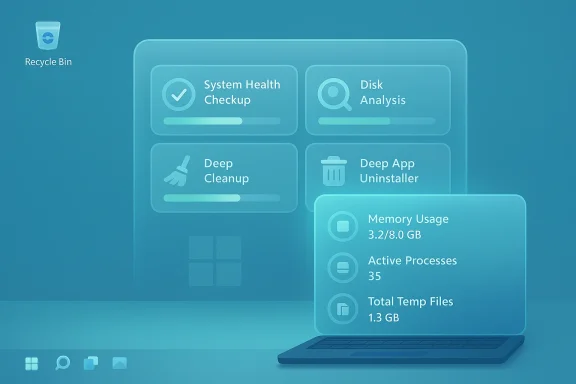
- After installation, PC Manager can show a small floating panel in the lower‑right of the screen that displays memory usage, number of active processes, and the total size of temporary files detected. This panel can be left visible as a quick health indicator or dismissed.
- Users can enable the app to start with Windows so the status pane is always present and run automatic cleanups on demand or on a schedule.
System Health Checkup
- The System Health Checkup is a guided assessment that inspects multiple subsystems and returns actionable recommendations. It covers items such as Wi‑Fi connection quality, duplicate files, startup settings, and other routine trouble spots. Recommendations are presented as safe, user‑directed actions rather than forced repairs.
Disk Analysis and Deep Cleanup
- The Disk Analysis tool scans storage to find large, redundant, or easily forgotten files and folders that are candidates for removal. The interface highlights space hogs and suggests files that are typically safe to delete, making it easier for users to reclaim gigabytes without manual hunting.
- Deep Cleanup and a “one‑click Boost” aim to clear system caches, temporary stores, and idle resources to produce immediate — often modest — space and responsiveness gains. These actions are conservative in scope and avoid operations that could break user data or installed applications.
Deep App Uninstaller
- The Deep App Uninstaller removes applications more thoroughly than Windows’ built‑in uninstaller by looking for leftover files and registry entries that many programs leave behind. This reduces clutter and potential file conflicts but — as with any uninstaller that removes residuals — should be used carefully.
Toolbox and convenience features
- A bundled Toolbox gives fast access to standard Windows utilities — Notepad, Calculator, Screen Capture, and similar quick tools — and can place a permanent control panel on the desktop for one‑click access. This helps users who don’t want to memorize Run commands or search multiple menus.
Why PC Manager Matters: Practical Benefits
PC Manager’s appeal is not in radical, under‑the‑hood optimizations but in three practical areas:- Consolidation: It reduces friction by aggregating scattered maintenance functions (Storage Sense, Disk Cleanup, Task Manager actions, and basic troubleshooting tips) into a single place, which is especially helpful for non‑technical users.
- Safety: Because it’s a first‑party Microsoft tool, its cleanup heuristics are deliberately risk‑averse compared with many third‑party “cleaners” that can remove needed files or modify system settings. That makes PC Manager a safer monthly maintenance step for mainstream users.
- Convenience: The always‑visible mini‑panel, scheduled or on‑demand cleanups, and toolbox shortcuts save time and make routine maintenance feel manageable instead of intimidating.
Critical Analysis: Strengths and Limitations
Notable strengths
- User experience: PC Manager’s interface is simple and intentionally clear. It reduces cognitive load for users who want predictable, reversible actions rather than complex technical options.
- First‑party trust: Being a Microsoft app gives it an implicit safety advantage over many third‑party cleaners, which have historically been sources of adware or destructive behavior.
- Tidy feature set: The combination of a status panel, disk analysis, deep removal, and toolbox shortcuts covers the most common maintenance needs for everyday users without requiring deep OS knowledge.
Important limitations and realistic expectations
- Modest performance gains: PC Manager’s wins are typically incremental on healthy systems; substantial speed improvements still require hardware upgrades (faster SSD, more RAM, or a newer CPU). The app is best treated as a routine maintenance pass rather than a performance panacea.
- Overlapping functionality: Much of what PC Manager does is already possible via built‑in Windows tools (Storage Sense, Disk Cleanup, Task Manager), although those tools are spread across Settings and Control Panel. PC Manager’s value is the consolidation, not novel capabilities.
- Transparency and telemetry concerns: Community writeups note that PC Manager includes telemetry and promotional elements consistent with Microsoft’s other consumer apps. While telemetry is common and often used to improve diagnostics and UX, users who demand maximum privacy should review the app’s permissions and telemetry settings before enabling automatic features.
Safety and Privacy: What to Watch For
PC Manager’s design errs on the side of caution, but a few safety points are worth repeating:- Always review Disk Analysis suggestions before confirming removal. The app will recommend files that are typically safe to delete, but context matters — archived project files or downloads you intended to keep can be miscategorized as reclaimable space.
- Use Deep App Uninstaller selectively. Complete removals are helpful, but removing residual files belonging to apps you may reinstall later could remove custom settings you want to retain.
- Audit telemetry and background permissions. As a first‑party Microsoft product, PC Manager interacts with system telemetry channels; users concerned about data collection should check the app’s privacy settings and Windows’ overall diagnostic level.
Comparison: PC Manager vs Built‑in Windows Tools and Third‑Party Cleaners
Versus built‑in Windows utilities
- Storage Sense, Disk Cleanup, Task Manager, and the Settings app already cover most maintenance tasks. PC Manager’s advantage is a single pane that lowers the effort to perform them and packages them with helpful defaults and a persistent health indicator. That consolidation is meaningful for mainstream users but not transformative for power users who prefer granular control.
Versus popular third‑party cleaners
- Historically, third‑party cleaners promised dramatic cleanup but sometimes delivered destructive or privacy‑invasive behavior. PC Manager trades big, risky optimizations for safer, smaller wins backed by Microsoft, significantly reducing the risk profile compared with untrusted third‑party utilities. That makes it a defensible choice for most home and small‑business users.
Enterprise and IT Considerations
PC Manager is primarily targeted at consumer Windows 11 installations. For enterprise environments, several considerations apply:- Management and deployment: PC Manager is not designed as an enterprise management tool. Centralized deployment, policy enforcement, and reporting capabilities are limited compared with Intune, Configuration Manager, or managed scripts. IT departments should continue relying on established endpoint management systems for mass rollouts and standardized maintenance policies.
- Telemetry and compliance: Enterprises with strict compliance requirements should evaluate PC Manager’s telemetry and logging behavior before approving it for company devices. While the app’s first‑party status reduces risk compared with unknown third‑party cleaners, it still requires review against enterprise privacy and logging policies.
- Complement, don’t replace: PC Manager can be a helpful adjunct for knowledge workers and remote staff who need a friendly maintenance tool, but it should not replace disciplined patch management, hardware refresh cycles, or centralized performance diagnostics at scale.
Hands‑On Recommendations: How to Use PC Manager Safely and Effectively
If you decide to try PC Manager, follow this routine to get practical value without unwanted surprises:- Install PC Manager from the Microsoft Store and confirm you trust the app source.
- Run the System Health Checkup and read each recommendation before accepting changes. The tool will flag Wi‑Fi, duplicate files, and startup items among other checks.
- Use Disk Analysis to identify large files and folders. Sort results by size and date to find forgotten installers and media caches before accepting mass deletions.
- When removing apps with Deep App Uninstaller, back up application‑specific settings or exported profiles if you expect to reinstall later.
- Keep auto‑start enabled only if you want the mini status panel and automatic reminders; otherwise, run maintenance manually on a monthly cadence.
Real‑World Scenarios: Where PC Manager Helps Most
- Low‑disk laptops with lots of accumulated downloads and installer files: PC Manager’s disk analysis can quickly free gigabytes of space.
- Users who avoid deep OS menus: The app’s one‑pane approach reduces mistakes from navigating multiple settings pages.
- Systems with many installed programs and leftover artifacts: Deep App Uninstaller helps clean stale folders and registry traces left by older apps.
Risks, Edge Cases, and Troubleshooting
- False positives: Automated disk suggestions can sometimes target files the user intends to keep. Always inspect lists before deleting.
- Unexpected interactions: While conservative, the Deep App Uninstaller may remove configuration files you expected to keep. Export app profiles when in doubt.
- Not a single fix for performance: If PC Manager doesn’t meaningfully improve responsiveness, diagnose hardware limits (RAM, storage speed, CPU load) and consider upgrades.
Final Verdict
Microsoft PC Manager is a well‑judged, first‑party utility that lowers the barrier to safe, routine Windows maintenance. It excels at consolidation and convenience: the mini‑panel, System Health Checkup, Disk Analysis, and Deep App Uninstaller together remove friction for users who otherwise wouldn’t touch Storage Sense, Disk Cleanup, or Task Manager. For these users, PC Manager is a meaningful quality‑of‑life upgrade.However, the app is not a miracle cure. Its wins are generally modest and situational; it cannot substitute for hardware upgrades, enterprise management tooling, or detailed troubleshooting of driver and firmware issues. Users should treat PC Manager as a monthly maintenance assistant — a helpful first stop — and maintain backups and awareness of what the app proposes to remove.
For mainstream Windows 11 users who want a safer, easier way to reclaim space and reduce idle background clutter without wrestling with multiple OS menus, PC Manager is an attractive, low‑risk option. Power users and IT administrators will find its conservative approach familiar but unlikely to replace their more powerful, centralized toolchains.
Conclusion: PC Manager simplifies the routine housekeeping tasks Windows users have long scattered across the OS, delivering safe, modest wins in space and responsiveness while minimizing the risks that come with aggressive third‑party cleaners. Use it for convenience and preventive maintenance, but keep realistic expectations: when deeper performance problems arise, the solution usually lies in hardware, drivers, or centralized IT processes rather than a single maintenance app.
Source: Računalniške novice Microsoft PC Manager: The Easy Way to Speed Up Windows 11 - Computer News
