

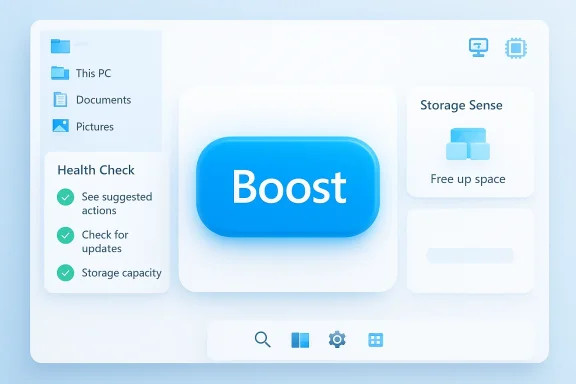
Microsoft’s PC Manager arrives with a satisfyingly simple promise: a single, big blue Boost button that looks like it might finally deliver the instant performance fix desktop users have been sold by optimizer tools for decades. After hands‑on testing by reviewers and a cross‑check of Microsoft’s own documentation, the reality is more measured. PC Manager is a tidy, first‑party dashboard that consolidates Windows maintenance tasks, offers modest but useful cleanups, and — crucially — does not rewrite the fundamentals of Windows performance. What it buys you is convenience and a safer, Microsoft‑branded alternative to many third‑party “optimizers,” not a miracle cure for aging hardware.
Microsoft PC Manager first surfaced in staggered regional rollouts and has since been made available through the Microsoft Store for Windows 10 (build 19042 and later) and Windows 11, including support for x64 and Arm architectures. The app bundles a handful of familiar functions — one‑click Boost, a Health Check dashboard, storage cleanup and large‑file management, pop‑up control, and a compact toolbox/minitoolbar for quick actions — into a single interface aimed at mainstream users who want maintenance without hunting through Settings and Disk Cleanup.
This design reflects two clear goals:
But temper expectations: the big blue Boost button is not a silver bullet. Boost can produce small, meaningful improvements when a machine is bogged down by background services or accumulated temporary files, but it will not deliver transformative speed‑ups on underpowered or hardware‑limited PCs. The true value is convenience and safety: Microsoft’s app is less likely to surprise you with an upsell, a hidden agent, or a risky registry tweak.
Use it as a first line of maintenance — a tidy, Microsoft‑backed way to keep a PC in shape — and pair it with sensible power‑user practices when deeper diagnostics, driver updates, or hardware upgrades are required.
Source: PCQuest I tried Microsoft PC Manager and Boost is not the best part
 Background / Overview
Microsoft PC Manager first surfaced in staggered regional rollouts and has since been made available through the Microsoft Store for Windows 10 (build 19042 and later) and Windows 11, including support for x64 and Arm architectures. The app bundles a handful of familiar functions — one‑click Boost, a Health Check dashboard, storage cleanup and large‑file management, pop‑up control, and a compact toolbox/minitoolbar for quick actions — into a single interface aimed at mainstream users who want maintenance without hunting through Settings and Disk Cleanup.This design reflects two clear goals:
- Make maintenance less fragmented for typical users who don’t want to dig into Storage Sense, Task Manager, or the legacy Disk Cleanup tools.
- Offer a Microsoft‑native alternative to third‑party cleaners, reducing the risk of aggressive upsells, sketchy telemetry, and background bloat that has long plagued the optimizer category.
What PC Manager does — feature by feature
PC Manager’s user interface centers on a few core modules. Each one is essentially a curated front end for functionality Windows already provides, but packaged in a more discoverable way.Boost (the big blue button)
- Attempts to free up RAM by suspending or terminating nonessential background processes.
- Clears temporary files and other cache data that contribute to disk churn and perceived sluggishness.
- Includes an optional Smart Boost mode that can run automatically when certain thresholds (high RAM usage, or a given amount of temporary files) are reached.
Health Check
- Aggregates storage reclaimable items, startup impact, app status, and network condition into a single scan.
- Presents grouped recommendations for unused apps, large files, or startup items that may slow boot.
- Links users to deeper Windows controls (for example, opening Storage Sense or the Apps & features screen).
Storage cleanup, Deep Clean, and file management
- Enumerates large files and unused apps.
- Offers a “Deep Cleanup” mode that targets Recycle Bin contents and cached files.
- Ties into Windows’ own Storage Sense settings where appropriate.
Pop‑up management and the mini toolbar
- Attempts to reduce ad and app pop‑ups via a consolidated control panel.
- The mini toolbar creates quick access to small utilities and functions, improving discoverability for common tasks.
The Boost button: marketing vs measurable reality
The Boost button is a strong marketing hook — it reads as a promise of instant speed. But multiple independent hands‑on reviews and Microsoft’s own documentation make two things clear:- Boost is a convenience layer, not a kernel‑level optimizer. It stops, suspends, and prunes processes and removes temporary files. Those actions can reduce memory usage and disk I/O for a brief period, making a busy system feel more responsive for specific tasks.
- Measured gains are modest and situational. On systems with heavy background processes or lots of accumulated temporary files, reviewers have seen tangible freed space (often hundreds of megabytes to a few gigabytes) and smoother behavior. On otherwise healthy modern machines with ample RAM and an NVMe SSD, the perceptible difference is minimal.
Health Check: the real value proposition
If Boost is the showy headline, Health Check is the honest workhorse. By aggregating several housekeeping tasks into a single, fast scan, Health Check provides value in three ways:- It speeds discovery. Instead of visiting Storage, Task Manager, and Startup settings separately, users get a prioritized list of what’s worth addressing.
- It reduces risk. PC Manager shows previews of items slated for removal, and most actions surface the native Windows confirmation dialogs or set links to the correct Settings page, which is safer than many third‑party “one‑click” cleaners that hide what they will delete.
- It encourages smarter behavior. Health Check’s recommendations — disable certain startup apps, remove truly unused large installers, or reconfigure Storage Sense — map to enduring best practices rather than noise.
Usability, defaults, and the small surprises
PC Manager’s onboarding is clean, but reviewers noticed a few default options that deserve attention:- Auto‑start and Smart Boost defaults. Out of the box, the app recommends Smart Boost and may set auto‑start options. For users who want tight control over background processes, those defaults should be reviewed.
- Suggestions to restore default Windows settings. The app can suggest restoring some Windows settings to defaults; these are benign for most users but could be unexpected for those who have intentionally tweaked behavior.
- Regional rollout quirks and installers. The app initially rolled out in certain markets and had an official Microsoft Store presence. Offline installers and staged availability mean some users may need to adjust system region or use an alternative installer if their Store does not yet list the app.
Privacy, telemetry, and transparency — what we can verify and what remains opaque
Because PC Manager alters system behavior (terminating processes, suggesting deletions), questions about telemetry, permissions, and phone‑home behavior are natural. Here’s what the publicly available documentation and independent analyses show:- Microsoft’s official pages and Q&A entries describe PC Manager as a Microsoft‑developed app that interacts with local Windows services and settings for cleanup and health checks.
- There is no explicit, widely published manifesto detailing every telemetry endpoint and data item the app may log. Microsoft’s general app telemetry practices are governed by its broader privacy statements, but specific PC Manager telemetry was not exhaustively documented in the materials reviewers referenced.
- The app appears to be low risk compared with third‑party cleaners that are known to bundle unwanted components or aggressive upsells.
- IT teams and privacy‑conscious users should treat the app like any other Microsoft Store app: review app permissions, inspect logs if necessary, and roll it out to controlled machines first to observe behavior in your environment.
How PC Manager compares with built‑in Windows tools and third‑party cleaners
PC Manager sits in a middle ground between native system utilities and third‑party all‑in‑one optimizers.- Compared to Windows built‑ins (Storage Sense, Task Manager, Disk Cleanup, and the older PC Health Check), PC Manager offers convenience and consolidation. It is essentially a user interface that brings these scattered controls together under one roof.
- Compared to third‑party cleaners, PC Manager’s key advantages are brand provenance and restraint. It avoids many of the sneaky tactics — aggressive upsell dialogs, optional background agents, unclear deletions — that gave third‑party cleaners a bad reputation. That said, it also lacks the deeper tweak toolset some power users expect (registry compacting, driver “boost” tools, or advanced service tuning).
Measured outcomes: what reviewers actually saw
Multiple independent hands‑on reports converge on similar conclusions:- PC Manager reliably finds and deletes recoverable temporary files, often freeing hundreds of megabytes to a few gigabytes depending on the machine’s usage profile.
- Boost freed ~1.2 GB of memory in some test setups by suspending noncritical processes, though reviewers noted that Windows’ native memory management would often reclaim similar memory over time.
- Health Check’s combined cleanup can produce a larger practical uplift than a quick Boost, because reclaiming storage can eliminate I/O stalls on spinning disks or near‑full SSDs.
Risks and gotchas — what to watch for
Using PC Manager responsibly requires awareness of a few risks:- Terminating important background tasks. Boost and Smart Boost may suggest stopping backup agents, cloud sync clients, or other long‑running services. Review suggested process terminations before accepting them.
- Aggressive deep cleanup. Deep Cleanup targets caches and other locations. While most deletions are safe, anything that removes application caches can cause longer load times on first subsequent runs or require reauthentication in certain apps.
- Default auto options. Auto‑start and Smart Boost can interfere with specialized workflows if left on by default.
- Regional and installer confusion. Staged rollout meant some users needed to change region settings or use an alternative installer; that’s a minor friction point but worth noting for IT teams that track software inventory.
Practical recommendations — how to use PC Manager safely and effectively
For typical Windows users:- Install PC Manager from the Microsoft Store (or approved MSI/offline installer distributed by IT).
- On first run, uncheck Smart Boost and auto‑start if you run scheduled backups or cloud sync tasks.
- Run Health Check and carefully review its findings before accepting mass removals.
- Use Boost for quick, situational cleanups — for example, when you need temporary responsiveness during a presentation or brief editing session.
- Keep deep cleanup for periodic maintenance, not daily use.
- Trial PC Manager on a small pilot group and capture network/behavior telemetry to confirm it respects enterprise policies.
- Document any interactions with corporate backup and update agents; configure Smart Boost off for managed endpoints.
- Treat PC Manager as a frontline user support tool rather than an automation replacement for structured maintenance (imaging, WSUS, managed cleanup scripts).
- If you require telemetry assurances, request internal captures and consult Microsoft enterprise channels for guidance on enterprise policy compatibility.
Who should use PC Manager — and who should not
PC Manager makes sense for:- Mainstream users who want a safer, first‑party solution to tidy up a cluttered PC without hunting through multiple Settings pages.
- Helpdesk technicians who need a friendly tool to walk less technical users through cleanup steps.
- Anyone who has been burned by shady third‑party optimizers and wants an Microsoft‑branded alternative.
- You are a power user who prefers manual control and scriptable maintenance tools.
- You manage servers or production endpoints where process termination, even momentary, is unacceptable without full testing.
- You require total transparency of telemetry without performing your own network inspection.
The broader picture: why Microsoft shipping PC Manager matters
There are two big signals in Microsoft’s move to ship PC Manager:- An acknowledgment that Windows maintenance is scattered and confusing. By packaging these functions into a single app, Microsoft reduces friction for mainstream maintenance tasks.
- A defensive play against an ecosystem of third‑party optimizers. By offering a first‑party tool that is deliberately conservative, Microsoft provides users a safe default that avoids the dark patterns many other apps use.
Verdict — pragmatic, not revolutionary
Microsoft PC Manager is worth trying because it is grounded and practical. It aggregates useful maintenance features and generally behaves sensibly. For users who want a single place to run a health check, remove obvious junk, and disable problematic startup items, PC Manager is genuinely helpful.But temper expectations: the big blue Boost button is not a silver bullet. Boost can produce small, meaningful improvements when a machine is bogged down by background services or accumulated temporary files, but it will not deliver transformative speed‑ups on underpowered or hardware‑limited PCs. The true value is convenience and safety: Microsoft’s app is less likely to surprise you with an upsell, a hidden agent, or a risky registry tweak.
Use it as a first line of maintenance — a tidy, Microsoft‑backed way to keep a PC in shape — and pair it with sensible power‑user practices when deeper diagnostics, driver updates, or hardware upgrades are required.
Final takeaways (quick checklist)
- PC Manager is a first‑party consolidation of Windows housekeeping tools — designed for convenience and safety.
- The Boost button helps, but yields modest gains; Health Check delivers the most practical value.
- Review default settings (Smart Boost, auto‑start) on first run.
- Expect modest, situational improvements; upgrade hardware for lasting performance gains.
- IT teams should pilot the app and verify interactions with corporate agents before wide deployment.
- If telemetry or exact data collection practices matter to you, perform a controlled test and network inspection.
Source: PCQuest I tried Microsoft PC Manager and Boost is not the best part
