

Microsoft’s Store just got a serious power-user upgrade: a command-line interface for browsing, installing and updating Store apps, deeper developer analytics, and a more capable web-based installer for Win32 packages that can auto-launch after installation. These changes mark a deliberate shift toward a more developer-friendly and automation-ready Microsoft Store that sits alongside—rather than behind—the graphical app storefront, and they bring meaningful operational and security implications for sysadmins, developers, and power users alike.
For years the Microsoft Store has been split across a handful of different tooling ecosystems: the traditional GUI storefront built into Windows 10/11; WinGet (the Windows Package Manager) for scriptable installs and automation; and a separate set of developer tools and CLIs for publishing apps. Microsoft’s recent updates unify several of those experiences by introducing a first-party, text-based Store CLI for users and continuing to expand developer-focused dashboards and distribution options. At the same time, Microsoft removed the individual developer onboarding fee (previously a one-time $19 charge) to lower the barrier for new publishers.
These moves are part of a broader effort to modernize Windows app distribution: make it easier to get apps onto devices, give publishers real-time visibility into how their software behaves, and provide more flexible install flows for websites and enterprise environments. The result is a Microsoft Store that is simultaneously more discoverable, more automatable, and more transparent—if you know where to look and how to use the new tools.
Common automation scenarios this enables:
For developers and IT professionals, the immediate opportunities are tangible: faster installs, better telemetry, and fewer barriers to publishing. The immediate risks are manageable but real: policy blind spots, automation amplification of bad releases, and potential security tradeoffs around auto-launch flows and telemetry collection. Teams that adopt these tools responsibly—by adding staging, building robust alert triage, and aligning enterprise policy—will gain efficiency without sacrificing security.
Microsoft has given Windows developers and administrators practical, modern tools for a Store that is finally designed to operate at scale: programmatically, observably, and with lower friction. The next challenge is operational: implement these tools with clear standards, robust testing, and disciplined release controls so the convenience Microsoft provides translates into reliable, safe outcomes for users and organizations.
Source: TechSpot Microsoft Store gets a new command-line interface for power users
 Background
For years the Microsoft Store has been split across a handful of different tooling ecosystems: the traditional GUI storefront built into Windows 10/11; WinGet (the Windows Package Manager) for scriptable installs and automation; and a separate set of developer tools and CLIs for publishing apps. Microsoft’s recent updates unify several of those experiences by introducing a first-party, text-based Store CLI for users and continuing to expand developer-focused dashboards and distribution options. At the same time, Microsoft removed the individual developer onboarding fee (previously a one-time $19 charge) to lower the barrier for new publishers.These moves are part of a broader effort to modernize Windows app distribution: make it easier to get apps onto devices, give publishers real-time visibility into how their software behaves, and provide more flexible install flows for websites and enterprise environments. The result is a Microsoft Store that is simultaneously more discoverable, more automatable, and more transparent—if you know where to look and how to use the new tools.
What Microsoft shipped (high-level)
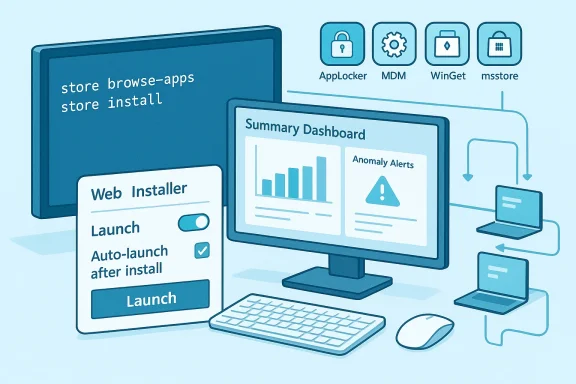
- Store CLI — A new command-line interface that lets users and developers browse the Microsoft Store catalog, search with advanced filters, install and update Store apps via terminal commands, and query similar apps or publisher-specific listings.
- Enhanced Partner Center analytics — A consolidated Summary Dashboard, redesigned Usage Dashboard, a richer Health Report, and Anomaly Alerts that notify developers when crash/hang behavior deviates from expected baselines.
- Microsoft Store Web Installer enhancements — Improved web badge tooling that can invoke a lightweight installer from a website, support Win32 apps published in the Store, and optionally auto-launch the app after installation for supported content types.
- Developer onboarding changes — Elimination of the $19 individual onboarding fee and a smoother identity-verified registration path for individual developers in most markets.
Deep dive: Store CLI — what it is and how it differs from WinGet
What Store CLI does
The new Store CLI (a first-party command-line client shipped by Microsoft for terminals and scripts) is targeted at two main audiences:- Developers and power users who want to manage Store apps from scripts, CI systems, or remote sessions.
- System administrators who want to automate discovery or installation workflows on managed fleets without using the GUI.
- Browse and filter the Store catalog by category, subcategory, listing type (top free/top paid/new releases), market, language and more.
- Install and update Store apps using single-line commands—no GUI navigation required.
- Search with advanced filters (publisher, file type, custom URL schemes) and even ask for “similar apps” to a given listing.
- Operate only on devices that have the Microsoft Store app enabled; the CLI requires the Store backend to be functional on the host.
How Store CLI differs from WinGet and msstore tools
It’s easy to conflate three related CLIs; here’s how they differ:- Store CLI — Focused on the Microsoft Store catalog itself (discovery, install, update) and requires the Store to be enabled on the device. It is the CLI counterpart to the Store’s GUI offering.
- WinGet (Windows Package Manager) — A multi-source package manager intended for broader package management (MSI, EXE, MSIX, and repository manifests). WinGet has long supported automation scenarios and can acquire a mix of Store and non-Store packages.
- Microsoft Store Developer CLI (msstore / msstore-cli) — A separate, publisher-oriented CLI used to manage submissions, metadata, flights, and publishing pipelines from CI/CD environments.
Practical examples and usage patterns (what power users can expect)
Microsoft provided a small set of example commands that illustrate the new workflows. Expect commands similar to:store browse-apps— list or filter Store catalog entries.store install <appId>— install an app from the Store catalog.store update <appId>— update a specific Store app.
store --help on an updated device to confirm the current syntax. Also, the CLI will only function when the Microsoft Store app is enabled on the host and has appropriate access (enterprise policies that disable the Store will block CLI operations).Common automation scenarios this enables:
- Deploy a baseline set of productivity apps to a dev machine with a script that calls
store installfor each package ID. - Build a CI gate that queries the Store catalog for a SKU or publisher listing prior to automated testing.
- Combine
store browse-appswith a filtering pipeline (e.g., by category or publisher) for telemetry-driven installs in test fleets.
Developer telemetry: Health Report, Anomaly Alerts, and the Summary Dashboard
One of the most consequential additions for publishers is the expanded telemetry suite in Partner Center.What’s new
- Improved Health Report — More granular filters across app versions, OS builds, and device architectures to isolate stability regressions.
- Anomaly Alerts — Automated notifications (dashboard + email) when crash or hang rates spike relative to historical baselines, enabling faster triage.
- Summary Dashboard — A consolidated view showing installs, ratings, stability, sessions, and active devices, designed to save time by bringing the most important KPIs into a single pane.
Why this matters
- Faster detection of regressions reduces mean time to mitigation. If a release begins causing crashes on a specific OS build or CPU architecture, the Health Report’s filters make it possible to narrow the offending vector quickly.
- The Summary Dashboard reduces context switching between reports, which helps small teams react faster with limited analytics resources.
- Anomaly Alerts act as an early-warning system; however, their usefulness depends on signal fidelity (minimizing false positives while catching true regressions).
Caveats and limitations
- Telemetry is only as good as its signal: apps must be integrated in ways that surface relevant crash/hang data, and developers must tune alert thresholds to their user base.
- Privacy and regulatory considerations may limit what telemetry can be collected in certain regions or for certain apps; developers should confirm compliance with applicable laws when interpreting metrics.
- Anomaly detection reduces time to awareness but not necessarily the time to fix; teams still need triage, root cause analysis, and release controls.
Microsoft Store Web Installer — browser-to-app workflows and enterprise implications
The Microsoft Store Web Installer improves the store-as-distribution-channel story for app publishers who maintain a website and want to offer a direct install button or “badge.” Notable capabilities:- Direct-to-install badges can invoke a lightweight installer that downloads from Microsoft servers, performs the install, and optionally auto-launches the app after installation (supported for specific free Win32/MSIX content types).
- Improved enterprise compatibility — The installer has logic to better support enterprise-managed devices; however, administrators can continue to control behavior through MDM policies, AppLocker, or registry settings that disable the Store app.
- Badge and badge generation support on the Microsoft Store badge generator—developers can toggle Launch mode and embed the resulting snippet on their website to switch to the Web Installer flow.
- Websites can offer a frictionless install that behaves more like “one click to install and go,” improving conversion from site visitor to active user.
- Auto-launch can demonstrate the app immediately after install—useful for onboarding flows or for installers that include first-run setup screens.
- Enterprises can block the Web Installer by blocking domains used by the installer or by maintaining policies that disable the Store app. Administrators should test and document the behavior of the installer in their environment before broadly enabling it in self-service scenarios.
- Auto-launching installers increases the attack surface risk if an attacker could manipulate the install flow. Microsoft’s signing and distribution controls mitigate much of this risk, but organizations with strict compliance requirements should vet these flows carefully and use AppLocker/MDM controls where necessary.
Why Microsoft is doing this: strategy and ecosystem context
Microsoft’s recent Store updates align with several broader strategic objectives:- Lower friction for developers — Eliminating the $19 onboarding fee and adding rich developer dashboards makes the Store more attractive for indie developers and small teams.
- Compete on convenience — Offering both GUI and CLI experiences appeals to a wide set of users: those who prefer discovery visually and those who prefer scripted automation.
- Bring the Store into enterprise workflows — Improvements to installer logic and telemetry make the Store more viable in managed environments where reliability and observability matter.
- Strengthen the Store as a platform for AI and modern apps — More discoverability and developer support helps Microsoft surface AI-enabled apps and other modern workloads across the Windows ecosystem.
Strengths: why this matters to developers and IT
- Automation-first deployment: The Store CLI lets teams script installs without relying on GUI automation hacks or manual steps, improving reproducibility and speed.
- Faster detection of regressions: The enhanced Health Report and Anomaly Alerts accelerate triage, reducing user impact from bad releases.
- Lower barrier to entry: Waiving the $19 individual registration fee removes friction that prevented hobbyists and many creators from publishing.
- Better web-to-install flows: The Web Installer’s auto-launch capability reduces friction for website-driven conversion funnels and onboarding.
- Complementary tooling: Microsoft did not retire WinGet; instead, it added a focused Store CLI that coexists with existing package-management tooling for broader scenarios.
Risks and potential issues
- Policy and compliance gaps in enterprises: Organizations that rely on policies to control application installations must actively audit the Web Installer and Store CLI behavior; failing to do so can let unmanaged installs slip past controls if domain or registry-blocking is not configured.
- Automation can amplify mistakes: CLI-based installs and auto-launch behavior make it easier to accidentally deploy problematic builds at scale. Continuous deployment processes must be hardened with staging, canary releases, and rollback controls.
- Telemetry privacy and interpretation: Developers must ensure telemetry adheres to regional privacy regulations. Misinterpreting telemetry or chasing noisy alerts can waste engineering cycles.
- Fragmentation of tooling: Multiple CLIs (Store CLI, WinGet, msstore) increase the learning curve for teams and may lead to inconsistent automation unless an internal standard is chosen.
- Security of auto-launch flows: Auto-launching freshly installed executables is convenient but requires trusted signing and a clear understanding of first-run behavior. Organizations with strict app whitelisting should plan for exceptions or use managed deployment channels.
Practical recommendations for teams
- Evaluate the Store CLI in a staging environment first. Test install/update flows on representative devices and verify behavior under different policy settings.
- Integrate Partner Center alerts into incident workflows. Ensure Anomaly Alerts feed into your existing alerting/incident channels so engineers can act quickly on real-world stability events.
- Set up canary and rollout stages. Don’t push store updates to 100% of users immediately; use flights or staged rollouts when possible.
- Audit Web Installer behavior for enterprise endpoints. Confirm how AppLocker, MDM policies, and network blocks affect the installer and whether additional blocks are required if you want to prevent web-driven installs.
- Pick a canonical CLI for automation. Decide whether WinGet, Store CLI, or both will be used in your provisioning scripts and document the reasons to reduce fragmentation.
- Treat CLI installs as privileged operations. Use signed CI pipelines and access controls for automation accounts that can call the Store CLI so credential misuse is minimized.
Example migration scenarios
- Small-team developer: Replace manual installer downloads with
store installin the onboarding script for new hires. Use the Summary Dashboard to track new active devices and session counts. - IT department for a mid-sized company: Use Store CLI in an automated provisioning task for lab machines, but block the Store Web Installer domain in production networks to avoid uncontrolled installs.
- Enterprise publisher: Use Partner Center’s Health Report and Anomaly Alerts to detect regression trends after a windows-specific runtime update; if an anomaly appears, pause flights and roll back metadata via the developer CLI.
Where this could go next
Expect Microsoft to continue iterating in several directions:- Tighter WinGet/Store CLI interoperability — clearer overlap and seamless handoffs between the two CLIs would reduce confusion and broaden scenarios where a single tool covers all needs.
- Richer telemetry and crash diagnostics — expanded telemetry hooks (with privacy-respecting options) could feed more actionable root-cause analysis directly into developer tooling.
- Enterprise-first controls — more granular policy controls tuned to block or allow specific web-installer behaviors without disabling the entire Microsoft Store.
- Deeper automation APIs — a public REST or Graph-based API for programmatic installs, queries, and telemetry could unlock larger-scale automation and SIEM integration.
Final assessment
Microsoft’s Store updates are a pragmatic, developer-centric set of changes that make the Store more useful for automation, distribution, and real-world observability. The Store CLI fills a long-standing gap for power users who needed a first-party, scriptable client for Store-only content, and the improved Partner Center analytics meaningfully reduce time to detection for stability regressions. The Store Web Installer’s ability to auto-launch Win32 apps after install is a conversion-boosting convenience for publishers, but it also increases the need for careful enterprise policy management and security validation.For developers and IT professionals, the immediate opportunities are tangible: faster installs, better telemetry, and fewer barriers to publishing. The immediate risks are manageable but real: policy blind spots, automation amplification of bad releases, and potential security tradeoffs around auto-launch flows and telemetry collection. Teams that adopt these tools responsibly—by adding staging, building robust alert triage, and aligning enterprise policy—will gain efficiency without sacrificing security.
Microsoft has given Windows developers and administrators practical, modern tools for a Store that is finally designed to operate at scale: programmatically, observably, and with lower friction. The next challenge is operational: implement these tools with clear standards, robust testing, and disciplined release controls so the convenience Microsoft provides translates into reliable, safe outcomes for users and organizations.
Source: TechSpot Microsoft Store gets a new command-line interface for power users
