

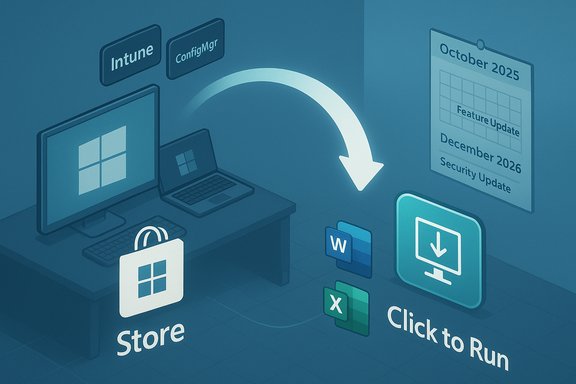
Microsoft quietly confirmed a major servicing change in mid‑2025: the Microsoft Store installation type for Microsoft 365 (Office) apps is being retired, with feature updates stopping in October 2025 and security updates for the Store package ending in December 2026 — a move that forces Store‑installed Office users to migrate to the Click‑to‑Run installation model to keep receiving ongoing feature and security updates.
Microsoft published an official end‑of‑support notice for the Microsoft Store installation type of Microsoft 365 Apps, saying feature delivery ceased in October 2025 and security patches for that Store packaging will stop in December 2026. The company’s guidance is simple and prescriptive: if an Office app shows “Microsoft Store” under File > Account > About, you must switch to the Click‑to‑Run installation type to continue receiving new features and security updates. Industry outlets picked up the announcement immediately and framed it as part of a broader consolidation — Microsoft will focus engineering and servicing on the Click‑to‑Run delivery model rather than maintaining multiple package and servicing surfaces. Reporting and analysis from independent media underscore that this change is largely operational: supporting two fundamentally different packaging and servicing approaches (Store/Appx vs Click‑to‑Run) creates testing, release, and support complexity that Microsoft now wants to avoid.
Conclusion: treat the Microsoft Store Office‑type end‑of‑support as an operational signal rather than an immediate catastrophe. Act now if your devices show Microsoft Store under About; run a small pilot; and use the Office Deployment Tool or the Microsoft 365 Apps installer to migrate to Click‑to‑Run. That path preserves feature and security updates and aligns your estate with Microsoft’s primary servicing model for Office going forward.
Source: bgr.com The Microsoft Store Discontinued Support For Office Apps - Here's Why - BGR
 Overview
Microsoft published an official end‑of‑support notice for the Microsoft Store installation type of Microsoft 365 Apps, saying feature delivery ceased in October 2025 and security patches for that Store packaging will stop in December 2026. The company’s guidance is simple and prescriptive: if an Office app shows “Microsoft Store” under File > Account > About, you must switch to the Click‑to‑Run installation type to continue receiving new features and security updates. Industry outlets picked up the announcement immediately and framed it as part of a broader consolidation — Microsoft will focus engineering and servicing on the Click‑to‑Run delivery model rather than maintaining multiple package and servicing surfaces. Reporting and analysis from independent media underscore that this change is largely operational: supporting two fundamentally different packaging and servicing approaches (Store/Appx vs Click‑to‑Run) creates testing, release, and support complexity that Microsoft now wants to avoid. Background: Why this matters now
The timing and related calendars
This specific Store‑package sunset sits inside a crowded calendar for Microsoft product lifecycle changes. Windows 10 reached end of support on October 14, 2025; Microsoft has also published guidance about Extended Security Updates (ESU) and separate lifecycles for Microsoft 365 on Windows 10. Those documents create overlapping timelines that administrators must reconcile: the Store‑type dates (feature cutoff Oct 2025, security cutoff Dec 2026) are distinct from Microsoft’s broader Windows‑10‑related Microsoft 365 security posture (Microsoft said it will continue providing security updates for Microsoft 365 on Windows 10 for three years after Windows 10 EoS, ending October 10, 2028), which introduces nuance and potential confusion for mixed environments. IT teams must verify which policy applies based on installation type and update channel.What Microsoft explicitly said
Microsoft’s official support documentation states the change plainly: the Microsoft Store installation type of Microsoft 365 Apps will stop receiving new features as of October 2025 and will stop receiving security updates in December 2026. The instructions include a simple way to identify the installation type (open Word or Excel → File → Account → About) and a documented migration path to Click‑to‑Run using the standard Microsoft 365 Apps installer. The installer will detect and automatically replace the Store package with Click‑to‑Run in most consumer and managed cases.Technical primer: Click‑to‑Run vs Microsoft Store package
What is Click‑to‑Run?
Click‑to‑Run (C2R) is Microsoft’s long‑standing streaming and virtualization installer for Office. It streams initial files so apps can be used before the entire suite downloads, isolates application files in a virtualized application space to reduce conflicts, and performs background updates automatically — enabling frequent feature updates and low‑impact servicing. Click‑to‑Run has been the default delivery mechanism for Microsoft 365 and modern Office builds for many years and integrates with enterprise deployment tooling like the Office Deployment Tool, Intune, and Configuration Manager. Key technical qualities:- Streaming install lets users launch apps before the full payload is downloaded.
- Virtualized file space reduces conflicts with other Office installs or MSI apps.
- Seamless, background updating supports rapid, incremental feature delivery.
- Works with enterprise deployment and management toolchains (ODT, Intune, ConfigMgr).
How the Microsoft Store package differs
The Microsoft Store delivery used Appx/MSIX packaging and was intended to make Office available like other Store apps. While convenient for consumers and simpler in some managed scenarios, the Store variant relied on the Store servicing and Windows Update ecosystem and constrained some enterprise management scenarios and background update behaviour. Maintaining functional parity across both models required extra validation, compatibility testing, and release orchestration — work that Microsoft decided no longer makes sense to maintain at scale.What to check now (immediate checklist)
Before taking action, confirm exactly which install type you have, because the timelines and remedial steps differ depending on it.- Open any Office app (Word, Excel, PowerPoint).
- Go to File → Account (or Office Account).
- Under Product Information, open About and look for the installer label: “Click‑to‑Run” or “Microsoft Store”.
Migration paths: consumer and enterprise
Consumer / single PC steps (simple flow)
- Save work and close all Office apps.
- Download the Microsoft 365 Apps installer from Microsoft’s normal Download / Reinstall guidance.
- Run the installer; it will automatically detect and uninstall the Microsoft Store package and install Click‑to‑Run.
- Verify the switch by opening Word → File → Account → About and confirming Click‑to‑Run is shown.
Managed / enterprise steps
- Inventory devices to find Microsoft Store installation types using PowerShell: Get-AppxPackage -Name Microsoft.Office.Desktop.
- Use the Office Deployment Tool or Intune/ConfigMgr to deploy the Click‑to‑Run installer at scale; Microsoft’s deployment guidance covers automatic detection and replacement.
- Test in pilot rings to validate macros, add‑ins, and line‑of‑business integrations: while Click‑to‑Run minimizes compatibility issues, scripted or legacy deployments can still surface edge cases that require remediation.
Practical implications and tradeoffs
Benefits of consolidation (what Microsoft gains)
- Single servicing pipeline: fewer packaging permutations, easier QA and rollout.
- Faster feature delivery: Click‑to‑Run’s streaming and background patching makes incremental rollouts and rapid fixes easier.
- Enterprise readiness: Click‑to‑Run is the de facto model for Microsoft 365 in managed environments, with robust tooling for deployment and telemetry.
Real risks and friction (what users and IT teams face)
- Timing and overlap: With feature updates stopped Oct 2025 and Store security updates ending Dec 2026, organizations must coordinate migrations while also navigating Windows 10’s end‑of‑support date (Oct 14, 2025). The overlapping calendars can be confusing and increase operational risk if not carefully planned.
- Edge‑case compatibility: Some custom add‑ins, macro behaviour, or legacy pipelines that depend on the Store packaging’s sandboxing model may need verification. Pilot testing is essential.
- User friction: Consumers who installed Office from the Store for convenience might be unfamiliar with the Click‑to‑Run reinstallation step; helpdesk traffic may spike.
The Windows 10 connection and ESU nuance
Microsoft’s broader timeline for Windows 10 complicates the narrative. Windows 10’s official end of support was October 14, 2025; Microsoft documented that it will continue providing security updates for Microsoft 365 on Windows 10 for three years after Windows 10 EoS — ending October 10, 2028 — language intended to help customers transition securely. That statement is about Microsoft 365 on Windows 10 as a whole and should not be conflated with the Microsoft Store installation‑type dates: administrators must confirm which message and which pages apply to their specific install types and update channels. In short: verify the install type (Store vs Click‑to‑Run) and the applicable support pages before assuming a single timeline. A regulatory nuance emerged in some regions: Microsoft altered ESU conditions in the European Economic Area following pressure from consumer advocacy groups, making certain Extended Security Updates free or removing onerous prerequisites; outside those regions ESUs may still require purchase or enabling specific settings. Claims about “free extended updates” therefore require precise geographic qualification. Treat any blanket claim about global free ESUs with caution and check Microsoft’s regional announcements.Step‑by‑step: a migration playbook for IT teams
- Inventory and discovery
- Run detection scripts to list devices with the Microsoft Store Office package (Get-AppxPackage -Name Microsoft.Office.Desktop).
- Create a report showing device owner, OS version, hardware compatibility for Windows 11, and current Office channel.
- Pilot and compatibility testing
- Pick a small pilot cohort representing key line‑of‑business apps and add‑ins.
- Install Click‑to‑Run in the pilot, test macros, print workflows, DLP policies, and integration with SharePoint/OneDrive.
- Build deployment bundles
- Use Office Deployment Tool XML or Intune policies to configure channel, update cadence, and telemetry.
- Configure pre‑ and post‑migration scripts to log success and roll back if needed.
- Communication and user support
- Publish how‑to guides for end users showing the File → Account check and the steps they’ll see during migration.
- Prepare helpdesk scripts and escalations for macro or add‑in failures.
- Rollout and monitoring
- Roll deployments in phases and monitor error telemetry, support tickets, and feature parity issues.
- Keep a remediation window and an action plan for unsupported legacy devices.
Consumer guidance: what to do right now
- Confirm your Office install type (File → Account → About). If it says Microsoft Store, plan to run the Microsoft 365 Apps installer to migrate to Click‑to‑Run.
- If you can’t migrate immediately and you must remain on Windows 10, investigate Extended Security Updates and regional eligibility — note that some ESU concessions were made for EEA users. Avoid assuming ESU is free everywhere.
- Back up important templates, ribbons, and custom add‑ins before migrating. While the installer is designed to preserve user data, customizations can sometimes be affected.
What this change means strategically
This is not merely cosmetic: Microsoft is reducing product surface area and focusing its engineering investment on the delivery mechanism that best supports continuous updates, enterprise manageability, and rapid feature rollout. From Microsoft’s perspective, Click‑to‑Run is the pragmatic winner: it supports streaming, background updates, virtualization, and enterprise deployment tooling in ways the Store model does not. That alignment lowers Microsoft’s operational cost and should, in theory, benefit end users through more consistent updates and fewer packaging bugs. However, the consolidation also accelerates the pressure on environments that relied on the simplicity of the Store model or that can’t easily shift due to legacy integrations. The practical tradeoff for many organizations will be migration effort now versus reduced complexity and improved update cadence going forward. Community‑level analysis and forums recorded widespread concern about timeline overlap and the operational burden placed on smaller IT teams by simultaneous end‑of‑support events in 2025 and 2026.Risks, unknowns, and claims to treat with caution
- Claims that “All Office updates simply stop on X date everywhere” are over‑simplified. Dates depend on installation type, regional ESU policies, and whether an organization is on a supported click‑to‑run channel. Always verify the Microsoft support documentation that applies to your setup.
- Watch carefully for add‑in, macro, and LOB (line‑of‑business) compatibility issues — while Click‑to‑Run is designed to minimize conflicts, complex deployments and legacy integrations can still encounter edge cases. Pilot testing is non‑negotiable.
- Regional regulatory actions (like the EEA ESU concessions) can change the economics of staying on older platforms; don’t assume global parity. Check regional Microsoft notices before making cost decisions.
Bottom line
Microsoft’s decision to retire the Microsoft Store installation type for Microsoft 365 Apps is a technical consolidation with clear operational logic: pick the delivery and servicing model that best supports continuous, secure, and enterprise‑grade updates, and stop supporting the alternative that creates engineering overhead. For users and IT teams, the immediate task is practical: identify which install type you run, pilot Click‑to‑Run where needed, and roll out migrations in a controlled, phased fashion while watching the nuanced timelines that cross Microsoft product lifecycles. The change simplifies Microsoft’s life — and eventually yours — but it does require planning, testing, and execution to avoid short‑term disruption.Conclusion: treat the Microsoft Store Office‑type end‑of‑support as an operational signal rather than an immediate catastrophe. Act now if your devices show Microsoft Store under About; run a small pilot; and use the Office Deployment Tool or the Microsoft 365 Apps installer to migrate to Click‑to‑Run. That path preserves feature and security updates and aligns your estate with Microsoft’s primary servicing model for Office going forward.
Source: bgr.com The Microsoft Store Discontinued Support For Office Apps - Here's Why - BGR
