

Microsoft’s decision to end support for Office apps installed via the Microsoft Store is a tidy, pragmatic engineering move — but it arrives wrapped in real-world friction for millions of users and IT teams who now face differing timelines, migration choices, and a confusing mix of messaging about how long Office will remain secure on older Windows installs.
In mid‑2025 Microsoft announced that it would stop supporting the Microsoft Store installation type of Microsoft 365 (Office) apps — meaning the Store-packaged Office apps will no longer receive new feature updates after October 2025, and Microsoft has stated security updates for that Store installation type will end in December 2026. The company’s official guidance instructs users running the Microsoft Store version to move to the Click‑to‑Run installation type to continue receiving both feature and security updates. At the same time, Microsoft tied the broader fate of Office and Windows to its Windows 10 end‑of‑support calendar: Windows 10 reached end of support on October 14, 2025, and Microsoft published guidance for customers about upgrade options and Extended Security Updates for those who cannot immediately move to Windows 11. Notably, Microsoft’s Windows 10 lifecycle page also indicates that, in the interest of maintaining security while customers upgrade, Microsoft will continue to provide security updates for Microsoft 365 on Windows 10 through October 10, 2028 — a separate timeline that causes apparent overlap with the Microsoft Store‑type dates above. This creates a nuance: your experience depends on which Office installation type you actually have. This article explains what Microsoft announced, why the vendor is consolidating around Click‑to‑Run, the timelines and technical specifics users should verify on their machines, the practical impacts for consumers and enterprise IT, migration options and tradeoffs, and a measured analysis of the benefits and risks of the move.
However, the execution around timelines and messaging left gaps that create avoidable confusion. Two separate sets of official dates (Store‑type end dates vs Windows 10 EOL protective messaging) require admins and users to verify their own install types and channels before they can make safe decisions. The upshot is straightforward: check your Office install type now; if it’s Microsoft Store, upgrade to Click‑to‑Run as soon as convenient; and for fleets, treat migration as a planned project with testing and staged rollouts.
This consolidation will likely reduce long‑term operational risk and simplify update flows, but the short‑term cost is real: planning cycles, support tickets, and potential hardware refreshes will occupy IT teams in the near term. For users and administrators who act early — inventory, pilot, automate — the transition will be manageable and deliver the long‑term benefits Microsoft advertises. For those who delay, the overlapping timelines will only compound pressure and increase risk exposure as legacy Windows and Office lifecycles wind down.
Source: bgr.com The Microsoft Store Discontinued Support For Office Apps - Here's Why - BGR
 Background / Overview
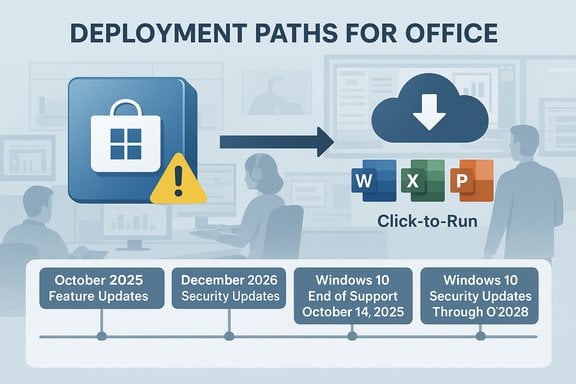
In mid‑2025 Microsoft announced that it would stop supporting the Microsoft Store installation type of Microsoft 365 (Office) apps — meaning the Store-packaged Office apps will no longer receive new feature updates after October 2025, and Microsoft has stated security updates for that Store installation type will end in December 2026. The company’s official guidance instructs users running the Microsoft Store version to move to the Click‑to‑Run installation type to continue receiving both feature and security updates. At the same time, Microsoft tied the broader fate of Office and Windows to its Windows 10 end‑of‑support calendar: Windows 10 reached end of support on October 14, 2025, and Microsoft published guidance for customers about upgrade options and Extended Security Updates for those who cannot immediately move to Windows 11. Notably, Microsoft’s Windows 10 lifecycle page also indicates that, in the interest of maintaining security while customers upgrade, Microsoft will continue to provide security updates for Microsoft 365 on Windows 10 through October 10, 2028 — a separate timeline that causes apparent overlap with the Microsoft Store‑type dates above. This creates a nuance: your experience depends on which Office installation type you actually have. This article explains what Microsoft announced, why the vendor is consolidating around Click‑to‑Run, the timelines and technical specifics users should verify on their machines, the practical impacts for consumers and enterprise IT, migration options and tradeoffs, and a measured analysis of the benefits and risks of the move.What Microsoft actually announced
- Microsoft published an end‑of‑support notice specifically for the Microsoft Store installation type of Microsoft 365 Apps: feature updates stopped in October 2025 and security updates for that Store install type end in December 2026. The page includes direct instructions for users and admins on how to identify the installation type and how to upgrade to Click‑to‑Run.
- Separately, Microsoft’s Windows 10 end‑of‑support documentation (October 14, 2025 EOL) clarifies that, to help customers transition securely, Microsoft will continue providing security updates for Microsoft 365 on Windows 10 for a total of three years after Windows 10 EOL — through October 10, 2028. That wording introduces a second, broader timeline for Microsoft 365 on Windows 10 that is distinct from the Microsoft Store installation‑type announcement. Administrators should be cautious and verify which policy applies to their deployment.
- Microsoft’s guidance is explicit: if your Office apps show “Microsoft Store” under File > Account > About, you must upgrade to the Click‑to‑Run installation type to continue receiving the latest features and security updates beyond the Store‑type cutoff. The company provides the Click‑to‑Run installer and steps to migrate; for managed environments there are detection commands and deployment options documented.
Why Microsoft chose Click‑to‑Run: the technical case
What is Click‑to‑Run?
Click‑to‑Run (C2R) is Microsoft’s streaming/virtualized installer and servicing technology for Office. It pre‑packs and streams the most needed components, applies updates in the background, virtualizes app files so conflicts are minimized, and enables near‑continuous delivery of feature and security updates without a full MSI-style install experience. Click‑to‑Run has been the standard for Microsoft 365 and most recent Office releases for years.Advantages that matter to Microsoft
- Single engineering surface: Maintaining two fundamentally different packaging and servicing models (Store/Appx vs Click‑to‑Run) increases engineering, testing, and release complexity. Consolidating to C2R simplifies patching and QA.
- Faster, lower‑impact updates: Click‑to‑Run’s streaming and background patching reduce user friction and make frequent, incremental updates feasible.
- Enterprise deployment flexibility: C2R integrates well with enterprise tools (Office Deployment Tool, Intune, Configuration Manager) and supports scripted upgrades and mass rollouts.
- Compatibility and virtualization: The way C2R virtualizes files reduces conflicts with other apps and legacy MSI installs, yielding fewer edge‑case failures when updating large fleets.
The timelines — read this carefully
Microsoft’s messaging involves multiple, partially overlapping timelines. Two official pages are key:- Microsoft’s notice for the Microsoft Store installation type of Microsoft 365 Apps:
- Feature updates stopped: October 2025
- Security updates end for Store install type: December 2026.
- Microsoft’s Windows 10 End‑of‑Support documentation:
- Windows 10 general EOL: October 14, 2025.
- For the broader Microsoft 365 on Windows 10 security posture, Microsoft states it will continue providing security updates for Microsoft 365 on Windows 10 through October 10, 2028 to help customers transition securely.
- If you use the Microsoft Store packaged Office apps, your upgrade path is urgent: feature stream stops Oct 2025 and Store‑type security updates stop Dec 2026 — you should migrate to Click‑to‑Run immediately.
- There is, however, broader Microsoft messaging that extends Microsoft 365 security updates for Windows 10 to October 2028 — but that appears to be a general support posture tied to Windows 10 EOL rather than a reversal of the Store‑type end dates. Administrators must confirm which timelines apply to their specific install types and channels. If your environment uses Click‑to‑Run or another supported install model, it will follow the usual servicing and extended timelines announced for Microsoft 365 on Windows 10.
How to check which Office installation you have (step‑by‑step)
Microsoft’s recommended quick check is simple and should be the first step for everyone:- Open any Office app (Word, Excel, PowerPoint).
- Go to File > Account (or Office Account).
- Under Product Information, click About.
- Look for the installer type label: it will explicitly say either Click‑to‑Run or Microsoft Store alongside the Version and Build number.
How to move from Microsoft Store Office to Click‑to‑Run
Microsoft provides an automated installer that removes the Microsoft Store package and installs the Click‑to‑Run version. The basic end‑user flow is:- Save your work and close Office apps.
- Download the Microsoft 365 Apps (Click‑to‑Run) installer from Microsoft’s download/reinstall guidance.
- Run the installer — it will detect and remove the Store installation, then install Click‑to‑Run.
- Sign back in and verify the installation type in File > Account.
- Use the Office Deployment Tool or Intune to automate detection and bulk migration; those tools can detect Store installs and replace them with Click‑to‑Run in managed fleets.
Practical impacts: consumers vs businesses
Consumers / home users
- Most home users have a small number of PCs. If the Office app says Microsoft Store, run the Click‑to‑Run installer and move to Click‑to‑Run; it’s the quickest way to keep receiving features and security patches.
- If a user has an older PC that cannot upgrade to Windows 11, Office on the web and mobile apps remain options for core document editing without changing the device. But the browser experience lacks many desktop‑only features.
Small businesses and SMBs
- SMBs buying PCs through retailers often encounter the Store version on consumer SKUs; migration is straightforward but needs scheduling to avoid user disruption.
- Budgeting for new hardware may be necessary if many devices are Windows 11‑incompatible; Microsoft’s Extended Security Updates or Office LTSC may be interim options.
Large enterprises and regulated industries
- Large fleets may run bespoke line‑of‑business apps and use Group Policies or MSI/volume‑license Office versions — the Store change mainly affects devices where the Store package was used.
- Enterprises should inventory install types, evaluate compatibility, and plan staged Click‑to‑Run rollouts using Intune, Configuration Manager, or the Office Deployment Tool. Community and analyst guidance warns that the alignment of multiple EOL timelines in 2025 created planning pressure for many IT teams and that migration windows can be compressed if left late.
Alternatives and exceptions
- Office for the web (browser) and mobile apps remain supported regardless of the desktop install type and are useful when devices can’t be upgraded.
- Office LTSC (Long‑Term Servicing Channel) is available for customers who require a perpetual on‑premises release with a fixed lifecycle — but it does not receive feature updates and is intended for regulated or disconnected environments.
- Some organizations qualify for Extended Security Updates (ESU) for Windows 10 or server products; ESU is a temporary bridge, not a long‑term strategy.
Practical migration checklist (recommended sequence)
- Inventory
- Run discovery: identify which machines show “Microsoft Store” vs “Click‑to‑Run”.
- Assess
- Check Windows 11 eligibility on user devices; separate devices that require hardware replacement.
- Pilot
- Test the Click‑to‑Run installer on representative user profiles and essential LOB apps.
- Automate
- For larger fleets, deploy via Intune/ConfigMgr/ODT; use PowerShell detection to find Store installs.
- Communicate
- Notify users about expected restart/installation windows and back up critical documents.
- Harden
- Ensure endpoint security is current; enable Defender and EDR where possible.
- Validate
- Confirm post‑migration that Office shows Click‑to‑Run and update channels are functioning.
Critical analysis — strengths and risks
Strengths
- Engineering efficiency: Consolidating on Click‑to‑Run reduces fragmentation and lowers ongoing development/testing costs.
- Better servicing model: Click‑to‑Run is purpose‑built for Office’s evergreen model: background updates, streaming installs, and enterprise deployment scenarios are mature and scalable.
- Security posture (long term): Unifying update channels should reduce gaps where Store‑packaged apps might have lagged on patching cadence or compatibility with enterprise tooling.
Risks and friction
- Confusing timelines: Microsoft’s dual messaging — a Store‑type cutoff vs the broader Windows 10 EOL protective language — creates legitimate uncertainty. System owners must carefully verify which policy applies to their environment to avoid misplanning.
- User disruption: For casual consumers, migrating is simple; for large enterprise fleets, migration requires planning, testing, and often remediation of legacy dependencies.
- Hardware churn pressure: Aligning Office and Windows 10 timelines reinforces pressure to purchase Windows 11–capable devices; that is a natural business side effect but causes real cost and lifecycle planning challenges for organizations on tight budgets.
- Edge cases and compatibility: Rare, older ISV products or add‑ins could behave differently under Click‑to‑Run; these need test validation prior to mass rollouts.
Where Microsoft could have done better
- Clearer consolidated timelines: Publishing a single, consolidated FAQ that maps install types + channels to exact EOL dates would reduce confusion.
- Longer transition window for Store users: Store installs are common on consumer devices; a longer runway or automatic in‑place migration for consumer Store installs might reduce friction.
What IT leaders should do this week
- Run the simple end‑user check (File > Account) across a sample of machines and build an inventory of install types.
- For any machine showing Microsoft Store, plan the Click‑to‑Run migration within your next maintenance window.
- If hardware is on the cusp of being unsupported for Windows 11, budget and plan for device replacement or use Office for the web as a temporary stopgap.
- Communicate timelines with stakeholders: clarify that “end of support” timelines differ by install type and update channel, and avoid blanket assumptions.
Final verdict: sensible consolidation, messy execution
Microsoft’s move to cease support for the Microsoft Store installation type of Office is technically sensible — Click‑to‑Run is a better‑suited delivery and servicing method for an evergreen productivity suite. Consolidation reduces complexity for Microsoft and should improve reliability of updates for the majority of users.However, the execution around timelines and messaging left gaps that create avoidable confusion. Two separate sets of official dates (Store‑type end dates vs Windows 10 EOL protective messaging) require admins and users to verify their own install types and channels before they can make safe decisions. The upshot is straightforward: check your Office install type now; if it’s Microsoft Store, upgrade to Click‑to‑Run as soon as convenient; and for fleets, treat migration as a planned project with testing and staged rollouts.
This consolidation will likely reduce long‑term operational risk and simplify update flows, but the short‑term cost is real: planning cycles, support tickets, and potential hardware refreshes will occupy IT teams in the near term. For users and administrators who act early — inventory, pilot, automate — the transition will be manageable and deliver the long‑term benefits Microsoft advertises. For those who delay, the overlapping timelines will only compound pressure and increase risk exposure as legacy Windows and Office lifecycles wind down.
Source: bgr.com The Microsoft Store Discontinued Support For Office Apps - Here's Why - BGR
