

Microsoft Teams in 2026 is no longer just a chat-and-meetings app — it’s an orchestration layer for how work actually gets done, and a few deliberate clicks can slice hours out of a typical week. The 2026 updates bundle smarter scheduling, deeper AI assistance, and interface refinements that reward thoughtful setup; use them poorly and you’ll add noise, use them well and your day becomes quieter, clearer, and far more productive.
Microsoft has steadily evolved Teams from a communication client into a platform that embeds automation, AI, and admin controls across chats, channels, meetings, and files. Recent releases emphasize three core themes: time-sensitive delivery (message scheduling and delivery controls), embedded AI (Copilot Chat and agent features), and interface reorganizations that reduce tab switching. These shifts are rolling out across previews and general availability and are aimed at reducing repetitive tasks — drafting, meeting follow-up, and cross-team announcements — while adding administrative controls for governance.
These changes matter because the modern knowledge worker loses time to context switching and administrative overhead. The 2026 updates are designed not as gimmicks but as workflow accelerants: schedule announcements so teammates see them at work hours, let Copilot summarize long threads, and group channels so your left rail stops being a swamp.
Use these delivery patterns to reduce interruptions:
Best practice: create Loop templates for recurring items (standup notes, decision logs) so the editable element arrives pre‑populated and easy to adopt.
Microsoft has introduced higher‑level Copilot features, including Copilot Actions for common workflows and new agents (SharePoint and Interpreter agents) to make Copilot more operational inside business systems. These tools are being rolled out in preview stages and require careful tenant configuration for access and governance.
That said, the upside is gated by governance. AI outputs are only as good as the inputs and guardrails you place around them. Licensing, connector permissions, and a conservative approach to automated actions will keep the gains real and the risks manageable. Finally, any claim about the exact underlying model (for example, specific GPT version numbers) should be treated as unverified unless confirmed by official Microsoft documentation or your tenant’s procurement documentation. Verify licensing, pricing, and model details directly with your vendor before operational reliance.
Harnessing Teams in 2026 isn’t about chasing every new toggle — it’s about thoughtful configuration that respects people’s time, clear governance of AI, and small, repeatable habits that compound. Implement the starter tips this week, pilot the advanced ones next quarter, and you’ll be surprised how many hours return to your calendar by design rather than by chance.
Source: Geeky Gadgets Microsoft Teams Tips That Actually Save Time in 2026
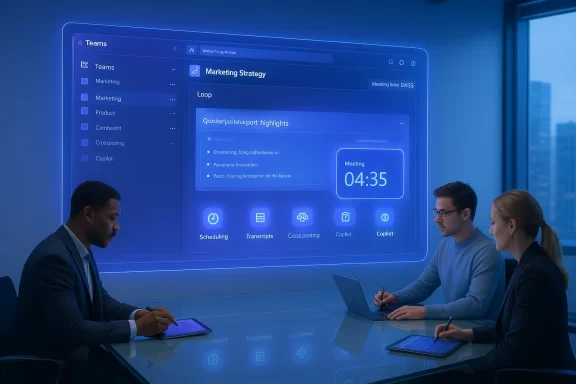 Background / Overview
Microsoft has steadily evolved Teams from a communication client into a platform that embeds automation, AI, and admin controls across chats, channels, meetings, and files. Recent releases emphasize three core themes: time-sensitive delivery (message scheduling and delivery controls), embedded AI (Copilot Chat and agent features), and interface reorganizations that reduce tab switching. These shifts are rolling out across previews and general availability and are aimed at reducing repetitive tasks — drafting, meeting follow-up, and cross-team announcements — while adding administrative controls for governance.These changes matter because the modern knowledge worker loses time to context switching and administrative overhead. The 2026 updates are designed not as gimmicks but as workflow accelerants: schedule announcements so teammates see them at work hours, let Copilot summarize long threads, and group channels so your left rail stops being a swamp.
Message management that actually respects time
Schedule, save, and target delivery
One of the most practical changes is message scheduling across chats and channels. Draft a long announcement late at night, set it to publish at 9:00 AM in recipients’ local time, and avoid waking the whole team. The ability to schedule channel posts — which moved beyond chat-only scheduling in earlier rollouts — is particularly useful for cross‑functional announcements and rollout notes.Use these delivery patterns to reduce interruptions:
- Schedule policy or process updates for working hours rather than after-hours.
- Stagger multi‑team announcements to avoid calendar collisions and inbox spikes.
- Use “save message” to bookmark critical instructions so you can find them without scrolling.
Delivery options: important vs urgent
Teams’ delivery options let you escalate a message without abusing colleagues. Use Important for high-priority but non‑life‑threatening updates, and Urgent only when the workflow truly requires immediate acknowledgement — unsparing use of urgent notifications trains recipients to ignore them. The feature has been part of Teams’ evolution to reduce lost messages and ensure time-sensitive items cut through the noise.Collaboration tools: Loop, co‑authoring, and cross‑post
Loop components and in-place co‑authoring
Loop components inserted into chats and channel posts let multiple people edit a piece of content in real time without swapping into separate documents. For teams that iterate on requirements, agendas, or status tables, this removes friction and keeps the canonical version in the conversation thread.Best practice: create Loop templates for recurring items (standup notes, decision logs) so the editable element arrives pre‑populated and easy to adopt.
Post across multiple teams/channels
When an update affects several groups, posting simultaneously to multiple channels prevents duplicate work and inconsistent messaging. Use targeted cross-posts for company-wide notices, product releases, or security advisories — and log the message so you can track engagement later.Calendar and meeting improvements
Custom calendar views and Outlook sync
Teams’ calendar continues to mirror Outlook while adding user-facing tweaks: custom calendar views, integrated group calendars, and improved event categorization make it easier to coordinate multi‑team work. Treat Teams’ calendar as an extension of Outlook (not a separate canonical calendar) to preserve single-source-of-truth for invites and room/resources.Timeboxing meetings with timers
Adding a visible timer to meetings forces discipline and improves outcomes. Use the timer to enforce agenda sections: 10 minutes for updates, 25 minutes for decision discussion, and a 5‑minute wrap-up. This simple ritual reduces scope creep and makes meeting end times predictable.Participant management and channel meeting invites
Admins and meeting organizers now have finer controls for participants (lobby defaults, presenter roles, eviction). Channel meetings can generate personal calendar invites so attendees get prompts in their Outlook view — a small but high‑impact step for reducing scheduling confusion.AI integration: what Copilot brings — and what it doesn’t
What Copilot can do today
Copilot in Teams is designed to turn repetitive tasks into prompts: summarize meeting transcripts, draft or rewrite messages, extract action items with owners and due dates, and even prepare slide outlines or visuals. The platform approach lets Copilot ground answers in tenant data (files on OneDrive/SharePoint) and meeting context. Multiple product briefings and community primers emphasize these five workflows as immediate time-savers: writing and editing, meeting/email summarization, spreadsheet work, presentation generation, and lightweight automation.Microsoft has introduced higher‑level Copilot features, including Copilot Actions for common workflows and new agents (SharePoint and Interpreter agents) to make Copilot more operational inside business systems. These tools are being rolled out in preview stages and require careful tenant configuration for access and governance.
Pricing and licensing (what to expect)
Copilot’s commercial licensing has been positioned as an add‑on in Microsoft 365 and has enterprise SKU pricing. Community documents and product notes have referenced an entry price in the neighborhood of $30 per user per month (annual billing) for business customers; check your tenant’s commercial offers and licensing center for exact, contractually binding pricing for your organization.Model claims and verification: caution advised
Some commentary attributes Copilot to a specific underlying model version (for example, claims that Copilot Chat is “powered by GPT‑5.2”). That syntax reflects public speculation and third‑party reporting rather than a single, verifiable Microsoft statement in the materials we reviewed. Model names and versions are commercial and technical details that Microsoft may not always publish in absolute terms; treat any specific model-version claims as unverified until confirmed via Microsoft’s official product documentation or your tenant’s admin center. Flag this in governance reviews and vendor discussions.Organization and customization: make Teams your work surface
Grouping, merging, and decluttering the left rail
Teams now supports grouping channels and chats into sections, and merging chat and channel views reduces tab churn. Create logical groups (by project, by priority, by external partners) and pin the most active ones to avoid endless scrolling.- Use sections for active projects versus reference channels.
- Merge related chats and channels to keep context together.
- Archive or mute inactive channels rather than leaving them to accumulate.
Notifications: set them once and leave them alone
Fine‑tuning notifications is an underrated productivity hack. Create notification rules that distinguish:- Mentions and direct messages (immediate but low-noise).
- Channel activity for favorites (digest or banner).
- Low-priority channels (mute or follow via email digest only).
Meetings and threaded conversations: run fewer, better meetings
Threaded channels and decision logs
Threaded conversations keep replies tethered to topics, which is crucial in busy channels. Create a decision log Loop or OneNote that captures outcomes, owners, and timestamps for each thread that reaches a conclusion.Use meeting recaps and action extraction
Rely on Copilot to turn transcripts into recaps and to extract action items; always verify owners and dates manually. The time savings are significant — but accuracy depends on transcript quality and context grounding. For noisy calls, consider recording and attaching the slide deck or key doc for better grounding.Power‑user practices and keyboard shortcuts
Keyboard shortcuts and slash commands are still among the highest ROI habits for power users. Memorize the essential ones:- Ctrl + Shift + M — mute/unmute.
- Alt + Shift + N — schedule a new meeting.
- Ctrl + 4 — jump to the Files tab.
Recognition and culture: Praise with purpose
The Praise feature helps keep morale visible and public. Use it to reinforce desired behaviors and celebrate cross-functional help. Make praise timely and specific — it’s most effective when tied to measurable outcomes or helpful actions, not vague kudos.Security, governance, and admin controls
Copilot Control System and admin responsibilities
Microsoft’s Copilot Control System gives IT teams tools to manage Copilot deployment, data connectors, and agent permissions. Because Copilot can operate across tenant files and services, admins must define guardrails: who can use Copilot Actions, what connectors are allowed, and how outputs are logged for audit. Implement conservative defaults (read-only summaries first) and enable write capabilities only after risk assessments.Data access and verification
Copilot’s power depends on access to tenant content via Microsoft Graph and to files in SharePoint/OneDrive. Treat Copilot outputs as assistive drafts — always validate figures, dates, and contractual language before relying on them in formal communications. Establish review workflows for high‑risk content such as legal, finance, or regulated material.Risks and mitigations
- AI hallucination risk: always corroborate Copilot claims with primary source documents. Use Copilot to surface likely answers, not as the final authority.
- Overuse of urgent delivery: it desensitizes teams. Create escalation policies.
- Excessive automation: scheduling and agent actions can automate errors at scale. Start small and monitor impact metrics.
- Licensing and cost creep: Copilot features can require add‑on licenses — plan budgets and pilot with defined objectives.
Twenty actionable Microsoft Teams tips that will save time in 2026
Below are 20 concise, practical tips — implement as a sequence where items marked starter are easy wins, and items marked advanced require admin or tenant changes.- Schedule channel announcements for local business hours (starter). Use scheduled posts, not after‑hours pings.
- Use “save message” to create a personal library of key instructions (starter). Pin critical messages instead of re-sending.
- Create Loop templates for recurring agendas and decision logs (starter). A pre-built Loop reduces meeting prep time.
- Enable meeting transcripts and attach slide decks for better Copilot grounding (starter). Better input = better AI output.
- Set up notification tiers: direct mentions (inline), favorite channels (banner), and archive/mute the rest (starter).
- Use calendar categories and custom calendar views to manage project time blocks (starter). Treat calendar like a workload dashboard.
- Use Copilot Chat to create first drafts for stakeholder updates, then edit for tone (advanced — Copilot license recommended).
- Build a prompt library for repetitive asks (starter). Save prompt text for weekly status, sprint retros, and stakeholder updates.
- Use thread discipline: always reply in-thread for topic continuity (starter). Saves search time.
- Add visible timers to meetings and publish an agenda with timestamps (starter). Enforce timeboxing.
- Pop out heavy chats or channels into separate windows when multitasking (starter). Reduces tab switching.
- Train people on the difference between Important and Urgent delivery (starter). Protect the urgent channel for real emergencies.
- Use cross-posting for company-wide changes to avoid duplicate efforts (advanced — careful audience selection).
- Stand up a Copilot pilot with read-only summarization first (advanced — governance focus). Monitor outputs and tune data connectors.
- Use keyboard shortcuts and slash commands for status and quick actions (starter). Save minutes per action, multiplied daily.
- Rename group chats to reflect project phases (starter). Easier lookup later.
- Use Praise publicly to reinforce behavior you want to repeat (starter). Small wins scale morale.
- Limit channel posting permissions for high-noise channels (advanced — admin policy). Keeps channels focused.
- Create an audit trail for Copilot‑generated outputs used in decisions (advanced — compliance). Log inputs and prompt text.
- Review Copilot licensing and TCO before broad rollout (advanced). Pilot, measure time saved, and scale based on ROI.
How to roll these changes out in your organization (practical plan)
- Pilot (2–4 weeks): select 2–3 teams to try scheduling, Loop templates, and Copilot summaries in read-only mode. Capture baseline time spent on meeting prep and follow-up.
- Measure: track meeting length, number of follow-ups, and time spent drafting communications. Small targets: reduce meeting time by 10–20% and cut post‑meeting admin by half.
- Govern: implement the Copilot Control System settings, restrict connectors initially, and require human approval for any automated write actions.
- Scale: expand to other teams after success signals; keep a feedback loop for prompt library and templates.
- Train: run short, focused workshops on scheduling etiquette, delivery options, and essential shortcuts. Adoption beats technology.
Final analysis: why these updates matter — and where to be careful
The 2026 Teams updates are effective because they attack real sources of time waste: poor timing, redundant context switching, and repetitive drafting. Scheduling messages and cross-posting reduce interruption friction; Loop components minimize doc sprawl; Copilot reduces drafting drudgery. Together, these changes can materially improve focus and delivery cadence.That said, the upside is gated by governance. AI outputs are only as good as the inputs and guardrails you place around them. Licensing, connector permissions, and a conservative approach to automated actions will keep the gains real and the risks manageable. Finally, any claim about the exact underlying model (for example, specific GPT version numbers) should be treated as unverified unless confirmed by official Microsoft documentation or your tenant’s procurement documentation. Verify licensing, pricing, and model details directly with your vendor before operational reliance.
Harnessing Teams in 2026 isn’t about chasing every new toggle — it’s about thoughtful configuration that respects people’s time, clear governance of AI, and small, repeatable habits that compound. Implement the starter tips this week, pilot the advanced ones next quarter, and you’ll be surprised how many hours return to your calendar by design rather than by chance.
Source: Geeky Gadgets Microsoft Teams Tips That Actually Save Time in 2026
