

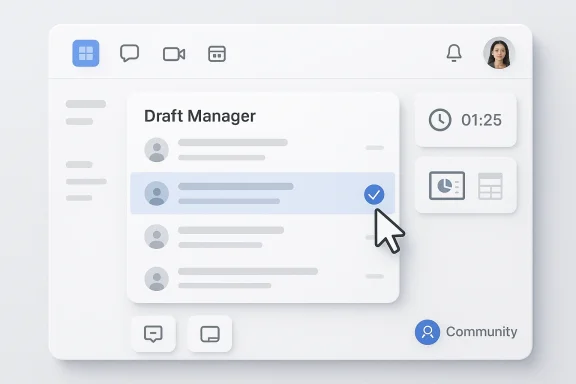
Microsoft Teams is quietly fixing one of its most persistent productivity annoyances: lost drafts. The newest wave of Teams updates consolidates unsent chat and channel messages into a single draft-management view, making it easier to pick up unfinished thoughts, edit them, send them, or discard them before they vanish into the digital clutter. Combined with multi-window support, better meeting tools, and Viva Engage integration, the changes suggest Microsoft is now focused less on flashy reinvention and more on shaving off the friction that slows real work.
For years, Microsoft Teams has been on a familiar path: start as a chat and meeting tool, then grow into the operating layer for work. That evolution accelerated as Microsoft folded more collaboration, governance, and AI features into the app, and as organizations became increasingly dependent on Teams to coordinate projects, meetings, and internal communications. The result is a platform that is simultaneously useful and, at times, unwieldy.
The biggest complaint about Teams has never been a lack of features. It has been the accumulation of features. Messages live in chats, channels, meeting chats, activity feeds, and now community surfaces. That fragmentation makes sense from a product-architecture standpoint, but it creates a daily user problem: you start something in one context, get interrupted, and then struggle to find it later. Microsoft’s own earlier redesign of chat and channels was an acknowledgment of that pain, promising a more unified workspace and letting users customize how they see conversations across chats and channels. (microsoft.com)
The 2025-to-2026 Teams roadmap shows Microsoft tightening its focus on usability rather than merely adding volume. In December 2025, Microsoft introduced separate windows for chat, calls, calendar, and activity so users could multitask more naturally. In January 2026, it added more controls for meetings and devices, and in February 2026 it expanded recap and community features. That pattern matters because it suggests Microsoft is treating Teams less like a monolithic app and more like a configurable work surface. (techcommunity.microsoft.com)
That context makes the new centralized draft system more important than it might sound at first. Drafts are not glamorous, but they are a direct measure of how well a messaging platform respects interrupted work. If Teams can preserve unfinished thought, surface it reliably, and place it where users expect, it removes a small but frequent source of frustration. In a product used by millions across every possible workflow, those are the kinds of fixes that change the daily experience in ways headline features often do not.
Microsoft’s broader Teams strategy also reflects a deeper market reality. Slack, Zoom, Google Workspace, and Webex all compete on communication quality, but enterprise customers increasingly judge collaboration platforms by how gracefully they handle workflow density. That means the winner is not simply the app with the most features; it is the app that makes it easiest to move between conversations, documents, meetings, and communities without losing state.
This is especially relevant in Teams because the platform is no longer just a chat client. It is a place where users respond to teams, comment on files, coordinate meetings, and interact with broader organizational spaces. When unsent messages are scattered by context, the user must remember not only what they meant to write, but also where they were writing it. Centralization eliminates that cognitive overhead.
The feature also fits modern work patterns better than the old per-thread draft model. Work today is interruption-heavy, especially in hybrid environments where chat, meetings, and multitasking all overlap. A unified draft drawer is Microsoft’s way of acknowledging that people do not compose messages in a clean, linear sequence anymore.
The new draft manager follows the same philosophy. It reduces the chance that a user’s work gets buried in an individual message composer or stranded in a single conversation. In other words, Microsoft is trying to make Teams remember more for the user, not less. That matters because the platform is competing with tools that increasingly promise faster recall, smarter search, and stronger continuity.
That has implications for admin teams too. A more unified surface can simplify support, training, and adoption because users spend less time hunting for content. It also makes it easier for Microsoft to layer in Copilot and other AI-assisted features, since a richer model of user activity is available in one place.
That emphasis is welcome. Meetings are one of the most expensive forms of work because they consume time in real time and then generate follow-up work afterward. Anything that reduces friction during the meeting can have an outsized effect on productivity after the meeting. Microsoft seems to be betting that better in-meeting ergonomics will translate into cleaner outcomes once the meeting ends.
The meeting timer and recording controls are smaller changes, but they address persistent pain points. Timers help keep conversations on track, while recording controls make documentation more deliberate. Those are not headline-grabbing upgrades, but they reduce the operational fuzziness that slows post-meeting follow-through.
That matters because internal communications has always struggled with distribution. Important community posts can get buried if they live in a separate app, and separate apps create separate habits. By bringing communities closer to Teams, Microsoft is betting that employees will engage more when discussions appear in the same place they already live during the day.
There is a cultural angle too. Teams has often been associated with operational work, while Viva Engage has leaned more toward social connection and leadership communication. Bringing the two closer together reflects Microsoft’s broader idea that modern work culture is built in the same tools used to do the work itself.
In a workplace environment, message quality matters more than people admit. A typo or premature send is usually harmless, but when the audience includes clients, senior leaders, or cross-functional teams, small communication mistakes can create confusion. Teams is now giving users more protection against those mistakes and more control over how messages are composed.
Autocorrect, meanwhile, is a low-friction quality upgrade. It will not make anyone a better writer, but it can eliminate common errors that distract from the message itself. That is a subtle but important distinction. Microsoft is not trying to turn Teams into a word processor; it is trying to prevent the platform from getting in the way of professionalism.
This matters because Teams has historically been criticized for forcing users to do too much inside one crowded frame. Separate windows change that dynamic by giving users room to keep a channel visible while reviewing chat, calendar, or notifications elsewhere. For power users, that is not a luxury. It is the difference between productive monitoring and constant tab-swapping.
Microsoft’s multi-window approach also suggests that Teams is becoming more desktop-native again. For a while, many collaboration apps felt like browser experiences trapped in a wrapper. Separate windows give Teams a more mature feel and make it easier to support genuine multitasking on Windows and beyond.
For a large application like Teams, settings discoverability is not a minor issue. When users cannot quickly find a control, they either abandon customization or rely on IT support. A search bar changes that behavior, especially for people who only adjust settings occasionally and cannot remember where Microsoft buried a particular option.
This is one of the clearest signs that Teams is now being designed for a broader maturity curve. Early collaboration products often prioritize feature count. Mature collaboration products must prioritize learnability, personalization, and supportability. Microsoft appears to be leaning into that second phase.
Custom sections are especially useful because they let users group conversations by project, client, or topic. That means Teams is not just a feed; it becomes a filing system. When combined with the existing favorites model and the broader chat-and-channels redesign, the platform starts to feel more like a configurable dashboard than a simple conversation app. (microsoft.com)
The new shortcut support, including quick navigation between chats and channels, adds another layer of efficiency. Users who live in Teams all day need keyboard-level movement, not just visual navigation. Microsoft is clearly trying to support both types of user: those who like a structured interface and those who move quickly through many conversations.
That is why Teams’ shift toward better draft handling, windowing, and meeting controls should be read alongside Microsoft’s continuing work on service stability and admin controls. Features that improve daily work are valuable, but they have to live inside a platform that remains dependable under load. Otherwise, users will remember the outage more vividly than the feature.
The upside is that Microsoft appears to understand this. Recent product work has included more granular security controls, better admin visibility, and stronger meeting governance. That is a sign that the company knows Teams is no longer just software; it is infrastructure.
What will matter most now is execution. If users can find drafts instantly, keep channels open in separate windows, move between community and project work without confusion, and trust the platform to preserve context, Teams will feel noticeably better by the end of the day. If those features remain fragmented or inconsistent, the gains will be real but limited.
In the end, the centralized draft manager may be the most mundane headline in the batch, but it may also be the most revealing. It shows that Microsoft is listening not just to what users want to do in Teams, but to where they keep getting interrupted. That is exactly the kind of problem a modern productivity platform should solve.
Source: Geeky Gadgets Microsoft Teams Just Solved Its Most Annoying Messaging Problem
 Background
For years, Microsoft Teams has been on a familiar path: start as a chat and meeting tool, then grow into the operating layer for work. That evolution accelerated as Microsoft folded more collaboration, governance, and AI features into the app, and as organizations became increasingly dependent on Teams to coordinate projects, meetings, and internal communications. The result is a platform that is simultaneously useful and, at times, unwieldy.The biggest complaint about Teams has never been a lack of features. It has been the accumulation of features. Messages live in chats, channels, meeting chats, activity feeds, and now community surfaces. That fragmentation makes sense from a product-architecture standpoint, but it creates a daily user problem: you start something in one context, get interrupted, and then struggle to find it later. Microsoft’s own earlier redesign of chat and channels was an acknowledgment of that pain, promising a more unified workspace and letting users customize how they see conversations across chats and channels. (microsoft.com)
The 2025-to-2026 Teams roadmap shows Microsoft tightening its focus on usability rather than merely adding volume. In December 2025, Microsoft introduced separate windows for chat, calls, calendar, and activity so users could multitask more naturally. In January 2026, it added more controls for meetings and devices, and in February 2026 it expanded recap and community features. That pattern matters because it suggests Microsoft is treating Teams less like a monolithic app and more like a configurable work surface. (techcommunity.microsoft.com)
That context makes the new centralized draft system more important than it might sound at first. Drafts are not glamorous, but they are a direct measure of how well a messaging platform respects interrupted work. If Teams can preserve unfinished thought, surface it reliably, and place it where users expect, it removes a small but frequent source of frustration. In a product used by millions across every possible workflow, those are the kinds of fixes that change the daily experience in ways headline features often do not.
Microsoft’s broader Teams strategy also reflects a deeper market reality. Slack, Zoom, Google Workspace, and Webex all compete on communication quality, but enterprise customers increasingly judge collaboration platforms by how gracefully they handle workflow density. That means the winner is not simply the app with the most features; it is the app that makes it easiest to move between conversations, documents, meetings, and communities without losing state.
Why Draft Management Matters
Drafts are a tiny artifact of a much larger workflow problem. If a user begins a reply in Teams and then gets pulled into a meeting, a call, or another conversation, the unsent message can become a time sink later. Centralizing drafts turns that abandoned partial work into a recoverable queue rather than a hidden liability. That is a simple idea, but in a workplace app, simple ideas often deliver the biggest practical gain.This is especially relevant in Teams because the platform is no longer just a chat client. It is a place where users respond to teams, comment on files, coordinate meetings, and interact with broader organizational spaces. When unsent messages are scattered by context, the user must remember not only what they meant to write, but also where they were writing it. Centralization eliminates that cognitive overhead.
The real benefit is interruption recovery
The draft manager does not merely save time. It reduces the risk that a half-written response turns into a missed assignment, a delayed approval, or a forgotten follow-up. In busy organizations, the cost of lost intent can be higher than the cost of a lost file, because the consequence is usually not visible until much later.The feature also fits modern work patterns better than the old per-thread draft model. Work today is interruption-heavy, especially in hybrid environments where chat, meetings, and multitasking all overlap. A unified draft drawer is Microsoft’s way of acknowledging that people do not compose messages in a clean, linear sequence anymore.
- Drafts are easier to revisit after interruptions.
- Users can send or discard unfinished messages from one place.
- Context switching becomes less punishing.
- The risk of duplicate or forgotten replies drops.
- Teams becomes better suited to asynchronous collaboration.
How This Fits Microsoft’s Teams Design Shift
Microsoft has been steadily moving Teams toward a more state-aware interface. The company’s earlier chat-and-channels redesign brought conversations into a more unified experience, while still letting users separate or combine views depending on preference. That design approach was not just cosmetic. It was a foundational change aimed at making Teams feel less like a pile of independent panes and more like a coordinated workspace. (microsoft.com)The new draft manager follows the same philosophy. It reduces the chance that a user’s work gets buried in an individual message composer or stranded in a single conversation. In other words, Microsoft is trying to make Teams remember more for the user, not less. That matters because the platform is competing with tools that increasingly promise faster recall, smarter search, and stronger continuity.
From message app to work memory
This is where the product story becomes more strategic. Teams is no longer just about posting messages. It is about retaining context across the workday. That includes drafted thoughts, meeting notes, follow-ups, community posts, and collaborative file edits. The more Microsoft can centralize that context, the more Teams becomes the place where work history lives.That has implications for admin teams too. A more unified surface can simplify support, training, and adoption because users spend less time hunting for content. It also makes it easier for Microsoft to layer in Copilot and other AI-assisted features, since a richer model of user activity is available in one place.
- Unified drafts reduce fragmentation.
- A central queue improves discoverability.
- Better continuity helps AI surface more relevant follow-ups.
- Users are less likely to abandon unfinished responses.
- The app feels more coherent across chat, channels, and meetings.
Meeting Tools Get More Practical
Microsoft is also refining the parts of Teams that absorb the most workday time: meetings. The latest changes include a redesigned sharing interface, interactive file sharing for PowerPoint Live and Excel Live, customizable recording behavior, and a meeting timer that can show elapsed or remaining time. Together, these features point to a more disciplined meeting experience rather than a more decorative one.That emphasis is welcome. Meetings are one of the most expensive forms of work because they consume time in real time and then generate follow-up work afterward. Anything that reduces friction during the meeting can have an outsized effect on productivity after the meeting. Microsoft seems to be betting that better in-meeting ergonomics will translate into cleaner outcomes once the meeting ends.
Why live file collaboration matters
PowerPoint Live and Excel Live are especially important because they let Teams handle file collaboration without forcing people to bounce between apps. Instead of presenting a static attachment, the meeting becomes a working session where content can be explored and manipulated in context. That matters for product teams, sales teams, finance teams, and anyone else who reviews documents live.The meeting timer and recording controls are smaller changes, but they address persistent pain points. Timers help keep conversations on track, while recording controls make documentation more deliberate. Those are not headline-grabbing upgrades, but they reduce the operational fuzziness that slows post-meeting follow-through.
- Sharing becomes easier to navigate.
- Live file collaboration reduces app switching.
- Timers help prevent overlong meetings.
- Recording controls support more targeted capture.
- Meeting outputs become easier to review later.
Viva Engage Comes Closer to the Flow of Work
Microsoft’s integration of Viva Engage communities into Teams is one of the most interesting long-term moves in this wave of updates. The company is effectively folding broader organizational conversation into the same workspace where people already chat, collaborate, and meet. Microsoft said the new unified experience is rolling out in public preview and is designed to bring community engagement into the flow of work.That matters because internal communications has always struggled with distribution. Important community posts can get buried if they live in a separate app, and separate apps create separate habits. By bringing communities closer to Teams, Microsoft is betting that employees will engage more when discussions appear in the same place they already live during the day.
Enterprise communication gets less siloed
For large organizations, this could be a real win. Leadership updates, company-wide Q&A, and topic-based communities are easier to surface when they share a workspace with everyday collaboration. That may improve reach, but it also raises governance questions about what belongs in a channel, what belongs in a community, and how the two should be moderated.There is a cultural angle too. Teams has often been associated with operational work, while Viva Engage has leaned more toward social connection and leadership communication. Bringing the two closer together reflects Microsoft’s broader idea that modern work culture is built in the same tools used to do the work itself.
- Community posts become easier to discover.
- Leadership communication can reach employees more directly.
- Engagement is less dependent on separate app adoption.
- Organizations can unify collaboration and culture.
- Governance becomes more important, not less.
Messaging Clarity and Message Composition
Not every Teams change is about scale. Some are about reducing embarrassment. Autocorrect in chats and channels is a good example, as is the ability to disable Enter as the default send key. These are small but meaningful controls that give users more confidence while typing. They reduce the risk of accidental sends, incomplete thoughts, and sloppy errors in fast-moving conversations.In a workplace environment, message quality matters more than people admit. A typo or premature send is usually harmless, but when the audience includes clients, senior leaders, or cross-functional teams, small communication mistakes can create confusion. Teams is now giving users more protection against those mistakes and more control over how messages are composed.
The value of composition controls
Disabling Enter-to-send is especially useful for multiline drafts, policy explanations, technical instructions, and any response that needs to be carefully structured. It also aligns with the draft-management theme: Microsoft is trying to make sure that unfinished work stays unfinished until the user is ready, rather than being sent by accident.Autocorrect, meanwhile, is a low-friction quality upgrade. It will not make anyone a better writer, but it can eliminate common errors that distract from the message itself. That is a subtle but important distinction. Microsoft is not trying to turn Teams into a word processor; it is trying to prevent the platform from getting in the way of professionalism.
- Multiline drafting becomes safer.
- Accidental sends are less likely.
- Spelling mistakes are corrected sooner.
- Users have more control over composition.
- Teams better supports formal communication.
Multitasking and Window Management
One of the most practical updates in recent Teams releases is the ability to open chats, calls, calendar, activity, and other sections in separate windows. Microsoft highlighted this in its December 2025 roundup, describing it as a way to let users organize their work environment to fit the way they actually multitask. (techcommunity.microsoft.com)This matters because Teams has historically been criticized for forcing users to do too much inside one crowded frame. Separate windows change that dynamic by giving users room to keep a channel visible while reviewing chat, calendar, or notifications elsewhere. For power users, that is not a luxury. It is the difference between productive monitoring and constant tab-swapping.
Channels in separate windows change the rhythm
The ability to pop channels out into their own windows is especially useful for people who monitor multiple workstreams. Project managers, team leads, and IT staff often need one eye on a critical channel while also keeping up with direct messages or meeting actions. Separate windows let them do that without losing the main thread of work.Microsoft’s multi-window approach also suggests that Teams is becoming more desktop-native again. For a while, many collaboration apps felt like browser experiences trapped in a wrapper. Separate windows give Teams a more mature feel and make it easier to support genuine multitasking on Windows and beyond.
- Critical channels can stay visible.
- Chats and calendar can be monitored simultaneously.
- Window separation reduces tab fatigue.
- Multi-thread monitoring becomes more manageable.
- Teams feels less cramped in heavy-use scenarios.
Settings, Search, and UI Polish
Teams has also been making quieter improvements to settings navigation and interface clarity. Microsoft added a search bar in settings and gave users the option to toggle app bar labels, both of which help reduce the time spent hunting for controls. These are the kinds of changes that do not generate much buzz, but they strongly influence how polished a product feels.For a large application like Teams, settings discoverability is not a minor issue. When users cannot quickly find a control, they either abandon customization or rely on IT support. A search bar changes that behavior, especially for people who only adjust settings occasionally and cannot remember where Microsoft buried a particular option.
Small UI changes, big support implications
The app bar label toggle is another smart example. Some users want maximum visual density, while others prefer clearer labels. By giving people control over that tradeoff, Microsoft is acknowledging that productivity software should adapt to working style rather than forcing a single default on everyone.This is one of the clearest signs that Teams is now being designed for a broader maturity curve. Early collaboration products often prioritize feature count. Mature collaboration products must prioritize learnability, personalization, and supportability. Microsoft appears to be leaning into that second phase.
- Settings are easier to find.
- Labels can be reduced or restored.
- The interface can feel cleaner.
- Support burdens may decrease.
- Personalization becomes more practical.
Channel and Section Organization
Microsoft’s additions to channel management and section customization reinforce the idea that Teams is becoming a personal workspace rather than just an organization-wide messenger. The ability to organize chats and channels into sections, combine them in new ways, and move between them more fluidly is a response to the growing complexity of modern work. It is also an admission that one list can no longer serve every user equally well.Custom sections are especially useful because they let users group conversations by project, client, or topic. That means Teams is not just a feed; it becomes a filing system. When combined with the existing favorites model and the broader chat-and-channels redesign, the platform starts to feel more like a configurable dashboard than a simple conversation app. (microsoft.com)
Organizing work by intent
The best part of this approach is that it matches how people actually think about work. They do not think in app silos; they think in goals, deadlines, and stakeholders. If Teams can mirror those mental models more faithfully, it becomes much easier to keep track of which conversations matter and which can wait.The new shortcut support, including quick navigation between chats and channels, adds another layer of efficiency. Users who live in Teams all day need keyboard-level movement, not just visual navigation. Microsoft is clearly trying to support both types of user: those who like a structured interface and those who move quickly through many conversations.
- Custom sections support project-based work.
- Favorites keep high-priority conversations close.
- Shortcuts improve speed for advanced users.
- The layout can reflect personal work habits.
- Navigation becomes less dependent on mouse clicks.
Security, Reliability, and the Enterprise Reality
A conversation about Teams updates in 2026 would be incomplete without acknowledging the broader enterprise backdrop: Microsoft 365 and Teams have faced reliability and authentication issues in recent months, and that shapes how customers evaluate any new feature. Even the best productivity enhancements can feel less meaningful if the service underneath them is inconsistent. Enterprise buyers care about polish, but they care even more about trust.That is why Teams’ shift toward better draft handling, windowing, and meeting controls should be read alongside Microsoft’s continuing work on service stability and admin controls. Features that improve daily work are valuable, but they have to live inside a platform that remains dependable under load. Otherwise, users will remember the outage more vividly than the feature.
Productivity features need operational confidence
This is especially true in regulated or high-dependency environments. Organizations using Teams for HR communications, executive updates, customer collaboration, or frontline coordination cannot afford a tool that feels fragile. The more Microsoft makes Teams central to business operations, the more it must prove the underlying service can handle that responsibility.The upside is that Microsoft appears to understand this. Recent product work has included more granular security controls, better admin visibility, and stronger meeting governance. That is a sign that the company knows Teams is no longer just software; it is infrastructure.
- Reliability influences feature adoption.
- Admin controls matter as much as UI changes.
- Messaging improvements must work at scale.
- Enterprise customers expect continuity.
- Trust is part of the product experience.
Strengths and Opportunities
Microsoft’s Teams updates are strongest when they solve obvious, everyday problems without forcing users to change how they already work. The new draft management system, multi-window support, community integration, and meeting refinements all do that, while also opening the door for deeper AI and workflow integration later. In that sense, Microsoft is not just polishing Teams; it is preparing it for a more unified collaboration future.- Centralized draft handling reduces lost work and improves continuity.
- Separate windows make multitasking much easier for heavy users.
- Viva Engage integration strengthens internal communications reach.
- Meeting timers and live file collaboration improve structure and output.
- Autocorrect and send-key controls reduce avoidable messaging mistakes.
- Improved settings search lowers support friction and user confusion.
- Custom sections and shortcuts make Teams more adaptable to real workflows.
Risks and Concerns
The challenge with any ambitious collaboration platform is that every new convenience also adds complexity somewhere else. Teams has a long history of feature accumulation, and the risk now is that customization begins to feel like clutter if Microsoft does not keep the interface disciplined. The company is clearly trying to solve that problem, but it has not eliminated it.- Feature sprawl can make the app harder to explain and onboard.
- Community integration may blur boundaries between operational and social communication.
- Draft centralization is useful, but only if users trust it to stay accurate.
- More customization can create inconsistent experiences across teams and departments.
- Multi-window workflows may confuse occasional users who expect a simpler default.
- Autocorrect can occasionally overreach in jargon-heavy work environments.
- Reliability concerns can undermine confidence in even the best new features.
Looking Ahead
The next phase for Microsoft Teams will likely be defined less by blockbuster announcements and more by the company’s ability to stitch these smaller enhancements into a coherent whole. Draft management, multi-window support, community integration, and meeting controls all point in the same direction: Microsoft wants Teams to be the place where work is not only discussed, but remembered, organized, and completed. That is an ambitious goal, and it is the right one.What will matter most now is execution. If users can find drafts instantly, keep channels open in separate windows, move between community and project work without confusion, and trust the platform to preserve context, Teams will feel noticeably better by the end of the day. If those features remain fragmented or inconsistent, the gains will be real but limited.
- Drafts must remain easy to locate and manage.
- Community integration needs clear governance.
- Multi-window behavior should stay predictable.
- Meeting tools should improve without adding clutter.
- Settings and shortcuts need to remain discoverable.
- Reliability must keep pace with feature growth.
In the end, the centralized draft manager may be the most mundane headline in the batch, but it may also be the most revealing. It shows that Microsoft is listening not just to what users want to do in Teams, but to where they keep getting interrupted. That is exactly the kind of problem a modern productivity platform should solve.
Source: Geeky Gadgets Microsoft Teams Just Solved Its Most Annoying Messaging Problem
