

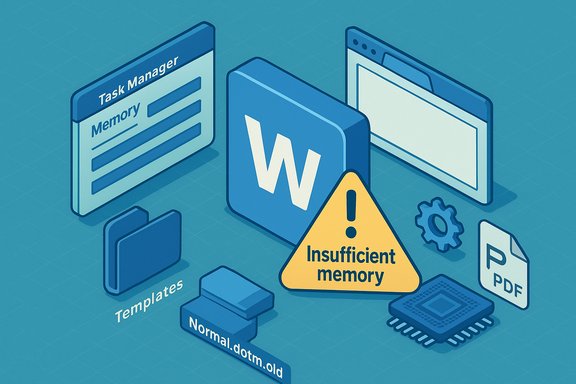
Microsoft Word's intermittent "insufficient memory" errors — the dialog that reads “Word has insufficient memory” or “There is not enough memory or disk space” when saving, exporting to PDF, or using specific fonts — are surprisingly common and often fixable with a combination of quick housekeeping and targeted repairs. The problem usually has a clear path to resolution: close memory‑hungry background apps, reset Word's default template (Normal.dotm), disable problematic graphics acceleration where available, remove or isolate add‑ins, and — if needed — run Office's built‑in repair tools. The steps below consolidate practical fixes from community diagnostics and Microsoft guidance, explain why each measure works, and assess strengths, caveats, and long‑term prevention strategies for users and IT teams alike.
Word's error messages about memory and disk space are blunt but not always literal. They can mean one or more of the following:
Apply the non‑destructive fixes first, back up templates and registry data before making deeper changes, and adopt preventive steps (keep Office and drivers updated, prefer 64‑bit Office for large files, and control startup apps) to reduce the chances of recurrence. For persistent, cross‑machine failures — especially in managed networks — collect Event Viewer and Office logs and engage IT or Microsoft support for a definitive fix.
Note: The guidance above synthesizes community troubleshooting patterns and official Microsoft recommendations and reflects practical experience with Word’s common failure modes. Certain UI items (for example the hardware acceleration checkbox) may appear differently or be unavailable depending on Office build and organizational policies; verify the exact menu paths on your client before making registry edits.
Source: Guiding Tech Microsoft Word Has Insufficient Memory – How to Fix
 Background / Overview
Word's error messages about memory and disk space are blunt but not always literal. They can mean one or more of the following:- The system genuinely lacks free RAM or has exhausted usable virtual memory (pagefile) while Word attempts a memory‑intensive task.
- The file being saved is damaged, contains problematic fonts or objects, or triggers a template or add‑in bug within Word.
- Background processes — including browsers, sync clients, or even misbehaving system utilities — are consuming resources. In rare cases a system bug can spawn many hidden processes that aggregate memory usage.
- Word’s attempt to use GPU acceleration for rendering or PDF generation is clashing with drivers or specific graphics hardware, producing misleading memory errors.
Quick first‑aid: triage in under five minutes
When Word suddenly refuses to save, follow this rapid checklist before attempting anything more invasive. These quick steps often unblock saves and prevent data loss.- Save any unsaved text by copying to a plain text editor (Notepad) — this preserves content if Word must be restarted.
- Check free disk space on the drive where the file is being saved; Word will fail if the destination volume is full. Make sure you have at least a few hundred MB free — more for large files.
- Open Task Manager (Ctrl+Shift+Esc), sort by Memory, and end tasks for nonessential apps (especially browser tabs, cloud sync clients, or media apps). This often releases enough RAM for Word to complete the save.
- If saving to PDF triggered the error, try exporting again after closing heavy apps or test saving in a different file type to isolate whether the PDF path is the issue.
Fix 1 — Reduce background memory load (Task Manager and Startup)
Why this helps
Word itself is not typically the most memory‑hungry process, but browsers, virtual machines, design apps, and many background services can push a system into memory pressure. Closing or preventing those processes from running frees RAM and reduces paging activity — which is often the proximate cause of “insufficient memory” messages.Steps (fast)
- Open Task Manager: Right‑click the taskbar or press Ctrl+Shift+Esc.
- In Processes, click the Memory column to sort highest → lowest.
- Select nonessential high‑memory apps and choose End task. Repeat until enough memory is freed.
- To reduce future load: open Task Manager → Startup tab and disable apps you don't need at sign‑in (or use Settings > Apps > Startup).
Extra: browser memory management
- Browsers can hide heavy tabs. Use the browser’s built‑in task manager (Edge: right‑click tab bar → Browser task manager) to drop individual tabs without closing the entire browser.
Risks and caveats
- Ending tasks may cause unsaved work in other apps to be lost; save in those apps first.
- If Task Manager itself appears duplicated or consumes excessive memory, check for a known Windows update bug that created orphaned Task Manager instances; a reboot or taskkill may be necessary.
Fix 2 — Reset the default template (Normal.dotm)
Why this helps
Word uses a global template (Normal.dotm) as the basis for new documents. If that template becomes corrupted, contains incompatible macros or add‑ins, or has malformed settings, Word can behave unpredictably — including throwing memory errors during save/export operations. Deleting or renaming Normal.dotm forces Word to create a fresh, default template on the next launch.Steps
- Press Win+R, paste %appdata% and press Enter.
- Navigate to Microsoft → Templates.
- Cut or rename Normal.dotm (for example: Normal.dotm.old).
- Restart Word. A new default Normal.dotm will be generated automatically.
What to watch for
- Custom styles, macros, or keyboard shortcuts stored in the old Normal.dotm will no longer apply. If those are important, keep a copy of the original template to recover specific items later.
Fix 3 — Disable Hardware Graphics Acceleration (when applicable)
What and why
Some Office clients allow Word to use GPU acceleration for display and certain operations. While this improves performance on many systems, driver mismatches or specific GPU stacks can cause rendering failures that present as memory errors during save/PDF export. Turning off hardware acceleration is a common troubleshooting step. Microsoft has also adjusted how this option is exposed in recent Office builds (it may be removed or controlled by policy), so follow the method appropriate to your Office/Windows version.Steps (UI method)
- File → Options → Advanced.
- Under Display, check Disable hardware graphics acceleration.
- Click OK and restart Word.
Alternate method (registry)
- If the UI option is missing, a registry key can be created to force the setting. This is version‑sensitive; consult your Office build and back up the registry before changing it. Vendors and OEM support pages outline the registry path (e.g., HKEY_CURRENT_USER\Software\Microsoft\Office\<version>\Common\Graphics and the DisableHardwareAcceleration value).
Critical note
- Microsoft has stated the UI option has been deprecated in some configurations because Office now better aligns with system‑wide acceleration controls; disabling it should be used as a troubleshooting step, not necessarily a permanent fix. Test performance impact after making the change.
Fix 4 — Remove or isolate add‑ins, then repair Office
Why this matters
Third‑party add‑ins (COM add‑ins, Word templates, startup folders) can change Word’s runtime environment, load extra libraries, or install macros that interact with save/export functions. If an add‑in is buggy or incompatible with your Office build, it can produce memory errors. The safest approach is to start Word without add‑ins and then re‑enable them one at a time to identify the culprit.Steps to disable add‑ins
- In Word: File → Options → Add‑Ins.
- At the bottom, next to Manage, select COM Add‑ins and click Go.
- Uncheck third‑party add‑ins and restart Word. Test save/export.
- Re-enable add‑ins one by one until the issue recurs to identify a faulty extension.
Repair Office
- If disabling add‑ins doesn't help, use Windows Settings → Apps → Installed apps → Microsoft 365 (or Office) → Modify → Quick Repair. If Quick Repair fails, use Online Repair which re‑downloads Office components and is more thorough. This built‑in repair is the recommended next step.
Risks
- Online Repair may require re‑signing into Office and could temporarily disrupt add‑in behavior; it does not remove user data but will reinstall application files. Back up any important custom templates or macros first.
Additional causes and advanced checks
1) Disk space and temp locations
- If your system drive or the target save volume is low on space, Word can fail to write temporary work files. Confirm free space and check that the %TEMP% path is valid and writable. Microsoft’s historical guidance lists disk space as a primary factor for “not enough memory or disk space” errors.
2) Huge documents and 32‑bit limits
- Large, media‑heavy documents and files with many embedded objects or tracked changes can exhaust addressable memory, especially if using a 32‑bit Office build on a 64‑bit OS. For heavy documents, use 64‑bit Office and consider breaking the document into subdocuments (master document approach) or moving media to a separate, linked resource. Community best practice recommends 32–64 GB RAM for very large Word projects.
3) Temp file errors, permissions, antivirus hooks
- Errors such as “Word could not create the work file” usually indicate problems with the TEMP environment variable, permissions, or interference from security software. Temporarily disabling antivirus (or adding exceptions) during a save/test cycle can help isolate the cause. If the TEMP path is wrong or full, fix it in System Properties or clean the directory.
4) Corrupt documents
- If the problem occurs only with one document, try: Save As → .doc (different format), copy/paste content into a new blank document, or open the file in Word Online which sometimes bypasses local issues. These tactics can reveal whether the file itself is damaged. Community cases show copying content into a fresh document often restores normal save speed and stability.
When to escalate: IT or Microsoft support
Escalate when:- Multiple machines in a managed environment exhibit the same failure (likely a group policy or update issue).
- Office repair and Safe Mode fail to resolve the error.
- Logs show installer or Click‑to‑Run errors during the time of repair, or if Office fails to repair entirely. In enterprise settings, collect Event Viewer logs, Office install logs, and diagnostic output before contacting Microsoft. Use the Support and Recovery Assistant (SaRA) for guided diagnostics before raising a support ticket.
Prevention: habits and configuration that reduce recurrence
- Prefer 64‑bit Office for large, media‑rich documents.
- Keep Windows, Office, and GPU drivers updated to the latest stable builds. Microsoft and vendor mitigations often resolve obscure rendering bugs.
- Disable unnecessary startup apps and keep plenty of free disk space on the system and working volumes.
- Keep a clean Normal.dotm (avoid untrusted macros) and inventory add‑ins before installing new tools. Maintain a policy for allowed add‑ins in managed environments.
Critical analysis — strengths, risks, and practical guidance
Strengths of the stepwise approach
- The recommended workflow begins with low‑risk, reversible steps (save to Notepad, close apps, check disk space) and progresses to targeted changes (template rename, add‑in isolation) before destructive actions (registry edits, OS reinstall). This reduces unnecessary disruption and follows standard incident‑response sequencing.
- Built‑in Office tools (Quick Repair / Online Repair) and Microsoft’s Support and Recovery Assistant are effective first‑line remedies that avoid manual registry edits and minimize human error.
Risks and trade‑offs
- Registry changes and indiscriminate deletion of files (Normal.dotm or Office folders) carry a risk of losing customizations or breaking other Office behaviors. Always back up templates, export registry keys, and create a restore point before making systemic changes.
- Disabling hardware acceleration may remove a workaround for certain GPU bugs but can reduce performance for UI‑heavy tasks. Because recent Office builds may hide or manage the acceleration flag automatically, use it as a controlled troubleshooting step rather than a blanket policy.
- Aggressive cleanup of startup items or services in a managed environment can conflict with corporate requirements (sync clients, security agents). Coordinate with IT before making broad changes on domain‑joined machines.
When fixes may fail
- If memory errors persist after the full troubleshooting sequence (template reset, add‑in isolation, Office repair, disk checks), the issue could be an OS‑level corruption, driver incompatibility, or a rare bug requiring a Microsoft hotfix. At that stage, escalate with logs and replication steps.
Practical checklists — copyable steps
Emergency checklist (if Word won’t save and you’re mid‑edit)
- Copy document content to Notepad (temporary safeguard).
- Close nonessential apps (Task Manager → End task).
- Confirm free disk space where the file will be saved.
- Try Save As to a different folder or format (.docx → .doc or PDF → Word).
Deeper troubleshooting (if error recurs)
- Reset Normal.dotm (rename/move template).
- Launch Word in Safe Mode (hold Ctrl while starting Word) and test.
- Disable add‑ins (File → Options → Add‑Ins → Manage COM Add‑Ins).
- Run Quick Repair; if unresolved, run Online Repair.
Conclusion
The “Word has insufficient memory” error is a frustrating but usually resolvable interruption. Most cases are caused by resource pressure, a corrupted Normal.dotm template, a problematic add‑in, or GPU/driver interactions during rendering or PDF export. A pragmatic, layered response — quick triage, background process reduction, template reset, controlled disabling of GPU acceleration, add‑in isolation, and Office repair — resolves the majority of problems without drastic measures. Where those steps fail, documented escalation paths and diagnostics simplify interaction with support teams.Apply the non‑destructive fixes first, back up templates and registry data before making deeper changes, and adopt preventive steps (keep Office and drivers updated, prefer 64‑bit Office for large files, and control startup apps) to reduce the chances of recurrence. For persistent, cross‑machine failures — especially in managed networks — collect Event Viewer and Office logs and engage IT or Microsoft support for a definitive fix.
Note: The guidance above synthesizes community troubleshooting patterns and official Microsoft recommendations and reflects practical experience with Word’s common failure modes. Certain UI items (for example the hardware acceleration checkbox) may appear differently or be unavailable depending on Office build and organizational policies; verify the exact menu paths on your client before making registry edits.
Source: Guiding Tech Microsoft Word Has Insufficient Memory – How to Fix
