

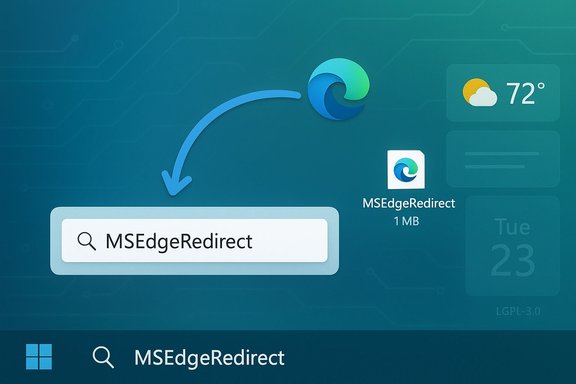
Windows search finally behaves the way many of us expected it to: queries now open in your chosen browser and search engine instead of being funneled to Microsoft Edge and Bing — but this fix didn’t come from Microsoft. It arrived as a compact, open‑source utility called MSEdgeRedirect, a roughly 1‑megabyte tool that intercepts the OS’s Edge-specific handoffs and forwards them to your default browser and preferred search engine, restoring predictable, user‑controlled behavior.
Windows has long exposed settings to choose defaults for web browsers and search engines, but certain parts of the shell — Start/taskbar web search, widgets, Spotlight links and other UWP‑style handlers — have been hard‑wired to invoke Microsoft Edge and Bing. That practice has frustrated users who expect the OS to respect system defaults. MSEdgeRedirect works by intercepting how Windows launches Edge processes and reissuing those requests to the default browser, avoiding the brittle protocol‑handler hacks used by previous utilities. The project is free, open source and maintained on GitHub under the LGPL‑3.0 license.
This piece verifies the most important claims about MSEdgeRedirect (what it does, how it’s installed and the trade‑offs it creates), cross‑references independent coverage and user reports, and provides an evidence‑based assessment of who should (and shouldn’t) run it on their PC.
At the same time, the maintenance model matters: this is a volunteer‑maintained project, not an official Microsoft change. That means the longevity and reliability of the fix depend on the maintainer and contributors continuing to react to Windows changes. The repo is active, but there is no service‑level guarantee — expect occasional breakage after large Windows feature updates and budget time to check for fixes.
Users who should be cautious:
Source: MakeUseOf This 1 MB open-source tool fixed the biggest issue with Windows search
 Background
Windows has long exposed settings to choose defaults for web browsers and search engines, but certain parts of the shell — Start/taskbar web search, widgets, Spotlight links and other UWP‑style handlers — have been hard‑wired to invoke Microsoft Edge and Bing. That practice has frustrated users who expect the OS to respect system defaults. MSEdgeRedirect works by intercepting how Windows launches Edge processes and reissuing those requests to the default browser, avoiding the brittle protocol‑handler hacks used by previous utilities. The project is free, open source and maintained on GitHub under the LGPL‑3.0 license.This piece verifies the most important claims about MSEdgeRedirect (what it does, how it’s installed and the trade‑offs it creates), cross‑references independent coverage and user reports, and provides an evidence‑based assessment of who should (and shouldn’t) run it on their PC.
What MSEdgeRedirect does — a practical summary
MSEdgeRedirect restores control to the user by capturing Edge‑targeted launches and redirecting them elsewhere. In practice that means:- Typing a web query in the Start menu or taskbar search no longer forces a Bing results page inside Edge — the query opens in your default browser and your chosen search engine instead.
- Links from the Widgets panel, MSN Discover, Weather, Spotlight and other shell surfaces that previously opened in Edge can be redirected to your default browser.
- The app offers per‑scenario options (a broad “Additional Redirections” panel) so you can choose which Windows components to reroute.
Overview: The technical design and installation modes
MSEdgeRedirect ships as a tiny executable (the installer and the core binary are around 1.0–1.2 MB depending on the build) and offers multiple installation modes to suit different users and privilege levels.- Active Mode (recommended): The tool runs in an IFEO (Image File Execution Options) style or similar system‑level interception so the OS invokes MSEdgeRedirect in place of Edge for matching calls. This requires a one‑time elevation during setup but does not keep a resident background process running after the change is made. Active Mode is recommended when you want a system‑level redirect without a constant background agent.
- Service Mode: Installs without admin rights and runs persistently in the background, monitoring for Edge processes and redirecting them as they appear. This mode is intended for single‑user installs or situations where admin elevation is not possible, though it’s more intrusive because it keeps a running component. Community documentation and third‑party write‑ups sometimes report a wide variance in background CPU usage for Service Mode; some community summaries cite numbers like 1–10% CPU depending on system and workload, but those figures are user‑reported and not an official guaranteed metric. Treat any specific CPU numbers as approximate and subject to your hardware and chosen options.
- Europe Mode (EEA): For users inside the European Economic Area, Windows already provides a more flexible browser choice flow; Europe Mode attempts to make use of region settings and EU browser‑choice behavior to avoid runtime interception. The mode changes regional settings and can alter how Windows offers browser choices — it’s a heavier, more invasive option intended for jurisdictions where Microsoft’s UI exposes a direct choice. Use it only if you understand the registry changes it will make.
Step‑by‑step: How to install and configure safely
The minimal, evidence‑backed workflow to get MSEdgeRedirect working the way MakeUseOf and others describe:- Confirm or set your default browser first (Settings → Apps → Default apps) so the redirect target is correct. MSEdgeRedirect forwards the URL to whichever browser Windows reports as the default.
- Download the official release from the project's GitHub releases page or a reputable mirror (package managers like Chocolatey, Scoop or Winget also offer packages). Verify the download size and, if you prefer, a checksum where available. The official GitHub release shows small executable assets (≈1.1 MB).
- Run the installer and choose installation mode:
- Choose Active Mode for recommended behavior and minimal background overhead (requires admin).
- Choose Service Mode if you cannot elevate and accept a resident background process.
- Use Europe Mode only if you understand the registry/region changes and you’re inside the EEA.
- After installation, open the MSEdgeRedirect settings and select the additional redirections you want (Widgets, Spotlight, Discover, Copilot toggles, etc.. Save and test by typing a web query in the Start menu and pressing Enter — the query should open in your default browser and preferred search engine. No reboot is normally required.
- If you ever want the original behavior back, open the tool and uncheck the redirection boxes or uninstall via Apps → Installed apps; the original system behavior will be restored.
Strengths: Why the community adopted this tiny app
- Restores user choice: The core benefit is straightforward and significant: your Start menu and widget searches go to your browser and engine, not Edge/Bing. That alone is a daily‑use quality‑of‑life improvement for many users.
- Small and focused: The main binary is around 1 MB, requires little disk space and installs quickly — a stark contrast to heavier replacement shells or indexers. Multiple download repositories and sandboxes confirm the tiny installer and executable sizes.
- Active development and transparency: The project is hosted on GitHub (LGPL‑3.0), with active releases and an issues tracker. This visibility makes it easier to audit behavior, track regressions and see when Windows updates break functionality. The release notes are explicit about compatibility improvements and new redirect handlers.
- Multiple redirect targets: Beyond Start menu search, the tool can cover widgets, MSN Discover, Spotlight and similar handlers — providing broader coverage than simpler protocol‑handler hacks. That makes MSEdgeRedirect a practical, general solution rather than a single‑use trick.
Risks and limitations — what the evidence shows
- Windows updates can break it. The project’s issue tracker and community threads document multiple instances where feature updates or patches changed how Windows constructs Edge invocations, requiring the maintainer to release fixes. There are active issue reports showing breakage tied to specific Windows updates, which underlines the reality that this approach must be maintained to remain effective. Expect breaks after major Windows feature updates and be prepared to check the project’s releases or issues if behavior changes.
- Antivirus false positives and detection chatter. Several download portals and sandbox analyses show one‑or‑two AV detections in multi‑engine VirusTotal scans; those are typically flagged as heuristic detections or due to the binary being an AutoIt‑compiled executable. The prevalence of low‑count detections (e.g., 1–3 engines out of 70+) strongly suggests false positives, but that means some users’ security suites may warn about the download. If your AV flags the file, prefer official GitHub assets, confirm hashes, or run the binary in a sandbox first. Major download sites explicitly warn that MSEdgeRedirect “gets a few hits on VirusTotal.”
- Potential system conflicts. A handful of community posts report issues such as system UI elements behaving differently while the tool is running (for example, reports that Action Center or certain UWP behaviors stopped working until the utility was closed). These are anecdotal, but they’re recorded in community troubleshooting threads and underscore that low‑level interception of shell behavior is not risk‑free. Test the tool on a single machine before rolling it out broadly.
- Service Mode overhead claims are community‑sourced. The frequently‑cited 1–10% CPU figure for Service Mode appears in third‑party guides and community wikis, but it is not an official guarantee from the project; real CPU use will vary by system and workload. If low resource usage is essential, prefer Active Mode and avoid a resident Service Mode process where practical.
- Not suitable for managed/enterprise devices. On domain‑joined or administratively managed endpoints, changes to the IFEO registry or region keys and persistent background services may conflict with group policy and security controls. IT departments should treat this utility like any other third‑party system utility and evaluate it against corporate policy. The project README and wiki note caveats around Edge being removed or modified via third‑party removal scripts and list compatibility notes.
Security posture and best practices
- Verify the download:
- Prefer GitHub releases and verify the filename/size (≈1.0–1.2 MB for recent builds) and, when available, checksums. Independent sandbox reports confirm the typical file size.
- Watch for AV warnings:
- If your antivirus flags the app, cross‑check the detection on VirusTotal, and prefer official builds. Small FOSS utilities compiled with AutoIt can attract heuristic detections; a 1/70 or 2/70 VirusTotal result suggests a false positive more often than an actual infection, but remain cautious.
- Test before wide deployment:
- Run MSEdgeRedirect on a single workstation, validate all the UI paths you use (Start menu search, Widgets, Copilot, Teams links if applicable), then monitor for unexpected behavior. Have a rollback plan (uninstall or re‑enable defaults) in case a Windows update or a local conflict occurs.
- Track upstream activity:
- Because Microsoft can change internal handlers with OS updates, monitor the project’s GitHub issues and releases if you rely on it. The maintainer is responsive and the project has an active release cadence, but breaks have occurred and will likely occur again after major Windows updates.
What the maintenance record and community signal tell us
MSEdgeRedirect has attracted a healthy user base because it readdresses a clear product pain point: users want their OS to obey their defaults. The project’s GitHub shows ongoing releases, an active issue tracker and release notes that respond to Windows changes (new redirect handlers added, fixes for edge cases in UWP apps, etc.. Independent coverage from outlets like XDA‑Developers documented MSEdgeRedirect’s arrival as the practical successor to earlier utilities that Microsoft had made brittle, and download mirrors and sandboxes validate the light footprint. Together, these signs point to a well‑scoped, community‑driven fix that is practical today but requires vigilance.At the same time, the maintenance model matters: this is a volunteer‑maintained project, not an official Microsoft change. That means the longevity and reliability of the fix depend on the maintainer and contributors continuing to react to Windows changes. The repo is active, but there is no service‑level guarantee — expect occasional breakage after large Windows feature updates and budget time to check for fixes.
Alternatives and complementary approaches
If you prefer to avoid interception utilities entirely, there are alternatives:- Replace Windows search entirely with a third‑party launcher or indexed search (Everything, Fluent Search, PowerToys Run) for local files and apps. These tools don’t solve taskbar/web query redirection but can bypass Start menu search for app launching. Community rundowns of launchers and file search tools explain the trade‑offs between local speed and web‑integration.
- Use browser extensions to change search providers for particular flows where possible, or configure keyboard shortcuts and address‑bar keywords to simulate the same convenience without OS‑level interception. These are less universal but lower‑risk.
- In regulated or managed environments, lobby for administrative policy changes rather than deploying endpoint hacks; enterprise teams can often configure more predictable behavior via managed settings and supported Windows policies.
Final assessment — who should install MSEdgeRedirect?
MSEdgeRedirect is a practical, small, and effective tool for home and enthusiast users who want their system to respect their browser and search choices. It does one thing well, has an auditable codebase and a tiny footprint, and it’s actively maintained on GitHub. Independent reviews, download site metadata and sandbox analyses back up the main claims: it’s open source, it’s small (≈1.0–1.2 MB), and it redirects a wide set of Edge/Bing paths to the default browser.Users who should be cautious:
- Administrators of managed endpoints where registry or IFEO changes may violate policy.
- Users who need absolute stability across Windows feature updates without checking for project updates.
- Anyone whose antivirus/firewall setup flags new binaries automatically and who cannot verify downloads or hashes.
Conclusion
MSEdgeRedirect is a concise, open‑source answer to one of Windows’ most persistent annoyances: the OS opening web queries and widget links in Edge and Bing against your preferences. It’s lightweight, pragmatic and — when maintained — reliably restores the expected default‑app behavior for most day‑to‑day scenarios. The caveat is operational: because it intercepts low‑level shell behavior, it is necessarily sensitive to Windows internals and therefore requires monitoring for compatibility after major OS updates. For enthusiasts and home users who want their Start menu and widgets to respect their choices, MSEdgeRedirect is a defensible, low‑cost fix — just verify your download, prefer Active Mode when possible, and be ready to check the project's GitHub for quick fixes when Microsoft changes the underlying plumbing.Source: MakeUseOf This 1 MB open-source tool fixed the biggest issue with Windows search
