

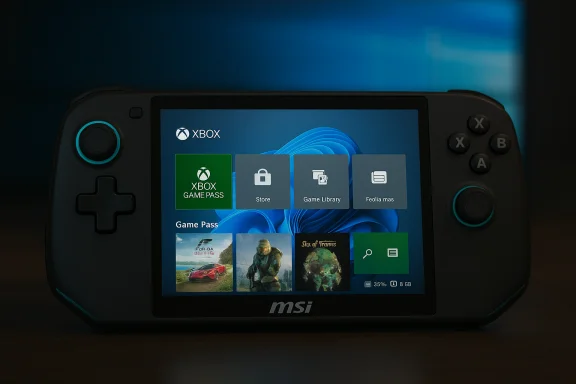
Microsoft has started rolling out the Xbox-style, controller-first full screen experience on Windows 11 handhelds — a console-like launcher that turns supported devices into pocketable, distraction-free gaming PCs — and Insiders can try it now on the MSI Claw with more OEMs slated to follow.
For years Windows has been optimized for desktops and laptops, not for handheld gamepads with seven-inch screens. That mismatch creates friction: tiny windows, wallpaper and Explorer services that chew memory, notifications and background tasks that interrupt play, and a UI tuned for mouse and keyboard rather than thumb navigation. Microsoft’s Full Screen Experience (FSE) is a pragmatic answer: keep Windows underneath, but present a controller-first shell on top that behaves more like an Xbox console when you want to play.
The FSE is not a forked operating system. It’s a layered launcher — driven by the updated Xbox PC app and tighter Game Bar integration — that can be set as your device’s home app. When active, Windows defers or suppresses many desktop-centric components and non‑essential background processes so more resources are available for games. That design preserves the openness of Windows (Steam, Epic, Battle.net, GOG remain usable) while delivering a low-friction, console-like UX for handheld play.
Microsoft’s handheld playbook — a full-screen Xbox launcher layered on Windows — is now moving from concept to practical testing across multiple partners. For handheld gamers, that offers a faster path to “pick up and play” on Windows without losing the platform’s breadth. For Microsoft and OEMs, it’s the beginning of a larger effort: make Windows behave like a console when it should, and stay a full PC the rest of the time. How well that balance holds up will depend on firmware polish, developer adoption, and how patiently the platform manages the preview-to-production transition.
Source: Digital Trends Xbox-style handheld mode is rolling out on Windows 11, and you can try it now
 Background: why Microsoft built a full screen experience for Windows handhelds
For years Windows has been optimized for desktops and laptops, not for handheld gamepads with seven-inch screens. That mismatch creates friction: tiny windows, wallpaper and Explorer services that chew memory, notifications and background tasks that interrupt play, and a UI tuned for mouse and keyboard rather than thumb navigation. Microsoft’s Full Screen Experience (FSE) is a pragmatic answer: keep Windows underneath, but present a controller-first shell on top that behaves more like an Xbox console when you want to play.The FSE is not a forked operating system. It’s a layered launcher — driven by the updated Xbox PC app and tighter Game Bar integration — that can be set as your device’s home app. When active, Windows defers or suppresses many desktop-centric components and non‑essential background processes so more resources are available for games. That design preserves the openness of Windows (Steam, Epic, Battle.net, GOG remain usable) while delivering a low-friction, console-like UX for handheld play.
What changed this week: MSI Claw joins the preview
Microsoft’s Windows Insider announcement on October 31 expanded FSE availability beyond the ASUS ROG Xbox Ally family to include preview support for MSI Claw models. The company said additional OEMs will enable the feature “in the coming months.” This means owners of supported Claw hardware on the appropriate Insider channels can now opt into the Xbox home app and test the full screen launcher directly. Why that matters: the roll‑out to MSI shows Microsoft’s strategy is to implement FSE as a platform-level capability that OEMs enable per device, rather than locking it to a single branded handheld. That opens up a path for vendors to tune drivers and firmware for their hardware while letting Microsoft ship common UI plumbing across partners.How the full screen experience works — a short technical overview
- The Xbox PC app becomes the home app and full-screen launcher: library tiles, Game Pass integration, and installed titles from other stores are presented in a single, controller-friendly view.
- The Game Bar is elevated to a system overlay: the dedicated Xbox button (on Ally or mapped button on other devices) summons a controller-optimized overlay for quick toggles, captures, and app switching.
- Background services and Explorer ornamentation are deferred while the launcher is active: desktop wallpaper and many startup/background tasks are not loaded until you switch back to the desktop, freeing memory and reducing idle CPU activity.
- Controller-first UX elements are provided: gamepad-driven PIN/login flows, on-screen controller keyboard, and a task switcher optimized for thumb navigation.
How to enable the Xbox full screen experience (official, supported path)
If you have a supported device and want to try the new launcher the safe way, follow these steps. The steps below match Microsoft’s published flow in Insider notes and support documentation.- Confirm you have a Windows 11 build that includes the FSE bits (25H2 preview family / October 31 Insider build and matching Insider rings).
- Update the Xbox PC app to the latest preview or stable update (Insider preview of the app may be required to see compact/handheld features).
- Open Settings → Gaming → Full screen experience. Under “Set your home app,” choose Xbox.
- Optionally toggle Enter full screen experience on startup to boot into the launcher automatically.
- Enter/exit FSE from Game Bar (Win + G), Task View (Win + Tab) or press F11 to toggle.
Early hands‑on and real-world behavior: what users are reporting
Early testers and reviewers find the launcher conceptually sound: switching to a controller-first full-screen home makes immediate usability sense on a seven‑inch display, and suspending desktop ornamentation yields measurable resource headroom on constrained hardware. Reviewers and community testers report:- Cleaner, faster game access: The aggregated library reduces launcher hopping and cuts several taps off typical game start flows.
- Lower idle overhead: By deferring Explorer and non-essential startup apps, some testers see reclaimed RAM and reduced background CPU work — numbers vary by system and installed software. Microsoft and early hands-on reports commonly reference “up to ~2 GB” reclaimed in favorable scenarios, but that is an estimate, not a guarantee.
- Controller-first convenience: The Game Bar overlays and hardware button mapping (or mapped alternatives on other devices) streamline captures, overlays, and quick switching without a keyboard.
- Stability issues on non‑OEM devices: When hobbyists port the mode to hardware the OEM did not tune for, results can vary — ranging from missing button mappings to OSD conflicts and occasional mode‑switching failures. That’s why Microsoft is using Insiders and staged OEM rollouts.
- Not a performance silver bullet: FSE helps by lowering system overhead, but it does not change raw CPU/GPU thermal limits — demanding AAA games still hit platform ceilings. Expect sustained performance improvements only where thermal and power profiles already permit it.
- Game compatibility and UI fit: Not all PC games will be “handheld friendly” without developer adjustments — text legibility, UI scale, and controller mapping still need work in many titles. Microsoft’s Handheld Compatibility Program aims to classify and surface suitability, but this catalog will take time to mature.
Strengths: what Microsoft and OEMs get right here
- Preserves Windows openness while offering a console UX. Users keep access to multiple storefronts and local installs, avoiding the walled-garden problem of a single console OS. That’s a major strategic win for Microsoft’s handheld push.
- Single, controller-friendly launcher reduces friction. Aggregating Game Pass, Xbox titles, and installed PC games into a single, full-screen home makes handheld gaming faster to use and more enjoyable on small screens.
- System-level resource trimming is pragmatic and effective. Suspending Explorer décor and deferring startup apps is a practical way to reclaim memory and cut idle activity, which benefits battery life and thermal stability on small devices. Real-world gains are situational but repeatable when hardware and driver stacks are tuned.
- A consistent developer target. A shared FSE template across Ally, Claw, and other OEM devices gives game developers and middleware authors a clearer target for handheld UI/UX and optimization. That can improve the overall catalog of handheld‑friendly PC games over time.
Risks and unknowns: what could go wrong or slow adoption
- Fragmentation across OEMs and driver stacks. Different firmware, button mappings and system utilities (MSI OSD, Armoury Crate, etc. can interact poorly with FSE. Unless OEMs ship validated updates, the user experience will be inconsistent. Early community testing already shows OSD and mapping hiccups on some devices.
- Insider-preview instability. Rolling out complex system behavior via Insider builds is standard, but it means early adopters face bugs and occasional regressions. This preview phase is for feedback, not for production reliability yet.
- Misleading performance expectations. Marketing-friendly figures like “up to X GB reclaimed” or “extra hours of battery” are conditional. Real gains depend on the device’s thermal envelope, background software, and what the user ran before enabling FSE. These claims should be treated as directional engineering estimates rather than guarantees.
- Handheld compatibility gap in the games catalog. Many PC titles were designed for large monitors with mouse and keyboard. The Handheld Compatibility Program aims to label and guide players, but developer uptake and actual game patches will take time. In the interim, some titles will remain clumsy on small screens.
- Support and warranty concerns with community hacks. Enthusiast methods to unlock FSE outside official channels exist, but they risk system instability and may interact with OEM warranty or support terms. Microsoft and OEMs recommend waiting for official firmware or Insider-signed paths unless you are comfortable with advanced recovery.
Practical advice for handheld owners and enthusiasts
- If you want a stable, polished FSE experience, favor devices that ship with the mode preinstalled (ROG Xbox Ally / Ally X) or wait for an OEM-provided update for your model. ASUS and Xbox marketed the Ally devices as shipping with the full screen experience enabled.
- If you’re an Insider and you want to test FSE on MSI Claw or other eligible hardware:
- Back up your system and create recovery media before changing Insider channels.
- Update firmware, BIOS and OEM utilities (MSI Center, Armoury Crate) to the latest versions.
- Join the Windows Insider program and pick the channel containing the FSE bits (check Microsoft’s Insider blog for the exact build numbers), then update the Xbox PC app preview.
- Avoid registry hacks or third‑party tools unless you know how to restore a system image. Community guides exist, but they’re unsupported and can break things like DRM, OSD overlays, or keyboard mappings.
- Use the Handheld Compatibility Program tags as a filter to find titles likely to play well without text scaling or controller mapping problems. That will improve the out‑of‑the‑box experience while developers update their games.
What OEMs and developers should focus on next
- Driver and firmware parity: OEMs must update power profiles, button mappings, OSD integrations, and Game Bar hooks to ensure FSE operates reliably on each device. Early community reports show the difference this tuning makes.
- Developer tools and guidance: Microsoft’s Handheld Compatibility Program is a good start; expand it with concrete guidelines, recommended UI scale values, and a test harness developers can run locally.
- Clear update paths: OEMs should provide straightforward firmware and driver updates that enable FSE for existing customers rather than forcing curious users into risky workarounds.
- Telemetry and user controls: Give players granular controls for any background optimizations, and clearly document what is deferred/suspended so power users can troubleshoot and tune their systems.
Verdict: a meaningful platform pivot, but the details matter
Microsoft’s Full Screen Experience is a sensible and technically pragmatic way to make Windows 11 feel like a console on handheld hardware while keeping the platform’s openness. The shift matters because handheld gameplay benefits more from a disciplined, controller-first home and from reclaiming resources that desktop UI elements otherwise consume. Early rollouts — first on ASUS’ ROG Xbox Ally family and now in preview on MSI Claw models — show the approach can work and that it brings tangible UX improvements. However, the crucial work is only beginning. Real-world consistency requires OEM tuning, driver maturity, developer uptake for handheld-optimized UI, and a careful rollout that keeps Insiders involved but mainstream consumers protected from instability. Marketing claims about memory and battery gains are directionally correct, but they are device-dependent and should be treated as estimates until independent labs publish broader bench tests.Quick FAQ — what you need to know right now
- Which devices ship with FSE preinstalled?
The ROG Xbox Ally and ROG Xbox Ally X were announced to ship with the Xbox full screen experience enabled; Microsoft and ASUS have promoted those devices as the first mainstream hardware to deliver the console-like launcher at boot. - Can I try it on my current handheld?
Possibly — Microsoft has exposed FSE bits in Insider builds and in Xbox app previews. MSI Claw models are part of the preview as of October 31. If your device is eligible, you can enable FSE via Settings → Gaming → Full screen experience after updating to the right Windows build and Xbox app preview. Back up before you experiment. - Will it make my games run faster?
It can improve sustained responsiveness and battery behavior by reducing background overhead, but it does not change a device’s hardware thermal ceiling. Expect situational gains — more noticeable on systems tightly constrained by RAM and background processes. Treat headline numbers like “up to ~2 GB saved” as estimates rather than guarantees. - Is this safe to enable on a production machine?
If your device is listed by Microsoft or your OEM as supported and you enable FSE via official updates, yes. Using community hacks or registry toggles carries risk and should be avoided unless you fully understand recovery options.
Microsoft’s handheld playbook — a full-screen Xbox launcher layered on Windows — is now moving from concept to practical testing across multiple partners. For handheld gamers, that offers a faster path to “pick up and play” on Windows without losing the platform’s breadth. For Microsoft and OEMs, it’s the beginning of a larger effort: make Windows behave like a console when it should, and stay a full PC the rest of the time. How well that balance holds up will depend on firmware polish, developer adoption, and how patiently the platform manages the preview-to-production transition.
Source: Digital Trends Xbox-style handheld mode is rolling out on Windows 11, and you can try it now
