

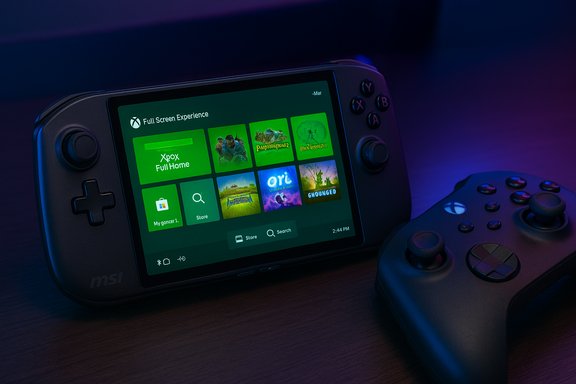
Microsoft’s console-style Full Screen Experience (FSE) for Windows 11 — the controller-first, Xbox‑led launcher that debuted on the ROG Xbox Ally devices — is now available to select MSI Claw handhelds via the Windows 11 Insider Preview, offering Claw owners an opt‑in path to boot directly into a full‑screen Xbox home app, reduce desktop background overhead, and get a more console‑like, gamepad‑first workflow on their Windows handhelds.
Microsoft designed the Full Screen Experience (FSE) as a layered, session‑level posture on top of Windows 11 rather than a separate operating system. When enabled, FSE elevates a chosen “home app” (commonly the Xbox PC app) to a full‑screen launcher, refactors Game Bar and Task View for controller navigation, and defers or suppresses many non‑essential desktop startup items and Explorer ornamentation to free RAM and reduce background CPU wakeups. The stated objective is practical: give thermally constrained, handheld Windows PCs a predictable, lower‑noise runtime state for gaming without removing Windows’ openness to Steam, Epic, GOG, and other PC ecosystems. Microsoft first shipped FSE preinstalled on ASUS’ ROG Xbox Ally family. The current Insider Preview expansion — delivered in Windows 11 Insider Preview Build 26220.7051 (KB5067115) — explicitly lists the FSE preview as rolling out to “MSI Claw models,” with additional OEM rollouts planned over the coming months. This is being distributed as a controlled feature rollout (CFR), meaning binaries and settings may exist broadly in the build but device visibility is gated by Microsoft and OEM entitlements.
That said, early adopters should expect rough edges. The initial ROG Ally rollouts surfaced usability and startup issues; hands‑on reviewers recorded overlay problems, intermittent failures to honor the “boot into FSE” toggle, and missing toggles when the Xbox app or OEM utilities weren’t updated. Microsoft and reviewers both caution that FSE is still an Insider Preview experience when enabled on non‑Ally handhelds like the Claw, and Insiders will see variant behavior across channels and device entitlements. In short: the feature works and gives benefits, but is still being hardened for broader consumer stability.
Microsoft’s expansion of the Xbox Full Screen Experience to MSI Claw handhelds is a meaningful step in the evolution of Windows handheld gaming: it offers a low‑friction, controller‑first mode that can materially improve play sessions on constrained hardware, while preserving the openness that makes Windows a unique gaming platform. The tradeoffs are clear — early‑preview stability risks and a dependence on vendor firmware and driver coordination — but for players who value a console‑style launcher on a Windows handheld, FSE on the MSI Claw is an important and welcome option worth testing carefully.
Source: VideoCardz.com Xbox Full Screen Experience comes to MSI Claw handhelds via Windows 11 Insider preview - VideoCardz.com
 Background / Overview
Microsoft designed the Full Screen Experience (FSE) as a layered, session‑level posture on top of Windows 11 rather than a separate operating system. When enabled, FSE elevates a chosen “home app” (commonly the Xbox PC app) to a full‑screen launcher, refactors Game Bar and Task View for controller navigation, and defers or suppresses many non‑essential desktop startup items and Explorer ornamentation to free RAM and reduce background CPU wakeups. The stated objective is practical: give thermally constrained, handheld Windows PCs a predictable, lower‑noise runtime state for gaming without removing Windows’ openness to Steam, Epic, GOG, and other PC ecosystems. Microsoft first shipped FSE preinstalled on ASUS’ ROG Xbox Ally family. The current Insider Preview expansion — delivered in Windows 11 Insider Preview Build 26220.7051 (KB5067115) — explicitly lists the FSE preview as rolling out to “MSI Claw models,” with additional OEM rollouts planned over the coming months. This is being distributed as a controlled feature rollout (CFR), meaning binaries and settings may exist broadly in the build but device visibility is gated by Microsoft and OEM entitlements. What the MSI Claw rollout actually includes
Key user‑facing behaviors
- The Xbox PC app (or another chosen home app) can be set as the device home app and will run as a full‑screen launcher that aggregates your Xbox library, Game Pass titles, and many installed PC games in a single grid.
- Windows Settings exposes the control at Settings > Gaming > Full screen experience, where users can choose the home app and optionally enable “Enter full screen experience on startup.” Booting into FSE defers many desktop startup apps until the user first switches back to the desktop.
- Entry/exit is available via Game Bar, Task View, or a keyboard shortcut (commonly reported as F11 for FSE toggles), allowing quick switching between the full‑screen launcher and the Windows desktop.
What Microsoft changed in the Insider build
The October/late‑October Insider cumulative preview (Build 26220.7051, KB5067115) combined FSE rollout with other experiments — Ask Copilot on the taskbar and a Shared Audio (Bluetooth LE Audio) preview — but the FSE behavior is notable because it intentionally modifies session composition to help handheld hardware maintain framerate and battery life under load. Microsoft and independent hands‑on reports show measurable reclaimed RAM and fewer background wakeups in typical handheld gaming scenarios when FSE is active.MSI Claw: why this matters to this hardware
MSI’s Claw family occupies the higher‑end of the Windows handheld market: larger 7–8‑inch displays, high refresh rates (120Hz), Thunderbolt/USB4 ports on some SKUs, and battery sizes that aim for extended play sessions on larger models. Higher‑performance Claw models (including the Claw A8 with Ryzen Z2 Extreme in certain regions) ship with up to 24GB of LPDDR5(X) and larger battery packs (some SKUs advertise up to an 80Wh pack), hardware choices that make resource reclamation from the OS especially valuable during sustained AAA workloads. Enabling FSE on these devices is therefore a natural fit — the shell reduces background noise, gives a clean launcher, and can improve perceived responsiveness on thermally constrained APUs. However, physical hardware capabilities only tell part of the story. FSE’s benefits depend heavily on up‑to‑date OEM firmware, GPU drivers, and vendor utilities (MSI Center, OSD overlays, BIOS updates). If those pieces aren’t aligned with Microsoft’s session posture changes, users can encounter overlay conflicts, missing toggles, or startup quirks. Consequently, the controlled rollout helps iron out OEM-specific integration problems before a broad consumer release.How to enable FSE on a supported Claw (Insider Preview path)
The supported workflow for enthusiasts who want to test FSE on a Claw device is deliberate and precautionary:- Join the Windows Insider Program and enroll in the Dev or Beta channel that contains Build 26220.7051 (25H2 preview).
- Update Windows to the Insider Preview Build 26220.7051 (KB5067115).
- Install or update the Xbox PC app (some testers report the Xbox app preview is necessary for certain features to appear). Consider enrolling in the Xbox app preview through the Xbox Insider Hub.
- Update MSI firmware, the MSI Center utility, and GPU drivers to the latest OEM/driver builds to reduce risk of overlay or driver conflicts.
- Open Settings → Gaming → Full screen experience, choose Xbox (or another installed home app), and optionally enable Enter full screen experience on startup. Use Game Bar or Task View to switch between FSE and desktop.
Early hands‑on reports: measurable wins and visible rough edges
Independent hands‑on testing and community benchmarks have shown that FSE can deliver measurable runtime improvements on handheld hardware by trimming memory usage and reducing background CPU interrupts. Reviewers have reported higher sustained framerates and smoother gameplay in some titles when running inside FSE versus a standard desktop session; some experiments found double‑digit FPS gains in certain scenarios, although results vary greatly depending on power limits, thermal headroom, and which background services were active before toggling FSE.That said, early adopters should expect rough edges. The initial ROG Ally rollouts surfaced usability and startup issues; hands‑on reviewers recorded overlay problems, intermittent failures to honor the “boot into FSE” toggle, and missing toggles when the Xbox app or OEM utilities weren’t updated. Microsoft and reviewers both caution that FSE is still an Insider Preview experience when enabled on non‑Ally handhelds like the Claw, and Insiders will see variant behavior across channels and device entitlements. In short: the feature works and gives benefits, but is still being hardened for broader consumer stability.
Technical anatomy: what FSE changes — and what it doesn't
What FSE does
- Session composition changes: FSE modifies which userland services and startup apps are initialized during a handheld gaming session, deferring or pausing non‑critical agents until the desktop is re‑entered. This reduces resident memory usage and background CPU wakeups.
- Controller‑first UX: Game Bar and Task View are adapted for thumb navigation; the Xbox button or an assigned controller input becomes the main system overlay entry. The Xbox app supplies an on‑screen controller text input and a tiled library interface for quick navigation.
- Boot integration: When “Enter full screen experience on startup” is enabled, Windows will boot directly into the Xbox home app, keeping desktop services minimized until the user explicitly exits to the desktop.
What FSE does not do
- No kernel rewrite: FSE does not change kernel scheduling, GPU driver models, or anti‑cheat kernel access. It’s a session shell plus policy tweaks — not a reimplementation of Windows’ internals. This means some deeper compatibility and performance constraints remain governed by drivers, firmware, and platform hardware limits.
- Not a locked ecosystem: Steam, Epic, GOG and other PC stores remain usable; FSE is a frontend posture rather than a walled garden.
Security, anti‑cheat, and enterprise considerations
For competitive gamers and enterprise IT teams, the most important point is that FSE doesn’t alter kernel‑level security or anti‑cheat frameworks by design. That said, the addition of a new session shell and deferred background behavior can interact unexpectedly with overlay‑dependent utilities, DRM/anti‑cheat hooks, or vendor security agents. IT and tournament organizers should validate the following before broad deployment:- Confirm anti‑cheat compatibility in the target game set. Even if anti‑cheat runs in kernel mode independent of FSE, overlays and session changes have sometimes produced false positives or blocked overlays used by peripherals.
- Verify vendor‑signed drivers are up to date; mismatched drivers are the most common root cause of gaming crashes and display/overlay problems when changing session composition.
- For managed devices, treat FSE as an optional user configuration that should be pilot‑tested against corporate compliance and remote management tooling — especially if endpoint‑management agents interact with startup tasks or custom shell components.
OEM strategy and the broader handheld market
Microsoft’s staged expansion of FSE — from ASUS ROG Ally to MSI Claw and mentions of upcoming Lenovo support — reflects a deliberate OEM‑gated rollout strategy. By delivering FSE as a platform capability that OEMs can enable per model, Microsoft allows hardware vendors to tune firmware, overlays, and software utilities to match the feature’s expectations, rather than shipping a one‑size‑fits‑all shell. The controlled feature rollout reduces the risk of mass regressions and helps OEMs coordinate driver updates to avoid conflicts. From a competitive perspective, FSE’s traction matters because it narrows the UX gap between Windows handhelds and console/SteamOS alternatives. A polished FSE gives Windows‑based handhelds the quick, controller‑first entry users expect on a console while preserving access to the broader PC game library. That plays into OEM messaging and buyer choices: will users buy an open Windows handheld that “feels like a console” at boot or a more curated SteamOS device? Microsoft’s approach hedges both bets.Practical troubleshooting notes (based on Insider reports)
- If the FSE toggle does not appear under Settings → Gaming → Full screen experience: ensure you are on the correct Insider channel and build, update the Xbox PC app (Beta/preview), update MSI Center and device firmware, then reboot. Some Insiders reported that installing the Xbox app preview and updating MSI Center resolved missing toggles.
- If boot‑into‑FSE fails to persist: try toggling the setting off and on after a full restart, check for pending BIOS or firmware updates, and verify that overlay utilities (MSI OSD, third‑party performance tools) are updated or temporarily disabled.
- If game performance or capture tools misbehave in FSE: test the same game in desktop mode and compare capture/overlay functionality; report regressions to Feedback Hub under Gaming and Xbox > Gaming Handhelds to provide telemetry to Microsoft.
What owners should expect next
- Broader OEM enablement: Microsoft has stated additional OEMs will enable FSE on compatible handheld models over the coming months; Lenovo’s Legion Go 2 has been mentioned in OEM‑timelines as a near‑term candidate. Expect gradual availability as OEMs coordinate driver and firmware updates.
- Iterative stability improvements: Insider telemetry and community feedback will drive bugfixes for edge cases tied to vendor utilities, firmware, and the Xbox app. The feature should become more robust as it moves from Dev/Beta into broader release channels.
- Continued feature convergence: Microsoft is concurrently testing related UX features — Ask Copilot in the taskbar, Shared Audio (LE Audio) — that indicate the company wants to bind handheld gaming, local AI, and advanced audio features into a cohesive mobile Windows experience. Expect further UX refinements that tie these experiments together.
Strengths, risks, and final assessment
Strengths
- Immediate UX payoff: For handheld gamers, the FSE provides a clear, controller‑first launcher that reduces friction and can materially improve perceived responsiveness by trimming background work.
- Preserves Windows openness: FSE achieves a console‑like entry without locking users into a single storefront; Steam, Epic, and other PC launchers remain usable.
- OEM collaboration model: The CFR/OEM gating model lowers the chance of mass regressions by letting vendors coordinate driver/firmware updates and validate overlays.
Risks and caveats
- Preview‑stage instability: The feature is currently in Insider Preview for MSI Claw and other devices; early adopters should expect startup quirks, missing toggles, and overlay conflicts. Backups and rollbacks are recommended.
- Dependency on OEM firmware and drivers: The benefits rely on vendor cooperation; outdated MSI Center/BIOS/driver stacks can negate FSE’s advantages or create regressions.
- False sense of hardware magic: FSE does not change kernel behavior or GPU driver capabilities — it reduces userland overhead. Real, sustained performance gains still depend on chipset power limits, thermal design, and driver polish.
Quick checklist for MSI Claw owners who want to try FSE today
- Backup system image and create a recovery USB.
- Join Windows Insider (Beta/Dev channel) and update to Build 26220.7051 (KB5067115).
- Update Xbox PC app (preview if necessary) and enroll via Xbox Insider Hub.
- Update MSI Center, BIOS/UEFI, and GPU drivers.
- Enable Settings → Gaming → Full screen experience, choose Xbox as home app, and test games and accessories.
Microsoft’s expansion of the Xbox Full Screen Experience to MSI Claw handhelds is a meaningful step in the evolution of Windows handheld gaming: it offers a low‑friction, controller‑first mode that can materially improve play sessions on constrained hardware, while preserving the openness that makes Windows a unique gaming platform. The tradeoffs are clear — early‑preview stability risks and a dependence on vendor firmware and driver coordination — but for players who value a console‑style launcher on a Windows handheld, FSE on the MSI Claw is an important and welcome option worth testing carefully.
Source: VideoCardz.com Xbox Full Screen Experience comes to MSI Claw handhelds via Windows 11 Insider preview - VideoCardz.com
